Maintenance and Versioning
DataForge releases new versions and patches continuously. Use the maintenance settings to stay up to date automatically. Contact support if assistance is needed.
Checking status of maintenance needed
A bell icon appears in the top-left UI if maintenance is available, in progress, or failed. Click it to view details. An orange bell indicates a failure — contact DataForge Support.

Manually check by going to Service Configuration and selecting Check for Upgrade from the triple-dot menu.

How does the maintenance process work?
When Maintenance starts, DataForge disables new ingestions and waits one hour for currently running processes to complete. If processes are still running at the 1-hour mark, maintenance deployment will fail processes and capture the failed process IDs in a metadata deploy.upgrade table. Once all processes are stopped, the maintenance deployment will proceed. Upon maintenance completion, failed processes are automatically queued for retry.
NOTE: Major version deployments as well as maintenance requiring infrastructure changes will be performed during the same Maintenance window.
Adjusting the maintenance schedule
Every environment has a Maintenance [System] schedule, defaulting to Wednesdays at 3pm UTC.
Edit the schedule by adjusting the cron values and saving. Must be a weekday between 2PM–8PM UTC; choose a window when no processes are scheduled.
Changes take effect after Core restarts (see Restarting Core), or at the previously scheduled time.
Here is an example of the default schedule that runs every Wednesday at 3pm UTC.
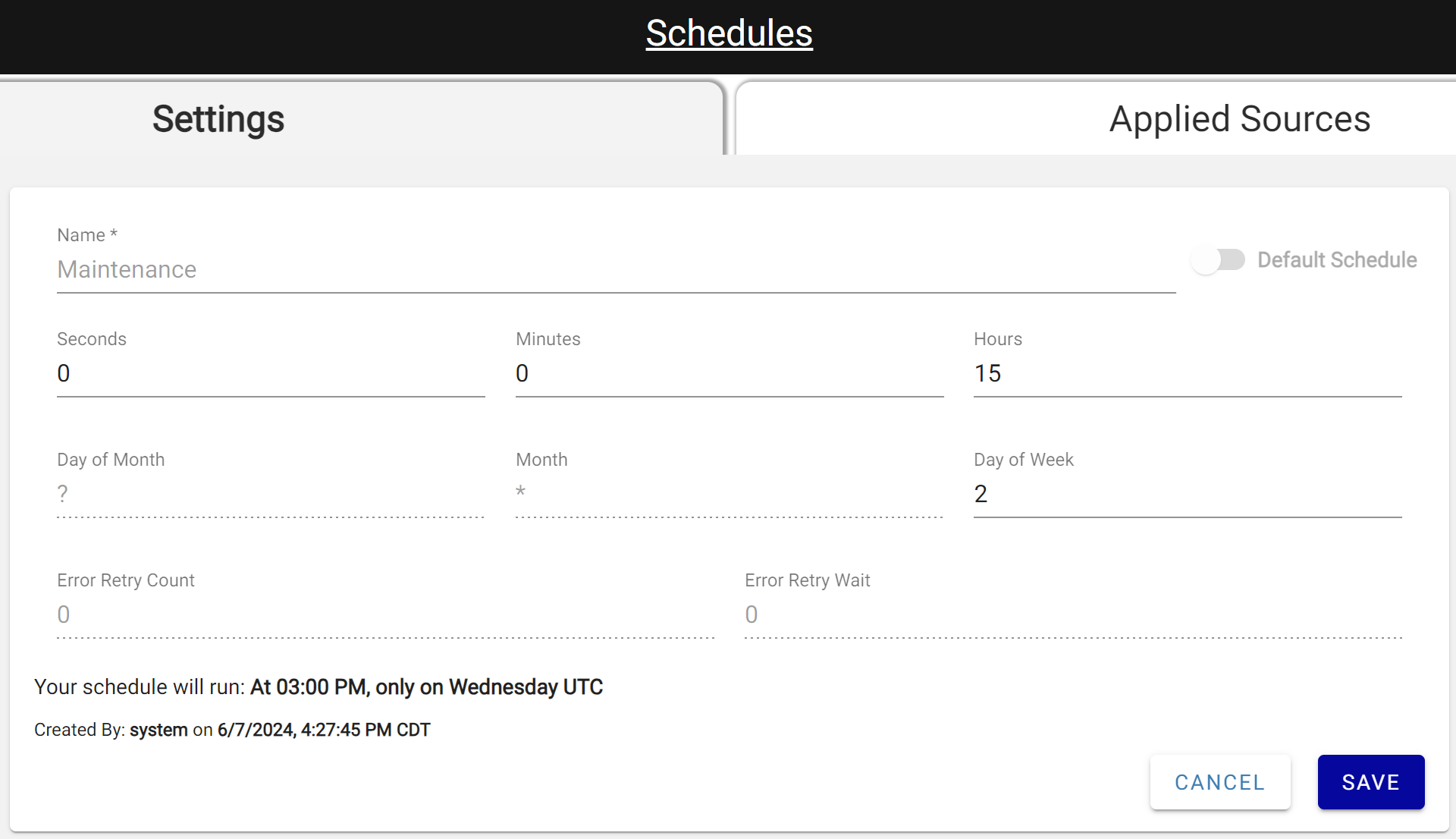
Example maintenance schedule starting Wednesdays at 3pm UTC
Enabling maintenance
Go to System Configuration → Service Configurations.
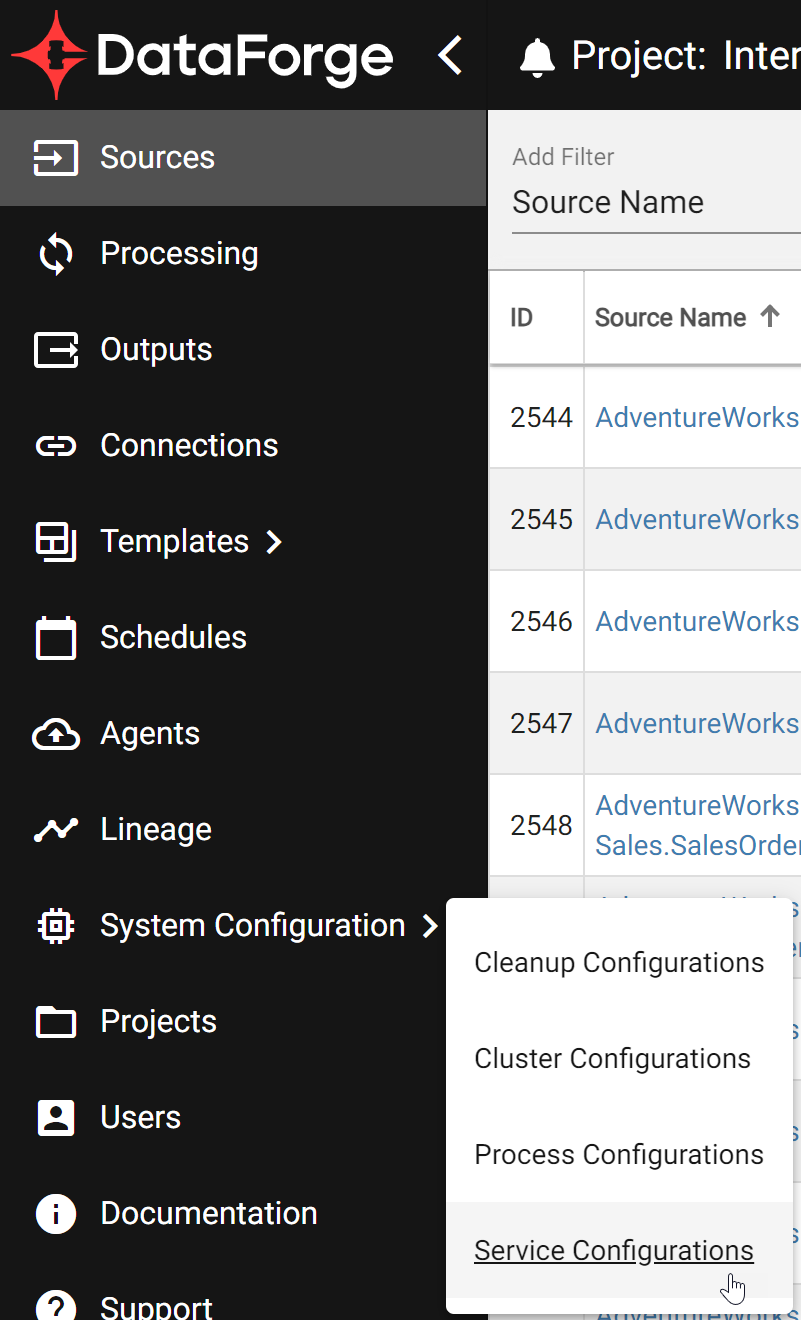
Navigating to the Service Configurations
Find auto-upgrade-enabled, click the pencil icon, toggle it on, and save.
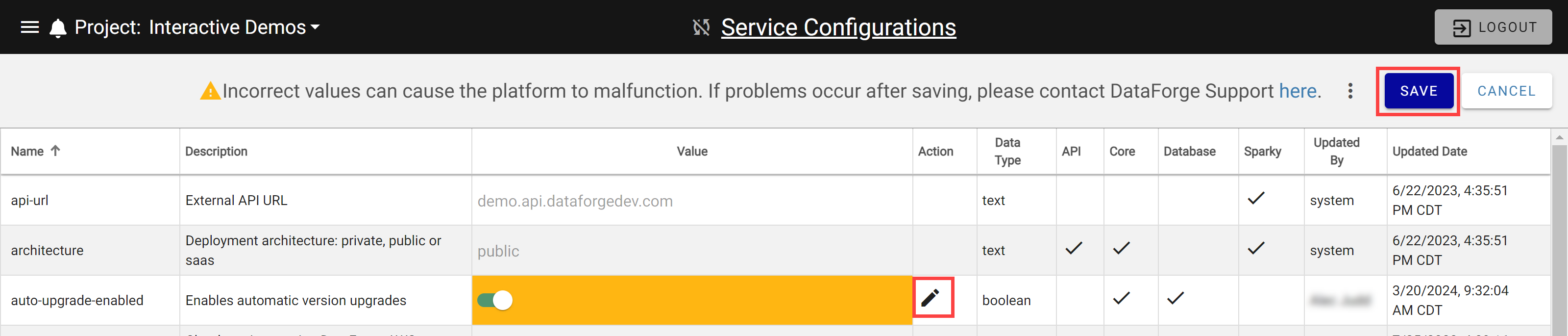
Enable auto-upgrade-enabled toggle and Save
A message will appear indicating Core needs to restart for the change to take effect. Restart Core after changing the upgrade schedule too.

Restarting core from the service configurations page
On the Service Configurations page, select the triple-dot menu in the top right and choose Restart Core.

Restart Core service from Service Configurations
Disabling maintenance
Follow the same steps as Enabling Maintenance but toggle it off, then restart Core. DataForge strongly discourages disabling maintenance — only the latest versions are supported.