Relation Templates
Relation Templates Use Case
When the same Relation expression is used across multiple sources (e.g., "[This].productID = [Related].ProductID" on multiple Sales sources), updating the expression requires editing each source separately. Relation Templates let you manage the logic in one place and propagate changes automatically.
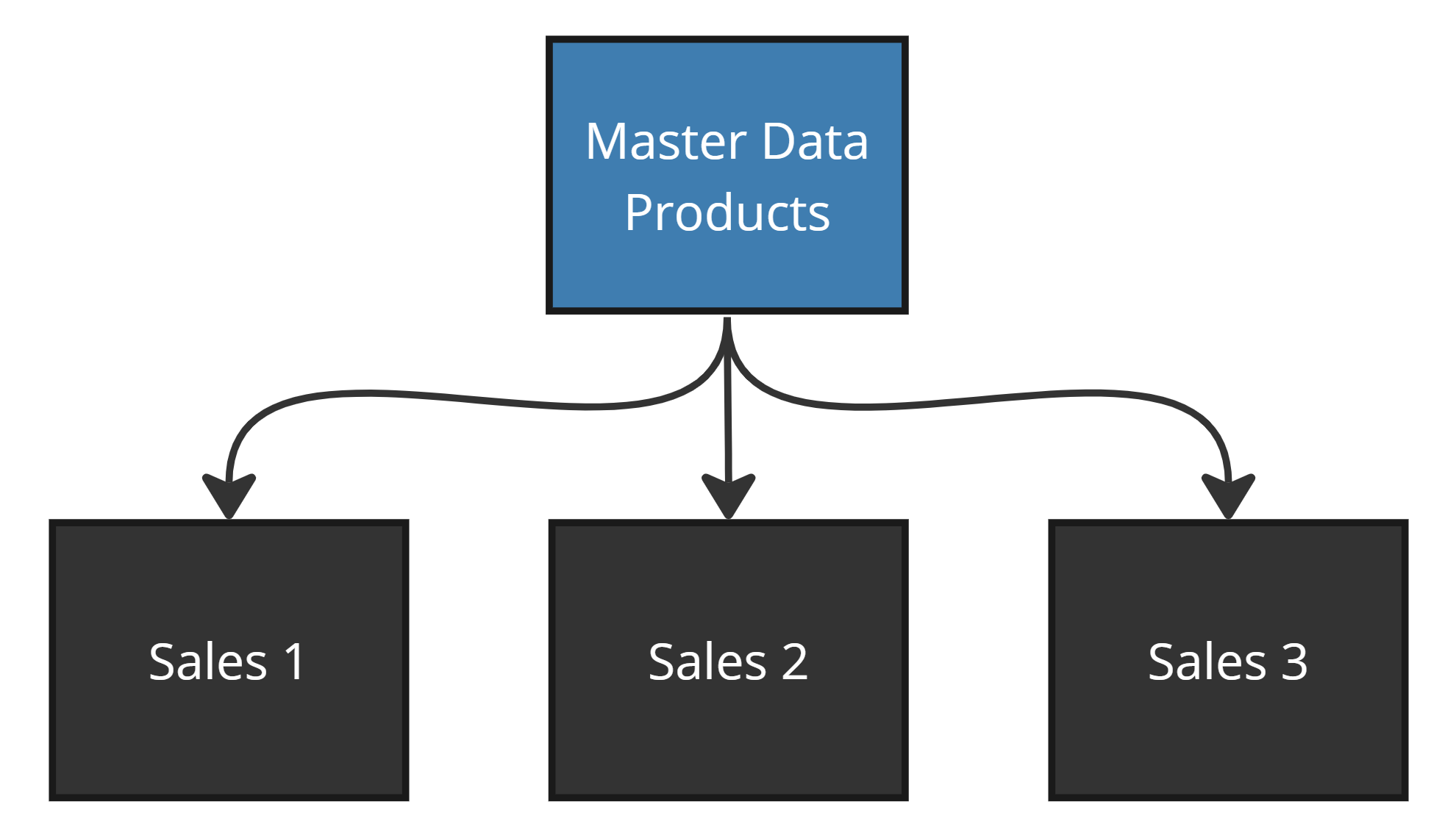
Relation Templates also have an additional usage when using the Clone functionality. Check out the examples here to see how they can be used to control logic in the Cloning process.
Managing Templates
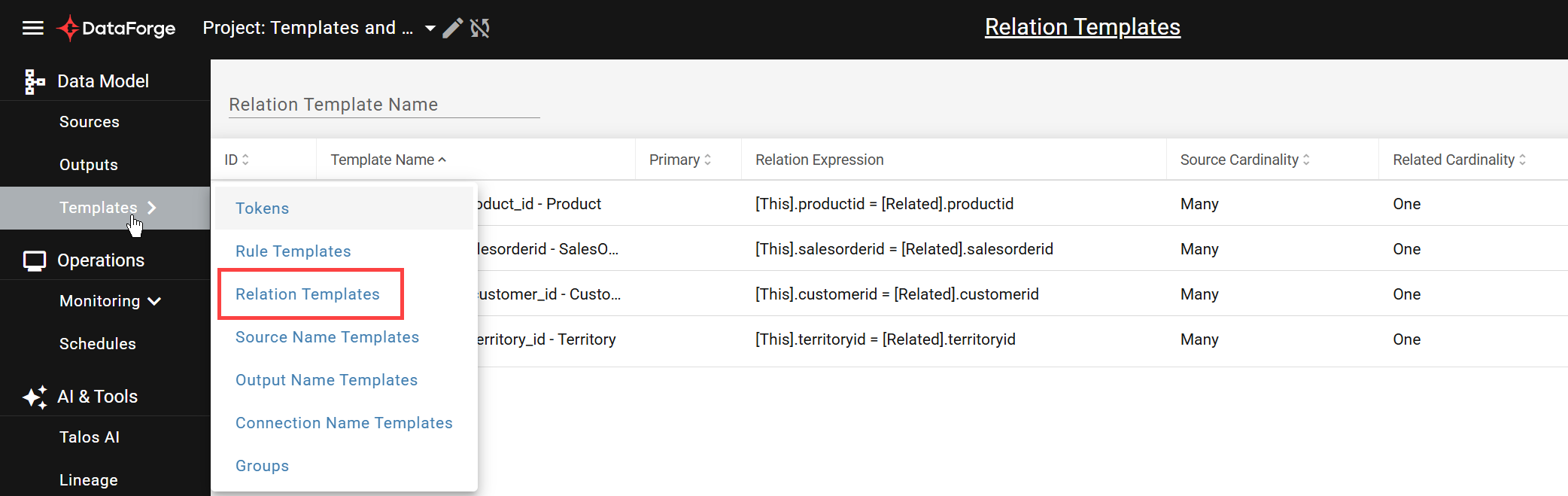
Navigate to Templates → Relation Templates from the main menu.
Creating a New Relation Template
Click NEW + to open the template Settings tab.
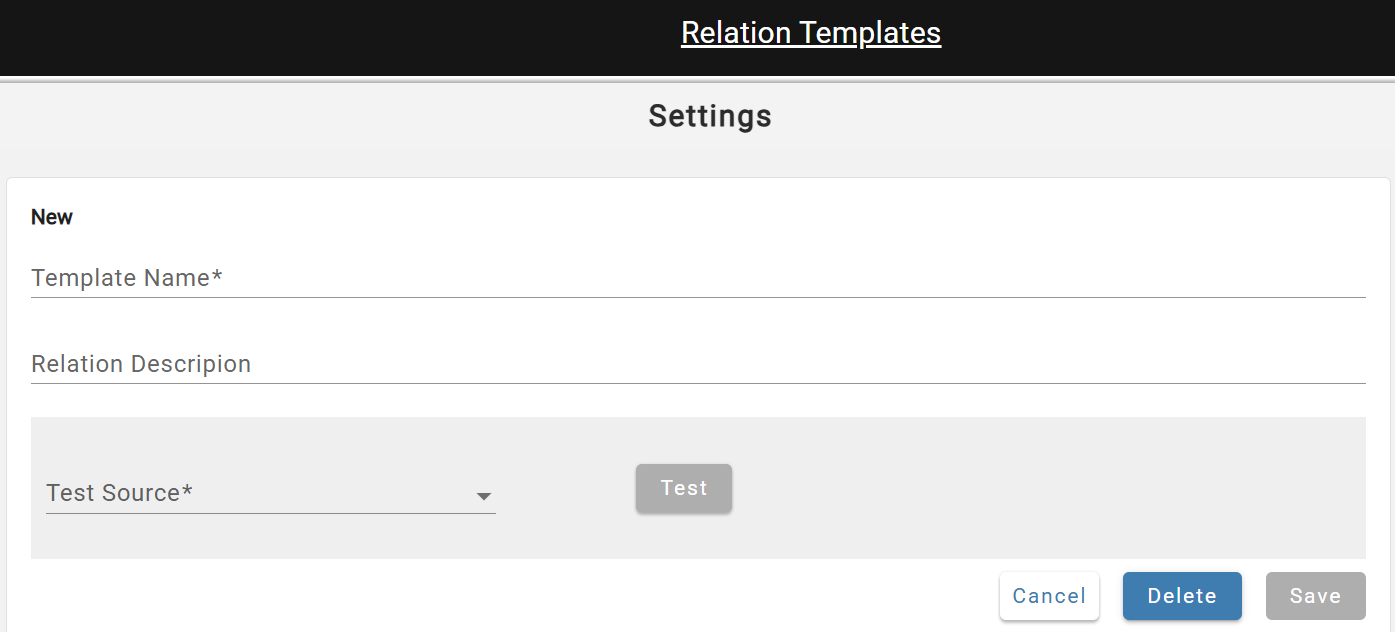
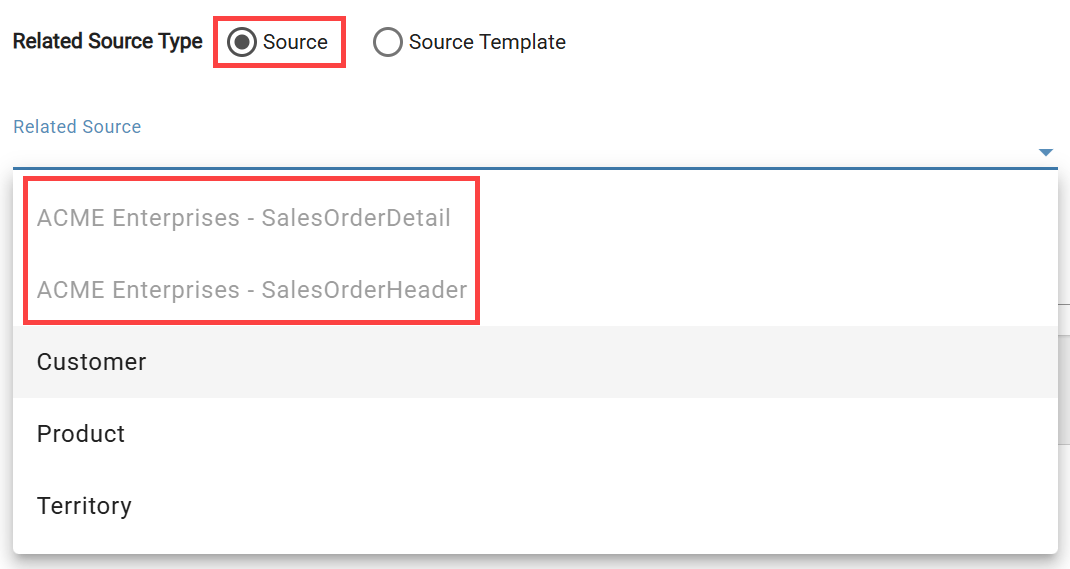
Enter a name and optional description, then select a Test Source for validation (used for validation only, not saved). The system will then prompt for a Related Source, which defines [Related] in the expression. Greyed-out sources in the dropdown are templated — change Related Source Type to "Source Template" to select them.
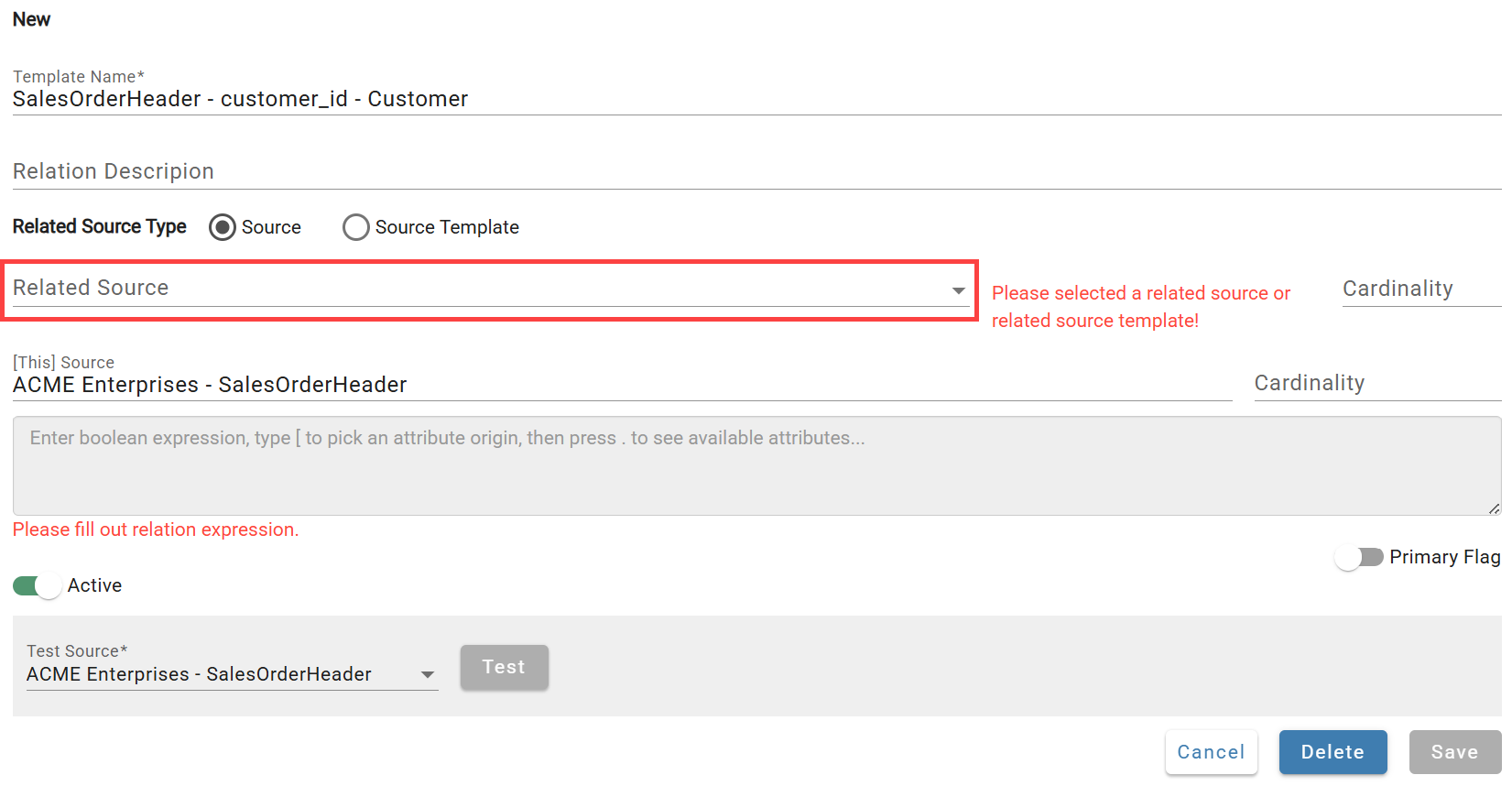
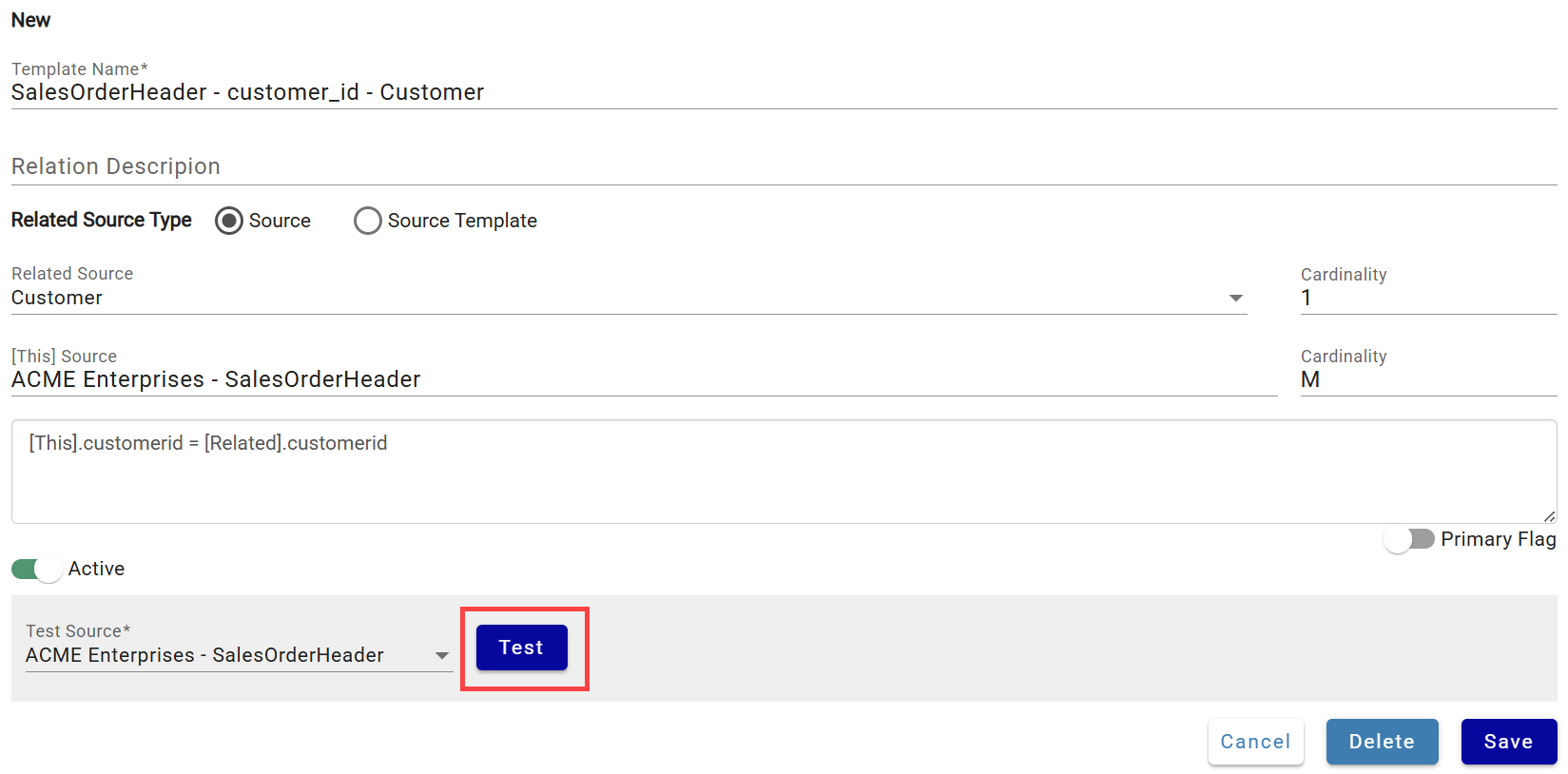
Enter the relation expression, click Test to validate, then Save. Save is disabled until a successful Test has run.
Linking the Template to Sources
Open the Linked Sources tab, click NEW +, select one or more sources, then click Validate.

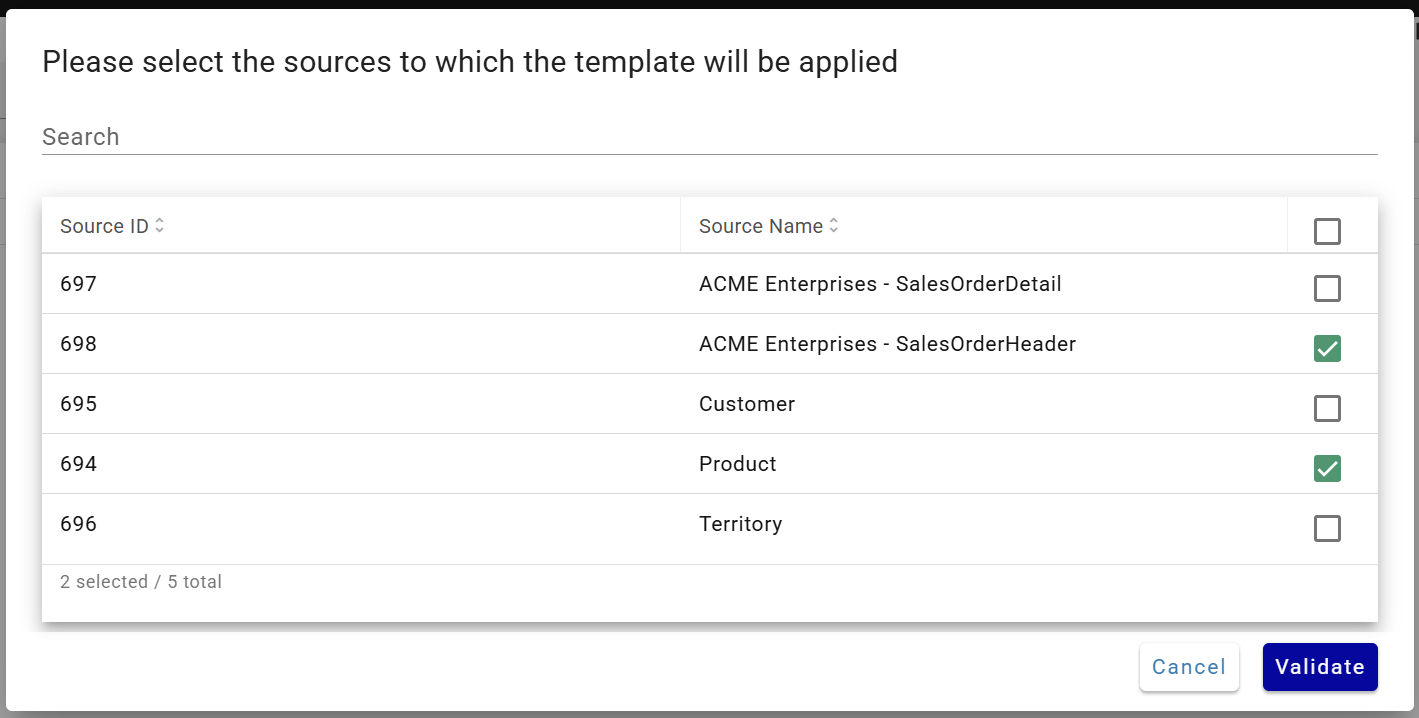
DataForge creates and validates Relation objects for each selected source. A validation summary is shown:
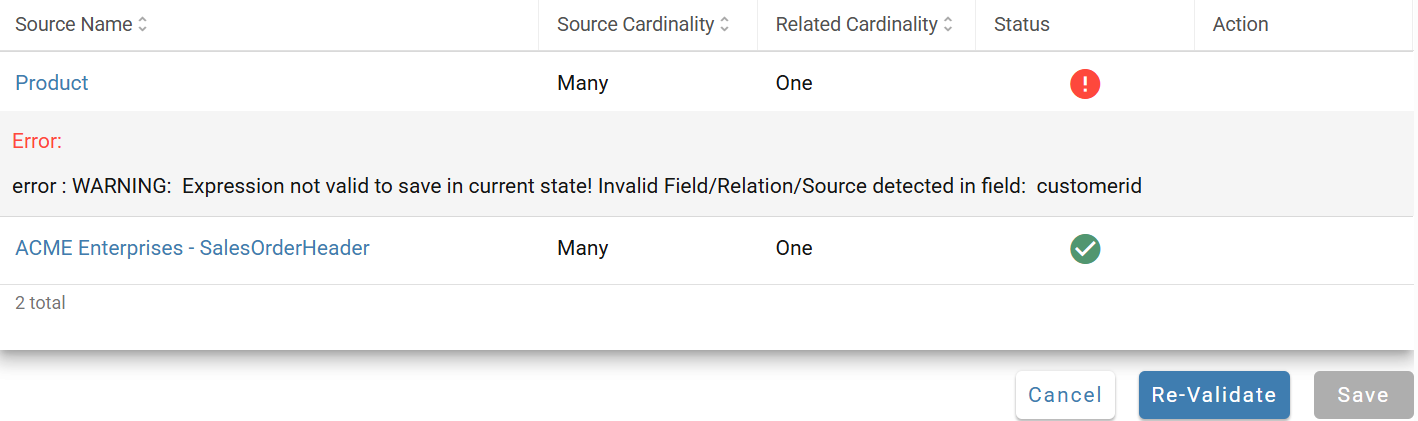
Green = passed; red = failed (click for error details). Fix issues, then click RE-VALIDATE or remove failed sources. Once all selected sources pass, SAVE is enabled. Saved sources appear on the Linked Sources tab.
