Performing the Clone
As a reminder, this is the current setup of the environment.
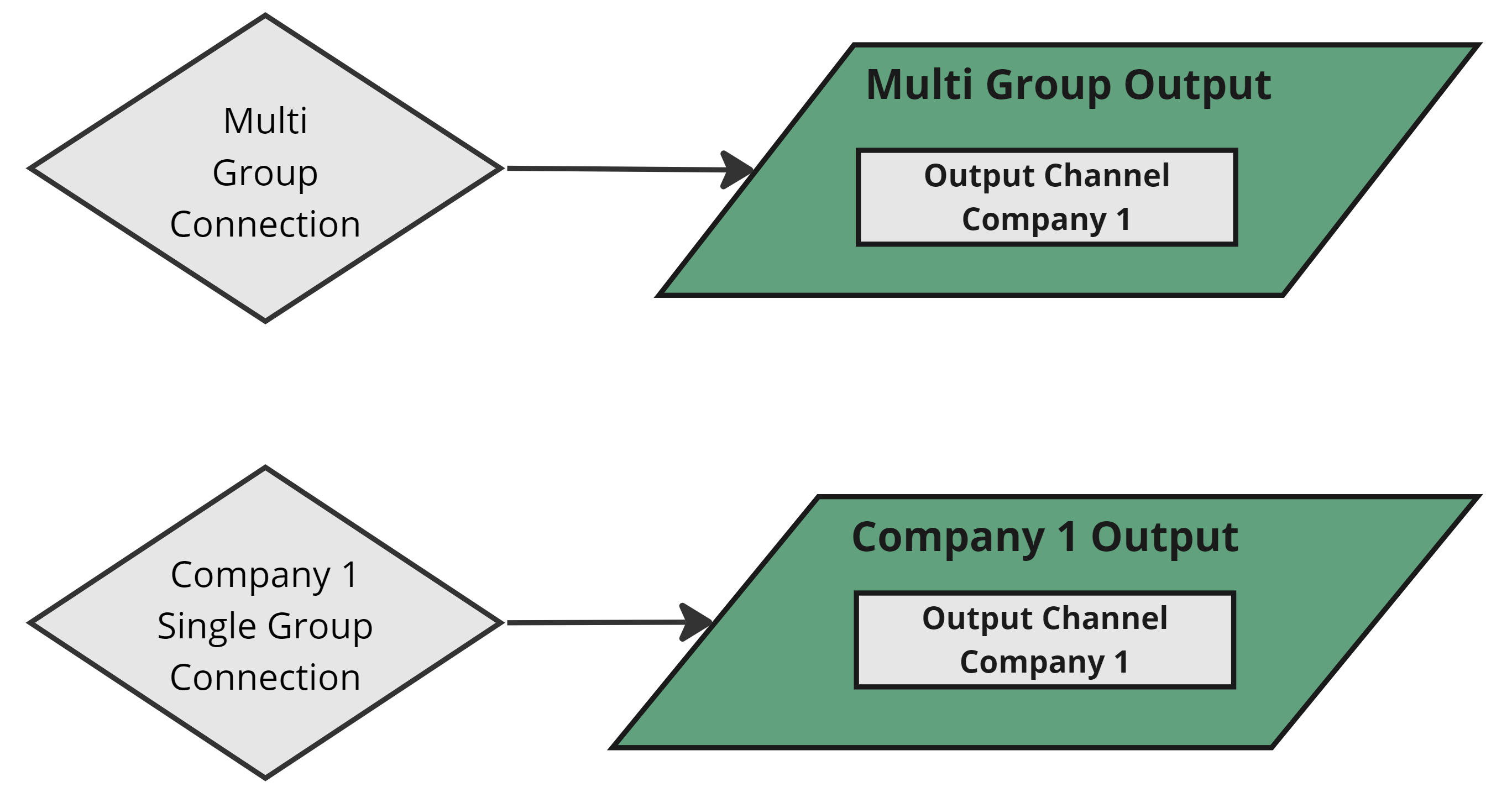
The example setup
Performing the Clone
We will clone the Company 1 Group and create a new Group called "Connection Clone". To perform the clone, follow the steps described here, this time updating the Group name to "Connection Clone". Be sure to validate all of the screen to ensure no unexpected objects are exported or cloned!
The Results
In addition to new Sources being created, a new Output was created named "Connection Clone Single Group Output" because of the Single Group Connection attached. A new channel was added to Multi Group Output named "Connection Clone - SalesOrderDetail" because of the Multi Group Connection.
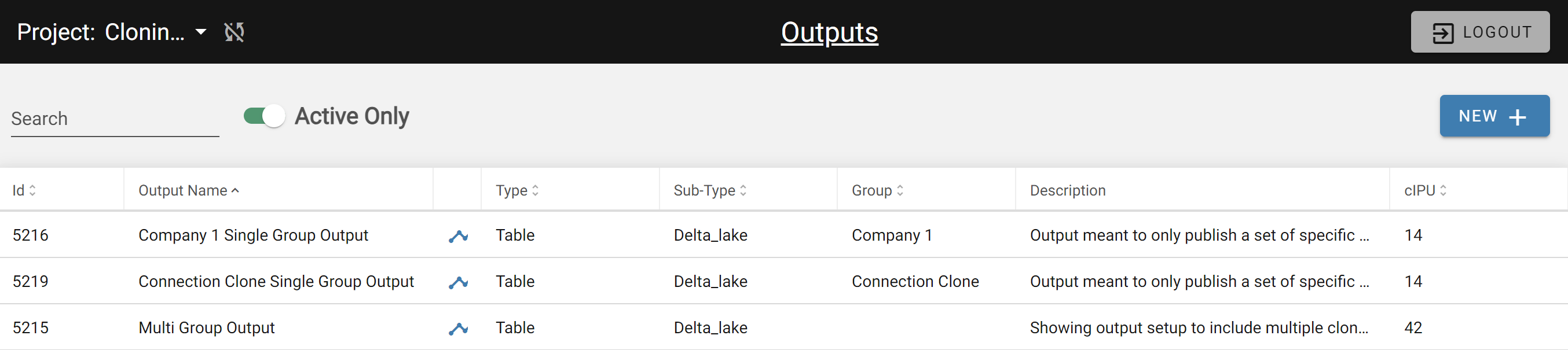 Newly created Connection Clone Output
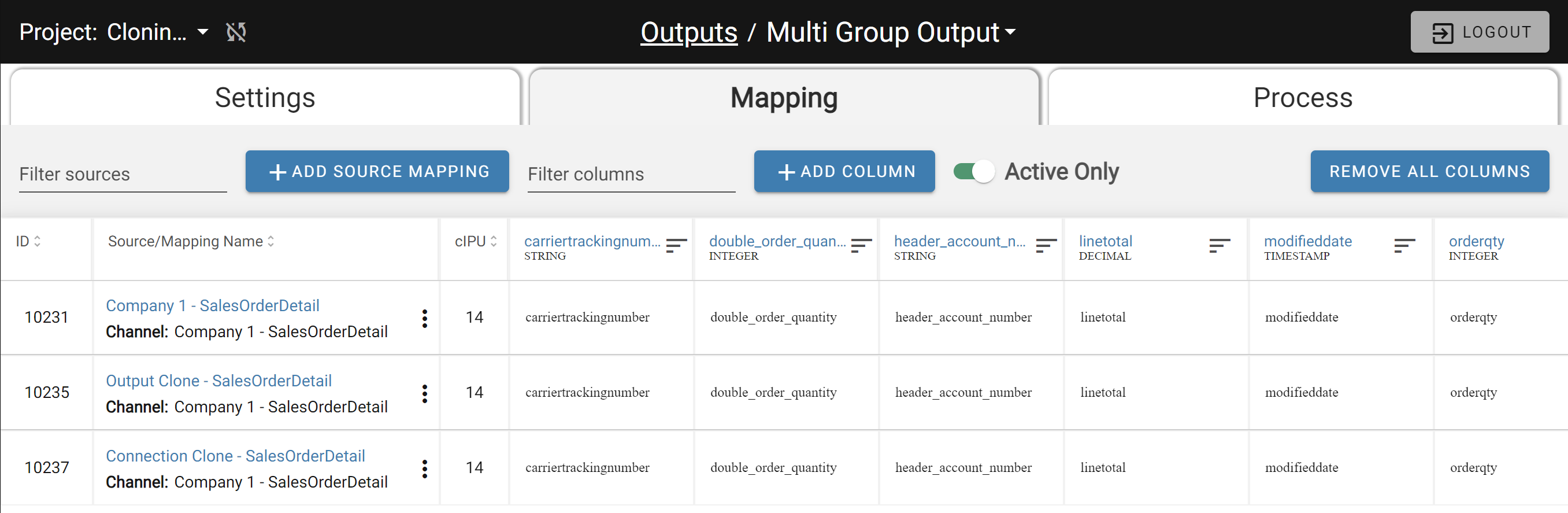 Newly created Connection Clone - SalesOrderDetail channel
The Multi Group Connection
The Applied Objects tab on the Multi Group Connection shows Sales Order Header sources from both Groups attached — Multi Group logic worked as expected.
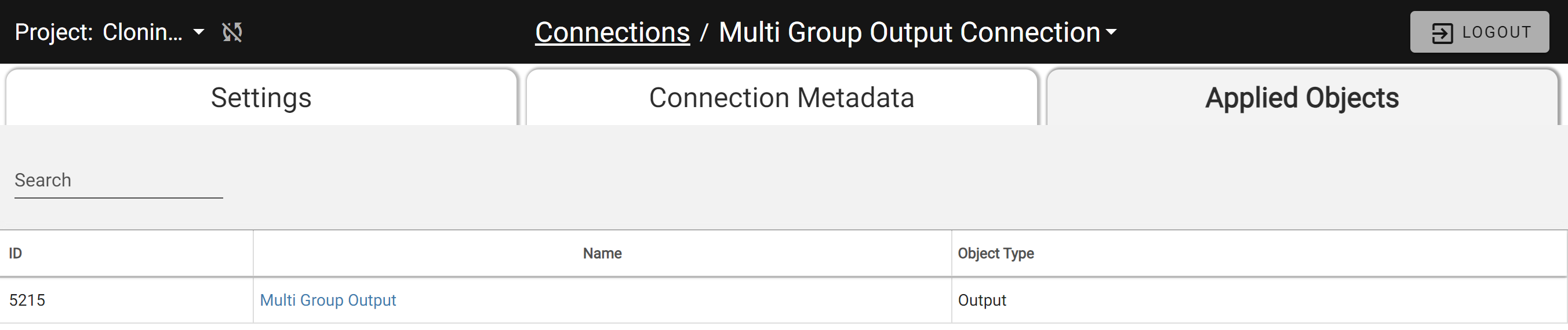 The Connection is applied to both Groups
The Single Group Connection
The Company 1 Single Group Connection's Applied Objects tab shows it is still only attached to Company 1 sources.
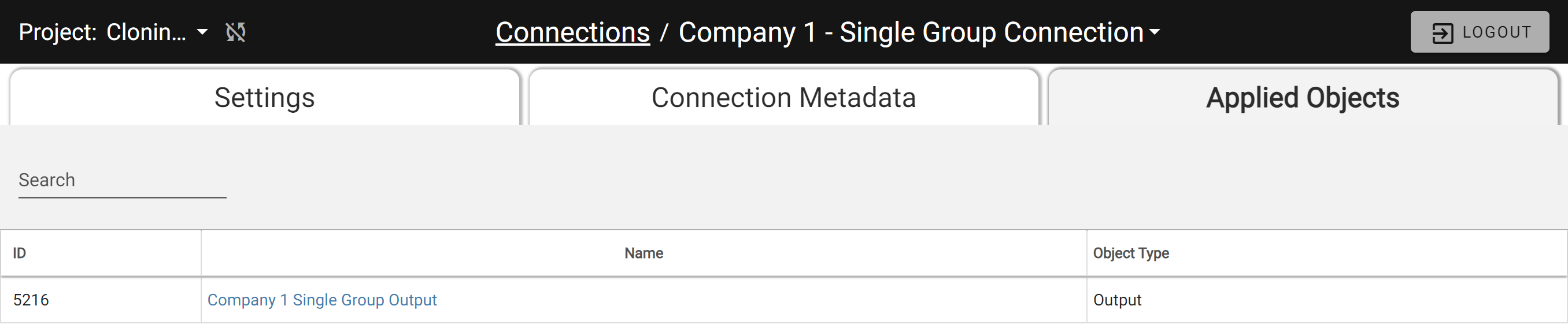
A new "Connection Clone Single Group Connection" was created and is associated only with Sources in the Connection Clone Group.
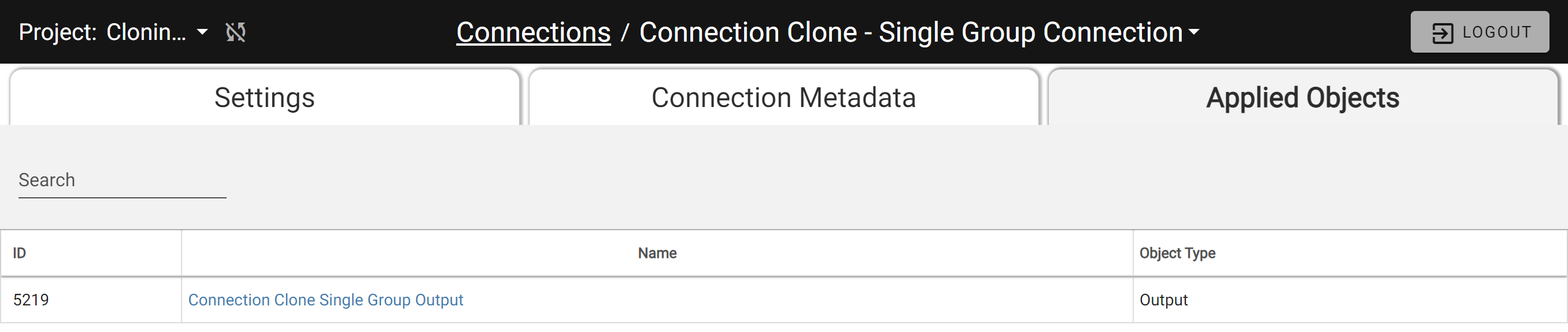
The Connection Clone Single Group Connection
One EXTREMELY IMPORTANT note: When a Single Group Connection is created by the Clone operation, it will not have any sensitive credentials. Because DataForge stores all credentials encrypted, it is unable to copy over the existing credentials from the original Connection. Users must manually update the Connections with proper credentials. A warning is printed in the description of the Connection to warn users of this fact.
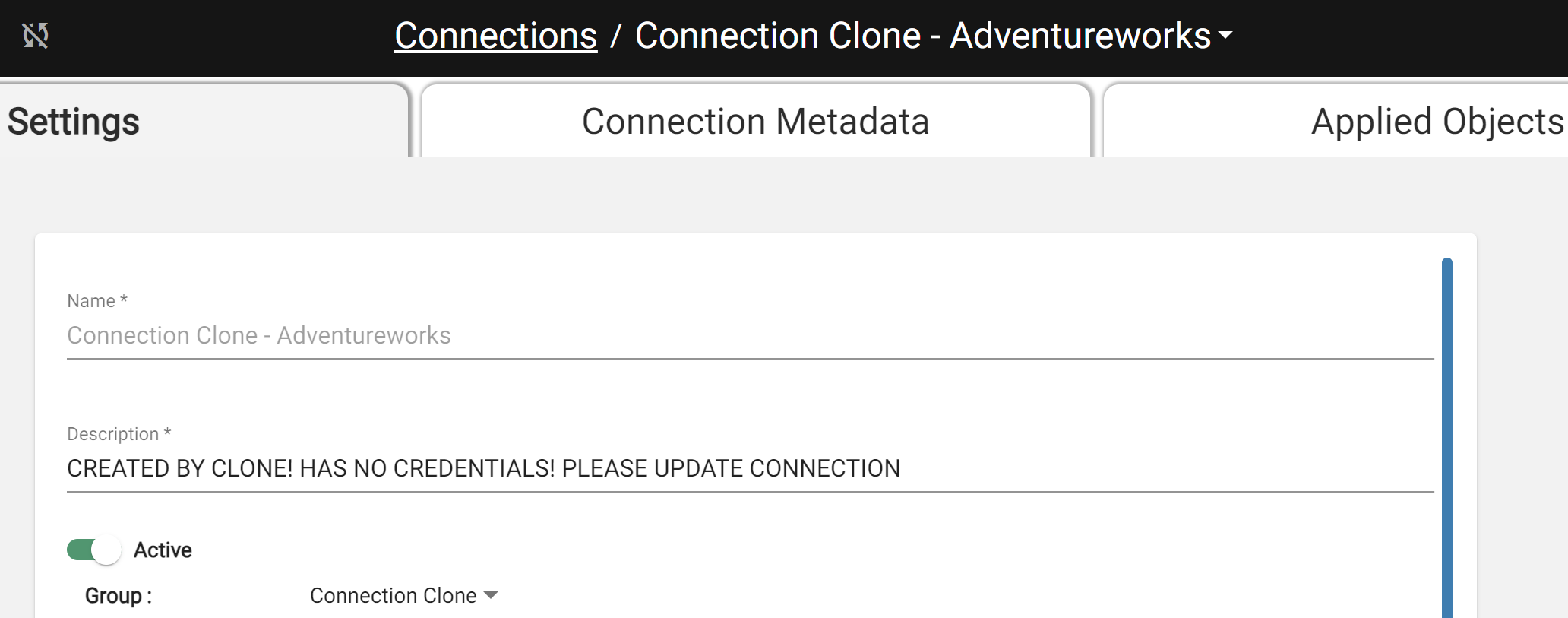
The newly created Connection with warning message The clone preserved the intended connection behavior. The final environment is shown below.
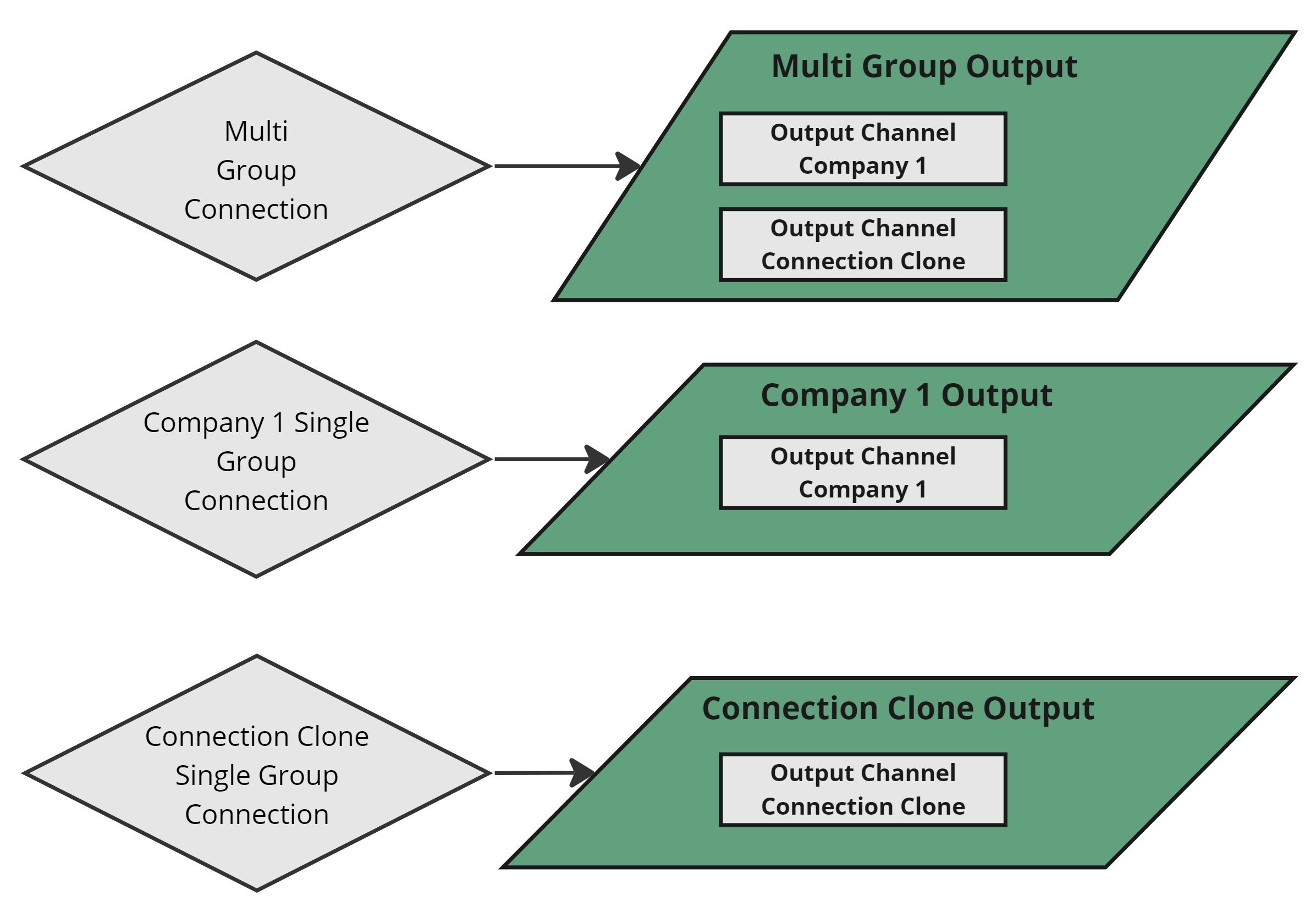
The final result of the Clone