Creating Relations and Rules

Relations define connections between sources (like SQL JOINs) and enable cross-source rule logic and output mappings. Rules are either Validations (boolean data quality checks) or Enrichments (computed columns using any Spark SQL expression).
Step 1: Create a relation between Customer and Orders
Open the Customer source and go to the Relations tab. Click New +.

Configure the relation:
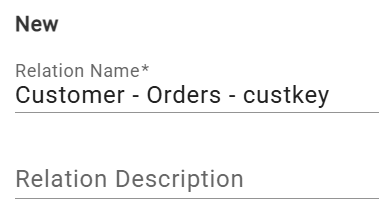
- Name: Customer - Orders - custkey
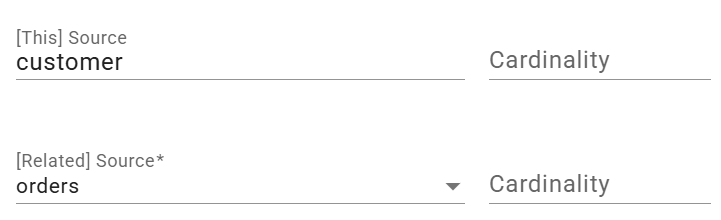
- [Related] Source: select the Orders source
Enter the relation expression:
[This] refers to the current source (Customer). [Related] refers to the source selected in the Related dropdown. Click Save.
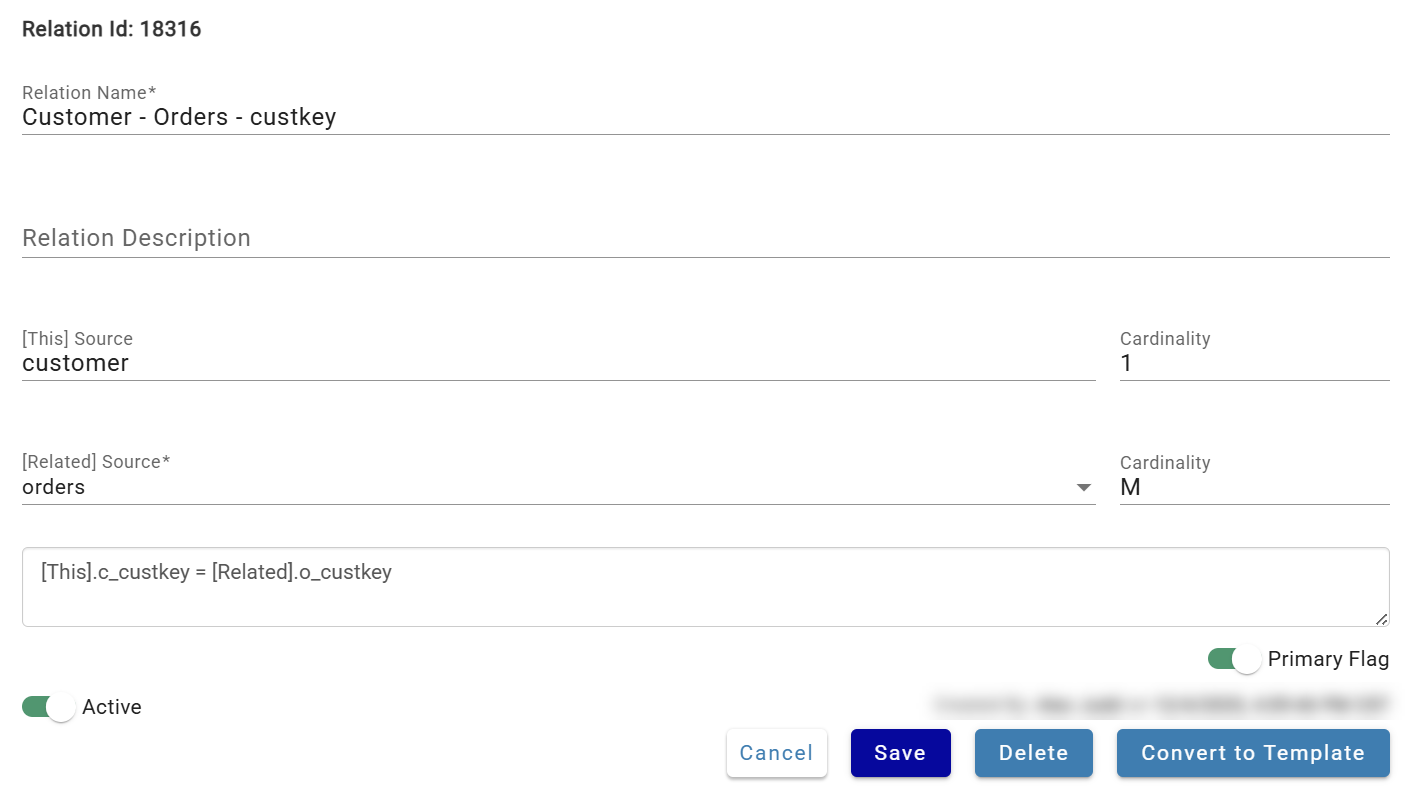
After saving, DataForge calculates cardinality — 1 to Many in this case, since c_custkey is unique in Customer but not in Orders.
Step 2: Create a validation rule
Validations flag records as passed, warned, or failed based on a boolean expression.
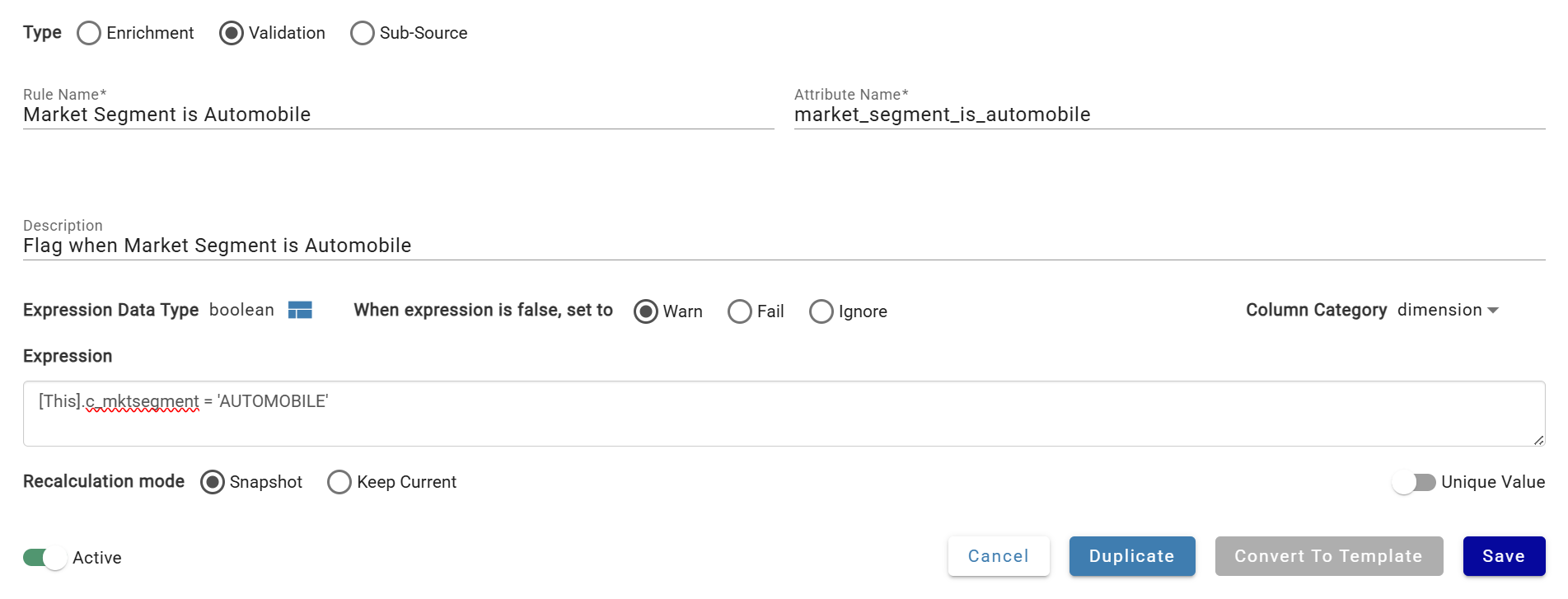
Navigate to the Rules tab and click New +. Select type Validation.

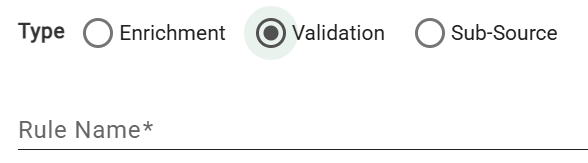
Configure:
- Name: Market Segment is Automobile
- Description: Flag when Market Segment is Automobile
- When expression is false, set to: Warn
- Expression:
Click Save.
Tip
Type ` (backtick) in the expression editor to see all available Spark SQL functions. DataForge also supports Rule Templates for reusable rule patterns.
Step 3: Create an enrichment rule
Enrichments add computed columns, optionally referencing related sources.
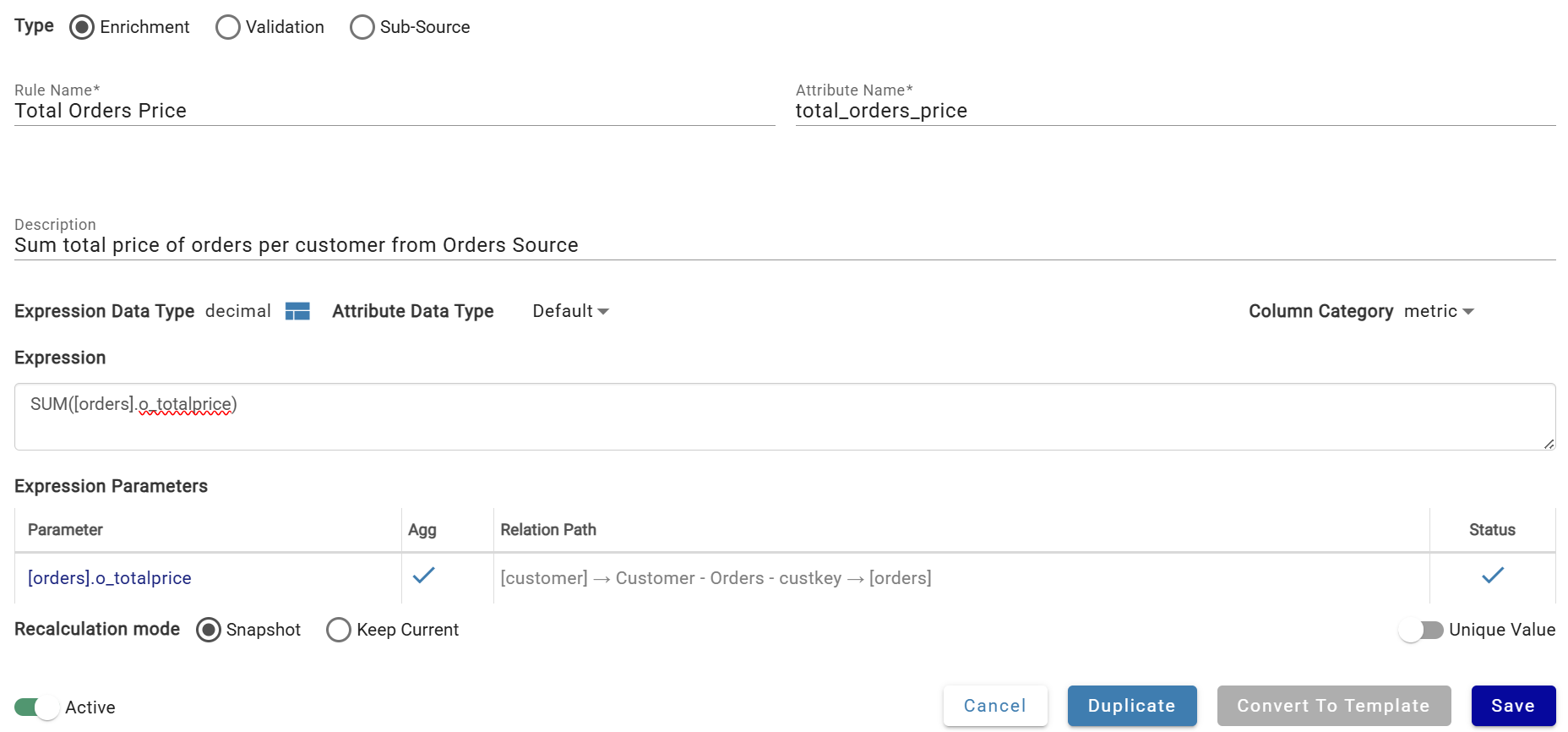
Click New + on the Rules tab and configure:
- Name: Total Orders Price
- Description: Sum total price of orders per customer from Orders Source
- Recalculation Mode: Snapshot (calculate only on ingestion, not retroactively)
- Expression:
The [orders] reference uses the relation created in Step 1. When referencing other sources, a relation path dropdown appears in Expression Parameters.
For more on rule parameters, see Rules and Relations.
Click Save.
Step 4: Recalculate rules
Since data was ingested before these rules existed, you need to recalculate. Go to the Inputs tab, open the triple-dot header menu, and select Recalculate.
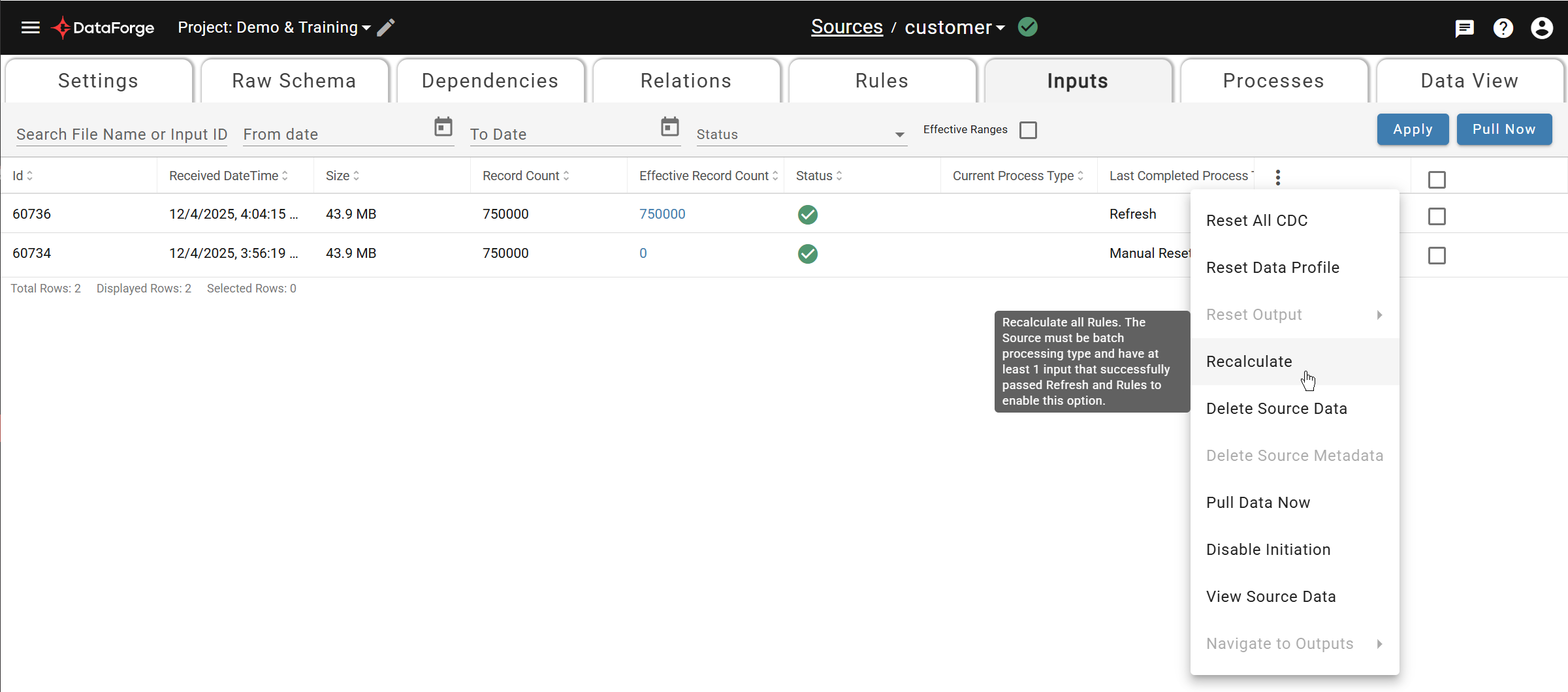
Wait for the green checkmark to confirm completion.
Step 5: Verify the results
Open the Data View tab to query or preview the source data, which now includes your new rule columns.

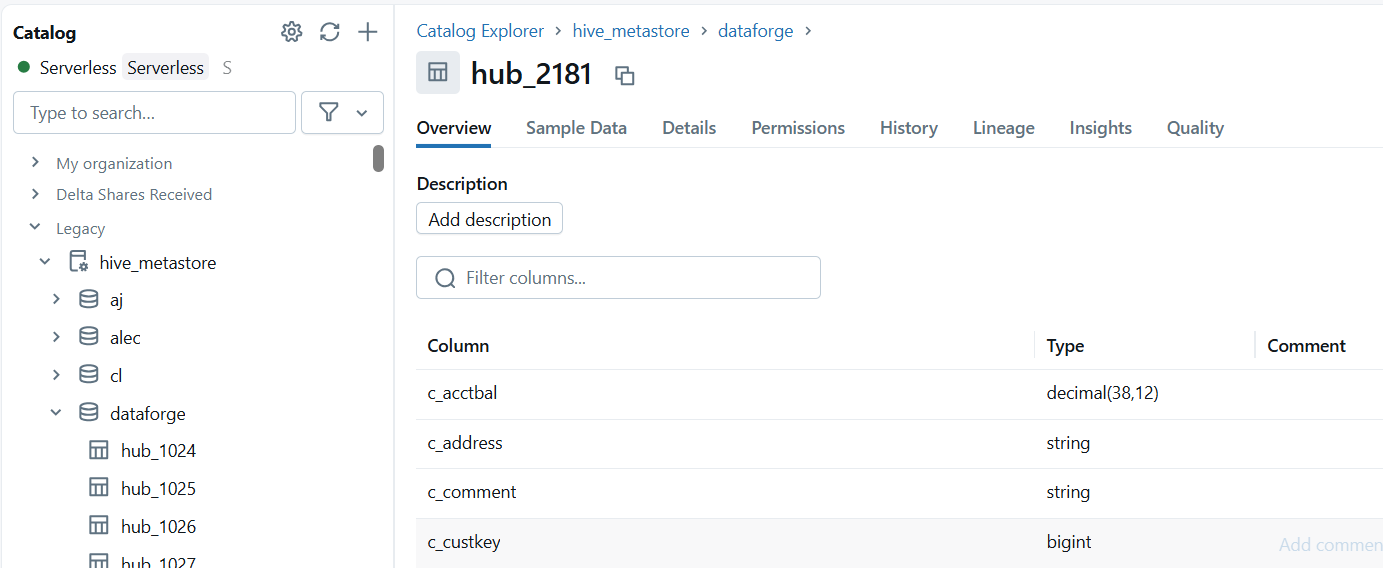
Every source in DataForge has a hub table and a source view you can query directly:
| Catalog/Database | Schema | Name | |
|---|---|---|---|
| Hub table | System > datalake-db-name | System > datalake-schema-name | hub_<source_id> |
| Source view | System > datalake-db-name | Project > Schema Name | Source Settings > Hub view name |
Continue to Creating Outputs.