Custom Refresh
Overview and Benefits
Custom Refresh lets you define exactly how data is partitioned, refreshed, and stored in the hub table. Use it when standard refresh types don't fit — typically for large, frequently changing datasets where you want targeted delete queries and partition columns for performance.
Benefits: - Full control over update logic when standard types fall short - Faster processing with targeted partitions and delete queries - No hub history table, reducing processing overhead
The CDC step is skipped with Custom Refresh and will show as skipped in the Processing tabs.
How Custom Refresh Works
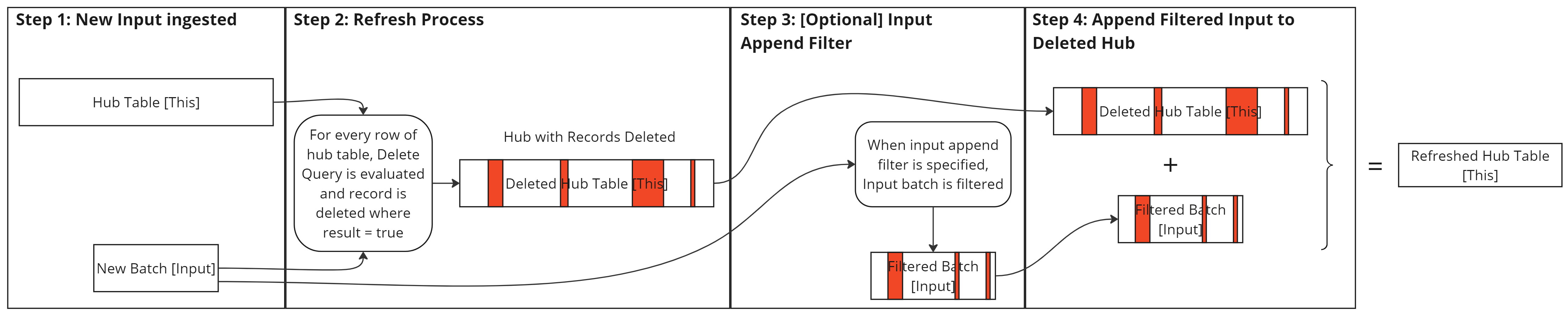
- New input data is ingested.
- The Delete Query runs against the hub table — records where the result is
trueare deleted. - If an append filter is set, the input batch is filtered before appending.
- Filtered (or unfiltered) input data is appended to the hub table.
Incremental Queries with Custom Refresh
Two tokens are available for incremental source queries. The Watermark token is the most flexible; Extract Datetime is useful when filtering on the latest input timestamp.
Latest Watermark
Users can define a Watermark column in the CDC Parameters of Custom Refresh type sources. When set, table connection source queries can include a
- Watermark Column: column in source attributes is substituted as MAX(Watermark Column) in source queries when
token is used - Watermark Initial Value: initial value to substitute into
when there is no data ingested yet (e.g. 1900-01-01)
Example Source Query:
Extract Datetime
Users can use the
Be sure to account for timezone differences as this field is stored in UTC but dates/timestamps compared to it in source systems may be local time.
DataForge recommends setting an overlap period on the source query by reducing the extract_datetime by 2 hours to ensure there are never data gaps due to times data is updated vs. when inputs are run.
Here is an example of how to write an incremental query and convert the parameter to local time zone in SQL Server:
The conversion syntax will vary depending on the flavor of SQL used in the source system.
If no conversion is needed, the parameter can be referenced as is with single quotes around it.
Delete Query
Defines which records are removed from the hub table before new data is appended. Written as a WHERE clause: DELETE FROM <hub table> WHERE <delete query>.
[Input] refers to the input batch of data that is currently being processes
[This] refers to the current hub table that is being refreshed
NOTE: Any time [Input] is referenced, it needs to be wrapped using IN(sub-query) [recommended] or EXISTS() [use with caution - performance impact]. Using the patterns below, EXISTS() is much more expensive than IN(sub-query) like [This].attribute >= (SELECT MIN([Input].attribute) FROM [Input]) because EXISTS() is evaluated for every row.
Be sure to fully qualify any field names with [This]. or [Input].
| Delete Query | Behavior |
|---|---|
| TRUE | Acts like Full refresh, delete and reload all |
| FALSE | Acts like None refresh, no deletes and insert all |
| [This].salesorderid IN (SELECT [Input].salesorderid FROM [Input]) | Delete from the hub table where records in hub table match key column in input batch records. |
| [This].modifieddate >= (SELECT MIN([Input].modifieddate) FROM [Input]) | Delete from the hub table where records in the hub table have a modifieddate value greater or equal to the minimum modifieddate in the latest input batch |
| EXISTS(SELECT 1 FROM [Input] WHERE [This].salesorderdetailid = [Input].salesorderdetailid) | Delete from the hub table where records match on salesorderdetailid between the hub table and the input batch |
| ([This].salesorderdetailid >= (SELECT MIN([Input].salesorderdetailid) FROM [Input]))OR([This].modifieddate >= (SELECT MIN([Input].modifieddate) FROM [Input])) | Delete from the hub table where records in the hub table have a salesorderdetailid value greater than or equal to the minimum salesorderdetailid value from the input batch OR have a modifieddate value greater than or equal to the minimum modifieddate from the input batch. |
(Optional) Append Filter
A filter applied to input batch records before they are appended to the hub table.
Example filter:
Partition Column Guidance
DataForge recommends setting specific Partition Columns only when the table is over a terabyte of data. DataForge also recommends all partitions contain at least a gigabyte of data. Tables with fewer, larger partitions tend to outperform tables with many smaller partitions.
For more guidance when using Databricks, refer to the Databricks documentation on Partition Columns.
Examples
Example 1
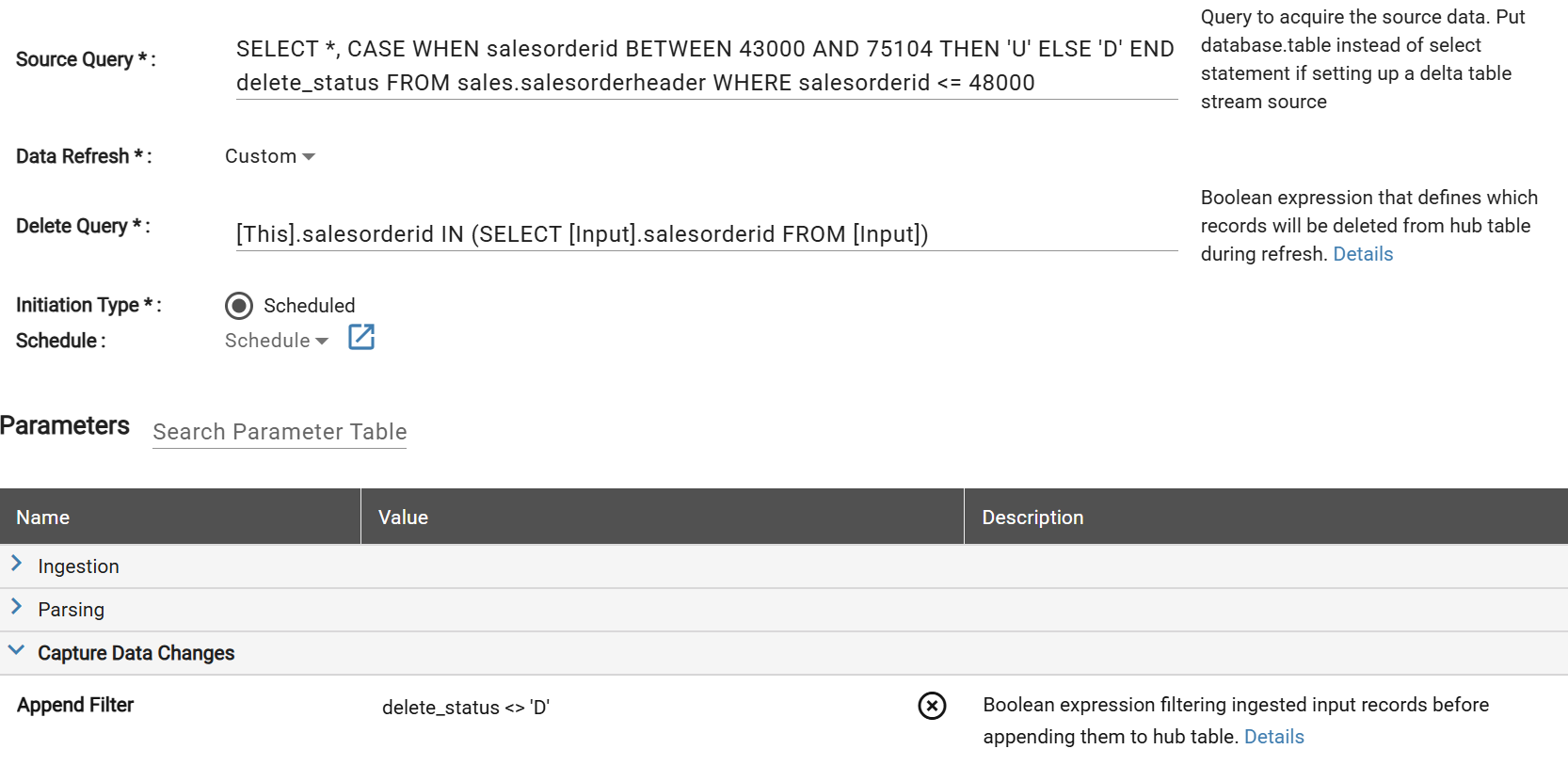
Using Custom Refresh with an Append Filter to handle hard deletes from a source database based on a delete_status identifier column. The Delete Query deletes any records from the hub table that have a key column ID matching the same ID in the input batch records. The input batch records are filtered to only include records where delete_status <> 'D' and the resulting records are appended to the hub table.
In this
Example 2
Using Custom Refresh with a Watermark Column and Partition Columns to optimize very large tables with targeted incremental updates.
In this example, the source data is a large, slowly changing transactional table that has a consistent pattern for updates over time with occasional corrections to previous data. Each new data pull will primarily consist of changes to data in a limited number of months of the year. For that reason, custom refresh is a good option to use along with setting partition columns for Month and Year.
The Watermark column allows DataForge to pull incremental data based on the source query defined.
The Partition Columns allow DataForge to only update the partitions that match the latest dataset rather than potentially a large number of partitions, saving processing time and compute spend.
In this case, the source data does not already have raw attributes for Month and Year so enrichments should be added to the Source first before the partition columns are set.
First, pull a limited amount of data to ingest the raw attributes into the source. Below is an example of how the source settings could look for the initial pull. Not all the data is needed for this first step so add an optional LIMIT or TOP n to the source query to speed up the data pull.
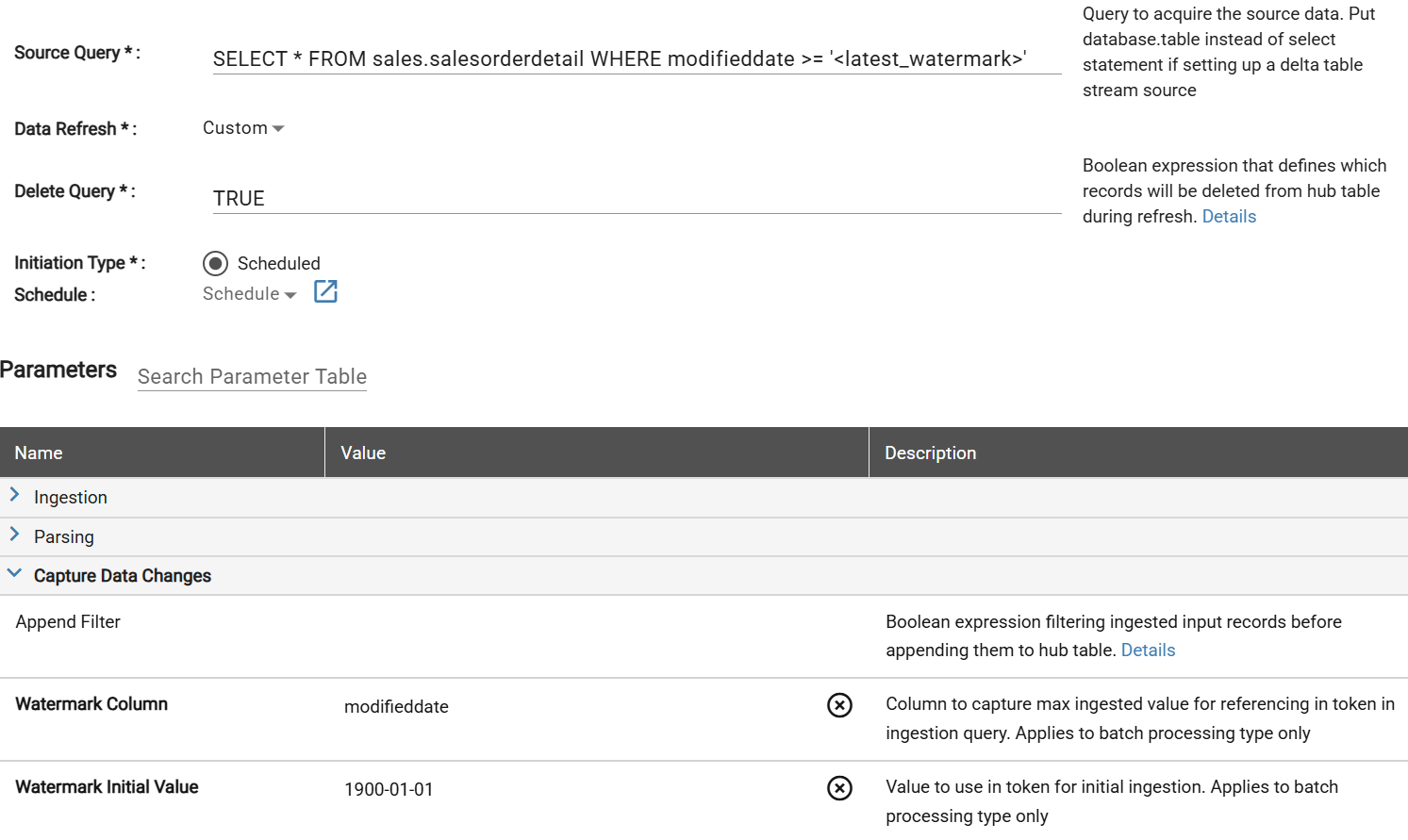
Sample data source settings for first data pull

Sample data pull to get Raw Schema for enrichment creation
After data is ingested, add enrichments for Month and Year based on a date or timestamp attribute from the source data.

Enrichments to use for partitions after pulling sample data
Delete the sample Source Data that was already ingested. This data was only brought in for the raw attribute table metadata to create enrichments for partitioning.
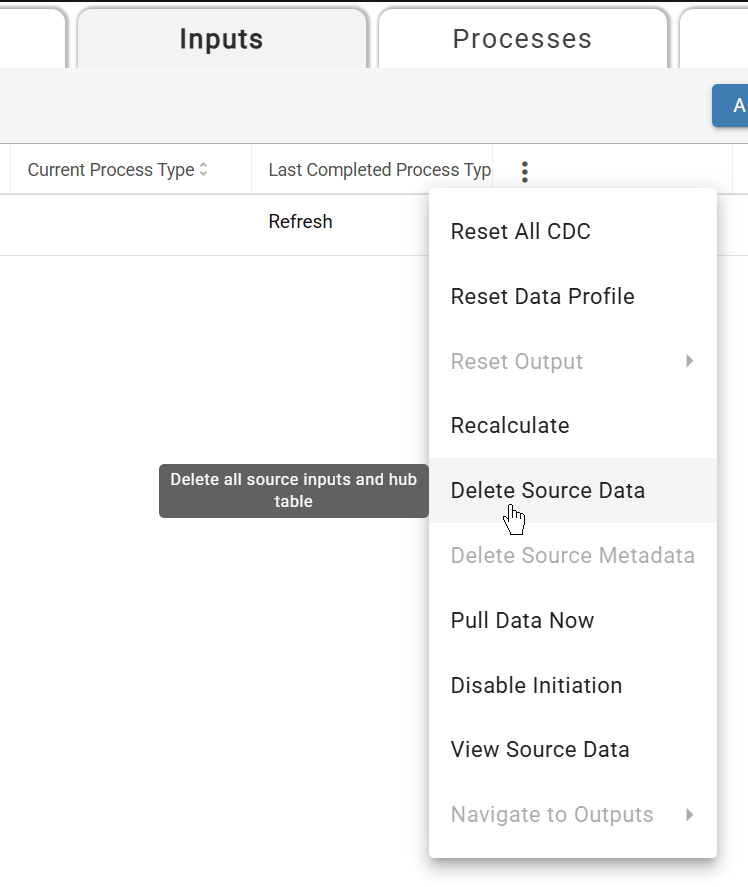
Delete existing source data
Update the source settings to change the Delete Query and set the Partition Columns of Year and Month.
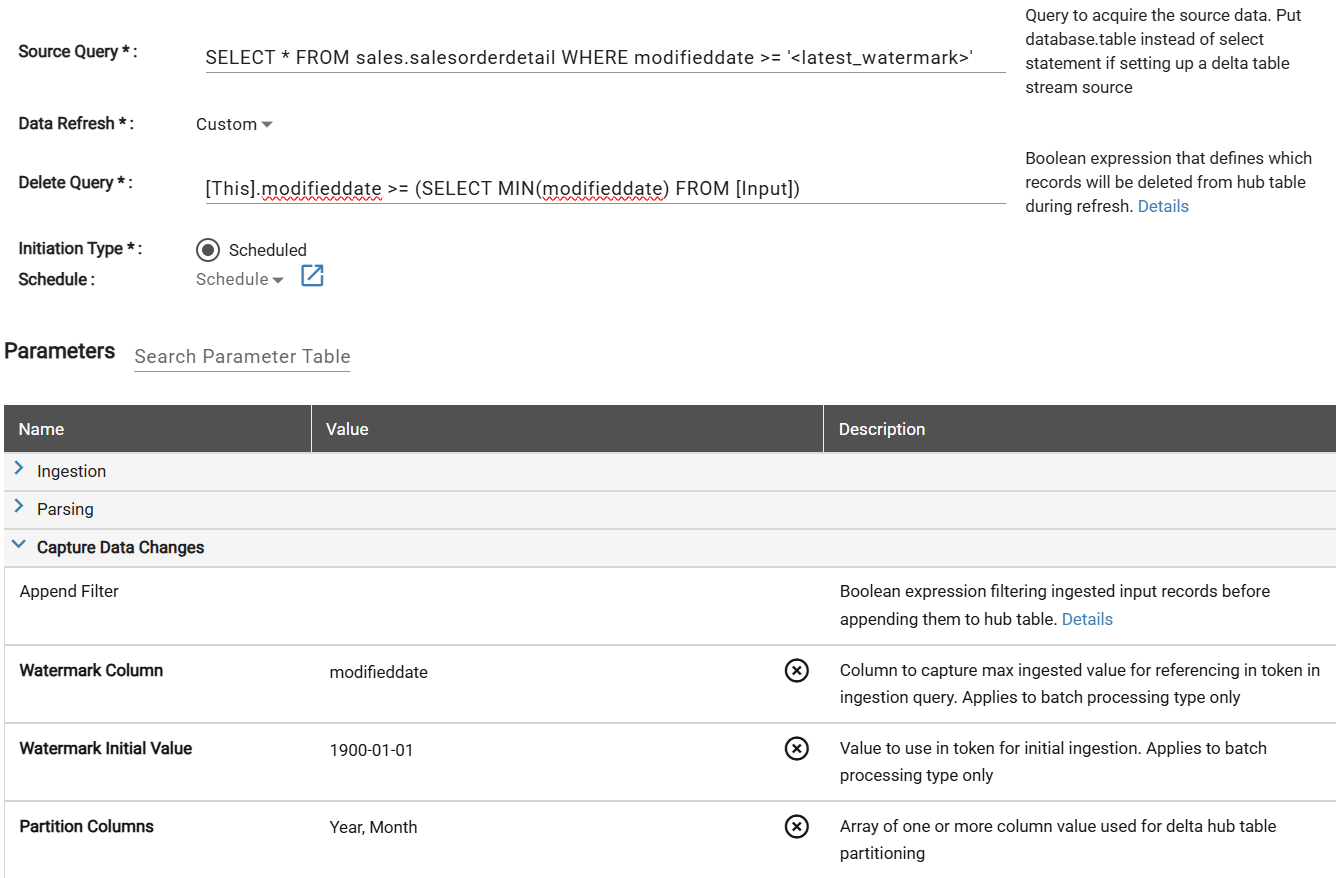
The Delete Query represents what will be deleted from the hub table. In this example query, any records from the hub table that have a modifieddate greater than the minimum modifieddate from the new input data pull are deleted so there is no overlap.
Save the updated Source Settings and begin processing the data. If a different refresh type was used to ingest the sample data, a warning will appear to Save and Reset CDC. Since the sample data has already been deleted this is ignored after saving.
Begin processing the data.

Example 2
Using Custom Refresh to combine multiple sets of refresh logic in the delete query
In this example, the data being ingested should be refreshed with either a Sequence-like process or Timestamp-like process depending on the data ingested. This is an example of how a user might combine multiple criteria for Refresh with an OR condition in the delete query.
Delete Query:
([This].salesorderdetailid >= (SELECT MIN(salesorderdetailid) FROM [Input]))
OR
([This].modifieddate >= (SELECT MIN(modifieddate) FROM [Input]))
This will allow DataForge to delete existing data based on salesorderdetailid if there are IDs in the hub table that overlap with the latest input data. Similarly, existing records will be deleted from the hub table if the latest input contains records with modifieddate earlier than what was already processed.
Set up Change Data Feed for audit trail of record level changes
Databricks provides a Change Data Feed utility for Delta tables that allows users to track changes to specific records over time. Record level changes can only be tracked as of the date that Change Data Feed is enabled on the table.
Find the source ID and set up Change Data Feed on the hub table in a Databricks notebook with the following command, replacing the source ID in the query:
ALTER TABLE hive_metastore.dataforge.hub_<source_id> SET TBLPROPERTIES (delta.enableChangeDataFeed = true)
After enabling this table property, users can query specific record changes in the hub table by using the Change Data Feed commands like so:
SELECT * FROM table_changes('hive_metastore.dataforge.hub_17625', 6) where salesorderid = 43960 order by _commit_timestamp desc
This provides a result set like the following where we can track what commit version on the table the records were updated, including the original attributes and values:

In this example, the change data feed property was enabled on the table in version 6 so that is when we can first query the change data. Use DESCRIBE HISTORY to identify what version the Change Data Feed property was enabled on the table for your query like so:
DESCRIBE HISTORY hive_metastore.dataforge.hub_17625