Generic JDBC Connection
DataForge supports a generic JDBC connection type for databases not covered by pre-built drivers. Before ingesting via JDBC, create the connection and make the driver available to whatever will run the ingestion.
Install the driver on the ingestion compute. If the connection uses Outcrop, the DataForge agent that runs inside your network, the driver JAR goes on the Outcrop machine instead. The compute-based ingestion method is recommended over Outcrop-based ingestion.
The Generic JDBC driver option is only offered when Uses Outcrop is set to Yes (shown as Agent in the DataForge UI), so set that first and select the Outcrop instance that will run the ingestion. Outcrop is the DataForge agent that runs inside your network; the driver JAR goes on the Outcrop machine — see Placing the JAR below.
Create a new connection from the Connections page and select the following options:
Connection Direction: Source
Connection Type: Table
Driver: Generic JDBC
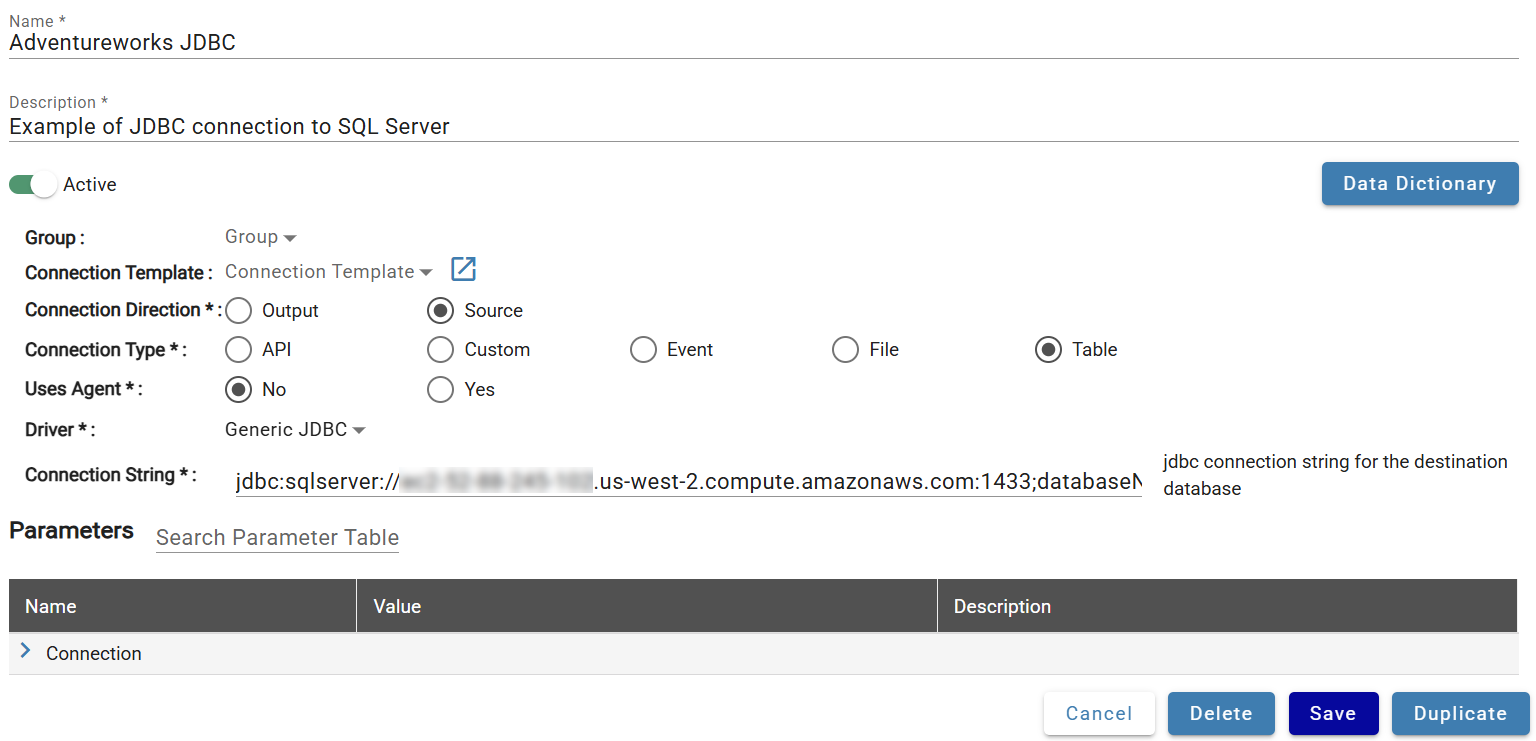
Continue to enter the JDBC Connection String following the format applicable to the Database being connected to.
Connection Parameters
Fill in the following optional fields:
- Driver: Class path of the JDBC driver (e.g.
com.databricks.client.jdbc.Driver). - JDBC Sensitive Parameters: Sensitive parameters such as passwords or tokens in JSON key-value format (e.g.
{"PWD":"wraldkyjuzavf13zcuohzfwd6g07k4fg5lw"}).
Save the connection when complete.
(Compute-based) Ingestion Compute for JDBC Driver
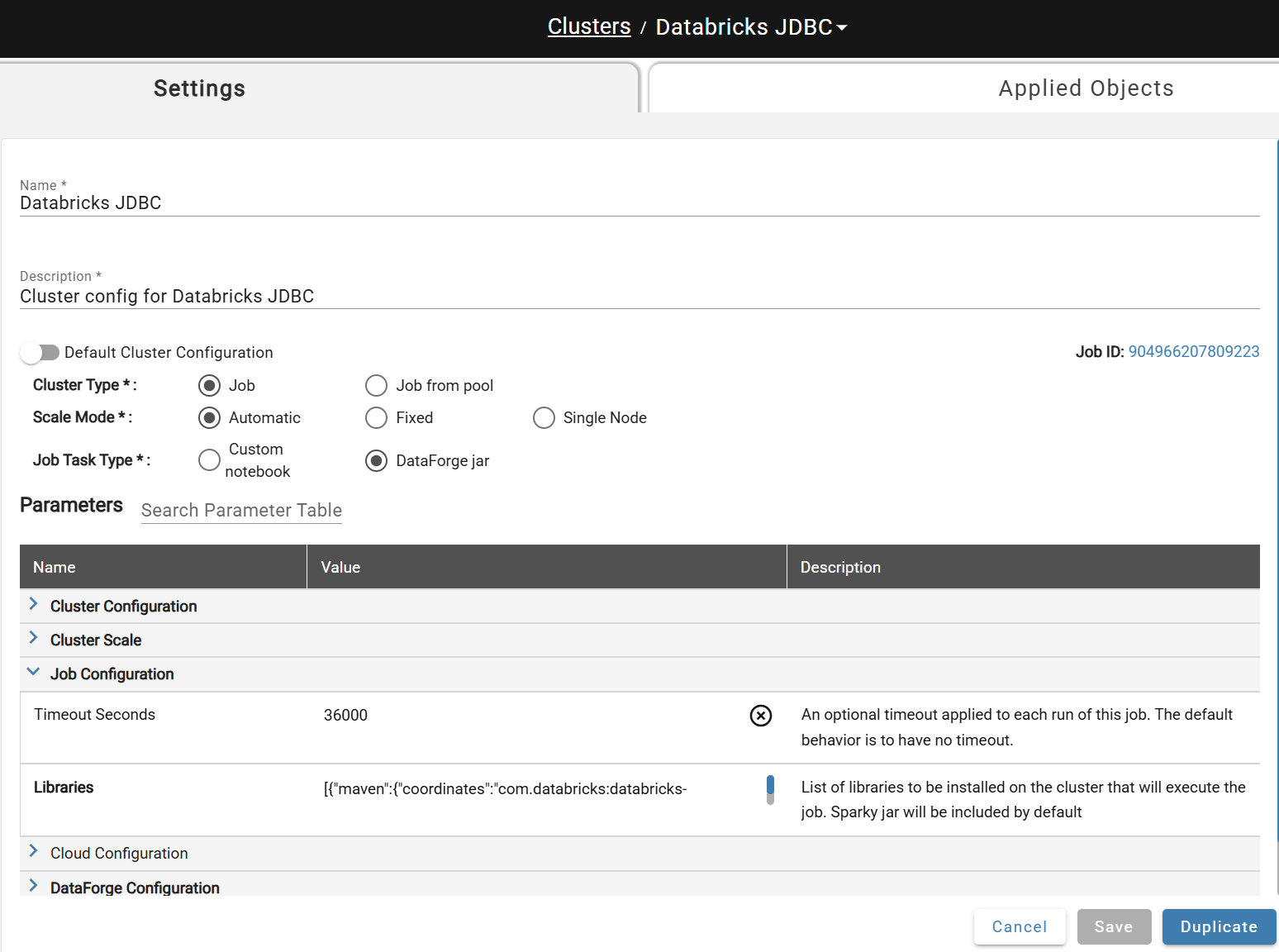
The compute configuration used during source ingestions must also have the driver library attached. Create a dedicated compute configuration per JDBC driver type — this avoids installing the library at runtime for sources that use other connection types.
See Production Compute Recommendations for guidance on creating compute configurations.
Add the JDBC library to the Libraries setting under Job Configuration Parameters in JSON format.
Maven library example: [{"maven":{"coordinates":"com.databricks:databricks-jdbc:2.6.33"}}]
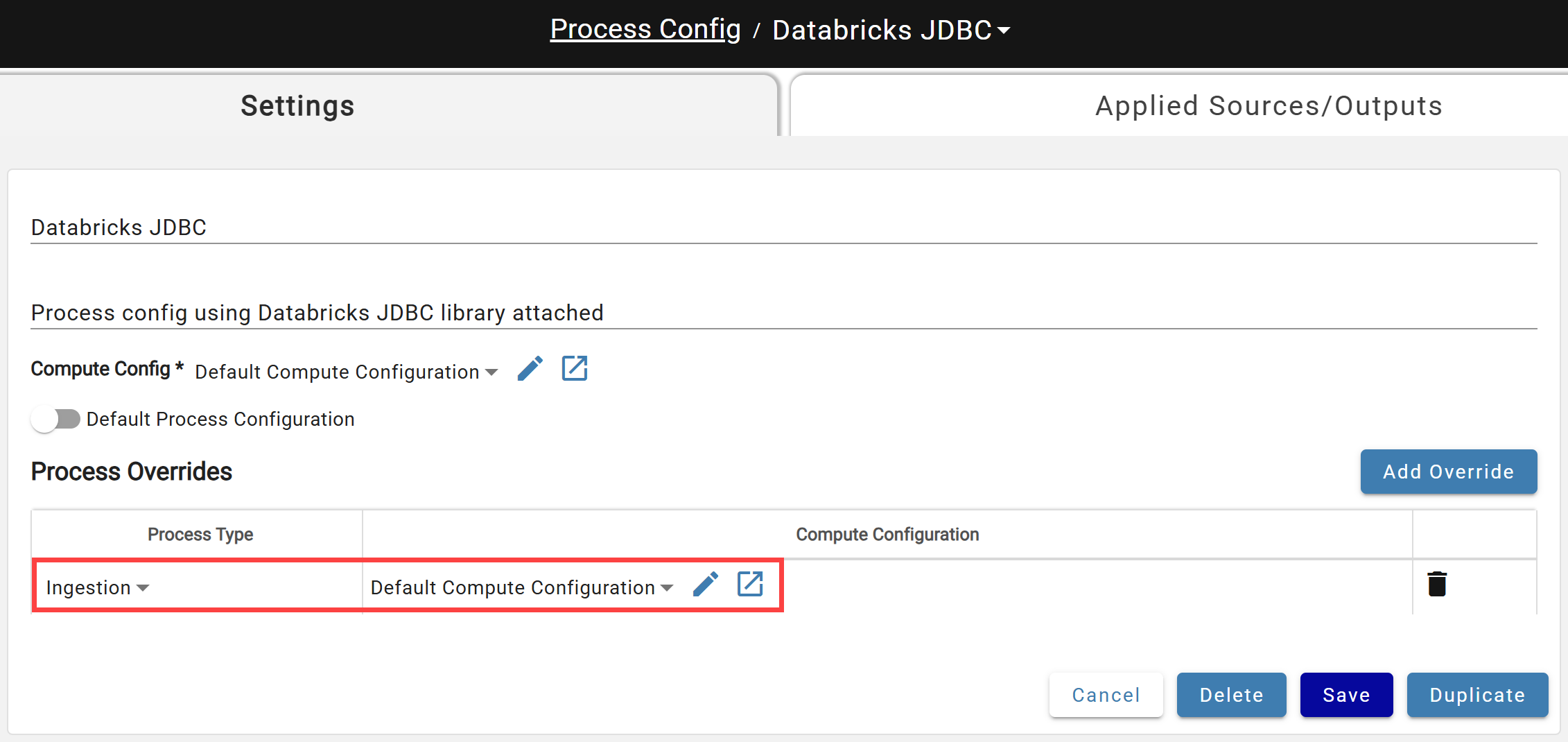
Attach the Compute Configuration to a new or existing Process Configuration as the Default Compute or as an Ingestion-type override. See Process Configuration for details.
(Outcrop-based) Placing the JAR
Place the JDBC driver JAR in C:\Program Files\DataForge on the Outcrop machine before use.
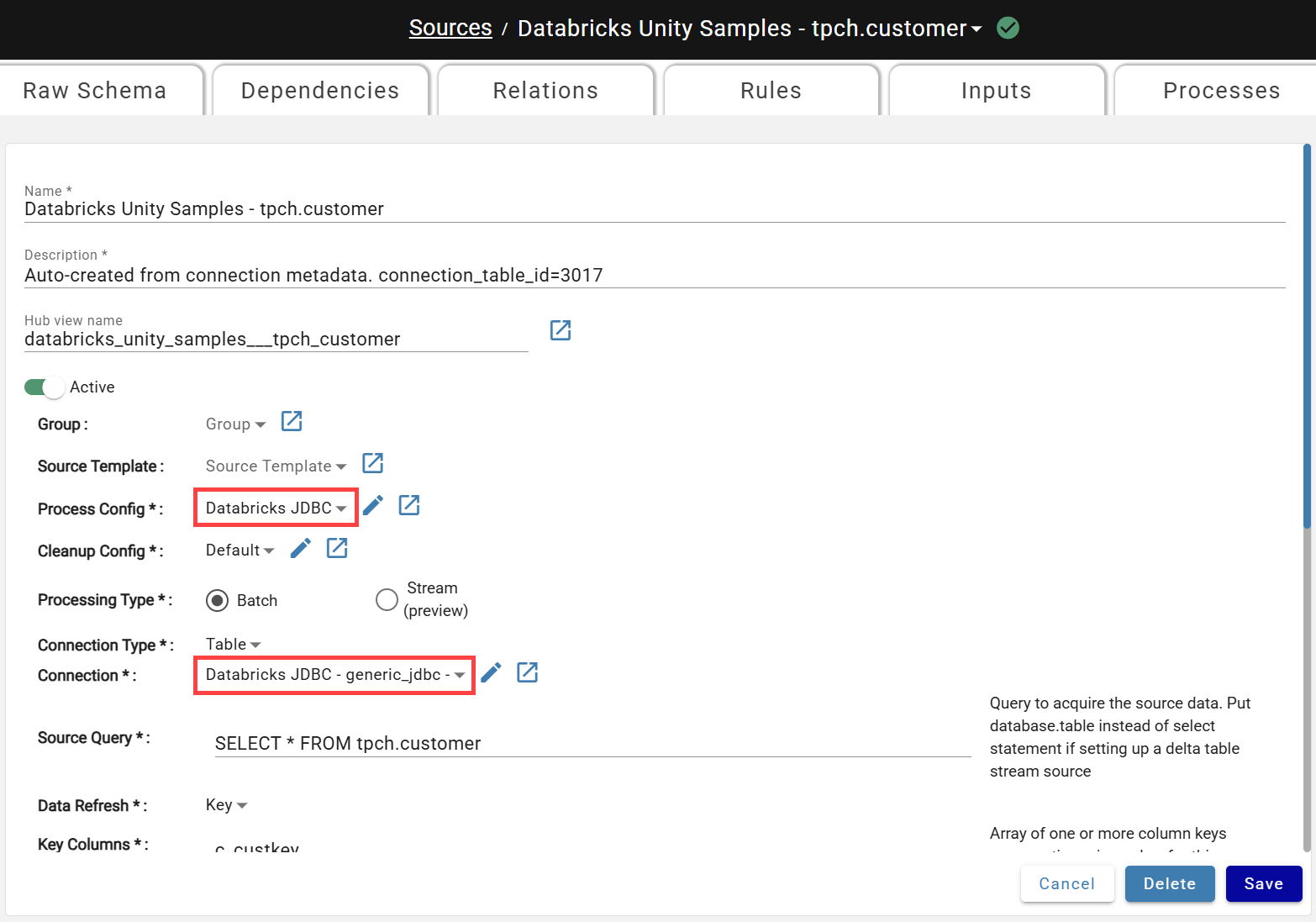
Applying the JDBC Connection to a Source
Set the Process Configuration and Connection to match the Generic JDBC configurations, then select the Generic JDBC connection in the Connection drop-down.