Performing the Initial Deployment in AWS
Creating Deployment AWS User for Terraform
Create a Master Deployment IAM user with Console Admin access — this user runs the Terraform scripts. Use its Access Key and Secret Key in the Terraform Cloud variables.
Setting up Terraform Cloud Workspace
Fork the Infrastructure repository and create a VCS connection in Terraform Cloud
Create a new Terraform Cloud workspace using Version control workflow and select the forked infrastructure repository.
Set the working directory to terraform/aws/main-deployment. The VCS branch can be left as default (master).
Make sure the Terraform version in the workspace is set to 1.3.0
Setting up Auth0 Management Application
Navigate to the Auth0 account and open the Auth0 Management API.
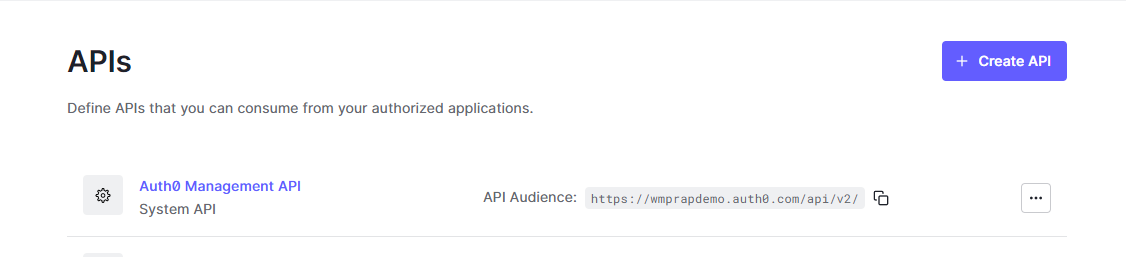
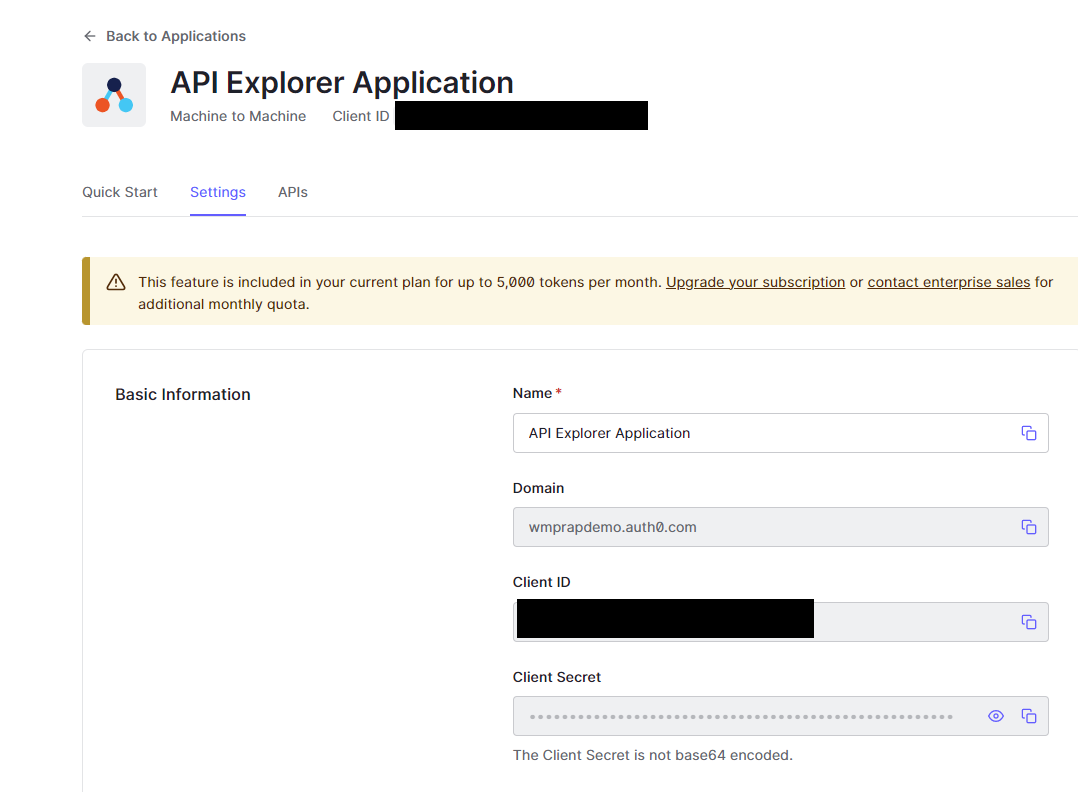
Click API Explorer and Create and Authorize API Explorer Application. Then go to Applications → API Explorer Application and use the domain, Client Id, and Client Secret to populate auth0Domain, auth0ClientId, and auth0ClientSecret in Terraform variables.
Populating Variables in Terraform Cloud
Enter the following variables. If the pre-deployment steps were followed, most values will already be known.
For passwords, use a strong alphanumeric random generator (e.g., https://delinea.com/resources/password-generator-it-tool); avoid symbols.
The variable names are case sensitive - please enter them as they appear in this list
| Variable | Example | Description |
|---|---|---|
| awsRegion | us-west-2 | AWS Region for deployment - As of 11/9/2020 us-west-1 is not supported |
| awsAccessKey | xxx | Access Key for Master Deployment IAM user - mark as sensitive |
| awsSecretKey | xxx | Secret Key for Master Deployment IAM user - mark as sensitive |
| environment | dev | This will be prepended to resources in the environment. E.g. Dev. Prod. etc. |
| client | dataforge | This will be postpended to resources in the environment - use company or organization name |
| vpcCidrBlock | 10.1 | Only the first two digits here, not the full CIDR block |
| avalibilityZoneA | us-west-2a | Not all regions have availability zones |
| avalibilityZoneB | us-west-2b | Not all regions have availability zones |
| RDSretentionperiod | 7 | Database backup retention period (in days) |
| RDSmasterusername | rap_admin | Database master username - admin can't be used |
| RDSmasterpassword | password123 | Alphanumeric Database master password - mark sensitive |
| RDSport | 5432 | RDS port |
| TransitiontoAA | 60 | Transition to Standard-Infrequent Access |
| TransitiontoGLACIER | 360 | Transition to Amazon Glacier |
| stageUsername | stageuser | Database stage username for metastore access |
| stagePassword | password123 | Alphanumeric database stage password for metastore access - mark sensitive |
| manualUpgradeVersion | 9.0.0 | Platform version |
| dockerUsername | dataforge | DockerHub service account username |
| dockerPassword | xxx | DockerHub service account password |
| urlEnvPrefix | dev | Prefix for environment site url |
| baseUrl | dataforgeplatform | the base URL of the certificate - example https://(urlEnvPrefix)(baseUrl).com This should not include www. .com or https://. e.g. "dataforge" |
| usEast1CertURL | *.dataforgeplatform.com | Full certificate name (with wildcards) used for SSL |
| auth0Domain | dataforgeplatform.auth0.com | Domain of Auth0 account |
| auth0ClientId | xxx | Client ID of API Explorer Application in Auth0 (needs to be generated when account is created) |
| auth0ClientSecret | xxx | Client Secret of API Explorer Application in Auth0 (needs to be generated when account is created) |
| databricksE2Enabled | yes | Is Databricks E2 architecture being used in this environment? |
| databricksAccountId | 638396f1-xxxx-xxxx-xxxx-ddf61adc4b06 | Account ID for Databricks E2 |
| databricksAccountUser | user@dataforge.com | Username for main E2 account user |
| databricksAccountPassword | xxxxxxxxx | Password for main E2 account user |
| deploymentToken | xxxxx | Token provided by DataForge Support to facilitate auto-upgrade feature |
| readOnlyUsername | readonly | Username for Postgres read only user |
| readOnlyPassword | xxxxx | Password for Postgres read only user |
| releaseUrl | https://release.wmprapdemo.com | URL used for auto-upgrade releases |
| sparkVersion | 15.4.x-scala2.12 | Default Databricks spark runtime |
| instanceType | m-fleet.xlarge | Default Databricks cluster Instance type |
| miniSparkyAutoTermination | 120 | Auto termination for mini-sparky in minutes |
| usageAuth0Secret | xxxx | Auth0 secret for usage collection - provided by DataForge team during deployment |
| usagePassword | xxxxxxx | Alphanumeric password for usage user, should be autogenerated |
| intelligentTiering | Enabled | Intelligent Tiering on datalake S3 bucket enabled or disabled |
Optional variables for tuning ECS container sizes:
| Variable | Example | Description |
|---|---|---|
| apiCPU | 2048 | CPU value for API ECS container (Units) |
| apiMemory | 4096 | Memory value for API ECS container (MB) |
| apiDesiredCount | 2 | Number of API containers running behind the Load Balancer. Adding containers increases API stability |
| coreCPU | 2048 | CPU value for Core ECS container (Units) |
| coreMemory | 4096 | Memory value for Core ECS container (MB) |
| agentCPU | 1024 | CPU value for Outcrop ECS container (Units) |
| agentMemory | 2048 | Memory value for Outcrop ECS container (MB) |
Optional variables for existing networking resources - it is strongly recommended to work with the deployment and infrastructure team before utilizing these:
| Variable | Example | Description |
|---|---|---|
| existingVPCId | vpc-051adc9a9b102c39e | VPC Id in AWS |
| existingInternetGatewayId | igw-011f8cdb7ebc48407 | Internet Gateway Id in AWS |
| existingNATGatewayId | nat-0c57db95f410e1d65 | NAT Gateway Id in AWS |
| existingPublicRouteTableId | rtb-0bf8f884ce37b1e9c | Public Route Table Id in AWS |
| existingPrivateRouteTableId | rtb-08805580a1ec35d36 | Private Route Table Id in AWS |
| existingWebAZ1Id | subnet-00cab5cd15a4e2f95 | Availability Zone 1 for UI |
| existingWebAZ2Id | subnet-00cab5cd15a4e2f97 | Availability Zone 2 for UI |
| existingAppAZ1Id | subnet-00cab5cd15a4e2f94 | Availability Zone 1 for ECS |
| existingAppAZ2Id | subnet-00cab5cd15a4e2f92 | Availability Zone 2 for ECS |
| existingDbAZ1Id | subnet-00cab5cd15a4e2f91 | Availability Zone 1 for Postgres |
| existingDbAZ2Id | subnet-00cab5cd15a4e2f93 | Availability Zone 2 for Postgres |
| existingDatabricksAZ1Id | subnet-00cab5cd15a4e2f99 | AZ1 for Databricks |
| existingDatabricksAZ2Id | subnet-00cab5cd15a4e2f96 | AZ2 for Databricks |
| customVpcBlock | 10.0.0.0/16 | Needs to cover all addresses in the custom subnets |
| customWebAZ1Block | 10.0.1.0/24 | Minimum 4 addresses |
| customWebAZ2Block | 10.0.4.0/24 | Minimum 4 addresses |
| customAppAZ1Block | 10.0.2.0/24 | Minimum 4 addresses |
| customAppAZ2Block | 10.0.5.0/24 | Minimum 4 addresses |
| customDbAZ1Block | 10.0.3.0/24 | Minimum 4 addresses |
| customDbAZ2Block | 10.0.6.0/24 | Minimum 4 addresses |
| customDatabricksAZ1Block | 10.0.128.0/18 | Minimum 255 addresses |
| customDatabricksAZ2Block | 10.0.192.0/18 | Minimum 255 addresses |
If running a non-public facing deployment - these variables will need to be added:
| Variable | Example | Description |
|---|---|---|
| publicFacing | no | Triggers the infrastructure to deploy non-public facing resources |
| privateApiName | api.dataforge.test | API url |
| privateDomainName | dataforge.test | Base url for the environment |
| privateUIName | dev.dataforge.test | UI url |
If running a non-public facing deployment - these variables are optional:
| Variable | Example | Description |
|---|---|---|
| privateCertArn | arn:aws:acm:us-east-2:678910112:certificate/xxxxxxx-xxxx-xxxx-xxxx-xxxxxxxxxxxx | ARN to an imported SSL certificate that will be attached to the HTTPS listener on the internal load balancer. If this variable is not added, a new certificate will be requested by the Terraform script. |
| privateRoute53ZoneId | Z04XXXXXXXX | Id for private hosted zone to add route 53 records to. If this variable is not added, a new private hosted zone will be created by the Terraform script. |
| usePublicRoute53 | no | If set to yes, an existing public route 53 zone will be used instead of using/creating a private zone. |
| vpnIP | 10.0.0.1/16 | IP range to whitelist traffic to the private UI container |
Running Terraform Cloud
Click Queue plan. A correct configuration produces ~134 resources to add. If the plan succeeds, click Apply to start the deployment.
Post Terraform Steps
After Terraform completes, additional configuration is required before data can be brought into the platform.
Configuring Databricks
Log in to the Databricks account created during deployment (the URL is a Terraform output).
Navigate to the S3 bucket <environment>-datalake-<client> (e.g., dev-datalake-dataforge) and upload datatypes.avro to the bucket root. Obtain the current file from the DataForge Deployment team.
Once uploaded, open the /dataforge-managed/databricks-init workbook, attach it to dataforge-init-cluster, and run it.
Running Deployment Container
Navigate to the container instance <environment>-Deployment-<client> (e.g., Dev-Deployment-DataForge). Open Containers → Logs and confirm the container completed with:
If this message is absent, stop and restart the container and troubleshoot from there.
Restart Everything!
Restart the three container instances in this order, stopping each fully before starting the next:
- Api
- Core
- Outcrop
Check logs to confirm each container starts without errors.
Once the environment is up, navigate to Cluster Configurations — a Default Sparky Configuration should appear. If missing, re-run the deployment container. Contact support if it still does not appear. Save this configuration before running any processes.
Auth0 Rule Updates
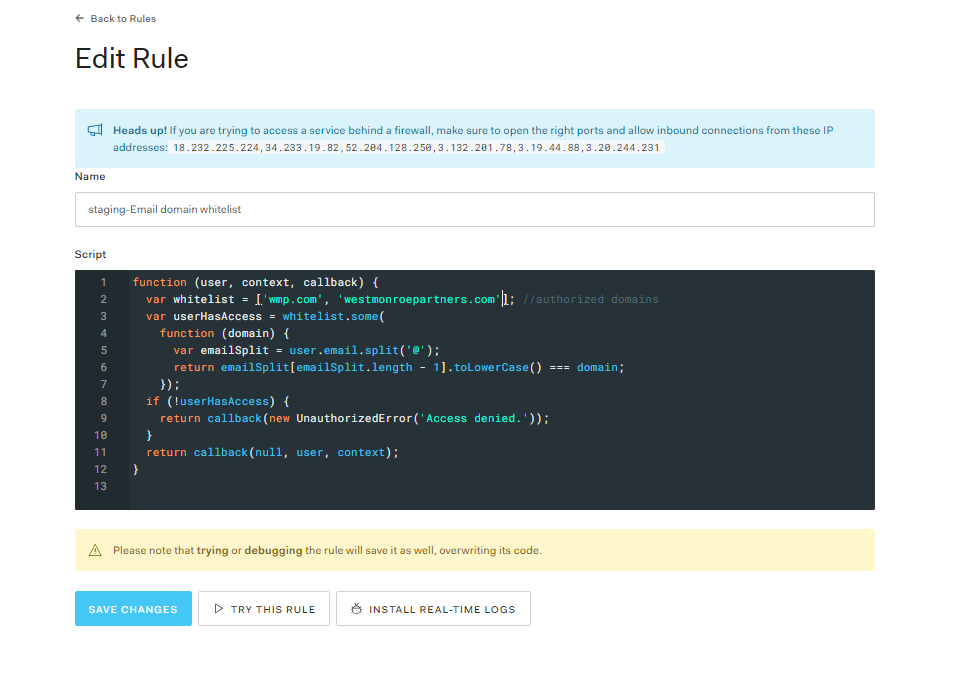
In the Auth0 Dashboard, edit the Email domain whitelist rule (under Rules) to add allowed sign-up domains. By default only DataForge emails are included.
Accessing Private Facing Environments
For private environments, access the site through a VM connected to the DataForge VPC (e.g., Amazon AppStream or a manual jumpbox with direct or peered VPC access).