DataForge Cloud 9.2 Version Features Blog
DataForge Cloud version 9.2 is here, providing a new Python SDK, enhanced cluster concurrency, built-in data viewer for SaaS, and quality of life improvements.
Table of contents
- Python SDK
- Enhanced cluster concurrency
- Data View for SaaS and improved for Private Enterprise
- UX improvements
- Snowflake key-pair authentication support
Python SDK
We know you love Python...so we built it. DataForge now includes a Python SDK available via PYPI. Utilize similar patterns and classes from the Scala SDK to customize your data processing. For a detailed description and example usage, visit PYPI DataForge-SDK.
Enhanced cluster concurrency
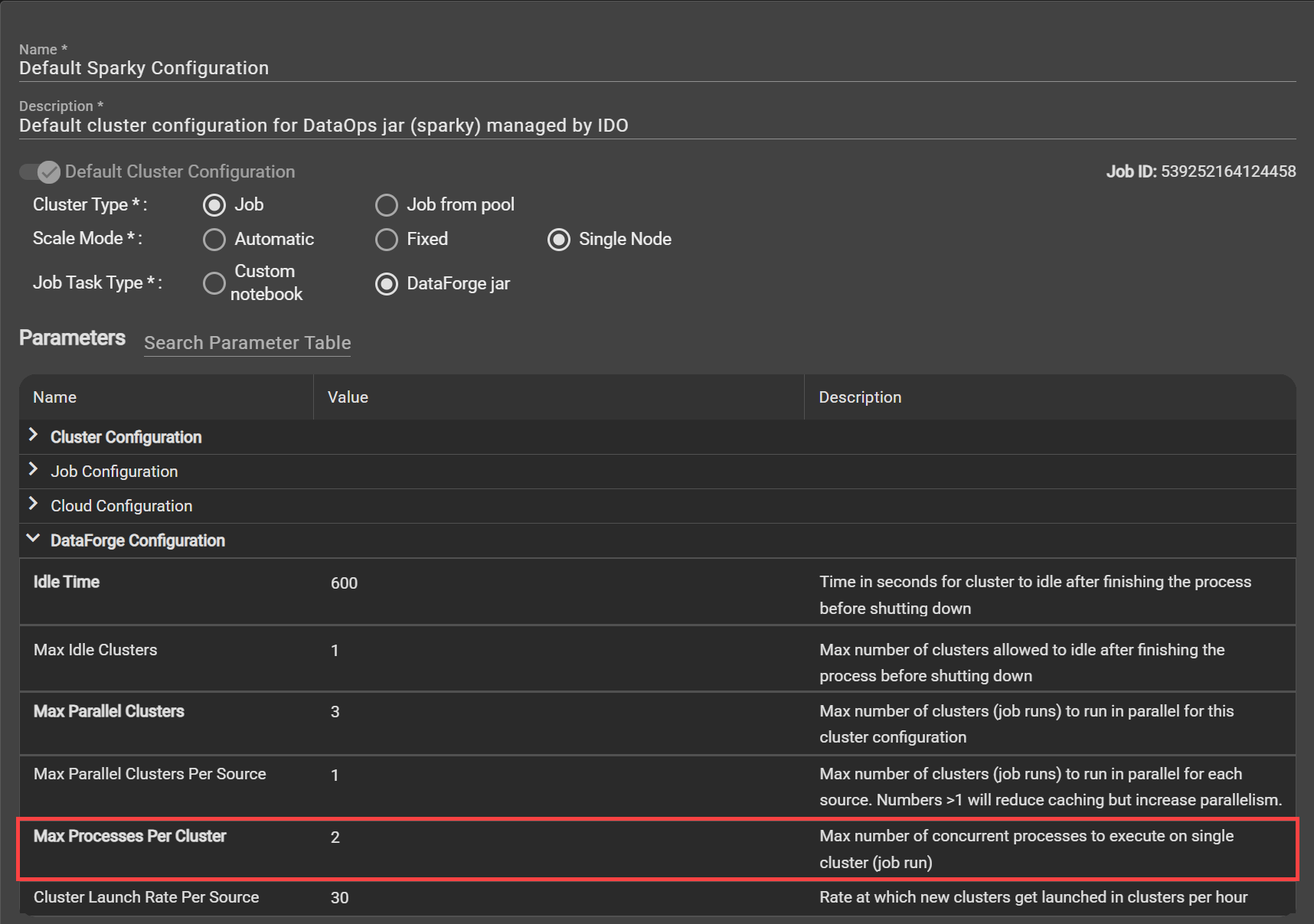
Save cloud compute spend and increase cluster efficiency by customizing the new cluster configuration parameter "Max Processes Per Cluster". With this new feature, you can dictate whether you want parallel processing across sources using the same already running cluster instead of launching a unique cluster per source process. Increasing this parameter will increase parallelism across sources. For example, if two sources start processing at the same time and are configured with the same cluster, having this new parameter at 2 or greater means a single cluster will run both sources at the same time.
DataForge recommends never setting this parameter to a number greater than the number of cores available in the driver node of the cluster configuration. For example, if you are using the default cluster (which has a driver node of 4 cores), you would not want to set the "Max Processes Per Cluster" to greater than 3.
Any time you are setting this parameter to greater than 2, DataForge recommends monitoring job runs for a period of time after updating to ensure the clusters are not pushed past their limits to avoid job failures.
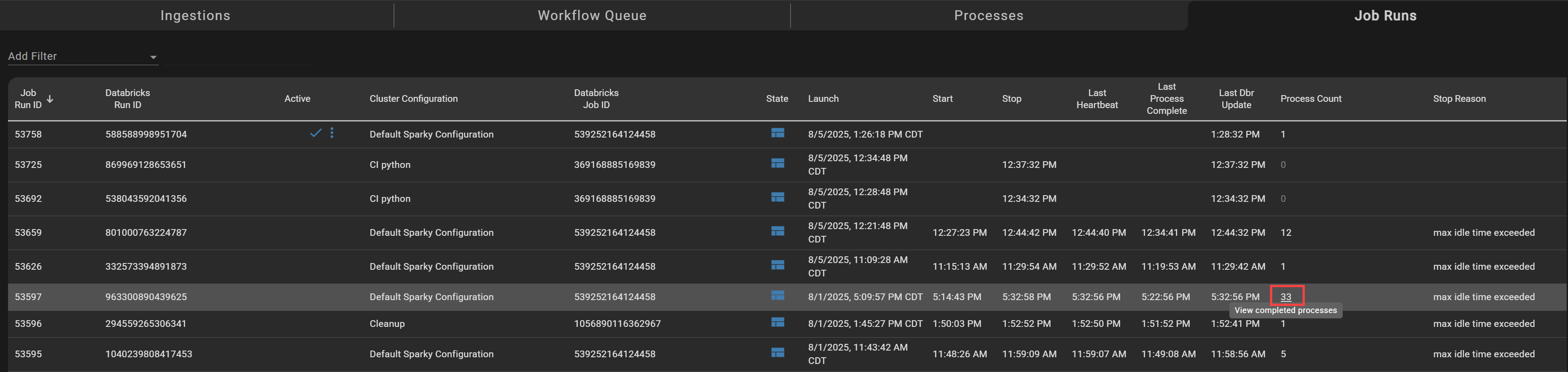
Opening the Job Runs page shows how many processes are running on the cluster. Clicking the process count will take you to a filtered view of all processes managed by the cluster/job run.
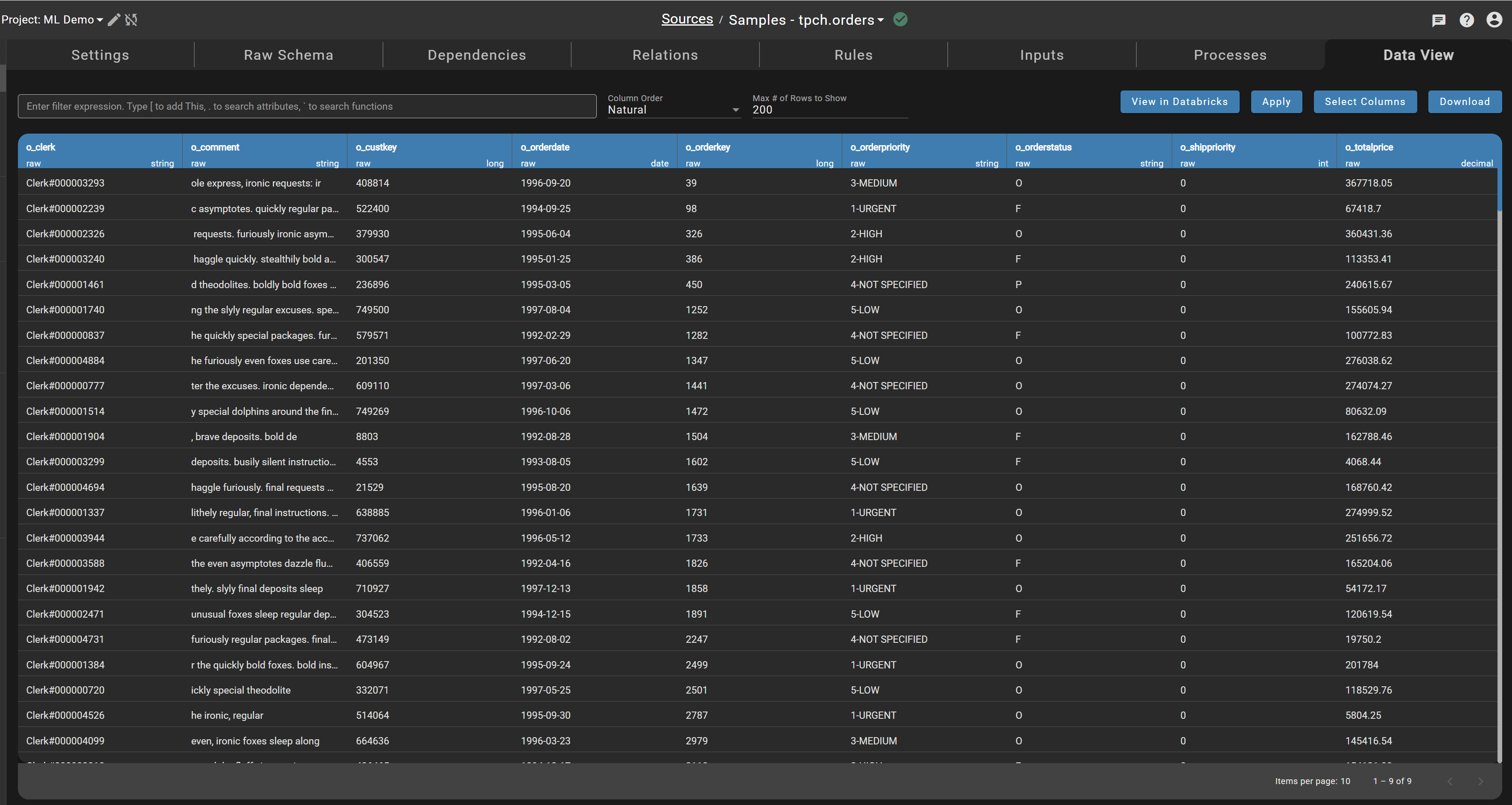
Data View for SaaS and improved for Private Enterprise
All SaaS customers can now visualize data using the Data View tab in sources directly in DataForge. After enabling this feature and clicking the Data View tab in a source, you will be able to work with your data rather than redirecting to the Databricks hub table.
In addition, enabling this feature in Private Enterprise environments will allow DataForge to use the default job cluster to query data which is cheaper than the all-purpose data-viewer cluster.
This is an optional feature. If your workspace includes sensitive data like HIPAA or personal identifiers, we recommend sticking with your existing query methods through Databricks instead of using this feature.
To enable this feature, go to the System page, edit the "use-default-cluster-as-data-viewer" setting to be toggled on, and then restart the API using the triple-dot options menu in the top right of the page.

UX improvements
Output mappings
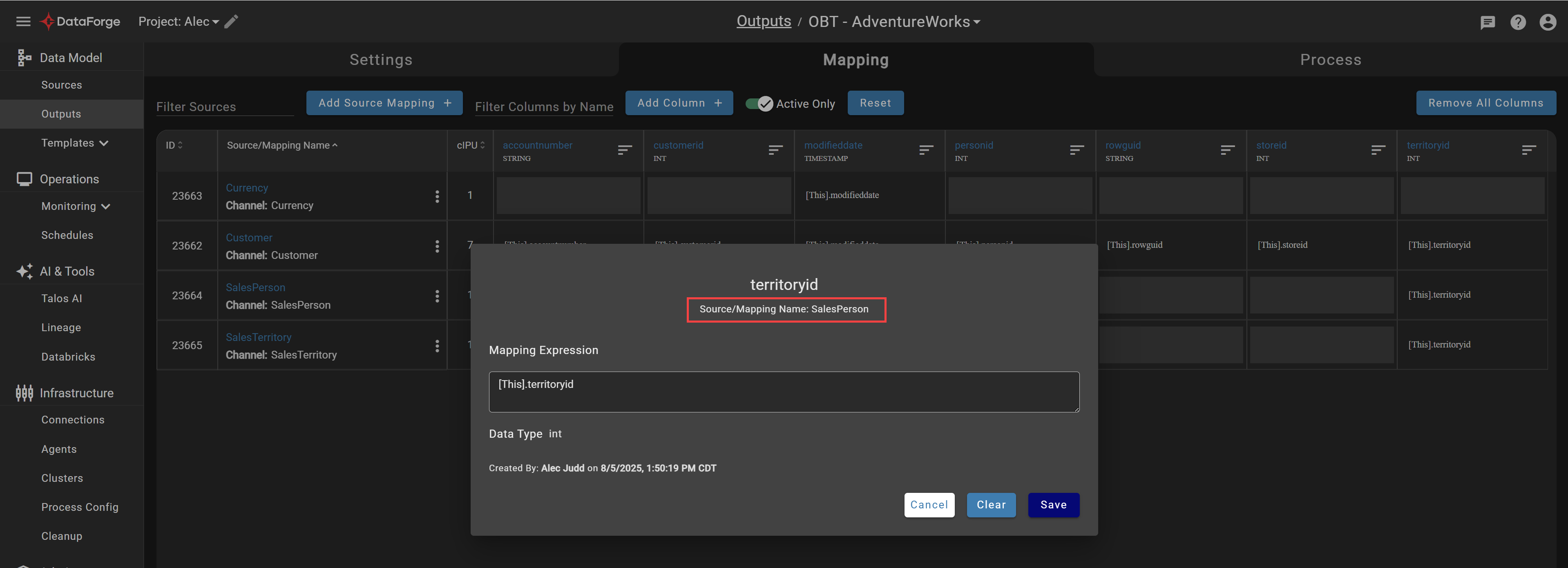
Output mapping screens now include context for which source mapping being edited. When many channels are mapped to the same column, this removes confusion about which channel is actively being edited.
Rule creation
Additional protections have been implemented to require any rule to be Keep Current mode when referencing another Keep Current rule. You will no longer be able to select Snapshot as a rule mode if a Keep Current rule is referenced to avoid incorrect data recalculation.
Snowflake key-pair authentication support
Snowflake is officially deprecating basic authentication through username and password. For more info, visit Snowflake's deprecation plan guide. To provide ongoing support of Snowflake, DataForge now includes an option for key-pair authentication. Connections (source and output) now include a new parameter for "Private Key". This should set to the unencrypted private key.
For instructions on generating and managing private keys, visit the Snowflake documentation.