Relations
Relations define intra-source connections and enable users to configure lookups and cross-source aggregates.
Creating Relations
Navigate to a Source, open the Relations tab, and click New Relation. Fill in the required and optional parameters described below, then click Save. The Save button is disabled until all required fields are complete and a valid expression has been entered.
Self Relations: The user can define a relation between the current source and itself by selecting the current source in the related source modal. Self relations can never be primary.
 New Relation Button
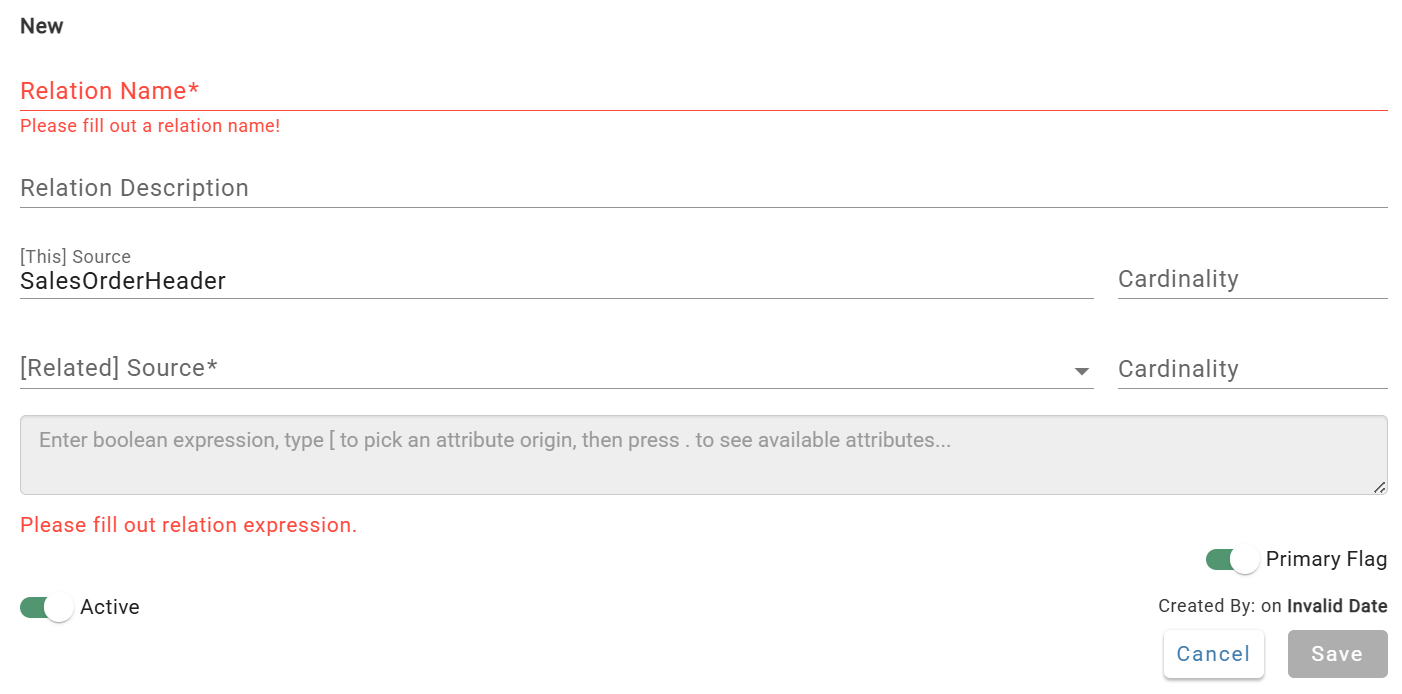
Create Relation Modal
Relation Properties
- Relation Name: The name of the Relation must be globally unique.
- Relation Description:Optional description for the relation between sources.
- [This] Source: Visual indicator of the source you are currently selected on/creating the relation for.
- Related Source: Specify the source for which a relationship with the current source is being defined.
- Cardinality:Shown for both [This] Source and [Related] Source. Indicates whether the data is unique on each side of the relation. If unique, the cardinality is 1. Otherwise, cardinality is Many.
- Relation Expression: This is a boolean expression written in SQL that "joins" the current Source (denoted by "[This]") to the related Source (denoted by "[Related]"). The Relation will return 0, 1, or many records depending on the result of the expression.
- Primary Flag: Useful when there is only one valid relation between two sources, or a set of traversals between sources.
- Active Flag: Indicates if the Relation is currently available to Rule expressions and can be accessed during data processing.
Across the DataForge platform, a grey (un-clickable) "Save" button indicates there is an error with the parameters. Typically this error is within an expression field. Double check errors and expressions if you are unable to "Save" your work.
Graph View vs Table View
Graph View
Visual representation of the current source, all directly or transitively related sources, and the relations connecting them. Solid lines are Primary Relations; dotted lines are non-primary.
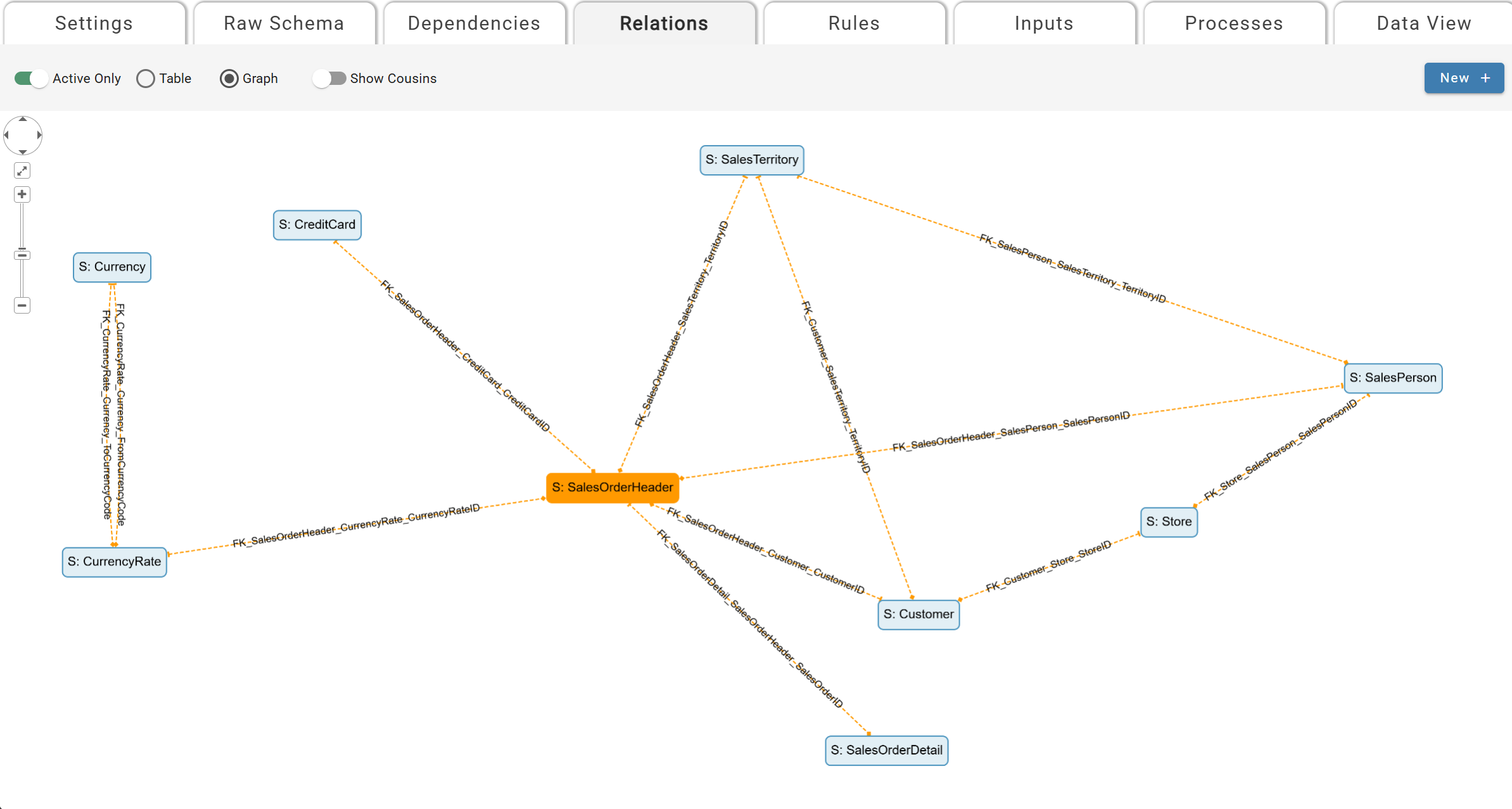
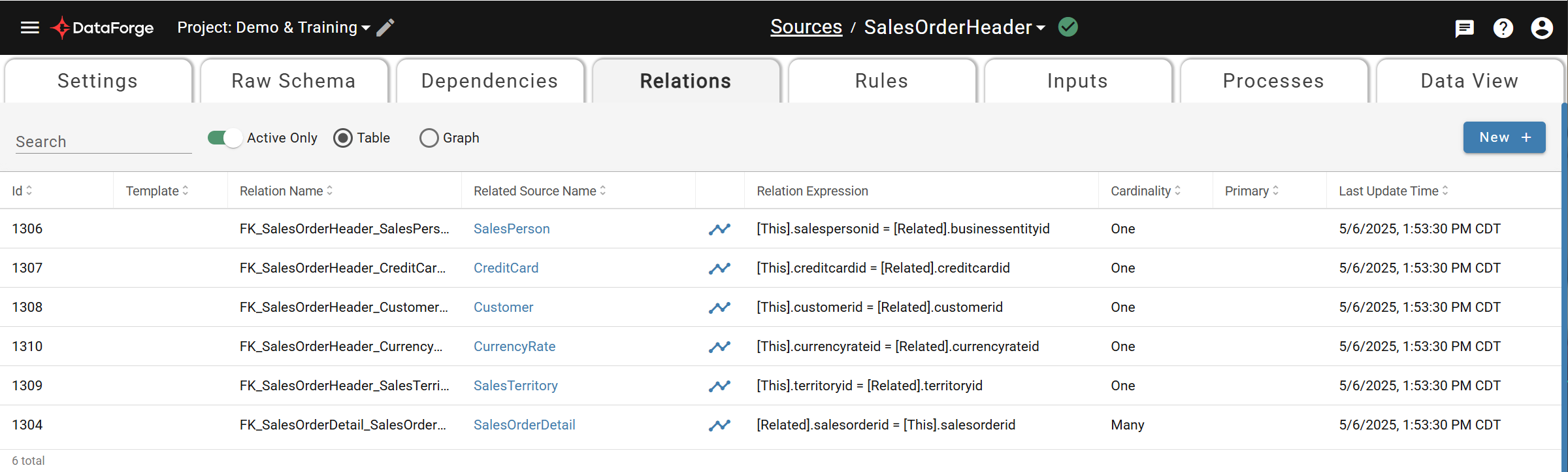
Table View
List view for quickly filtering, searching, and sorting all relations involving the current source.
Primary Relations
Primary relations are the designated main relation between a pair of sources. The first relation created between two sources is automatically set as primary; change this by toggling the Primary Flag in the Relation Modal.
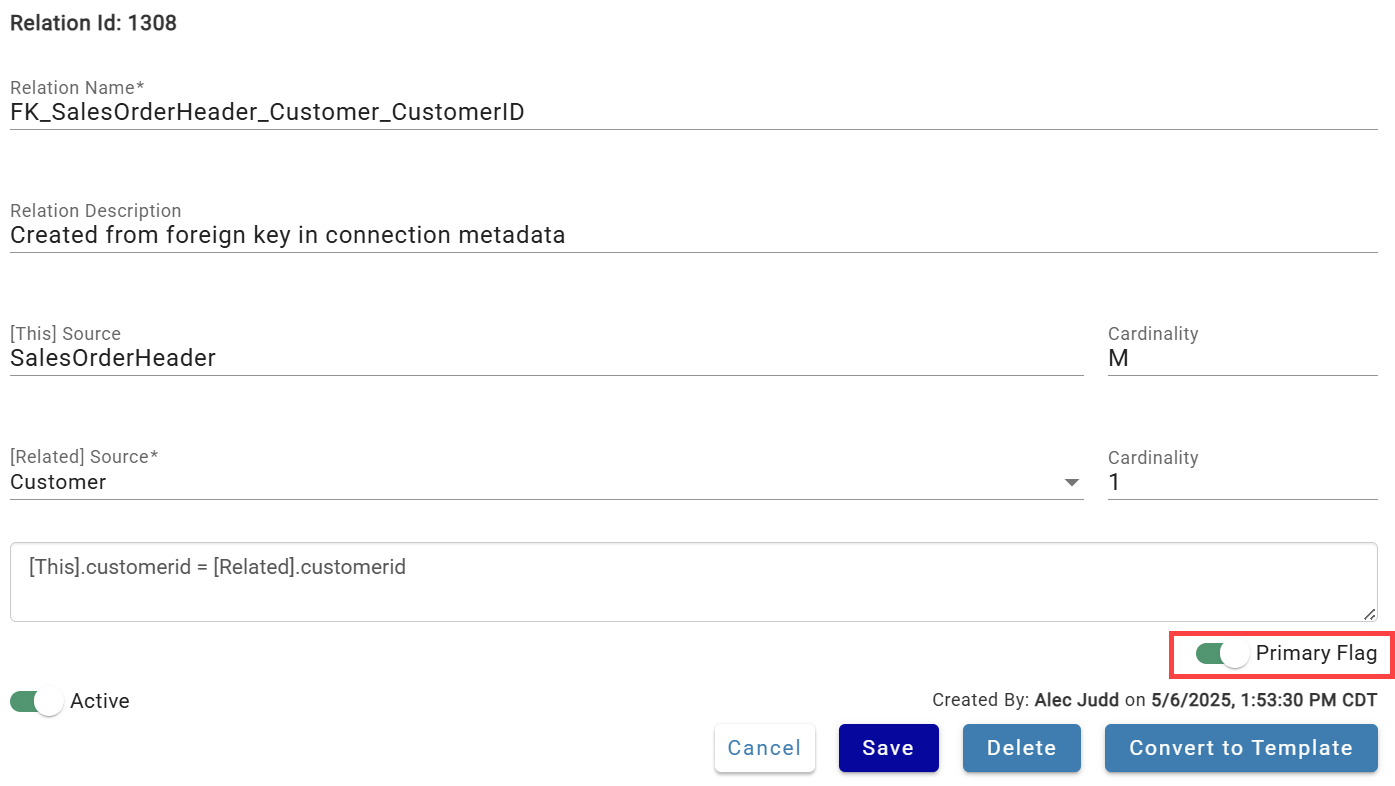
Primary Flog Toggle circled at the bottom right
Relation Expressions
The relation expression is SQL applied to the ON condition of a JOIN. It must resolve to a boolean value and must reference both [This] (the current source) and [Related] (the related source). Each row in [This] is related to every row in [Related] where the expression is true. See Rules for more on using Relations in rule expressions.
Example Relation Expressions
For relating a pair of tables by a foreign key
[This].ProductID = [Related].ProductID
For relating a table by finding a quantity within a range
[This].Subtotal BETWEEN ([Related].Subtotal - 10) AND ([Related].Subtotal + 10)
For relating a table by using an inequality
[This].Subtotal <= [Related].Subtotal
Creating 1:1 or 1:Many Relation Cardinality
With the Key refresh type, the Key Column is automatically flagged as unique, so relations on it produce 1:1 or 1:Many cardinality. For other refresh types (e.g. Full), fields are not flagged as unique by default, and relations on them result in Many:1 or Many:Many.
To get 1:1 or 1:Many cardinality on a non-unique field, create a Rule that references the raw attribute directly and enable the Unique Value toggle on the rule.
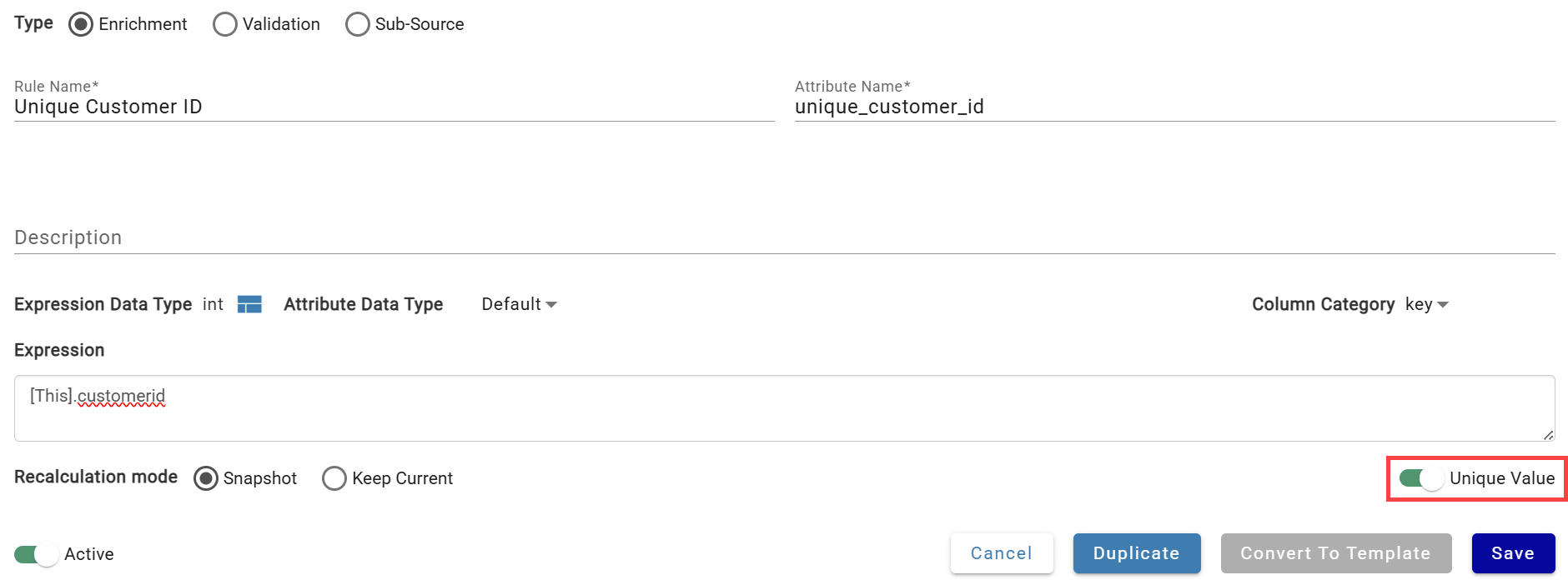
Example Unique Rule created from raw attribute
When this unique rule is used in the Relation Expression, the cardinality will result in 1:1 or 1:Many.
Sub-Source Relations
Each sub-source has an implicit relation with M:1 cardinality to its parent source. Additional relations can be added to the sub-source similar to working with relations in a regular source.
For full documentation, visit Sub-Sources.