Job Runs
The Job Runs table shows detailed information on all job runs in the current environment. Both active and terminated jobs are displayed and are sorted by descending Job Run ID by default.
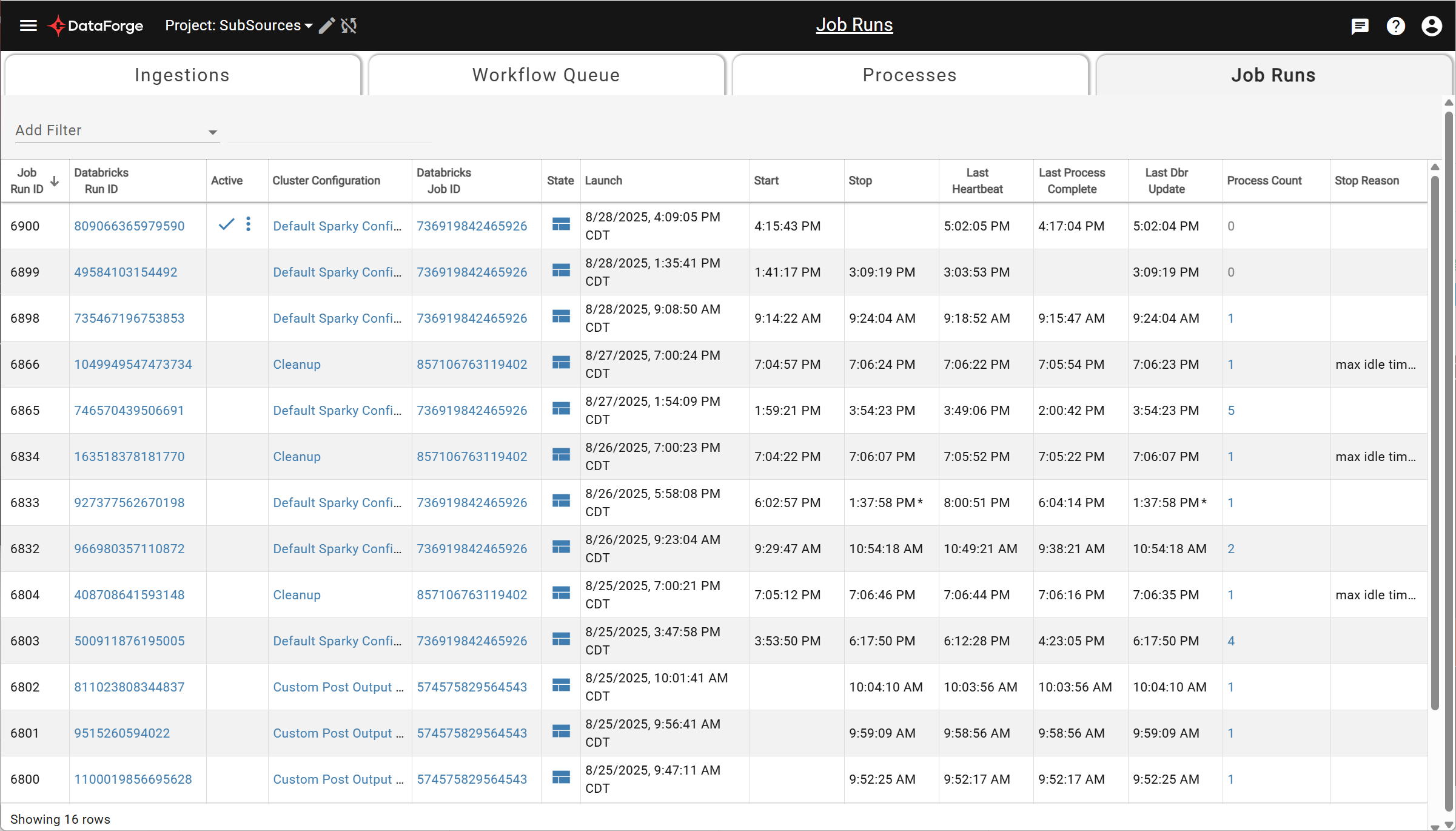 The fields displayed for job runs are as follows:
- Job Run ID - a global unique id for the job run
- Databricks Run ID - the run id assigned by Databricks
- Clicking on the run id will open a new tab to the Databricks run table
-
Active - a flag that shows a checkmark when job runs are currently active
-
Compute Configuration - the name of the compute configuration associated with the job run
- Clicking on the compute configuration will open a new tab to the Compute Settings page.
- Databricks Job ID - the job id assigned by Databricks
- Clicking on the databricks job id will open a new tab to the Databricks job table
- State - the state metadata created by each job
-
Clicking the state icon will open a popup with state data
-
Launch - the date when the job first launched
- Shown as full local datetime
-
All other dates abbreviated to local time
-
Start - the start date of the job run
-
Stop - the stop date of the job run
-
Last Heartbeat - the last heartbeat date
-
Last Process Complete - the last process complete date
-
Last Dbr Update - the last runtime update date
-
Process Count - Shows the number of processes that the job run has completed or is running.
-
Clicking on the count opens a filtered view of the process page with applicable processes.
-
Stop Reason - the reason why a job stopped
- Hover to see full stop reason if abbreviated
If a date has an asterisk *, the date is different from the Launch date. Hover over the table cell to see full datetime value
The job runs table also includes an array of filter options for users to choose. Filters are either pre-populated dropdowns or standard inputs:
- Active/Terminated
- Filter by active or terminated jobs
- Dropdown
- Compute Configuration
- Filter by specific compute configuration name
- Dropdown
- Databricks Run ID
- Integer input
- Job Run ID
- Integer input
- State
- Filter by the key or value of the state
- Text input
- Stop Reason
- Filter by the stop reason for a job
- Text input
All integer and text input filters use partial matching
Select a Filter Type from the leftmost dropdown, then select or enter the desired value. Multiple filter types can be combined, but each type can only be used once (e.g., only one Job Run ID filter at a time).
More filters, including a date picker, will be available in future releases.