DataForge Cloud 10.2 Version Features Blog
DataForge Cloud 10.2 is here, bringing code conversion tools in Talos AI, Databricks Volumes ingestion support, a rebuilt lineage experience, and automated output mapping!
Table of Contents
- Code Conversion and Talos Refactor
- Databricks Volumes Ingestion Support
- New Lineage
- Output Mapping Enhancements
- Source Creation from Connection Metadata
- User Experience Improvements
- Full Changelog
Code Conversion and Talos Refactor
10.2 includes a substantial refactor of the conversion engine and the Talos foundation it runs on. The headline result is a set of dedicated tools for converting existing code into DataForge configurations and syntax, available through Talos AI as Convert Code.
Rather than hand-translating existing logic into rules, relations, and mappings, you can point Convert Code at what you already have and let it produce the equivalent DataForge configuration. This is the fastest path for teams migrating an existing warehouse or pipeline into DataForge, where the bulk of the work has historically been rewriting logic that already exists somewhere else.
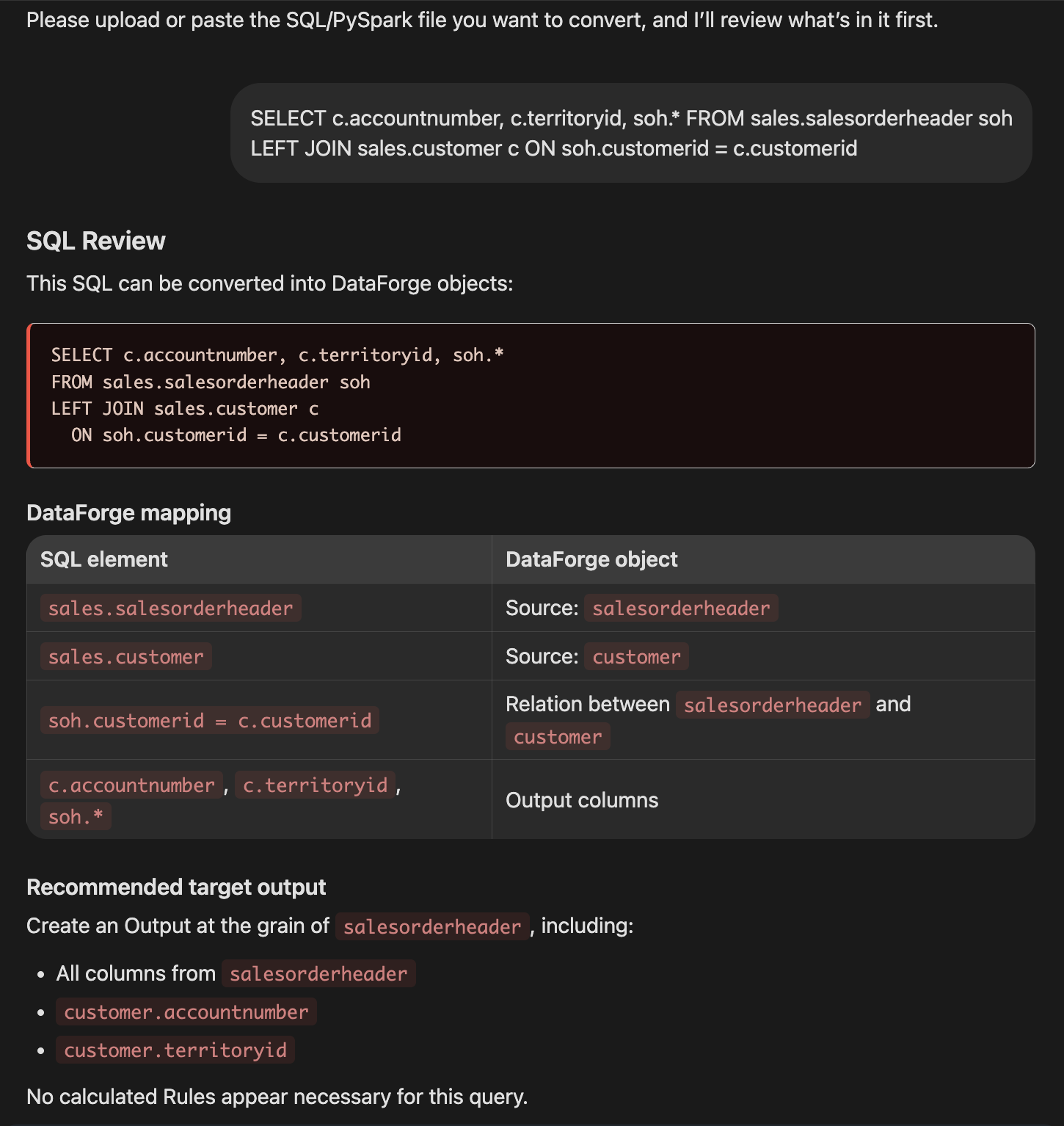
For more information, visit the Talos: Your AI data assistant documentation.
Databricks Volumes Ingestion Support
DataForge now supports Databricks Volumes as an ingestion staging location on Databricks-based workspaces. You can upload files directly to a volume and have DataForge ingest from there, rather than routing files through separate cloud storage first. For teams that already manage governed file landing areas in Unity Catalog, this keeps staging inside the same permission model as the rest of your data.
You configure it as a File connection with Storage Technology set to Databricks Volume, then point File Path at the volume, for example /Volumes/dataforge/finance/finance_volume.
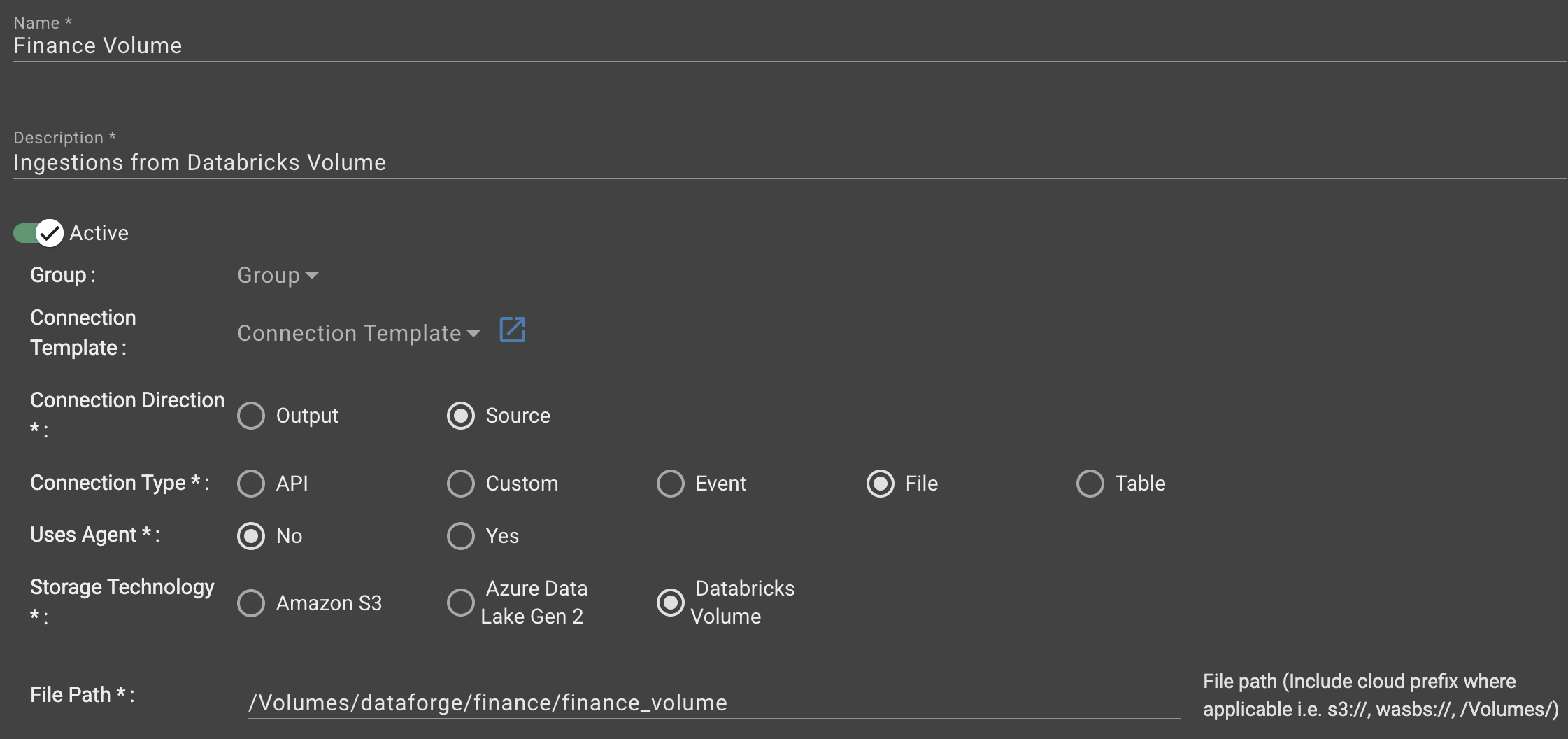
For more information, visit the Connections documentation.
New Lineage
The lineage graph has been rebuilt in 10.2. The interface is significantly more reactive, so panning, zooming, and expanding nodes respond immediately even on large graphs. If you have been avoiding lineage on bigger projects because of how slowly the graph moved, it is worth another look.
Alongside the performance work, the visual design has been simplified. A new color scheme reduces the number of colors on screen and makes the distinction between object types easier to read at a glance. The legend has been simplified to match, so you spend less time decoding the graph and more time following your data.
Two new controls make large graphs easier to navigate. Re-organize re-lays out the graph in a single click when nodes have drifted out of a readable arrangement. Fit scales the entire graph to fit your browser window, which is the fastest way to get oriented after opening a complex source or jumping to a new part of the DAG.
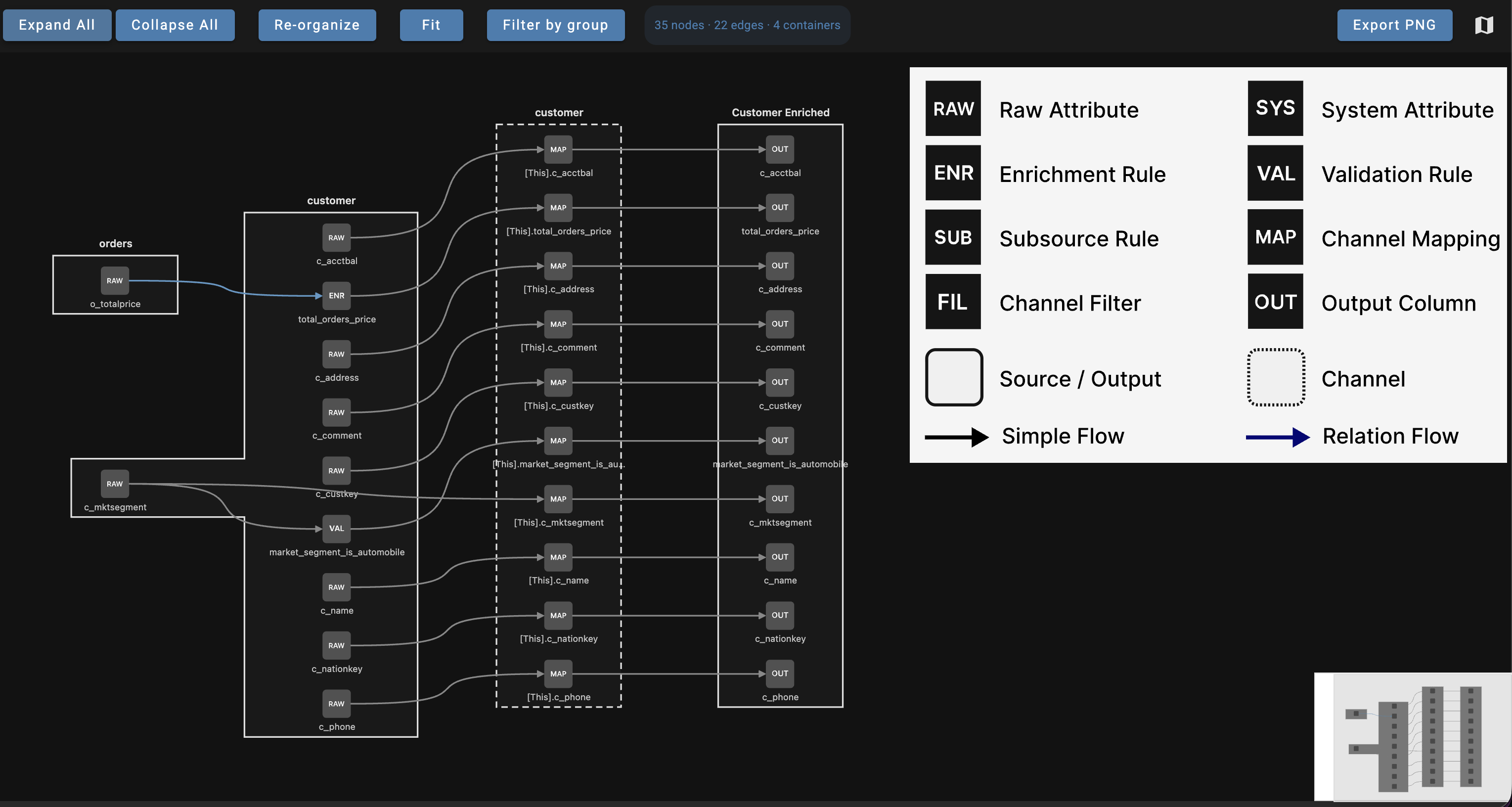
For more information, visit the Lineage Graphs documentation.
Output Mapping Enhancements
Mapping has become the most time-consuming part of most new builds, so 10.2 focuses on removing repetitive work from the output mapping screen.
Copy and paste channel mappings
Automap only matches directly between [This].<hub_name> and the target output column, which leaves anything renamed or transformed to be mapped by hand. You can now reuse an entire set of mappings instead of rebuilding them column by column.
Select Copy Channel Mappings from the menu on a channel that is already mapped the way you want. Then use Paste Copied Mappings on the channel you are filling in, which offers two options:
- As References pastes the copied mappings using the target output column reference and keeps the copied relation path.
- As Expressions pastes the copied mappings using the expression only, and uses the default relation path available.
You can also paste onto a single output column across every channel at once. Use the same Paste Copied Mappings option from the output column menu, with the same two choices. When you add a new source to an output that already has a fully mapped channel, this turns a long manual pass into a couple of clicks.
Add raw attributes and rules from the channel menu
The channel menu now includes an Add Source Columns option that lets you add columns by category. Choose All, Raw Attributes, or Rules to bring in that group quickly. Previously you could not separate the two categories, so pulling in raw attributes meant taking rule columns along with them. Picking only the category you want keeps wide outputs focused and makes it practical to build outputs that mirror a source's raw schema.
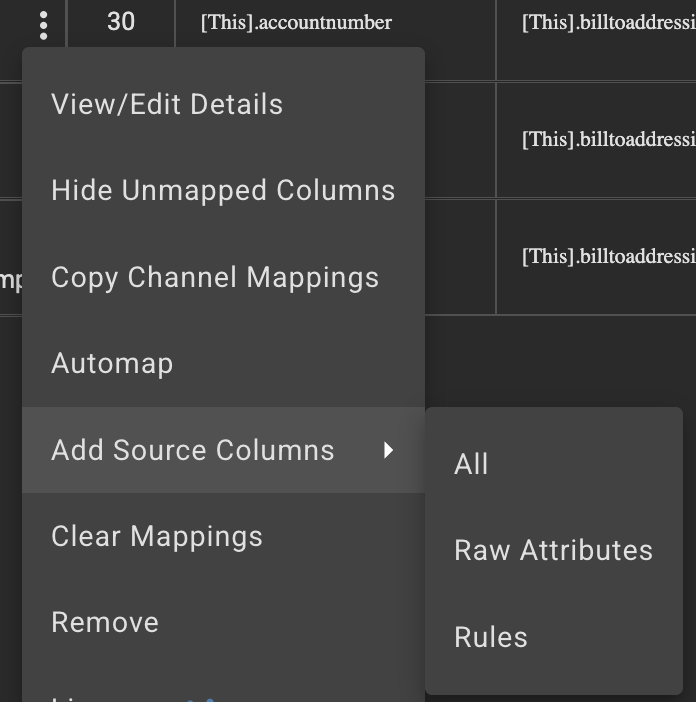
Keep outputs aligned with the source schema automatically
The output channel parameters now include an Auto Add Columns setting that keeps an output aligned to its source on an ongoing basis. It accepts three values:
| Value | Behavior |
|---|---|
all |
Adds both raw attributes and enrichments as they appear |
raw |
Adds raw attributes only |
enr |
Adds enrichments only |
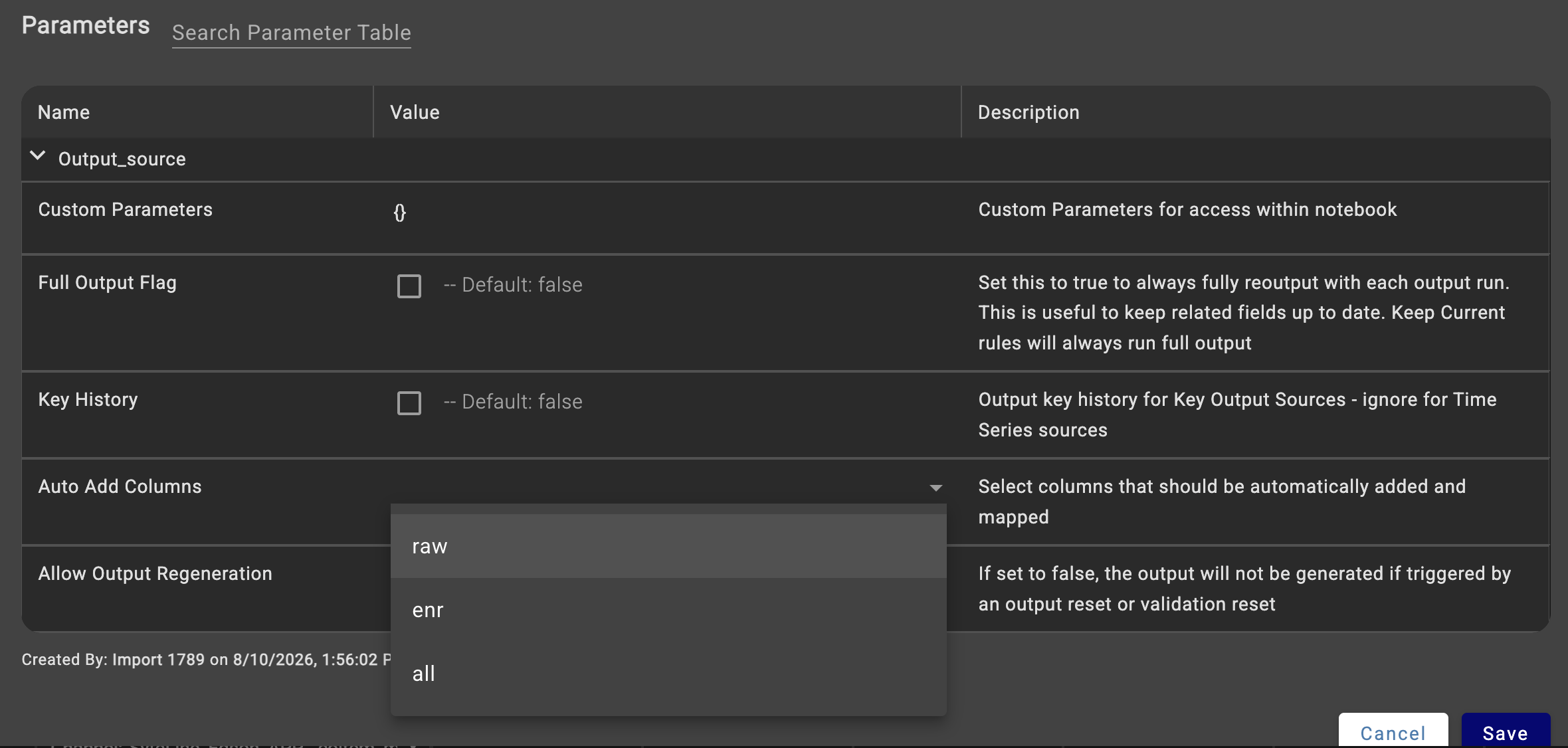
Once a value is set, every ingestion automatically adds any missing columns to the output and automaps them to [This].field. This extends the schema evolution behavior you already get on source raw attributes all the way through to your outputs, and it covers rules as well.
This is particularly useful when an output unions raw data from many similar systems, such as one source per division's ERP. Instead of revisiting every output whenever a source system adds a column, the outputs stay current on their own.
For more information, visit the Output Mapping documentation.
Source Creation from Connection Metadata
Creating sources from a connection's metadata tab now works with templatized connections and no longer hides tables you have already used.
When you create a source from the metadata tab of a templatized connection, the source name must include the ${GROUP} token. DataForge creates a source template using the name you provide, or reuses the matching template if one already exists, then creates the source from that template and the group attached to the connection. Templatized sources can now be built directly from connection metadata instead of being created separately and converted afterward.
The metadata tab also no longer hides tables that already have a source selecting from them. The checkbox is now available for every table, so you can bulk create additional sources against tables that are already in use. A common case is adding a streaming version of a table that already has a batch source.
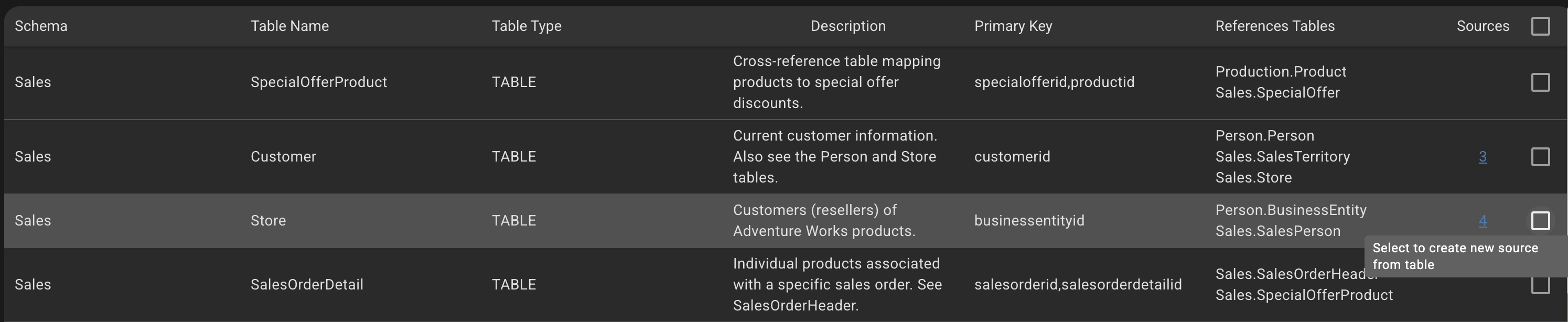
For more information, visit the Connections and Source Name Templates documentation.
User Experience Improvements
DataForge 10.2 includes several changes that reduce friction on large projects.
Rule and Relation Template Apply performance
The Rule and Relation Template Apply page no longer freezes when a project contains thousands of sources. Previously this page could lock up the browser for a minute or two, which made template management impractical at scale. The page now loads and filters responsively regardless of source count.
Reset and Recalculate Output for selected sources
Reset Output and Recalculate Output can now be run against selected sources instead of the entire output. When only a few sources need reprocessing, you no longer have to reset every source feeding that output.
Faster source switching
Switching sources with the top-center drop-down while on the Rules or Relations tab no longer makes unnecessary API calls. Sources with many rules and relations now load noticeably faster, and subsequently the overall application performance is improved.
Full Changelog
- Added Databricks Volumes as a supported ingestion staging location.
- Added a Terraform variable to disable deploying the bastion VM in self-hosted Azure workspace resource groups, so you can stand up and manage your own bastion host without it being redeployed with default settings.
- Added the
enable-optimizesystem configuration parameter, which controls whether Cleanup runs OPTIMIZE on Databricks Delta tables. The default is false, since Databricks recommends leaving it disabled and using predictive optimization instead. - Added support for Unicode values in SQL Server output.
- Added roles and grants for
DATAFORGE_USERin customer Snowflake accounts. - Refactored Agent API communication to improve throughput and resiliency.
- Improved performance of the Rule and Relation Template Apply page on projects with thousands of sources.
- Fixed sub-sources incorrectly attempting to run the
agent_ingestionprocess. - Fixed Git integration breaking when no folder was specified in the target repository.
- Fixed multi-part parquet ingestion reporting a zero record ingestion as successful and then failing during parse.
- Fixed rule template validation using the old expression or saved rule during snapshot and keep current validation.
- Fixed SQL Server streaming sources breaking when a string value contained a trailing backslash character.
- Fixed unnecessary API calls generated when changing sources from the source drop-down.
- Fixed Cleanup deleting the latest input from a full refresh source.
- Fixed rules being applied to stream sources through Rule Template Apply. Stream sources are now filtered out of the page.
- Fixed the Convert to Template button returning a 403 error when a rule expression contained characters that upstream proxies decoded and blocked.