Developer Workflow
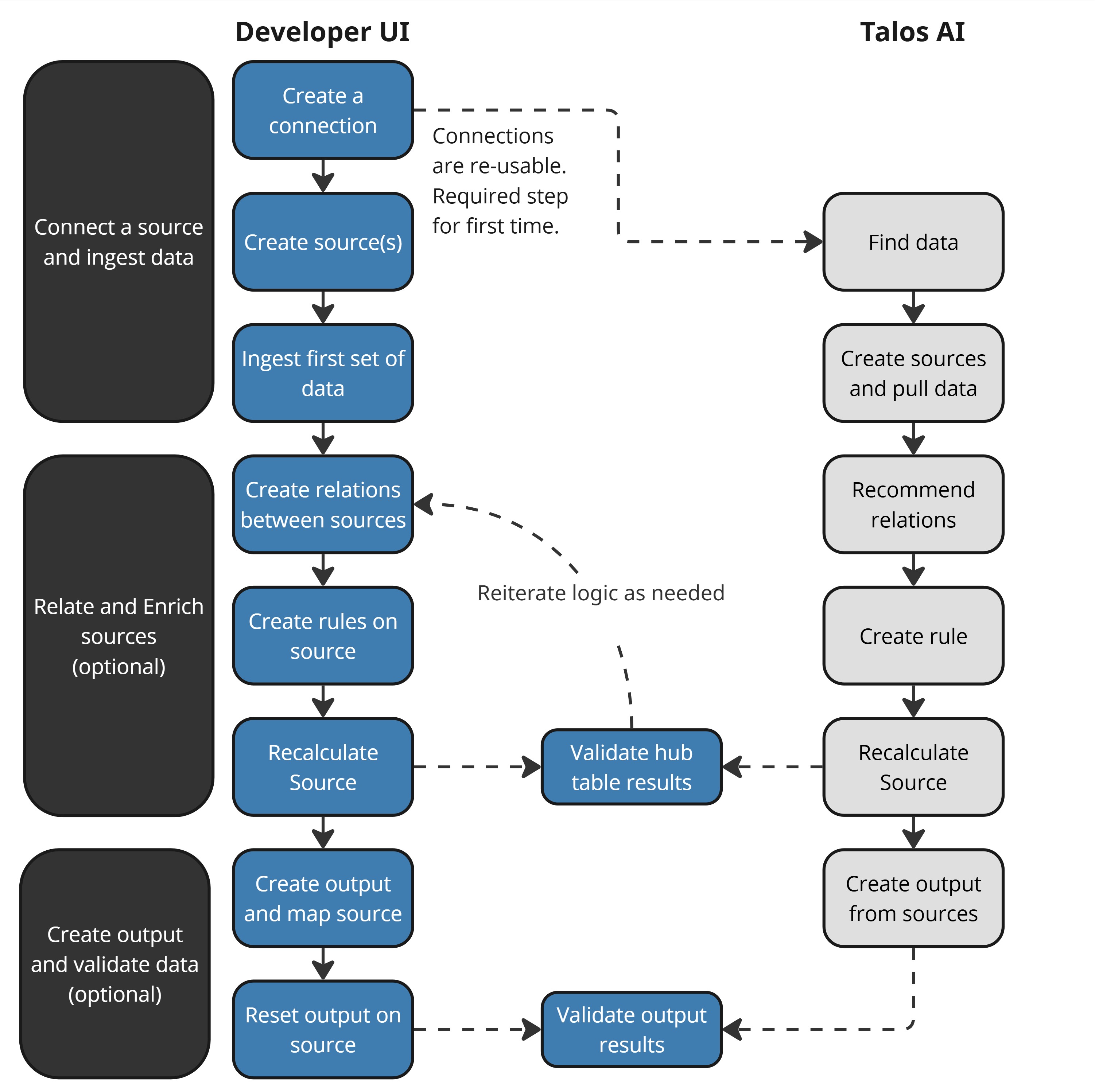
DataForge developers follow a repeatable workflow. Each step can be done through the traditional UI or with Talos AI prompts.
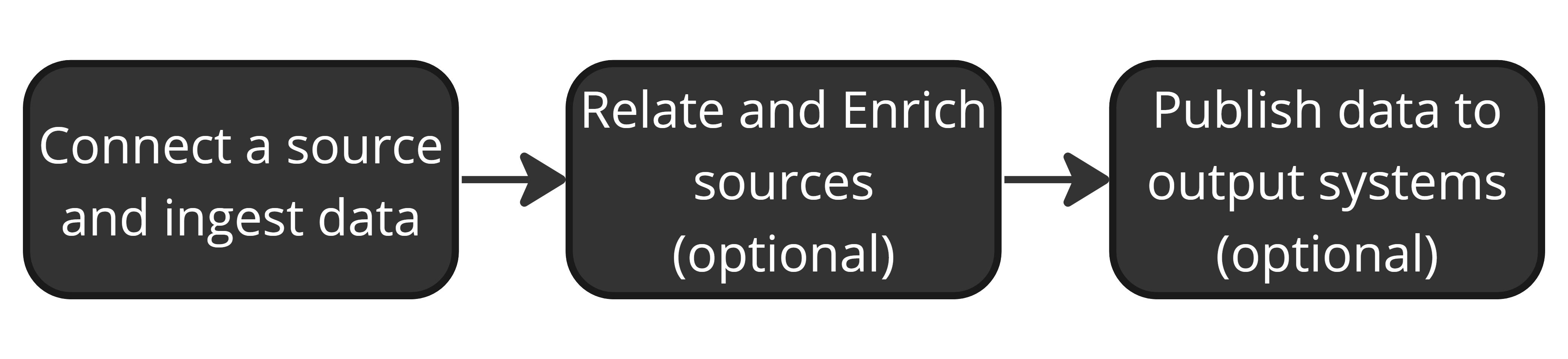
You don't always need every step — sometimes you only ingest tables, other times you build full transformation pipelines with outputs.
Connect a Source and Ingest Data
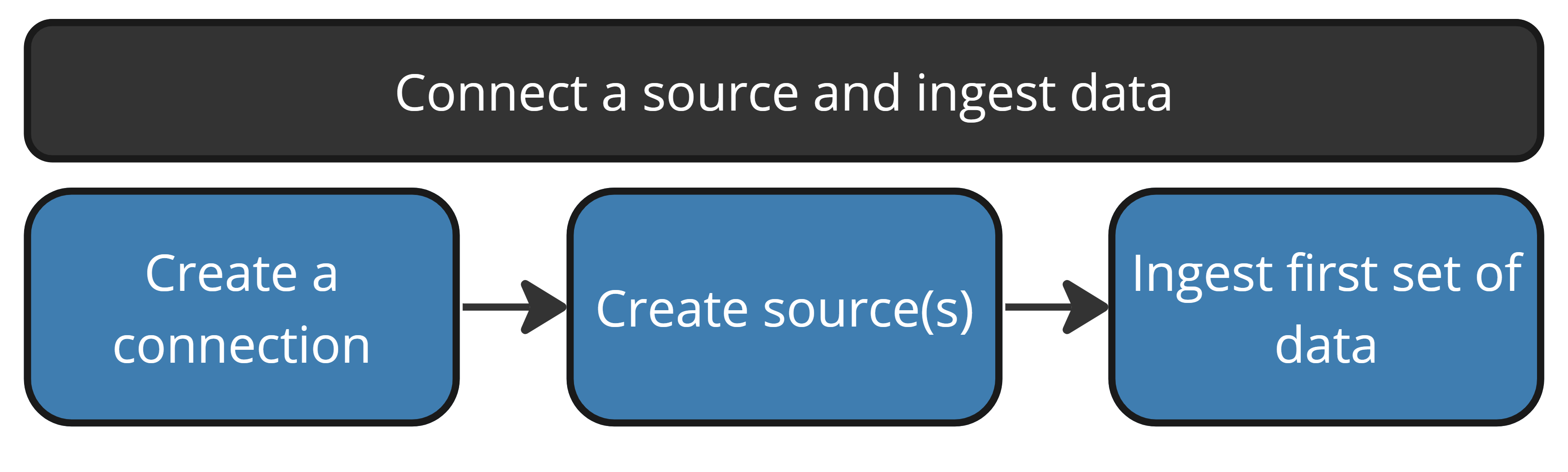
Create a connection — Set up source or output connections to external systems. Once created, a connection can be reused across any number of sources or outputs.
Update data dictionaries — Export, update, and import table/column descriptions in connection settings to assist with bulk source creation and make Talos smarter at discovering data.
Talos AI: "Can you generate descriptions for what you think each of the columns does in the uploaded data dictionary?"
Create sources — Create from connection metadata (bulk, pre-populated settings) or from scratch. Define connection type, source query, refresh type, and processing parameters.
Talos AI: "Find data for sales order detail revenue by customer name" → "Create sources from the matched tables using incremental refresh"
Ingest first data — Pull the first batch of data. For some workflows this is the end result; for others it's the starting point for transformation logic and outputs.
Talos AI: "Pull data on the Product and SalesOrderHeader sources"
Relate and Enrich Sources
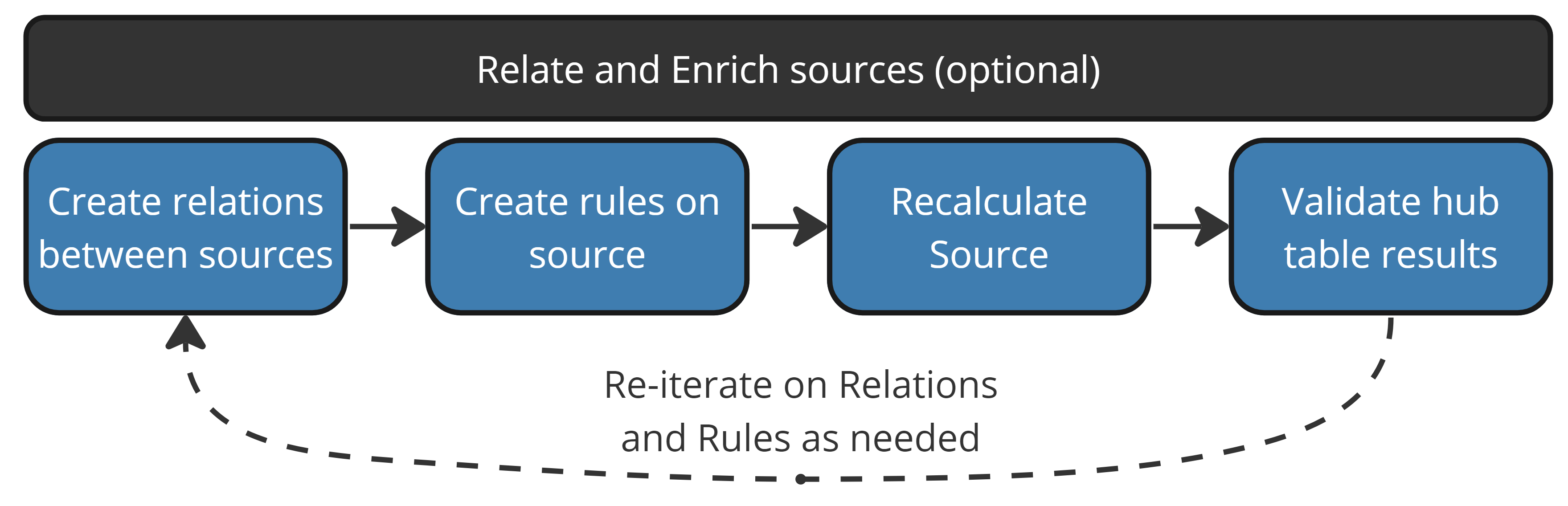
Create relations — Relations act like JOINs between sources, enabling cross-source rule logic. If table keys exist in the connection data dictionary, DataForge creates relations automatically during bulk source creation.
Talos AI: "Recommend relations between all the sources"
Create rules — Validations check data quality (boolean pass/fail). Enrichments add computed columns using Spark SQL expressions, optionally referencing related sources via relations.
Talos AI: "In Sales Order Detail, calculate revenue from orderqty times unitprice"
Recalculate — After creating rules, recalculate existing data to apply the new logic retroactively. Choose to recalculate all rules or only changed ones.
Validate results — Query the source hub table or view in Databricks/Snowflake to verify rule output.
Publish Data to Output Systems
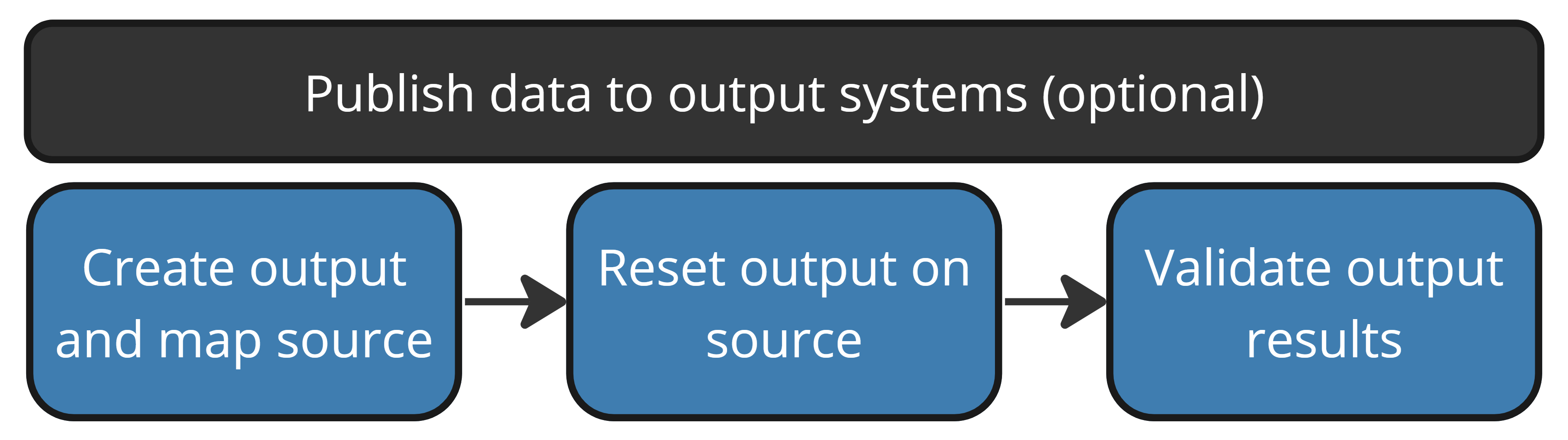
Create an output — Define output settings (name, type, connection, target table/file/event), then map sources and columns to the output. Use automap to speed up column mapping.
Talos AI: "Create a new output named 'Sales Orders' for line total, customer, territory, product, and tax amount from sales order sources"
Reset output — Push existing source data through the output for the first time. Future inputs flow through automatically.
Validate output — Check the destination system to confirm data arrived correctly.
Promote Changes to Production
The workflow above is the inner loop — building and testing in your own Project. Moving finished work to integration and production is the outer loop: push your Project to a Git branch, open a pull request for review, and pull the merged result into the next environment. DevOps Concepts explains that process from zero, and the GitHub Developer Workflow walks it step by step.