Manage Users
Overview of User Access
User access is controlled at two levels: Workspace (connections, schedules, compute/process configurations, system config, project creation) and Project (sources, outputs, templates).
Where user accounts come from depends on how DataForge is deployed. On DataForge Cloud, a workspace admin creates and deletes them directly on the Users page. On a self-hosted deployment, sign-in accounts live in the Auth0 tenant set up for your environment, and the Users page does not create or delete them. Roles and project access are set in DataForge either way.
Workspace roles:
Admin: A workspace admin can add or remove users and can assign other users as admins. Admins have access to all projects and configurations in the workspace.
Power User: A power user can manage workspace-wide configurations and can create projects. Power users are automatically added as Project Editors in each project. Project editor permissions can be removed from power users across projects.
User: A user can reset their password and has access to select projects based on project level permissions. Users have no workspace-wide configuration access.
Project roles:
Each project access level includes permissions from the level below it.
Owner: Write access to change project user access and can delete and rename project. Editor-level access to change configurations and operate processing.
Editor: Write access to configurations and ability to lock project and import to project. Has ability to enable/disable ingestions and operate processing.
Operator: Read-only access to configurations. Has ability to enable/disable ingestions and operate processing.
Read-only: Read-only access to configurations. No ability to operate processing.
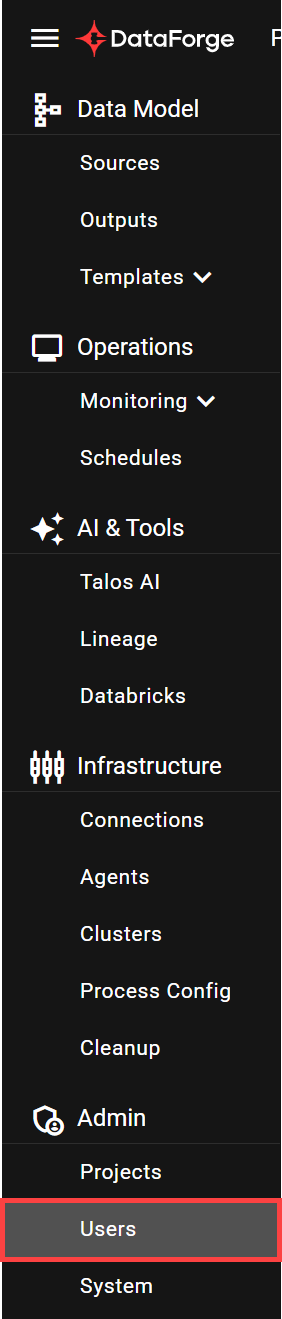
Navigating to the Users Page
Open the main menu and select Users.
Add a user to a workspace
- Login to the workspace as an admin
- Open the Users page
- Click the New + button to create a new user
- Type or paste in the user's email address
- Click the Save button
The new user is emailed a link to set their password.
Give a new user access to the workspace
DataForge signs users in against the Auth0 tenant that was created for your deployment, so sign-in accounts are held in Auth0 rather than in DataForge. The New + button is not shown on the Users page.
- Make sure the user's email domain is allowed. In the Auth0 Dashboard, the Email domain whitelist rule lists the permitted domains — by default only DataForge emails are included. See Auth0 Rule Updates for AWS deployments, or Auth0 Rule Updates for Azure deployments.
- Make sure the user has an account in that Auth0 tenant. How accounts are created there depends on how your tenant is configured.
- Have the user sign in to DataForge. On first successful sign-in, DataForge creates their workspace record automatically, active, with the User workspace role.
- As an admin, open the Users page, select the user, and set their workspace role and project access.
Machine users are the exception: an admin creates those in DataForge with Create Machine User on the Users page. See External API.
Change a user workspace role
- Open the Users page
- Search for and select the user to be changed
- Click the User Role drop-down and select the desired role
- Click the Save button
Inactivate a user from a workspace
- Login to the workspace as an admin
- Open the Users page
- Search for and select the user
- Click the Active toggle so the toggle is off (to the left)
- Click the Save button
Inactive users still have an account in the DataForge workspace, but are prevented from logging in and accessing the workspace until they are reactivated.
Remove a user from a workspace
- Login to the workspace as an admin
- Open the Users page
- Search for and select the user
- Click the Delete button
- Check the confirmation box and re-select the Delete button
- Click the Save button
Revoke a user's access
The Delete button is not available on a self-hosted deployment.
- Inactivate the user in DataForge, as above. This stops them using the workspace and keeps their record for auditing.
- To stop them authenticating at all, block or delete the account in the Auth0 tenant for your deployment.
If the account is removed only in Auth0, the DataForge user record remains on the Users page.
Assign a user as an admin
- Login to the workspace as an admin
- Open the Users page
- Search for and select the user
- Click the User Role drop-down and select Admin
- Click the Save button