New Version Upgrade Process (Terraform)
Upgrade process for AWS — two steps:
- Merge the latest Terraform changes
- Update
manualUpgradeVersionto the new DataForge version
Merging latest Terraform changes
The master Terraform repository is hosted in GitHub (contact support for access). There is a master-* branch for each version (e.g. master-2.4.3, master-2.5.0).
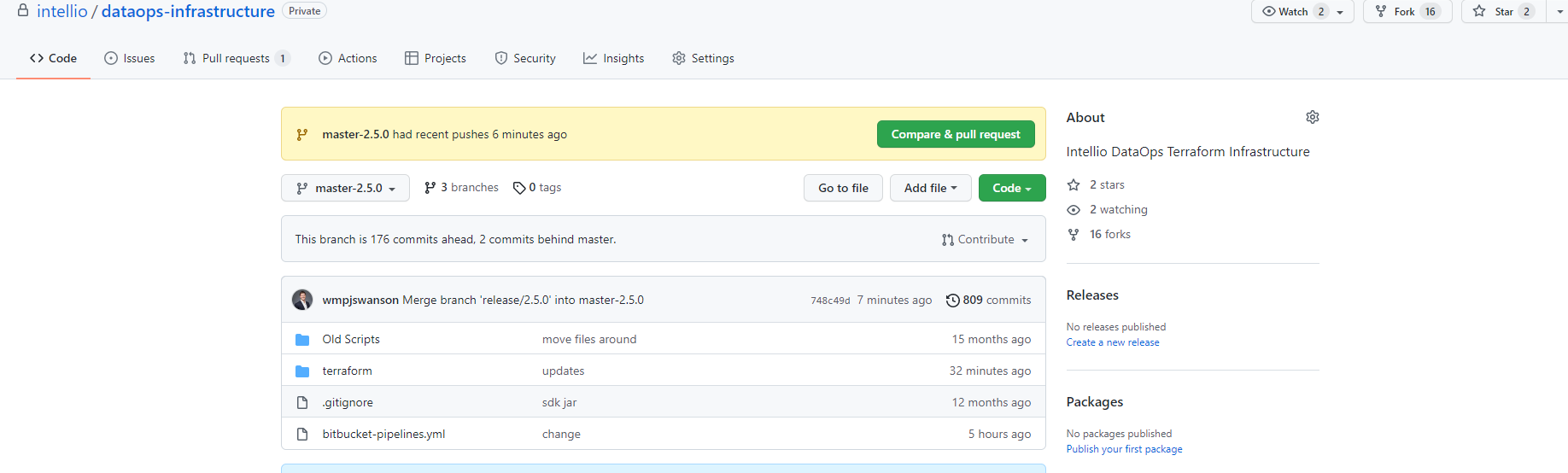
Your Terraform Cloud account is connected to a fork of this repository; forks fall behind as new master branches are added.

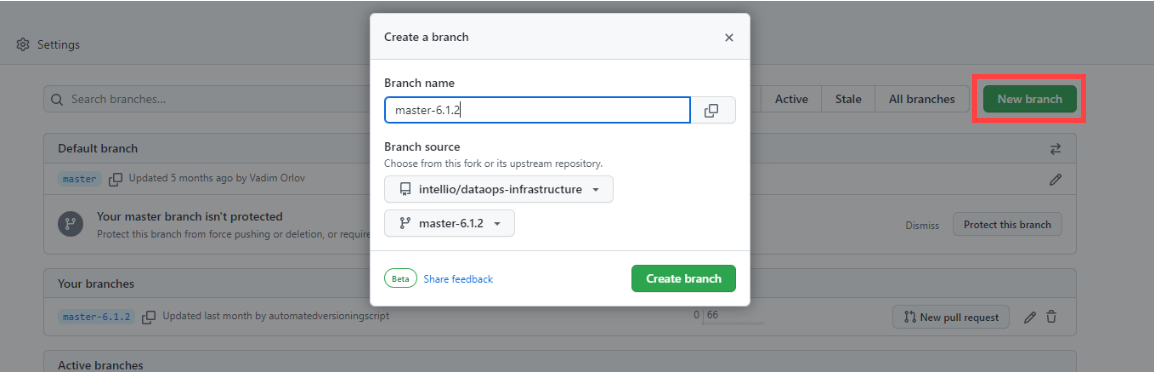
In the forked repository, create a new branch based on the target version branch from dataforge-infrastructure (e.g. master-6.2.0).

Create a pull request from the new versioned branch to master in the forked repository.
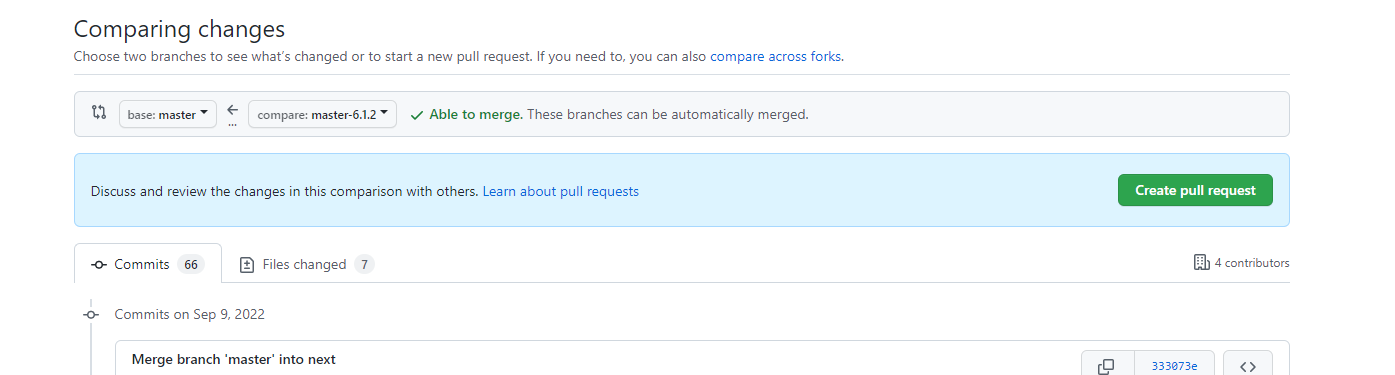
Review the PR to ensure no custom changes are overwritten. Make any needed edits to the versioned branch in the fork (commits to the upstream repo are blocked).
Updating manualUpgradeVersion to new version of DataForge
The manualUpgradeVersion Terraform variable controls which DataForge version is deployed.
Before updating, confirm Terraform changes are merged and Terraform version is 1.2x or greater (Terraform → Settings → General Settings).

Confirm no processes are running before starting the deployment. Run this on the PostgreSQL metastore and verify zero results:
In Terraform Cloud, navigate to the appropriate workspace and then click "Variables".
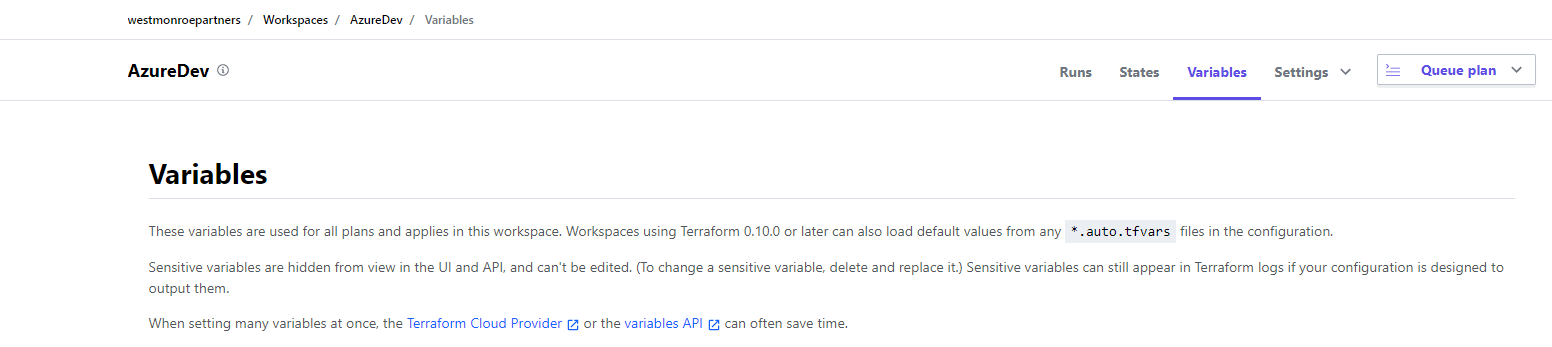
Update the "manualUpgradeVersion" variable with the version number that is being upgraded to.

After updating the variable: on the Runs tab, cancel any queued plan, then use Actions → Start New Run with Plan and Apply (standard).

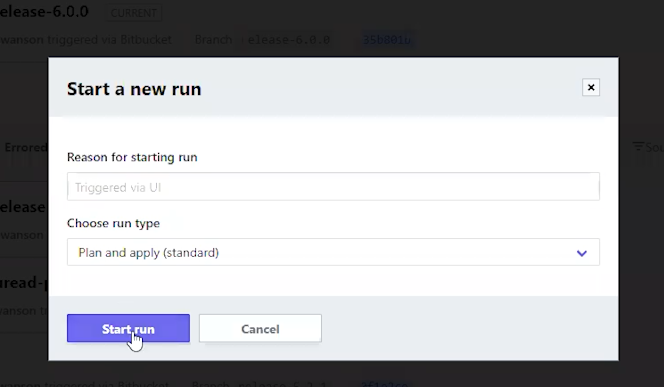
The deployment process only allows incremental upgrades going forward. There is not support to revert to an earlier version at this time.
Wait for the plan to finish, review the proposed changes, then confirm to launch the Apply phase.
- If Plan or Apply fails, contact DataForge Support.
- Only Container resources should normally change (updated or destroyed and recreated). If resources are planned for destruction without a recreation, contact Support — this usually indicates manual infrastructure changes that Terraform is reverting.

After Apply succeeds, check the Deployment container logs in CloudWatch to confirm the deployment ran successfully.
- Navigate to the Cloudwatch service in AWS and select "Log groups" on the left hand side of the page.
- Find the log group called "/ecs/
-deployment- " - Click the logs for the latest running deployment
The Deployment service logs each step and attempts an automatic rollback on error.
If you see the error below, RDS is still applying changes — wait 5 minutes and rerun the deployment container.
7-7-2022 20:32:51.973 [Deployment-akka.actor.default-dispatcher-7] ERROR AWS.AWSDeployActor - Deployment preparation failed with exception com.amazonaws.services.rds.model.InvalidDBClusterStateException: Can't create a snapshot because the database cluster
-database- isn't currently in the available state. (Service: AmazonRDS; Status Code: 400; Error Code: InvalidDBClusterStateFault; Request ID: e922d7bd-a026-4f30-a5c6-bfafe14d34a5)
If the deployment hasn't run automatically, kick it off manually:
In the ECS Cluster page, open the deployment service and click Update.
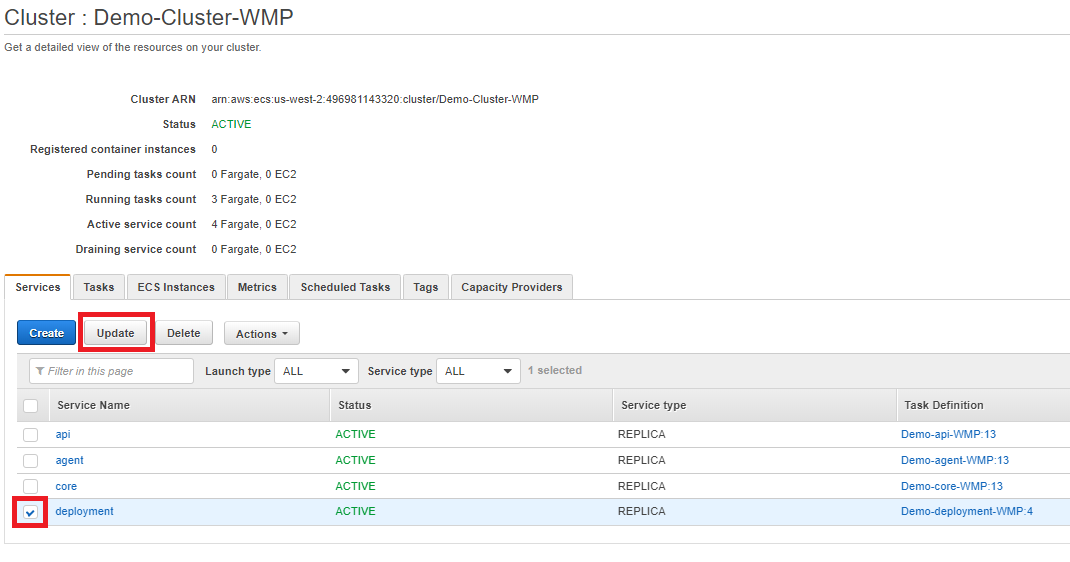
Set the Revision to the latest and Number of tasks to 1, then click Skip to review → Update Service.
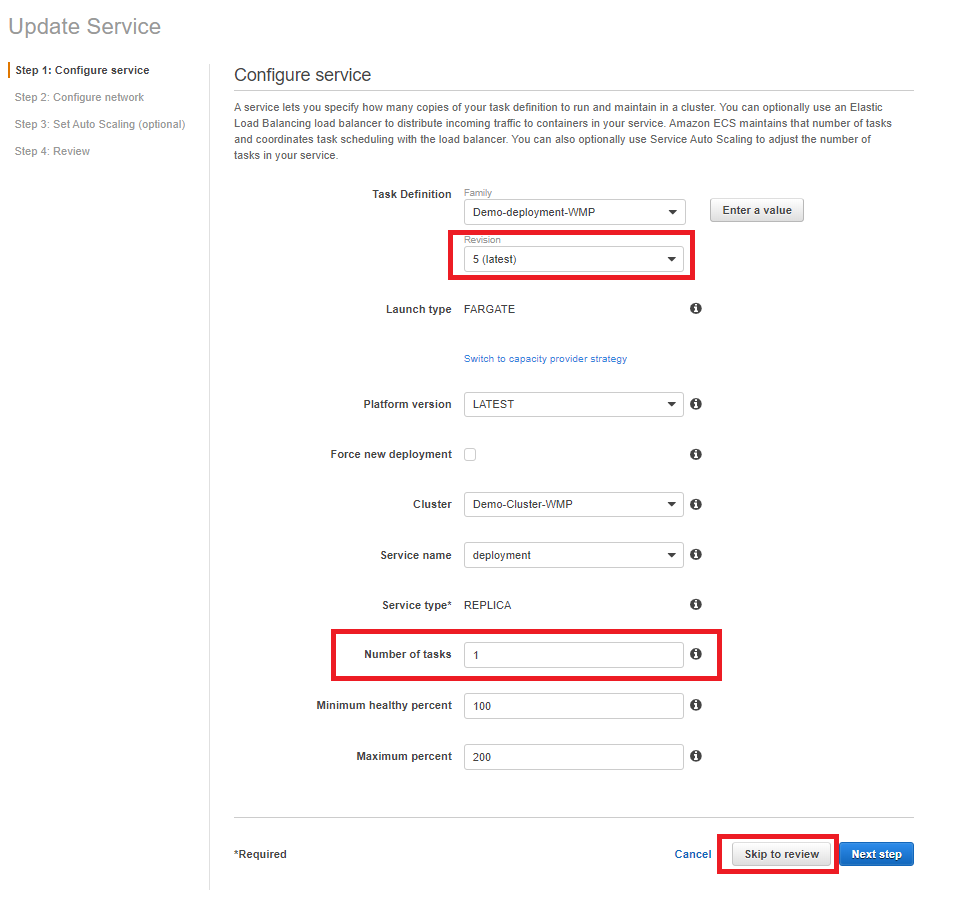
The service will start a task, perform deployment, then reset to 0.
In the DataForge UI, hover over the Menu tab to confirm the new version.

During deployment, meta.system_status contains a deployment record that blocks all other processes. It is deleted on completion. If it persists after a failed deployment, rerun the deployment or contact support.
Rollback Process
These are the steps to revert back to the previous version if absolutely necessary.
- Stop ECS containers and make sure no processes are running
- Navigate to deployment container logs in Cloudwatch and find the snapshotted database from the beginning of the deploy. The snapshot name should be logged in a message that looks like "RDS Cluster snapshot: deployment-2022-09-02-15-46-00 taken"
- Rename current pg14 cluster and instance to add "-deprecated" on the end. Ex: dev-pg14-cluster-wm -> dev-pg14-cluster-wm-deprecated
- Restore snapshot to original pg14 name that was renamed in the previous step. Ex: dev-pg14-cluster-wm
- Pick
-Database- as VPC security group - Choose 2a as availability zone
- Serverless v2 instance class
- Capacity range .5-16
- Choose DB Cluster parameter group that was on existing cluster
- Change manualUpgradeVersion in Terraform to rollback version number, run plan and apply (the Postgres database might be edited but should NOT be trying to be recreated), and have Deployment container run all the way through on the version number.
- Once UI is up and showing rollback version, delete the -deprecated database