Process Configuration Overview
Process configurations define which compute configuration(s) are used for each processing step. Multiple sources can share one process configuration.
Process Configurations List
Navigate to System Configurations → Process Configurations from the main menu.
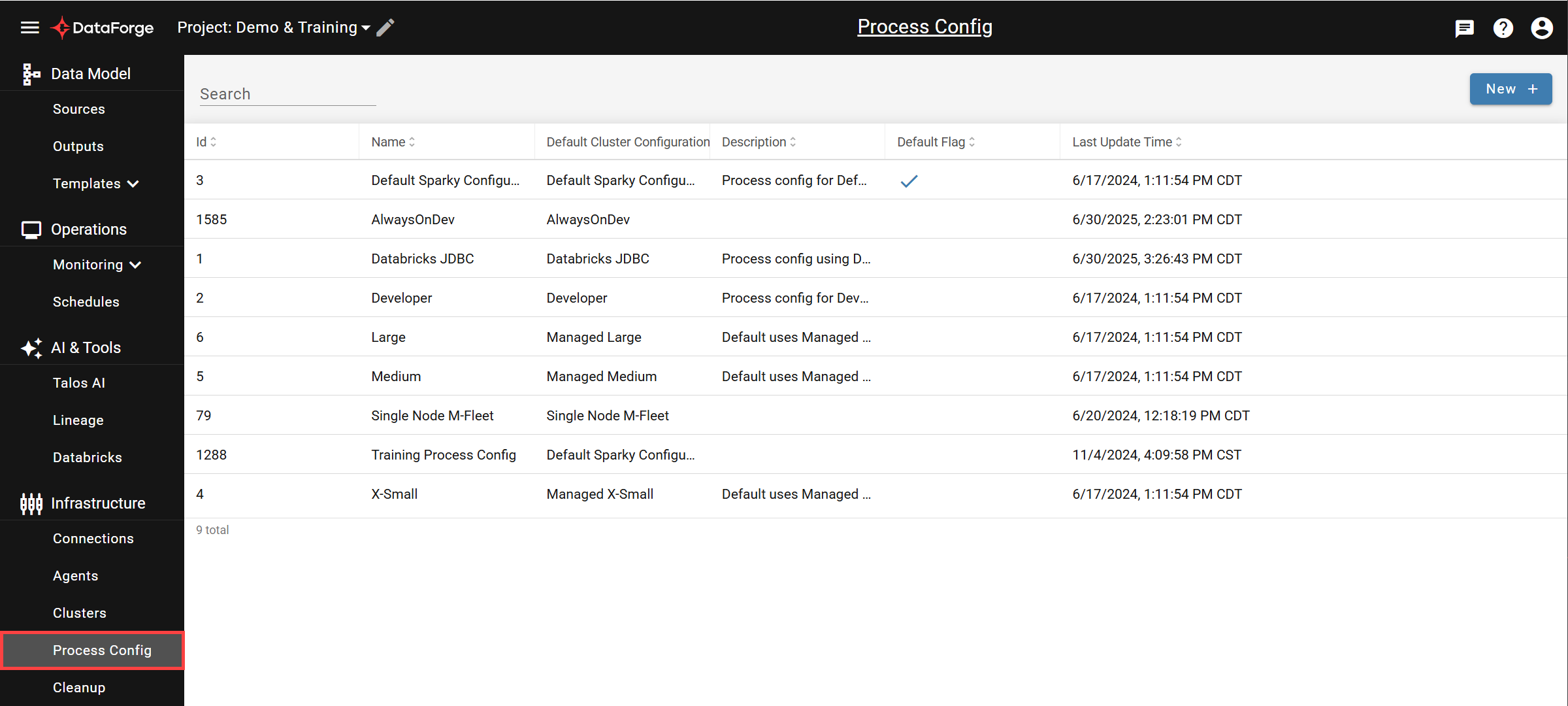
Click any row to open its settings page, or click NEW + to create a new configuration.
Settings
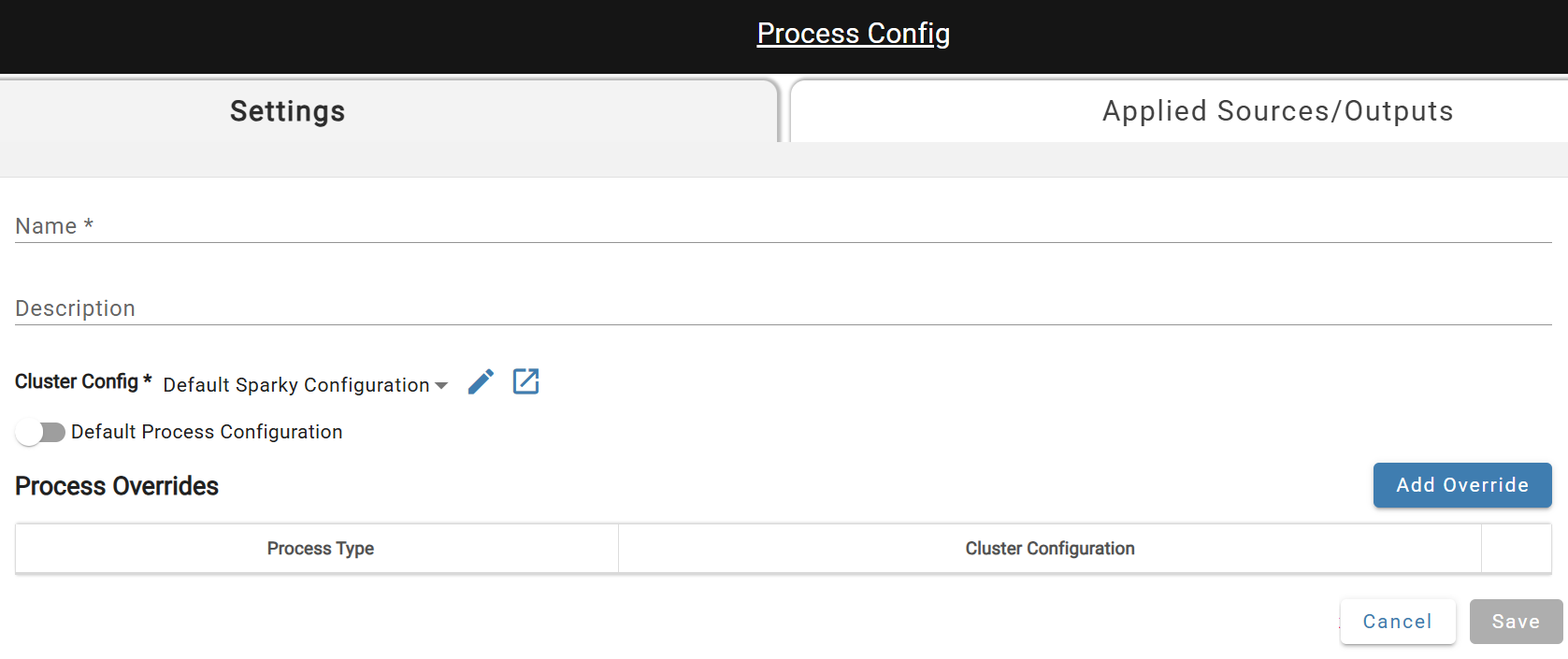
- Name*: A unique name.
- Description: A one sentence summary describing the process configuration.
- Compute Config*: The Compute Configuration that the process configuration will be using. Default is the currently flagged default compute.
- Default Process Configuration: Flag that marks one process configuration as the default. In order to remove default flag, another process configuration must be flagged as default.
Duplicate (near Save) creates a copy named "
Process Overrides
Process overrides assign different compute configurations for specific process types. Click ADD OVERRIDE and select a process type.
Multiple overrides can be assigned to one process configuration.
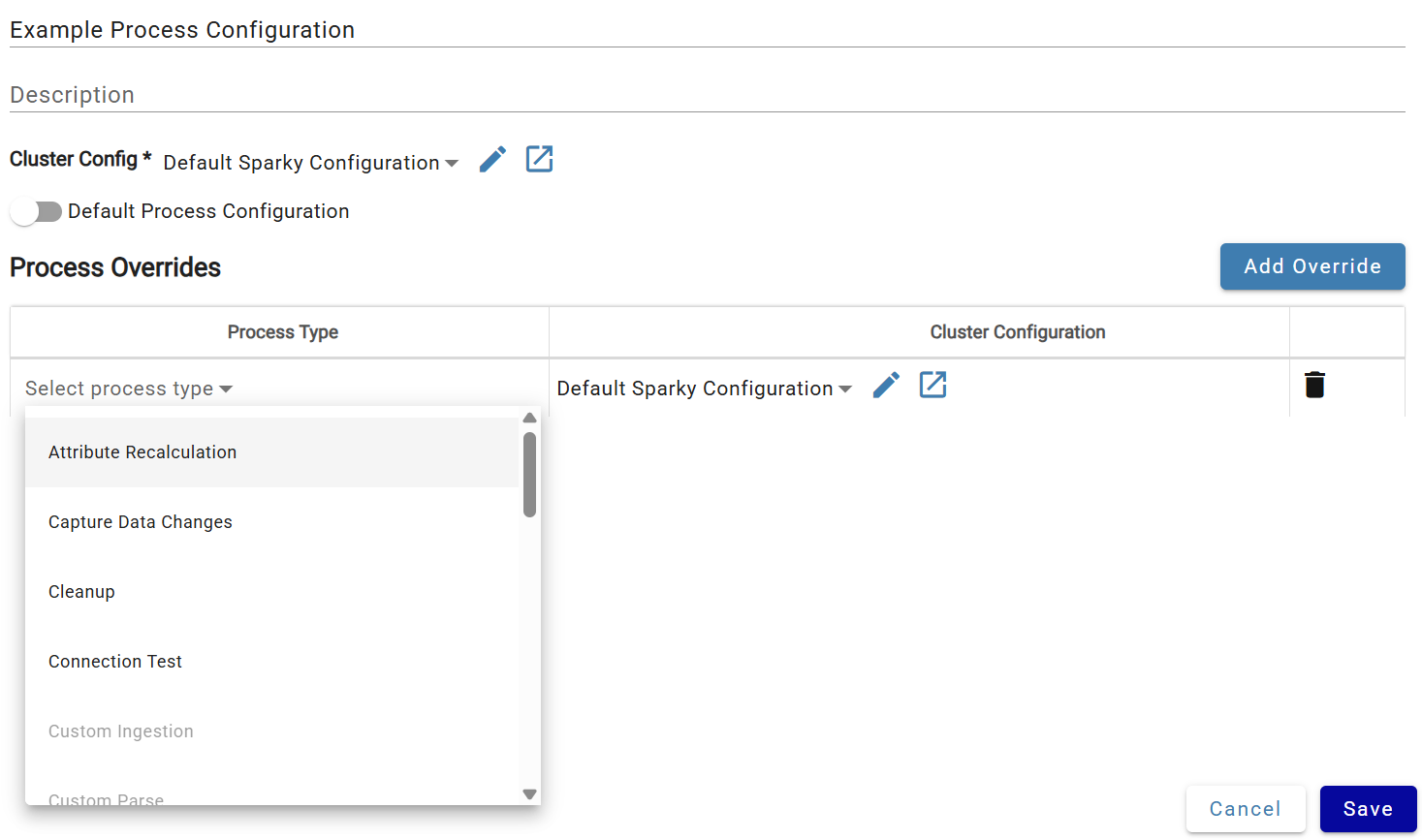 Process override dropdown
New overrides default to the default compute configuration. Use the open in new window or edit icons to create or modify a Compute Configuration; you'll be prompted to refresh the dropdown after saving.
Adding a Process Configuration to a Source
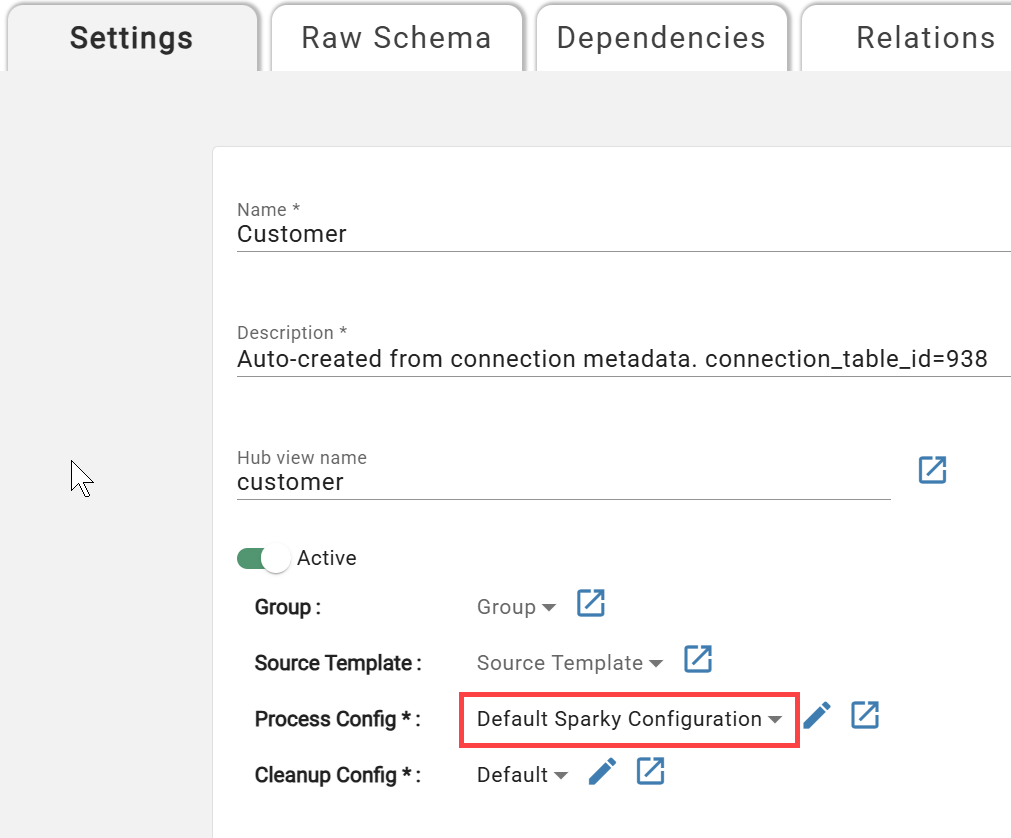
Attach a process configuration to a source via the Process Config dropdown on the Source Settings page (defaults to the flagged default). Use the open in new window or edit icons next to the dropdown to create or edit configurations without leaving the page.