10.0 Upgrade (AWS)
Pre-Upgrade Process
DataForge
All cluster configurations will automatically be upgraded to Databricks runtime 16.4 LTS, including custom notebooks. This is a change from previous upgrade behavior.
Databricks
The 10.0 deployment container connects to a dataforge catalog in your Databricks workspace. This catalog must be created before upgrading — it will host all refining stages and hub tables after sources are migrated to Unity Catalog.
To use a catalog name other than "dataforge", contact DataForge support.
To create the catalog, specify a storage location: use your account-level metastore (if it has a storage path) or create a storage credential and external location pointing to a specific bucket.
-
Identify the user or service principal that is used to run jobs from DataForge. An easy way to identify this is to open Databricks, navigate to Jobs & Pipelines, open the Job runs tab, and identify the user/principal listed in the "Run as" column for any DataForge job runs. Make note of this user/principal as you will need to assign them multiple permissions.
-
Create a new Catalog named "dataforge"
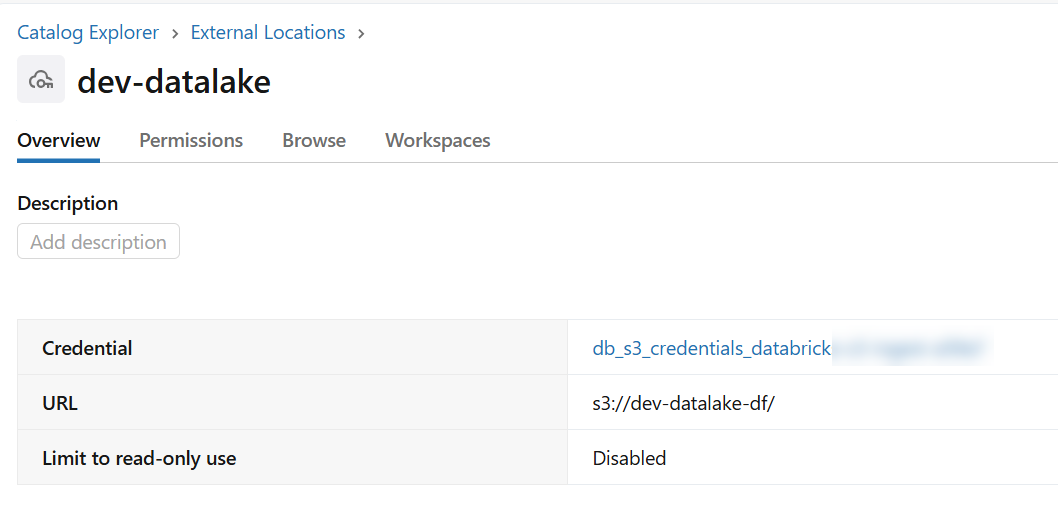
The storage credential and external connection can be pointed to any bucket. If you already have a storage location you would like to use, skip down to creating the catalog. For simplicity, we recommend creating the catalog to point to "s3://
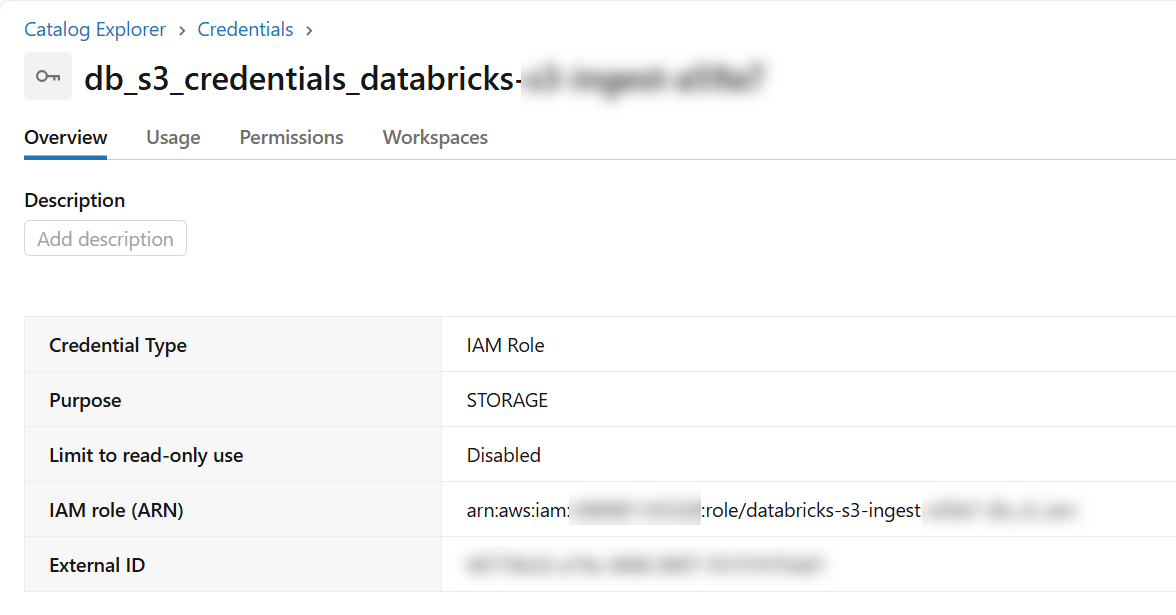
- External Location using storage credential
- Can use any bucket, but recommended using "s3://
" - Including permission for the DataForge authorized user or service principal of "ALL PRIVELEGES"
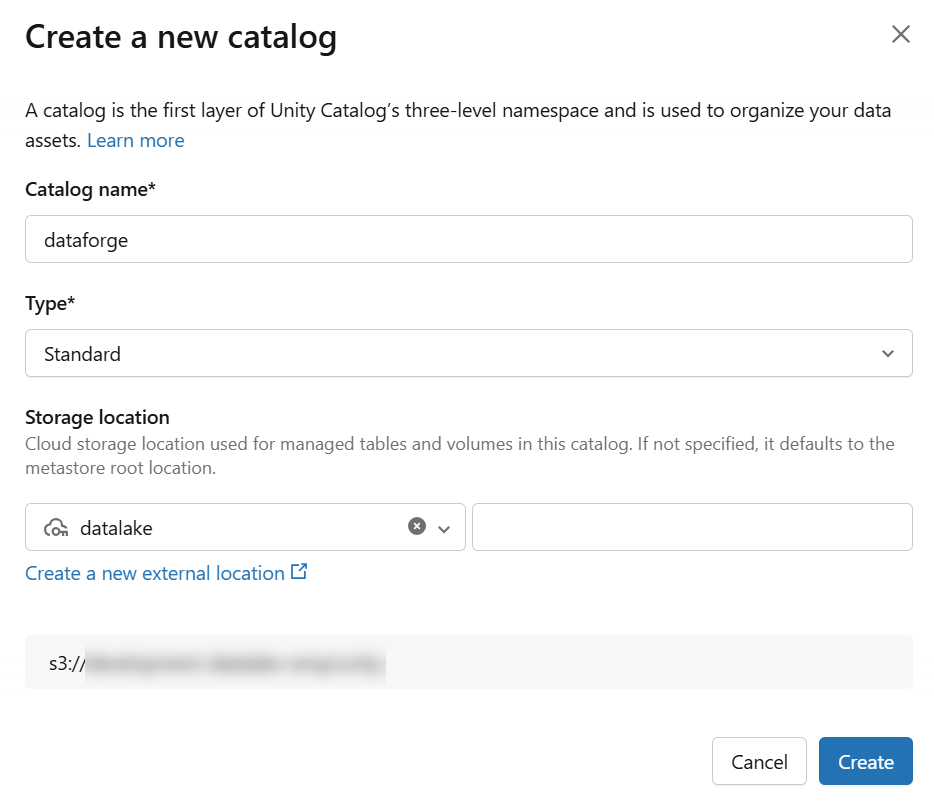
- Catalog named "dataforge" using external location from step 2
- Use "Standard" catalog type
- Can use any bucket within the external connection, but recommended using "s3://
" - Including permission for the DataForge authorized user or service principal of "ALL PRIVELEGES"
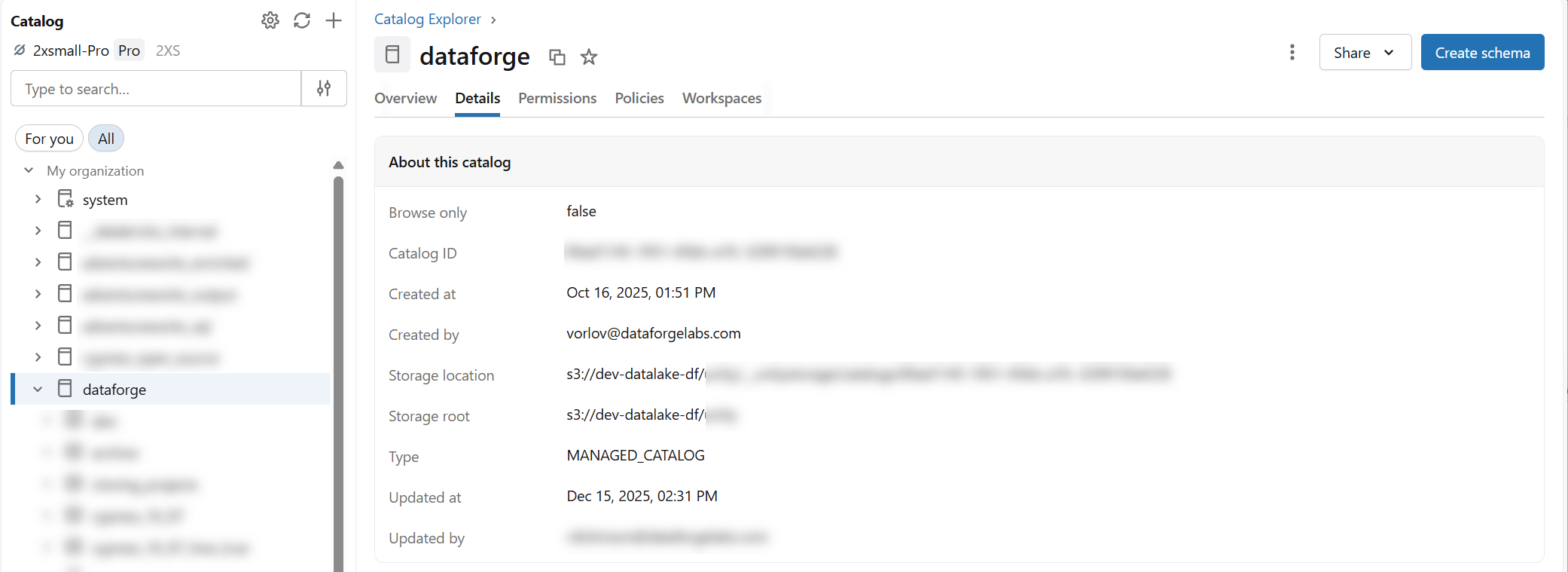
3.Once the catalog is created, grant permissions on the catalog for the DataForge authorized user or service principal of "ALL PRIVELEGES".
-
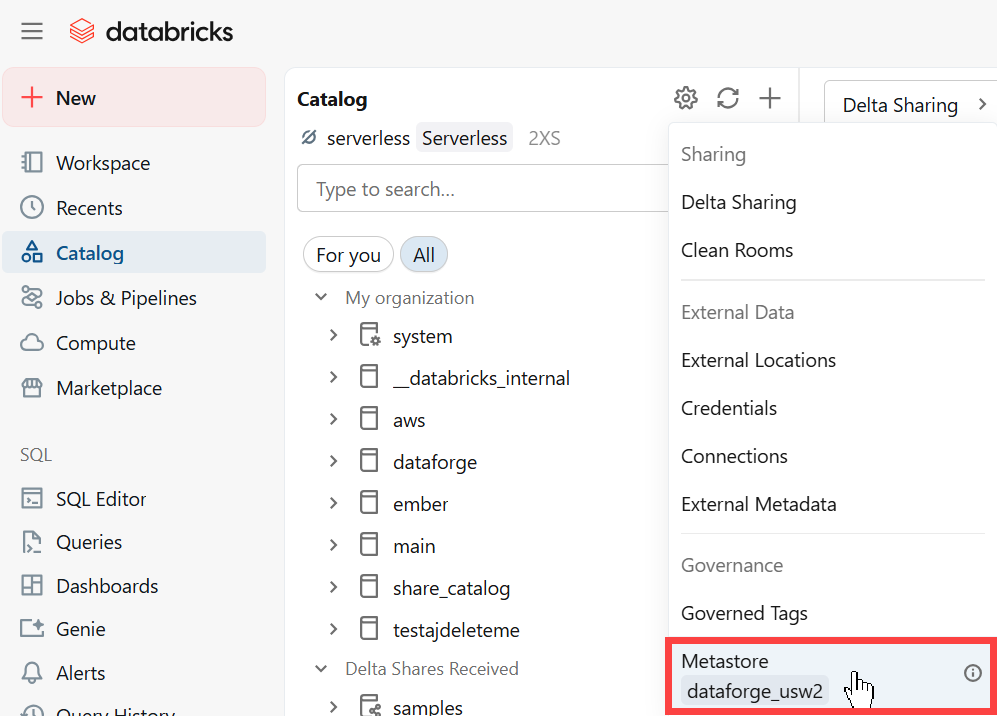
Open the Catalog page in Databricks and click the gear icon and select the metastore assigned to your Databricks workspace. Navigate to the Permissions tab and assign the following permissions to your DataForge authorized user or service principal:
-
MANAGE ALLOWLIST
- CREATE CONNECTION
- CREATE CATALOG
Upgrade Process
After completing the pre-upgrade steps, follow the standard upgrade guide, then proceed to post-upgrade.
Upgrade Process
DataForge applies the deployment during your scheduled maintenance window — see Maintenance and Versioning.
Post-Upgrade Process
Confirm the environment is alive and working as usual. Confirm custom notebooks still succeed with the updated Databricks runtime. Submit a support request if something is not working as intended.
Begin migrating sources from hive_metastore to Unity Catalog format.