Raw Schema
The Raw Schema tab for Sources allows users to view the raw database attributes as well as raw metadata.
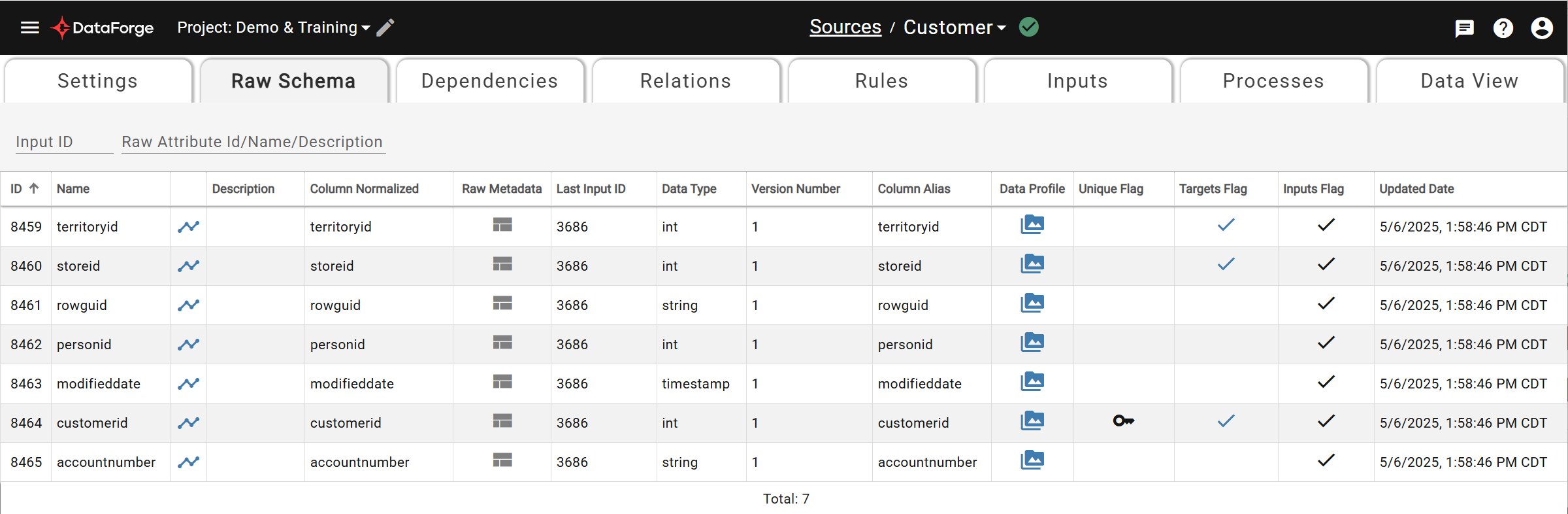
Viewing Raw Schema
Located between the Settings and Dependencies tabs, the Raw Schema tab shows the raw attributes ingested for the source and their associated metadata.
Data columns:
| Column Name | Description |
|---|---|
| ID | Serialized number assigned to attribute |
| Name | Column name from source data |
| Lineage (blank) | Use icons to view lineage graph |
| Description | Optional description for raw attribute |
| Column Normalized | Name converted to normalized format |
| Raw Metadata | See Raw Metadata |
| Last Input ID | ID of latest input where attribute was ingested |
| Data Type | Data type of each attribute |
| Version Number | Instance number of attribute with the same name and data type ingested for the source. |
| Column Alias | Lower-cased alias of column name used for hub tables. |
| Unique Flag | Indicates whether the attribute is unique for every record. Designated in source settings via Data Refresh Key, Sequence, or Timestamp columns. |
| Targets Flag | Indicates whether the attribute is used down-stream in enrichments or output column mappings. |
| Inputs Flag | Indicates whether any inputs in the source contained the attribute when ingestion was run |
| Updated Date | Date and time of last update |
Raw attribute data will appear after inputs have completed their data pull.
Raw Metadata
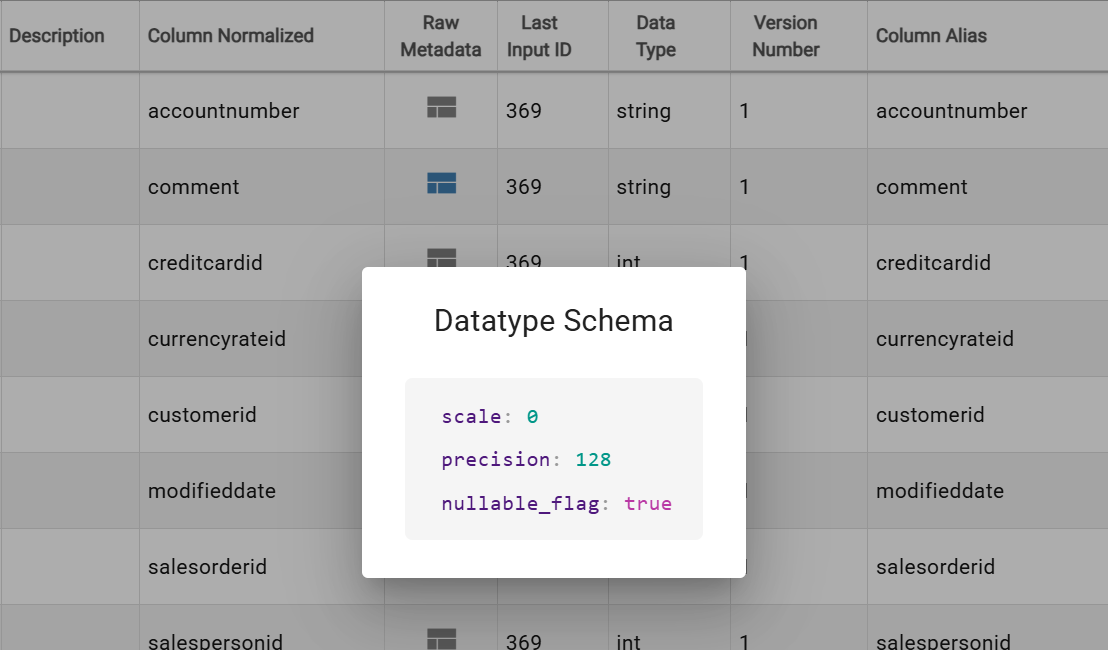
Click the table icon in the Raw Metadata column to view all metadata for a raw attribute. Raw Metadata is only available after ingesting through a connection that uses Outcrop, the DataForge agent that runs inside your network. If no metadata exists for a column, the icon is disabled (hover to see "No metadata defined").
Updating Raw Attribute Descriptions
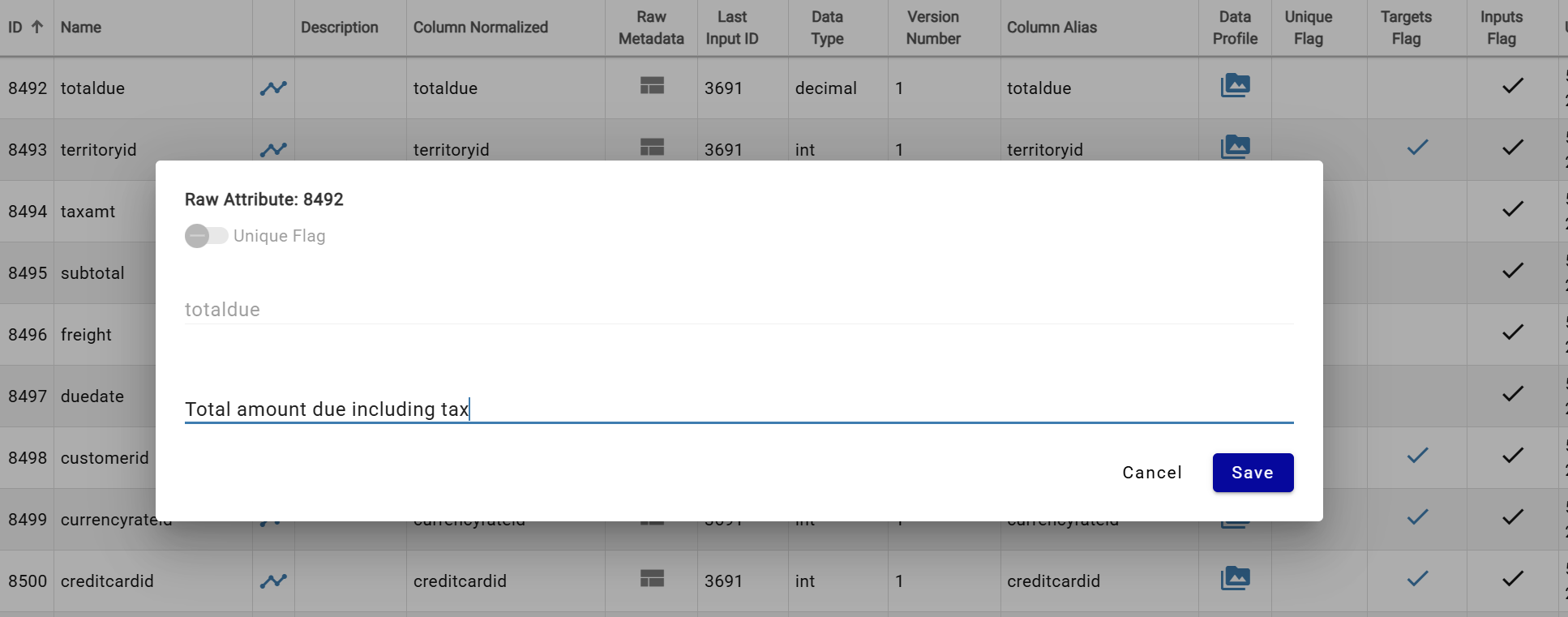
Click any cell in the Description column to open a popup for entering or editing the attribute's description.
Raw Schema Management
Raw attributes are automatically added as new columns are ingested. To remove an unwanted attribute, delete the inputs that introduced it — the Raw Schema will automatically update and remove the column if it's no longer referenced by any remaining input. The Last Input ID column identifies which input last contributed each attribute.
This is useful when bad data created an unintended attribute, or when the same column name was inferred as different data types across inputs. In the latter case, the newer attribute gets _2 appended to its column alias.
Data Profiles
Clicking the Data Profile icon brings up the data profile of that raw attribute. Different datatypes provide different data profile data.
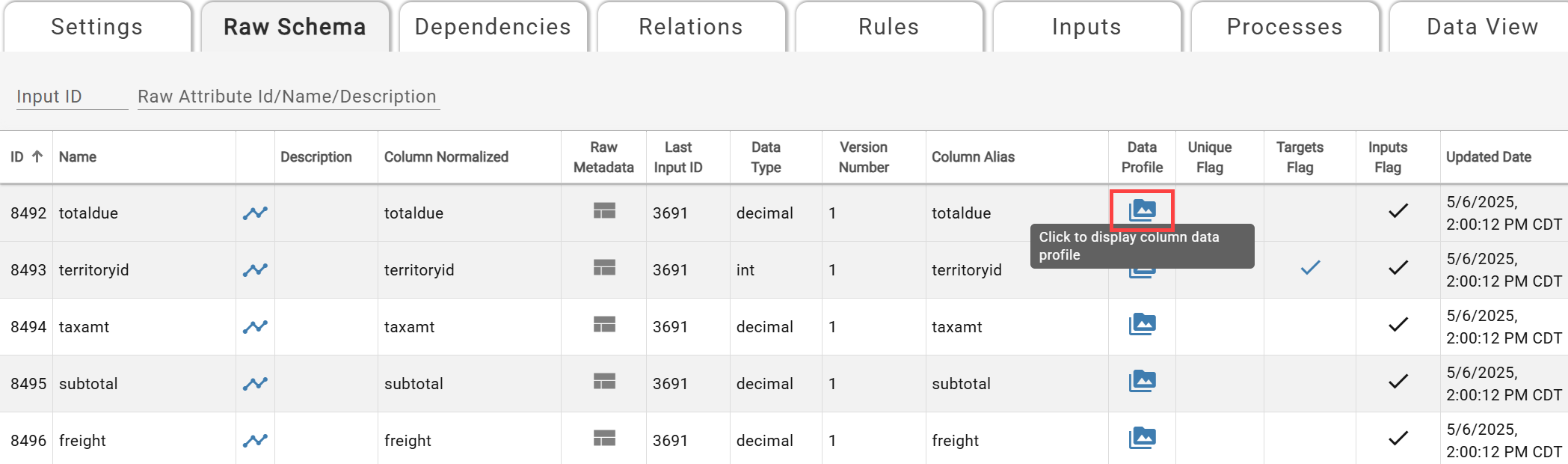
Data Profile options
A modal appears showing the data profile when the datatype label is clicked. Older data profiles for the source can be accessed by using Select profiling timestamp.
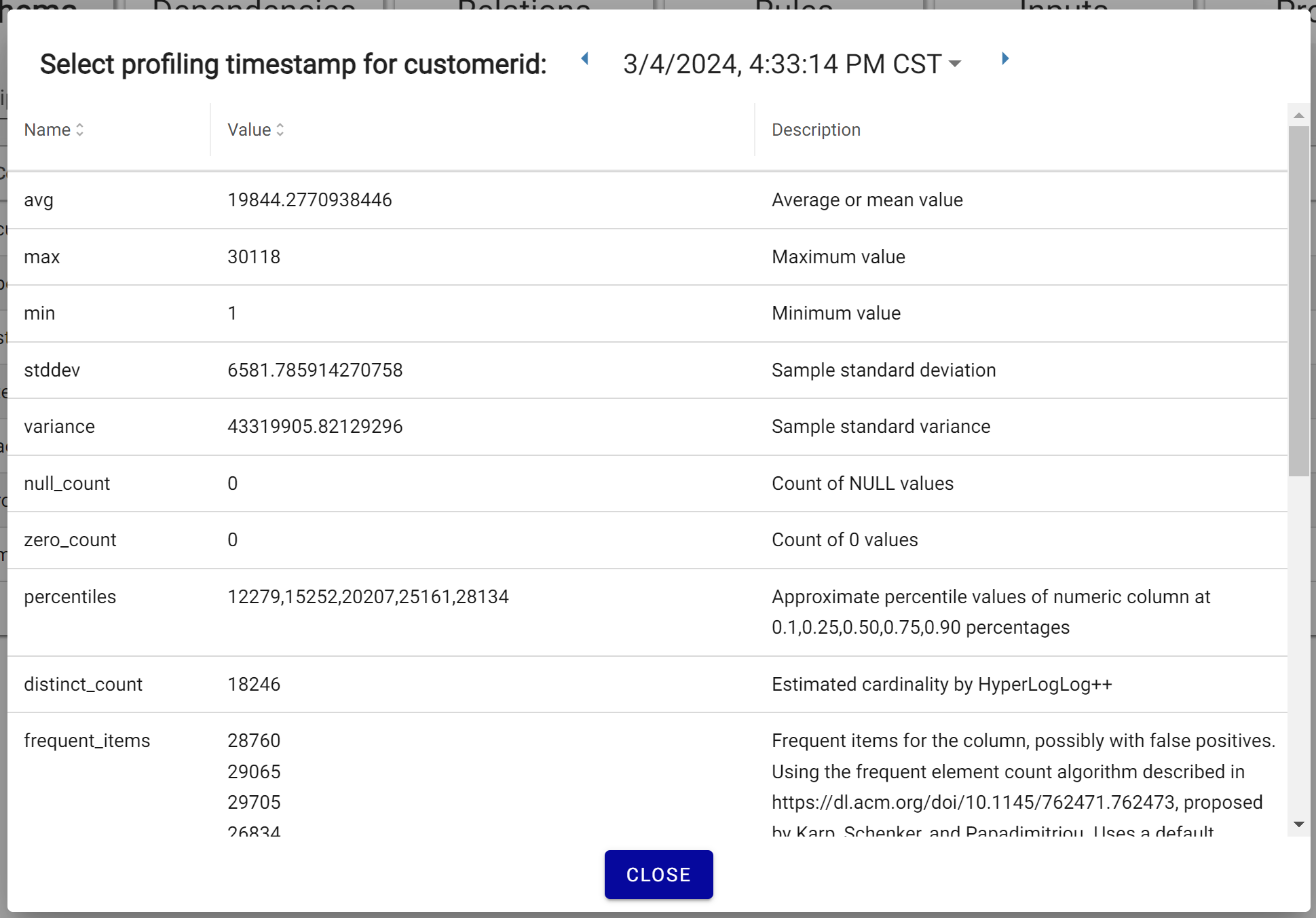
The Data Profile
Data profiles provide the following statistics:
Common
- Attribute Type
- Data Type
- Number of Rows
- Min
- Max
- Unique %
- Null %
- Top 5 Values
- Bottom 5 Values
- Distribution Percentiles (10%, 25%, 50%, 75%, 90%)
Text
- Min Length
- Max Length
- Avg Length
- Numeric %
- Blank %
- Special Char %
Numeric
- Average
- Median
- Standard Deviation
- Zero %
Timestamp
- Average
- Median
- Standard Deviation
Sub-Source Raw Schema
All raw schema tab features are available in a sub-source. Raw schema is auto-updated from parent sub-source enrichment schema.
For full documentation, visit Sub-Sources.