(Azure Workspaces) Creating "dataforge" unity catalog
Workspace deployment requires a "dataforge" catalog in Databricks. This catalog hosts all refining stages and hub tables.
If you would like to name your catalog to something other than "dataforge", please contact DataForge support as this requires following a process to ensure source hub tables are processed correctly.
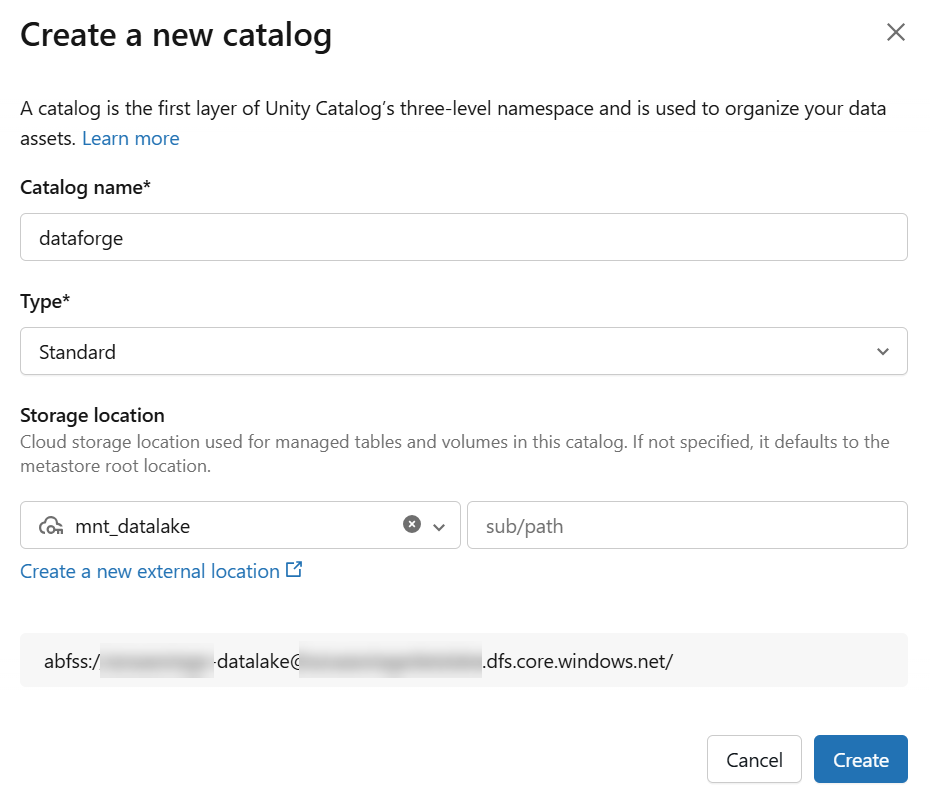
To create the catalog, specify a storage location. For simplicity, use the default mnt_datalake storage location created by the Terraform Quickstart.
-
Create a user (and assign both Workspace Admin and Account Admin privileges) that will be used to run jobs from DataForge. Make note of this user as you will need to assign them multiple permissions and generate a personal access token later.
-
Create a new Catalog named "dataforge"
-
If a Storage location does not already exist, follow these steps before moving attempting to create the catalog:
- Follow steps 1-4 to Configure a new managed identity for Unity Catalog: https://learn.microsoft.com/en-us/azure/databricks/connect/unity-catalog/cloud-storage/azure-managed-identities#config-managed-id
- Create a storage credential that access Azure Data Lake Storage: https://learn.microsoft.com/en-us/azure/databricks/connect/unity-catalog/cloud-storage/storage-credentials#-create-a-storage-credential-that-accesses-azure-data-lake-storage
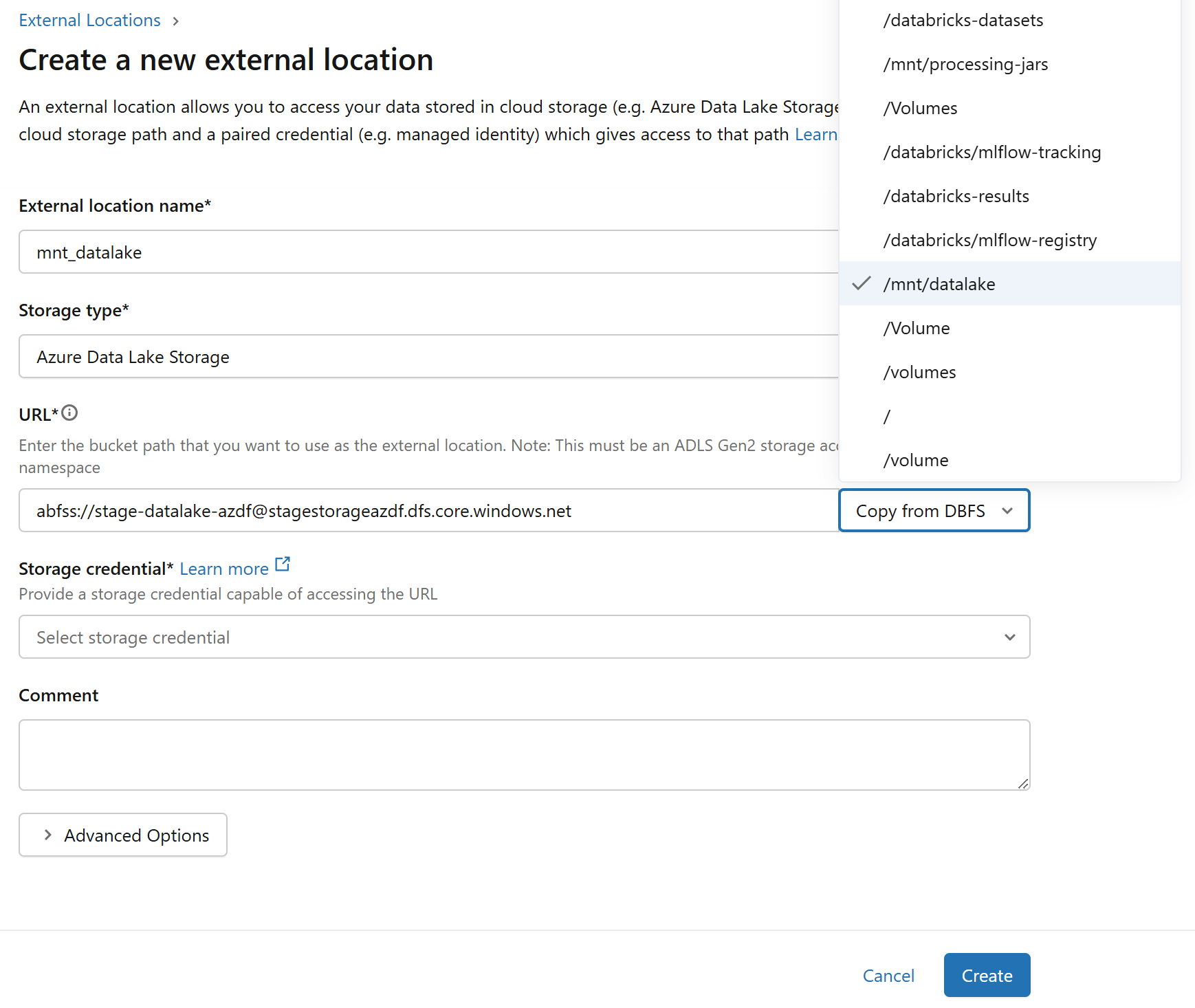
- Create an external location using catalog explorer. Recommended to use the Copy from DBFS option to copy from "mnt/datalake" (if you've used the Terraform Quickstart): https://learn.microsoft.com/en-us/azure/databricks/connect/unity-catalog/cloud-storage/external-locations#-option-1-create-an-external-location-using-catalog-explorer
- Use "Standard" catalog type
- Can use any storage location, but recommended using "mnt_datalake" (if you've used the Terraform Quickstart)
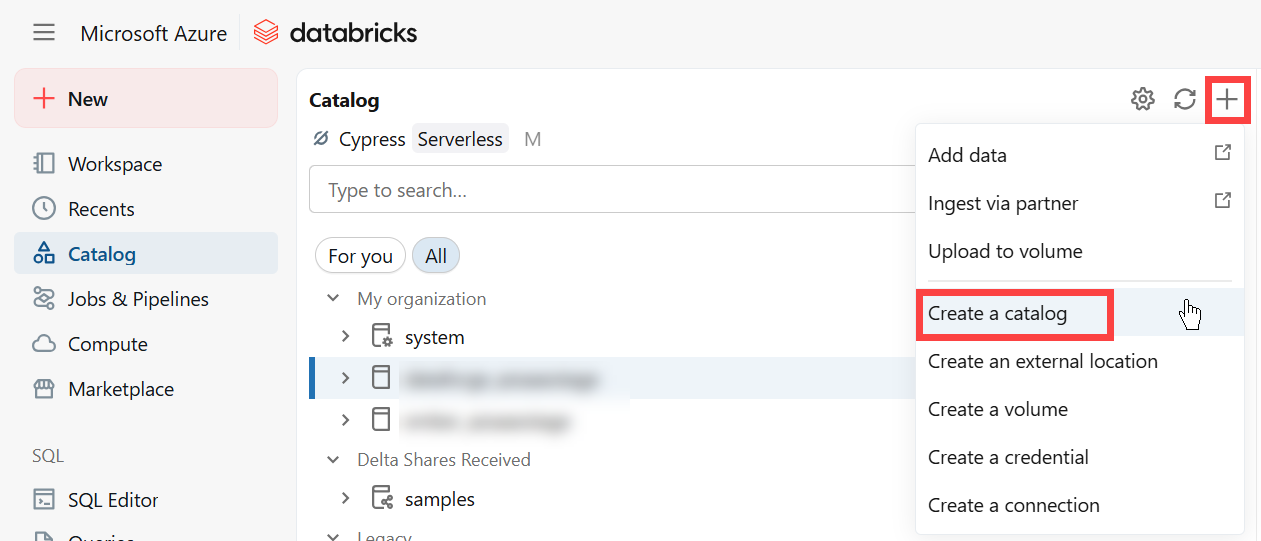
3.Once the catalog is created, grant permissions on the catalog for the DataForge authorized user of "ALL PRIVELEGES".
-
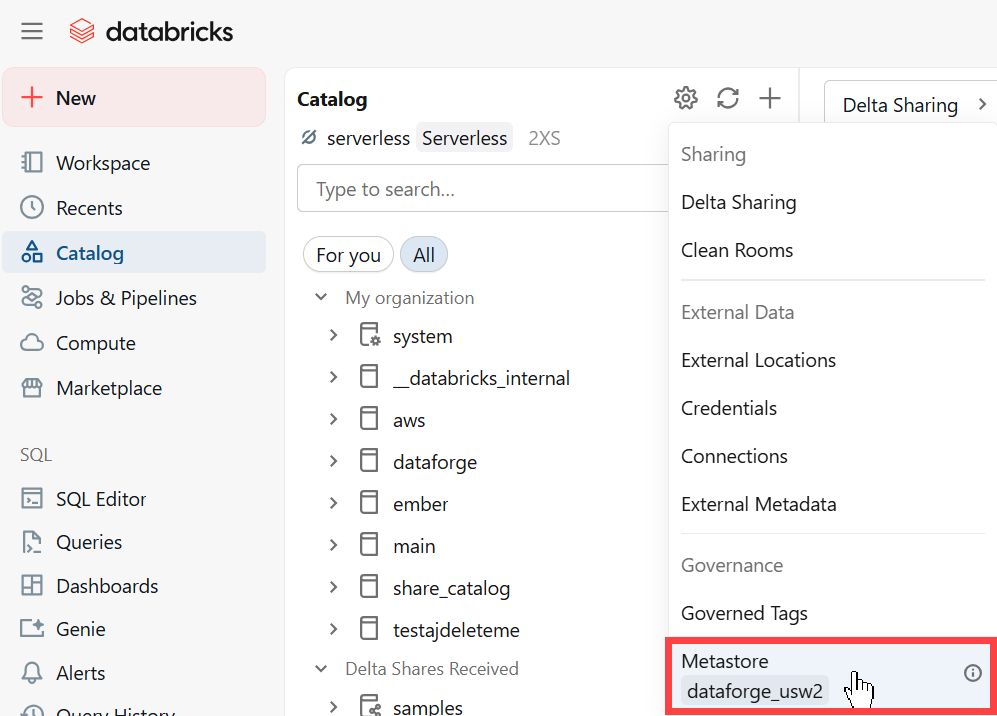
Open the Catalog page in Databricks and click the gear icon and select the metastore assigned to your Databricks workspace. Navigate to the Permissions tab and assign the following permissions to your DataForge authorized user:
-
MANAGE ALLOWLIST
- CREATE CONNECTION
- CREATE CATALOG