Inputs
An Input is DataForge's atomic unit of data processing — a single file pull or scheduled table pull from a configured Source.
The Inputs tab shows the status of all inputs for a source across all processing stages. Use the filters at the top to narrow by stage status or file name.
Columns and statuses
- Id - The input ID. Used to indicate this input in logs, processes, and the dependnecy queue
- File Name - The source file name, not present for table sources
- Received DateTime - The timestamp at which the input was pulled into DataForge
- Size - The total file size of the source file/database pull
- Record Count - The number of records appearing in the original input file/database pull
- Effective Record Count - The number of records appearing in the hub table after CDC.
- Status - Indicates whether an input has successfully gone through all of its processing steps. Click this status to navigate to the Process page filtered for that input for further visibility of the process details and job run or to cancel an active process.
 Success - Everything has processed correctly
 Fail - A failure has occurred for this input
 Waiting - The input is waiting in the dependency queue
 Ingestion Queued - The input is waiting for Outcrop, the DataForge agent that runs inside your network, to process. This can be an indicator Outcrop is dead or not responding and needs to be restarted.
 In Progress - The input is currently running a process
 Launching Compute - The input is launching a new compute resource
 The input is queued for deletion
 Queued in Workflow - Input is waiting for Workflow to release process to continue. Click icon to see queue details.
 - The input has passed processing but contains 0 records.
- Current Process Type- Displays the process currently running for each input
- Last Completed Process Type- Displays the last completed or attempted process type for each input
- Checkbox - Used to select multiple inputs for deletion. After selecting the input checkboxes you want to delete, use the Select Action drop-down at the top and select Delete. Then select Submit.
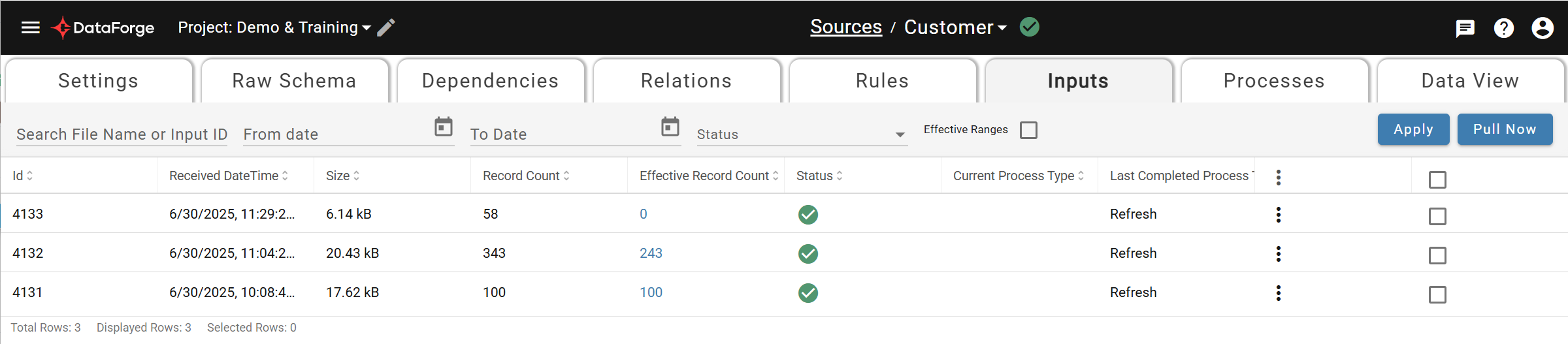
The Inputs Page
Three Dot Menu for an Individual Input
Contains data processing and reprocessing options. Kicking off any of the reprocess options will lead to all downstream processes running as well. i.e. Reset Capture Data Changes will perform enrichment, refresh, and output after completing. If one of these options is greyed out, hover over the value to find out why it is not currently a valid choice.
- Reset Parsing
- Only present for file sources
- Rereads data from the source file
- Use this when a file is not read into DataForge correctly after adjusting the parsing parameters
- Reset Change Data Capture (CDC)
- Recalculates all CDC values and rewrites CDC files for a specific input
- Use this when changing the CDC tracking fields or source refresh type
- Reset Enrichment
- Regenerate enrichment query and run it to rewrite enrichment file for a specific input
- User this to test out newly created enrichments.
- Reset Output
- Regenerate output query and output delete query for a specific input and run it.
- Use this to repopulate outputs with newly mapped values
- Delete
- Delete this input from DataForge and the hub table.
- This process type can cause other inputs to process in order to fill in data gaps.
- Use this to get rid of unwanted data
- View Data
- Use this to easily navigate to the Data View tab and view the data relevant for the input selected
- View Raw Schema
- Use this to easily navigate to the Raw Schema tab and view the raw attributes that were brought in during the Input selected
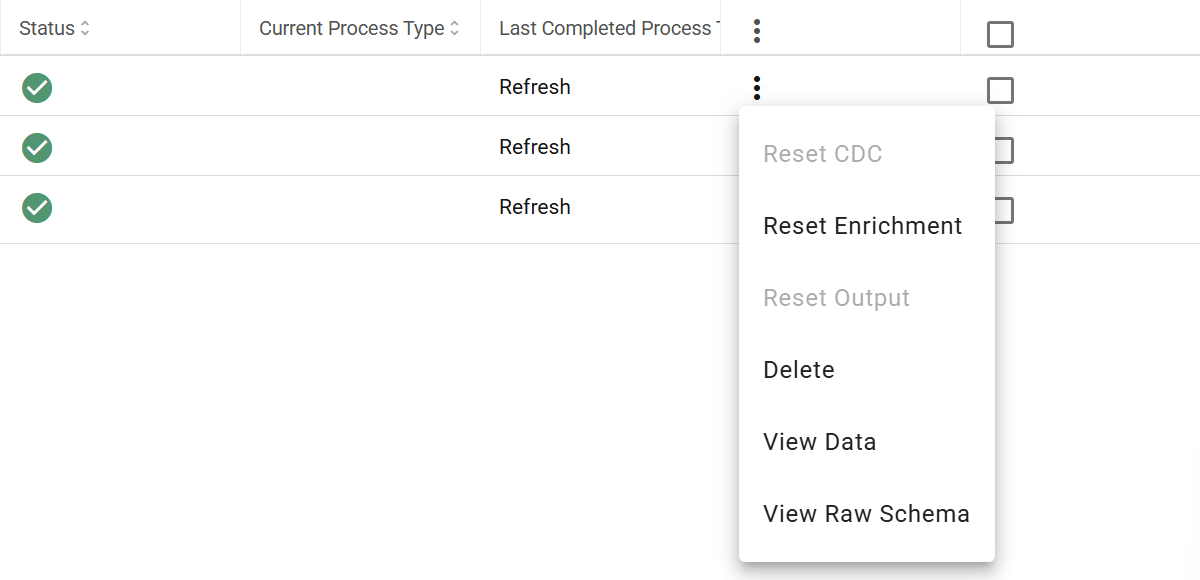
Example Menu with Invalid Options
Controlling All Inputs or New Data Pulls
Access the triple-dot menu on the header row above the inputs list for source-wide operations. Not all options are available in every state. Source-wide reprocessing can be expensive on sources with many or very large inputs.
- Pull Data Now: Immediately generate a new Input for this Source (not available on watcher sources)
- Reset All CDC: Reset the Change Data Capture phase for all inputs. For sources with a large number of inputs (500+) or extremely large data sizes (100GB+), consider increasing the size of your compute configuration or setting an override to a larger compute instance as Reset All CDC is compute intensive.
- Reset Output: Reset the Output phase for all inputs for a specific Output or All Outputs this Source is mapped to
- Recalculate Changed: Recalculate new rules and changed rule expressions for all inputs.
- Recalculate All: Recalculate all rules for all inputs.
- Reset All Parsing: Reset the Parsing phase for all inputs
- Delete Source Data: Delete all stored data for the Source. Deletes all inputs (hub table, raw input data, rule results, metadata not used in rules or output mappings)
- Delete Source Metadata: Delete all metadata for the Source. Only available after using Delete Source Data option.
- View Source Data: Opens data view tab to show the data for this source
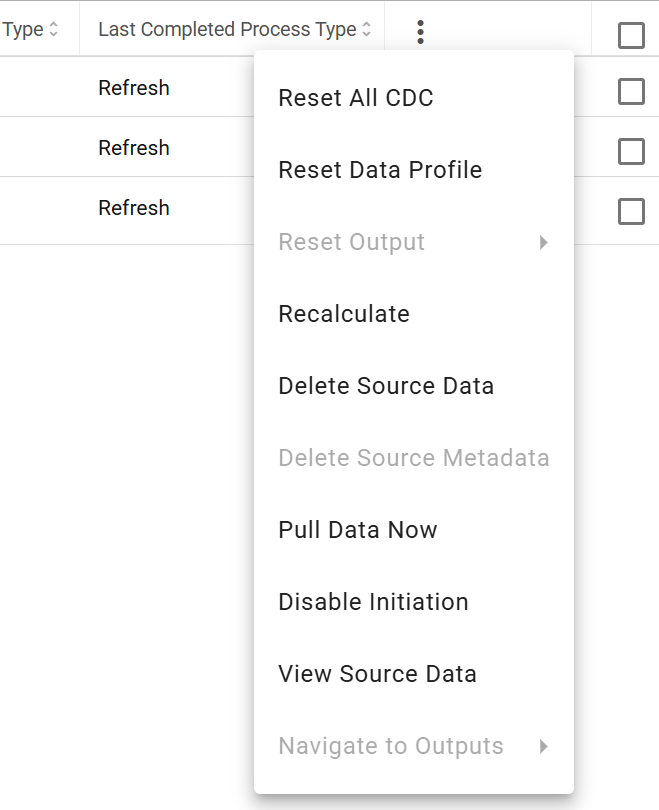
Options for all inputs
Sub-Source Inputs
The Inputs tab is not available in sub-sources. All inputs are managed within the parent source where the sub-source rule is calculated.
For full documentation, visit Sub-Sources.