New Version Upgrade Process (Terraform)
Upgrade process for Azure — two steps:
- Merge the latest Terraform changes
- Update
manualUpgradeVersionto the new DataForge version
Merging latest Terraform changes
The master Terraform repository is hosted in GitHub (contact support for access). There is a master-* branch for each version (e.g. master-2.4.3, master-2.5.0).
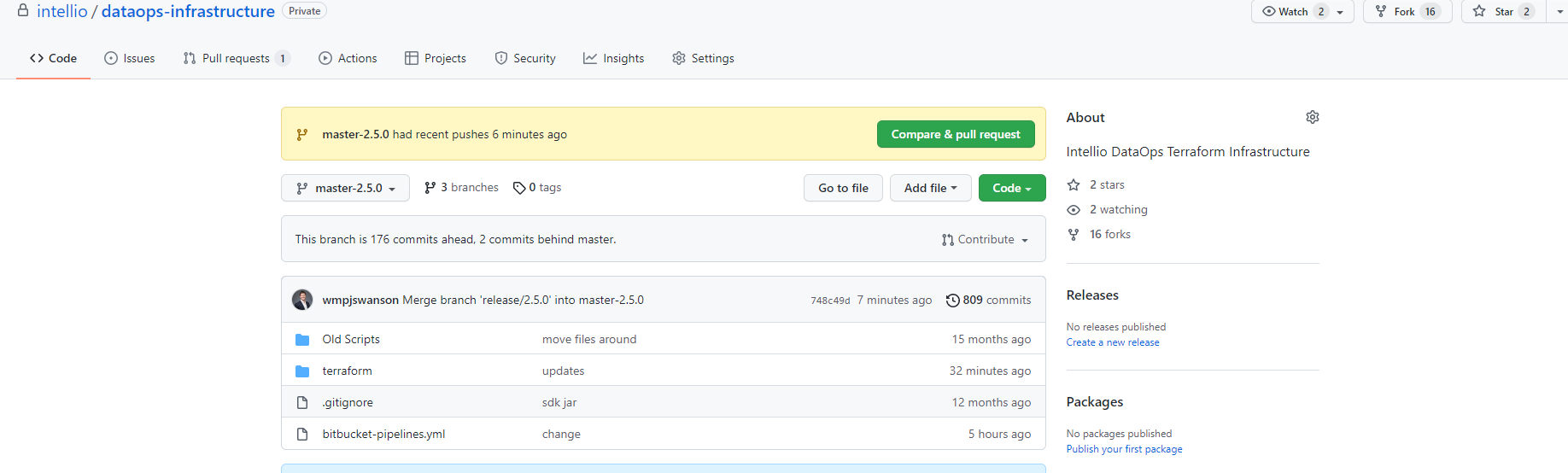
Your Terraform Cloud account is connected to a fork of this repository; forks fall behind as new master branches are added.

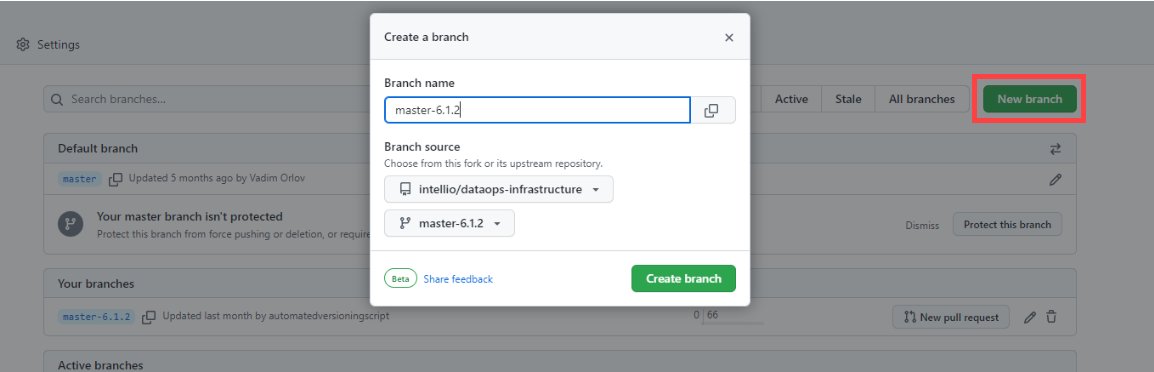
In the forked repository, create a new branch based on the target version branch from dataforge-infrastructure (e.g. master-6.2.0).

Create a pull request from the new versioned branch to master in the forked repository.
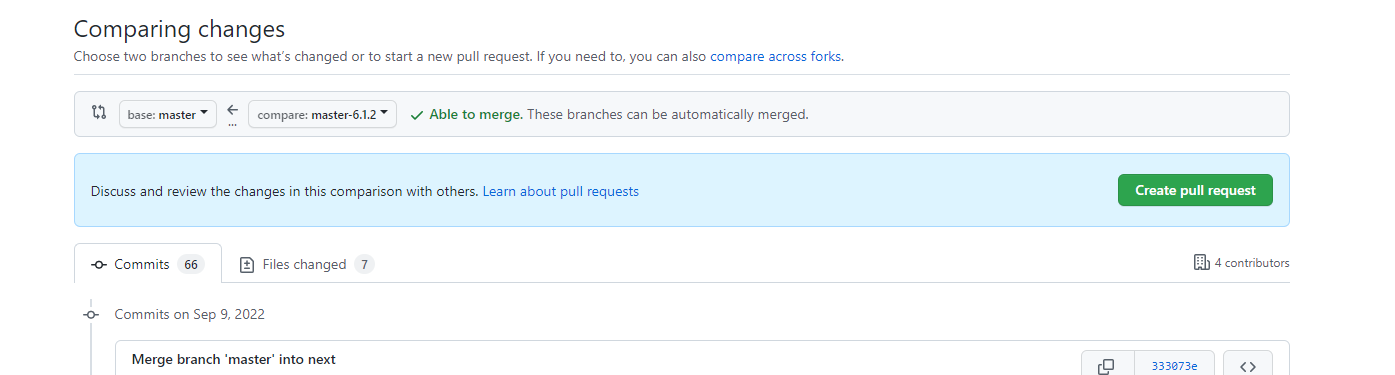
Review the PR to ensure no custom changes are overwritten. Make any needed edits to the versioned branch in the fork (commits to the upstream repo are blocked).
Updating manualUpgradeVersion to new version of DataForge
The manualUpgradeVersion Terraform variable controls which DataForge version is deployed.
Before updating, confirm Terraform changes are merged and Terraform version is 1.2x or greater (Terraform → Settings → General Settings).

Confirm no processes are running before starting the deployment. Run this on the PostgreSQL metastore and verify zero results:
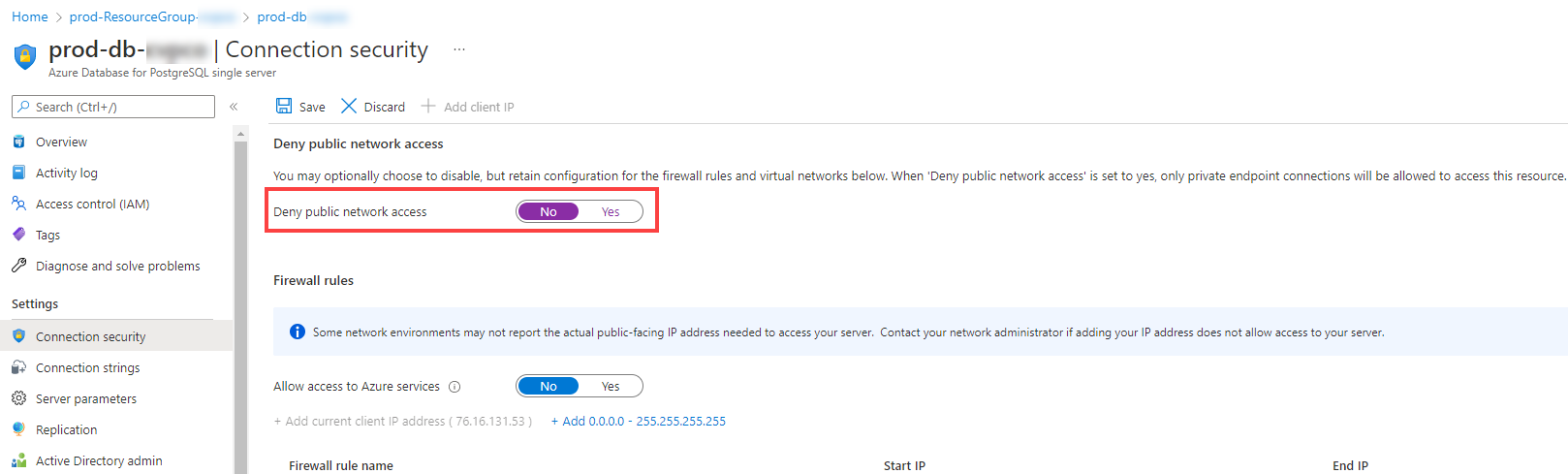
If the DataForge storage account restricts public access (does not Allow access from All Networks), temporarily change the networking settings on the storage account to Allow access from All Networks and Save. As shown in the example below, toggle the Deny public network access setting to "No". When the deployment is finished, be sure to set this setting back to "Yes".
In Terraform Cloud, navigate to the appropriate workspace and then click "Variables".
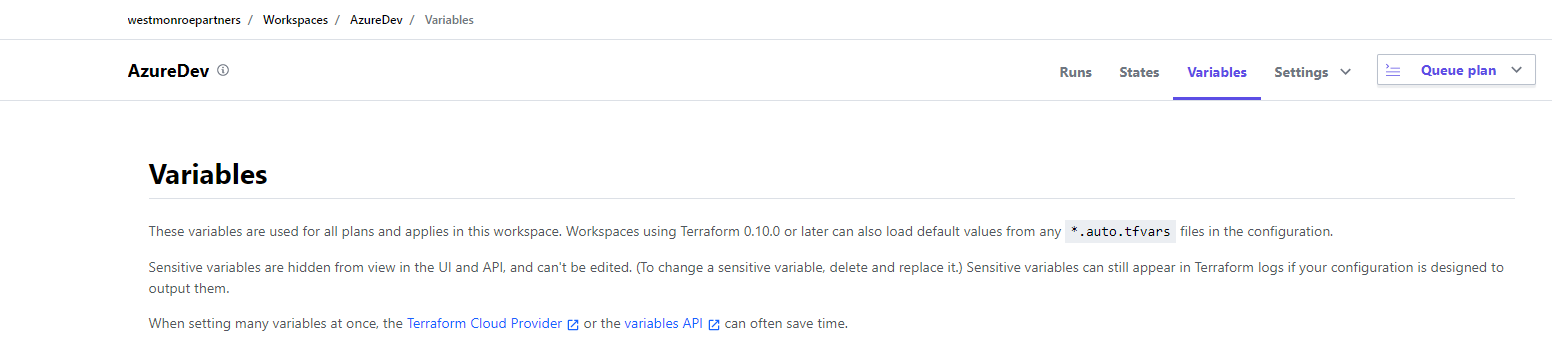
Update the "manualUpgradeVersion" variable with the new version of DataForge.

After updating the variable: on the Runs tab, cancel any queued plan, then use Actions → Start New Run with Plan and Apply (standard).

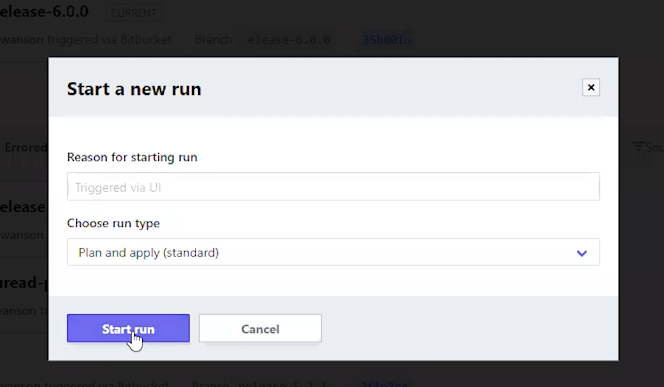
Wait for the plan to finish, review the proposed changes, then confirm to launch the Apply phase.
- If Plan or Apply fails, contact DataForge Support.
- Only Container resources should normally change (updated or destroyed and recreated). If resources are planned for destruction without a recreation, contact Support — this usually indicates manual infrastructure changes that Terraform is reverting.

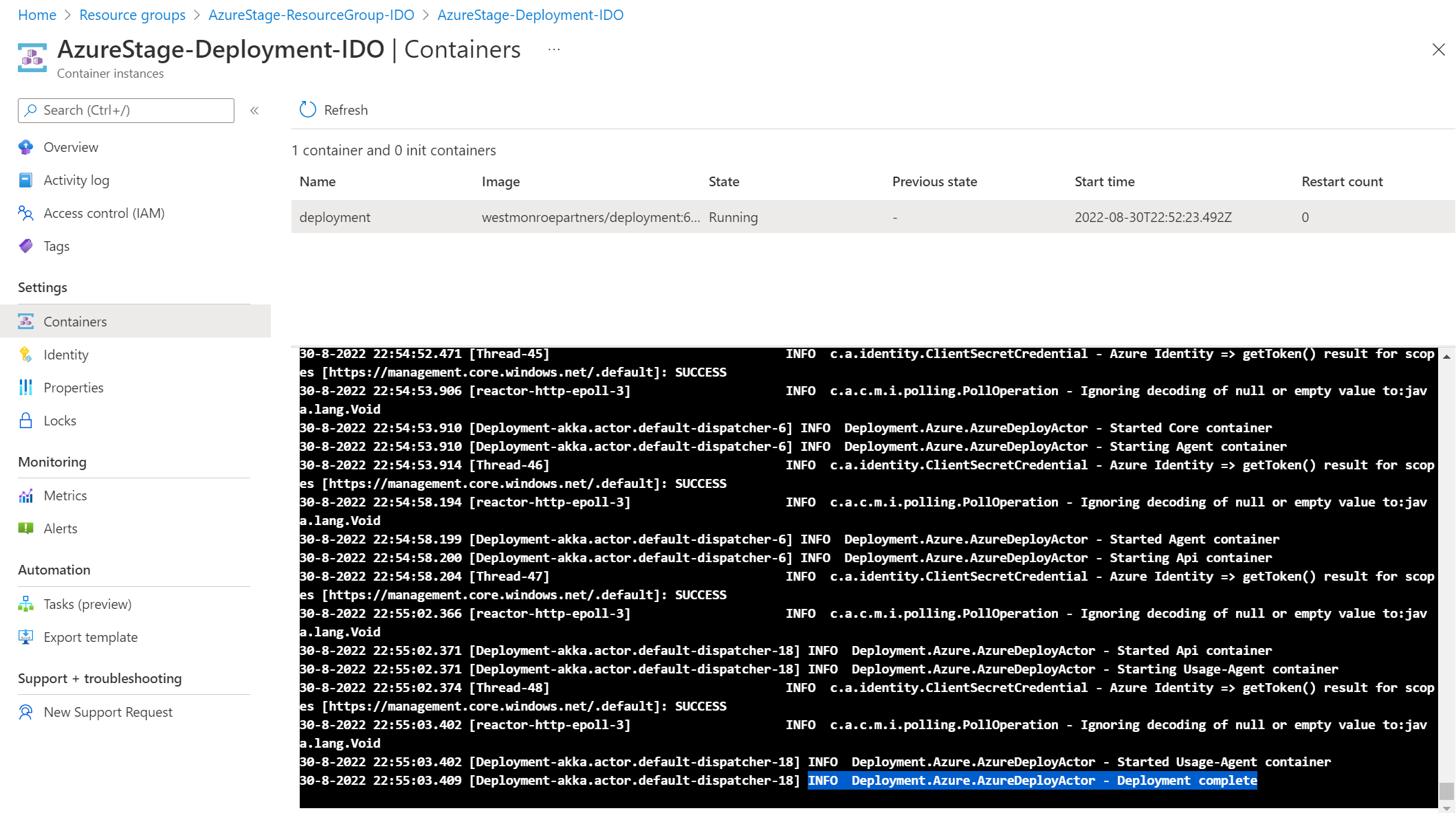
After Apply succeeds, check the Deployment container logs in Azure to confirm the deployment ran successfully.
- Open Azure and navigate to the Resource Group, like
-ResourceGroup- - Search for and open the deployment resource listed like
-Deployment- - Select Containers on the left panel and then switch to the Logs tab
- Scroll to the bottom of the logs and look for the message below to know it is complete
In the DataForge UI, hover over the Menu tab to confirm the new version.

During deployment, meta.system_status contains a deployment record that blocks all other processes. It is deleted on completion. If it persists after a failed deployment, rerun the deployment or contact support.
Rollback Process
These are the steps to revert back to the previous version if absolutely necessary.
- Stop Resource Group container instances and make sure no processes are running
- Restore current pg14 cluster named
-db14- to the same name but with "-deprecated" on the end. This must be restored in a window after the migration happened but before the Database deployment finished. Make sure the time picked is BETWEEN these two messages from the query: - ContainerInstanceLog_CL | where ContainerGroup_s contains "Deployment" and Message contains "pg_restore success" or Message contains "Database deployment complete"
- Delete the current cluster
-db14- - Wait 10 minutes for a restore point on the "-deprecated" cluster
- Restore the "-deprecated" cluster to the "
-db14- " name - Change manualUpgradeProcess in Terraform to rollback version number, run plan and apply (the Postgres database might be edited but should NOT be trying to be recreated), and have Deployment container run all the way through on the version number. Be sure to confirm the Deployment Complete in the container logs.
- Once UI is up and showing rollback version, delete the -deprecated database