Configuring a Master Data Relation Template
In the Company 1 Example, the Relations between the Company 1 Sources and the Global Sources are all Master Data Relations. This means that upon cloning, the user expects newly created Company 2 Sources to have a relation directly to the existing Global Sources, NOT to create new Global Sources. This section will detail how to configure DataForge for this behavior.
Converting Existing Relations into Templates
For this example, we will be converting the existing Relations between the Company 1 Sources and the Global Sources into Relation Templates. The beginning setup is below.
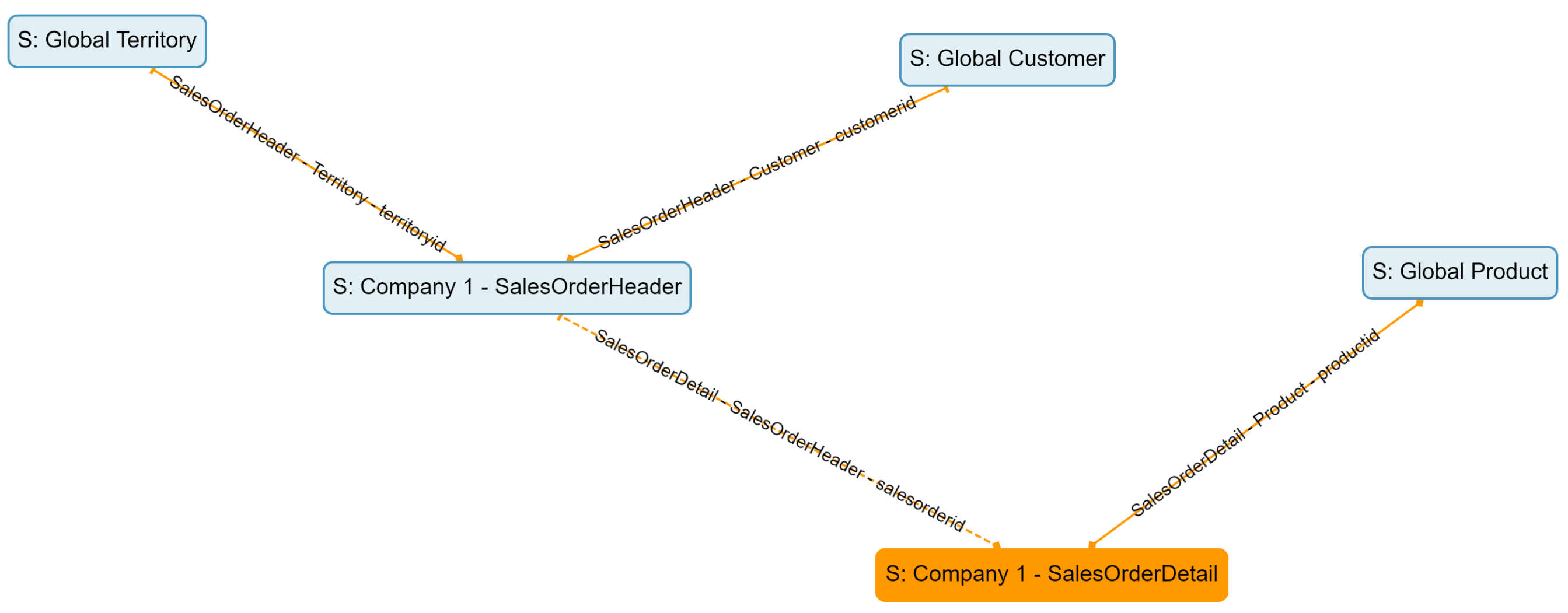
Beginning Setup
Relations cannot be primary if they will be templated. Open each relation, disable the Primary toggle, and save.
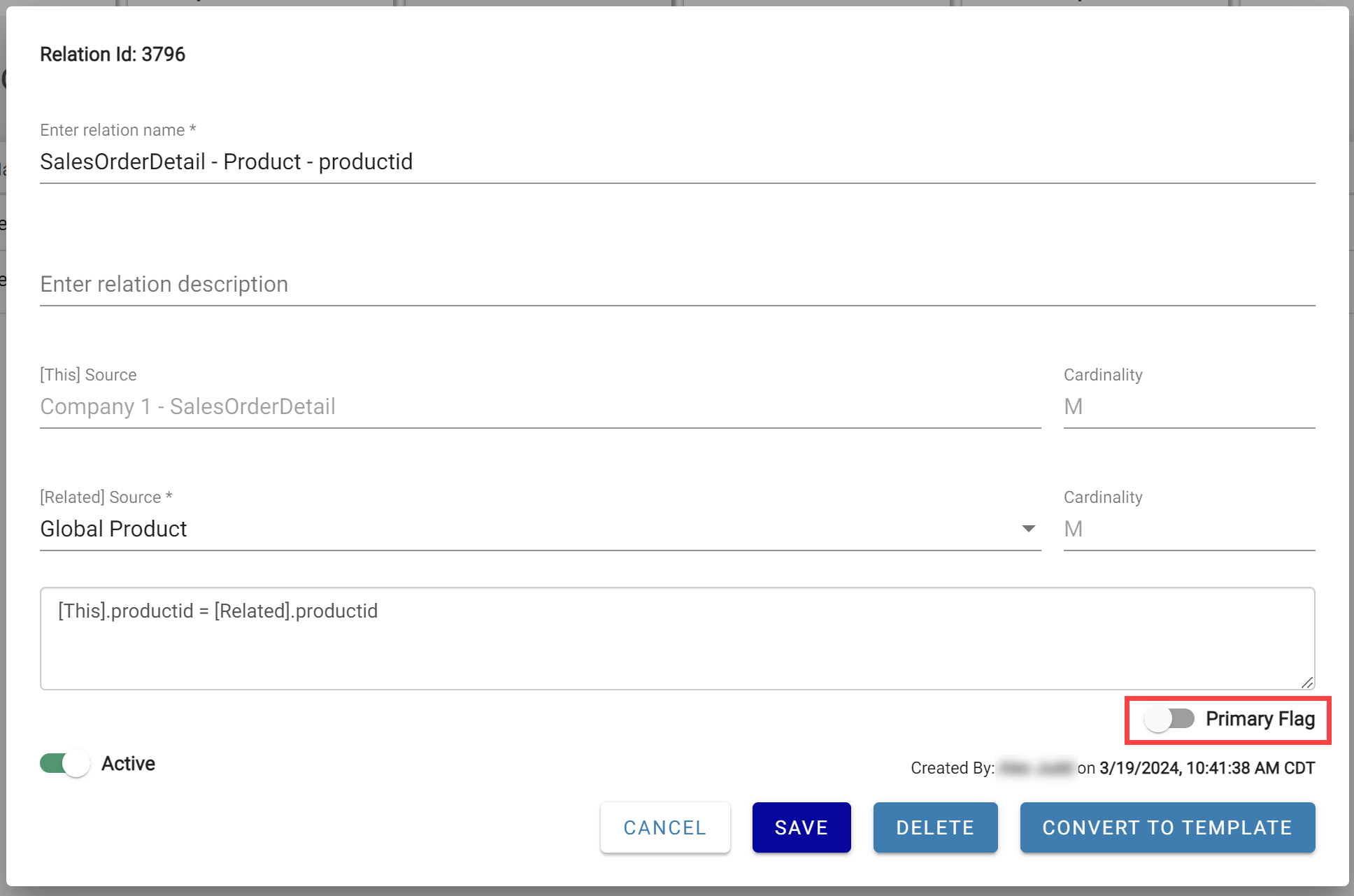
Unselect the Primary Flag
Click Convert To Template. This creates a Relation Template matching the current relation exactly and applies it — the relation is now locked and can only be edited from the Relation Template screen.
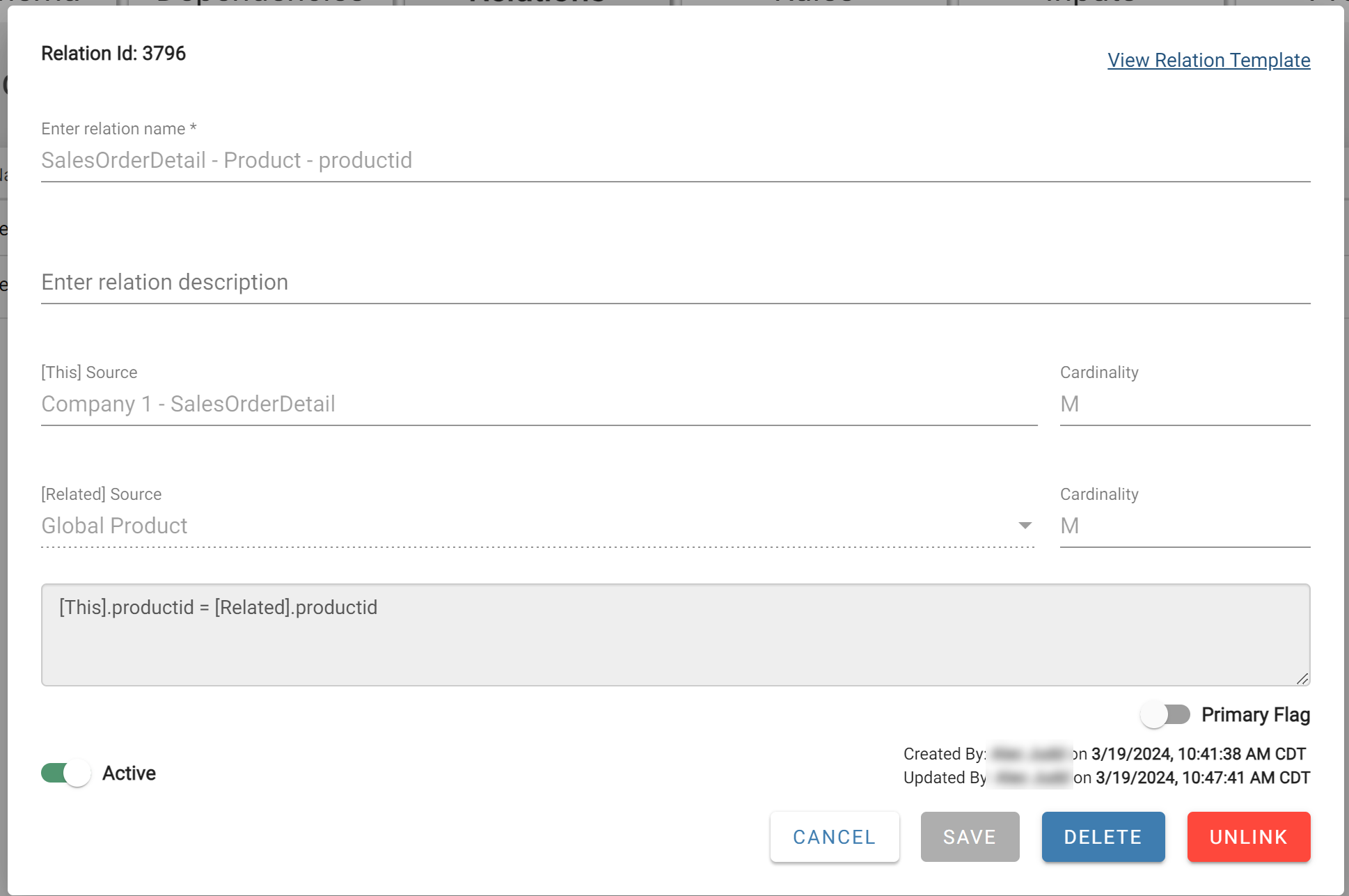
Repeat for each of the three relations between Company 1 Sources and Global Sources.
The Relation Template - Master Data Style
Click View Relation Template to inspect the template. The Related Source Type toggle controls Master Data vs. Group behavior. For a Master Data Relation, set it to Source — this tells DataForge to always relate to the specific source in the Related Source field, regardless of Group membership.
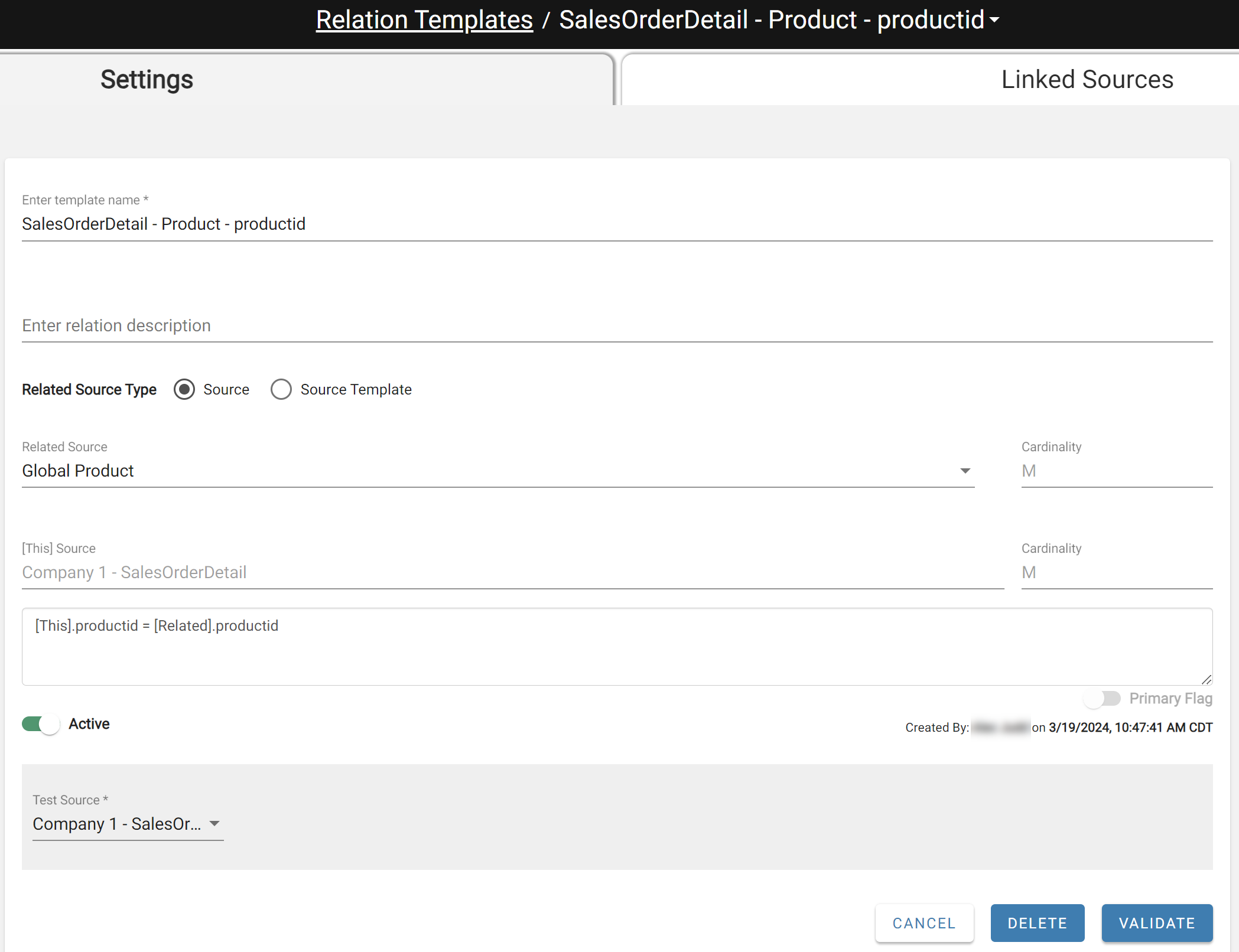
The next section covers the Group Relation style using the Source Template toggle.