Rule Templates
Rule Templates Use Case
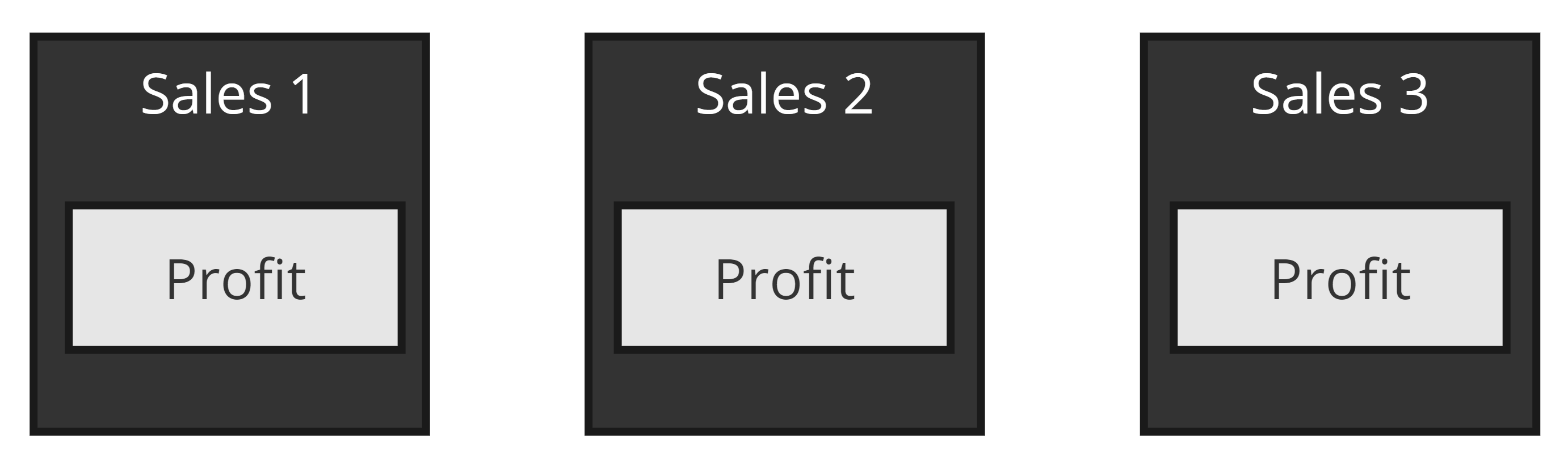
When the same Enrichment Rule logic is needed across multiple sources (e.g., a Profit rule on 3 Sales sources), updating the expression requires editing each source separately. Rule Templates let you define the logic once and propagate changes to all linked sources automatically.
Managing Templates
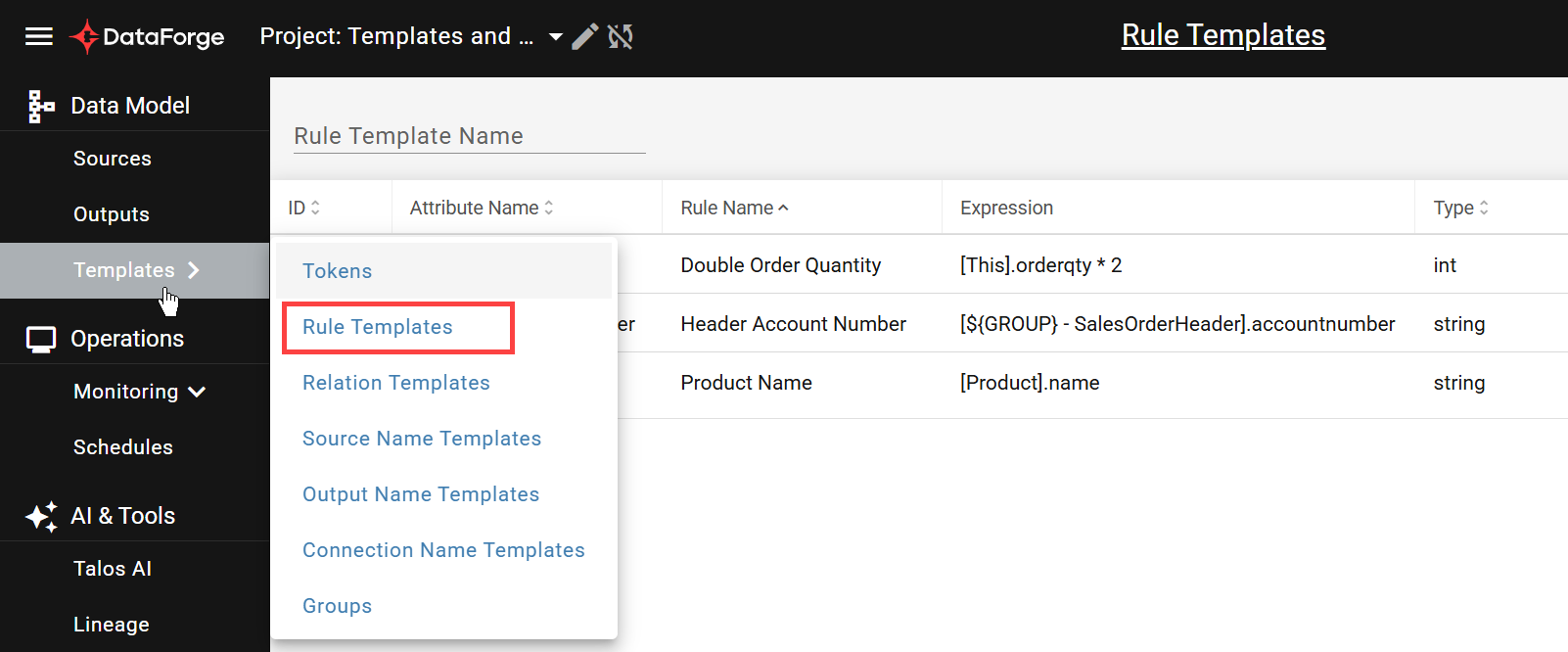
Navigate to Templates → Rule Templates from the main menu.
Creating a New Rule Template
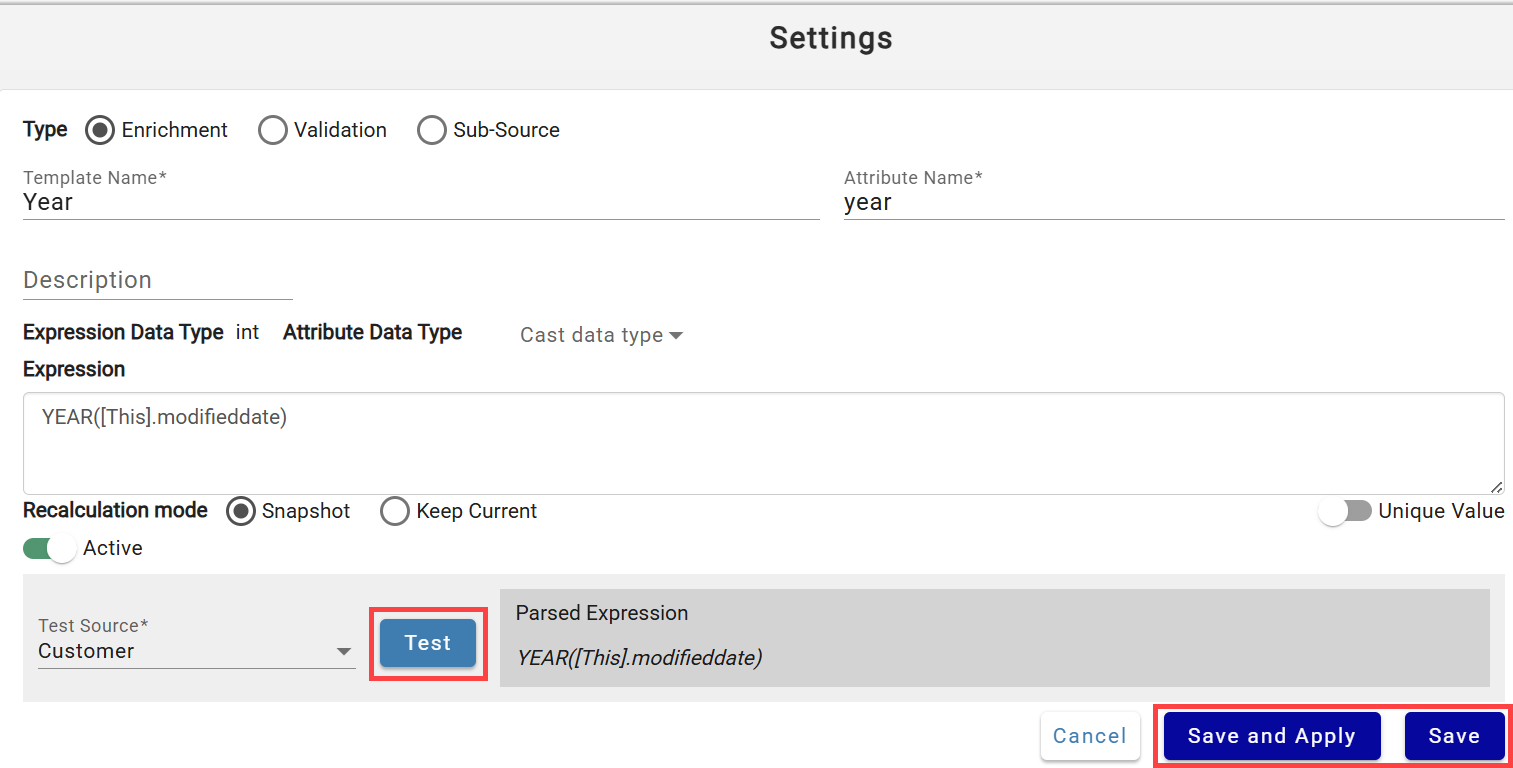
Click NEW + to open the template Settings tab.
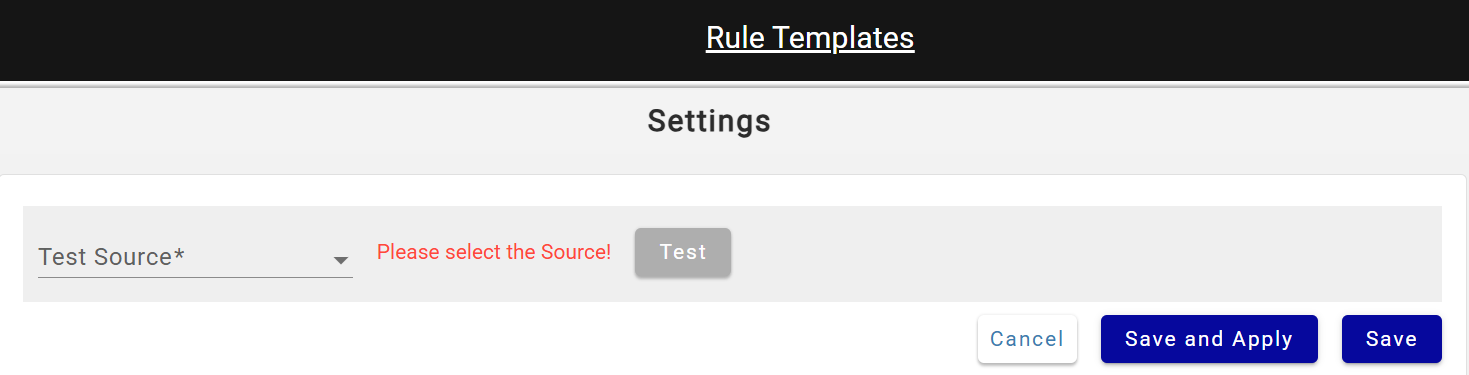
Select a Test Source first — this enables attribute autocomplete for [This] and related sources, and its token values are used for Template validation (editable).
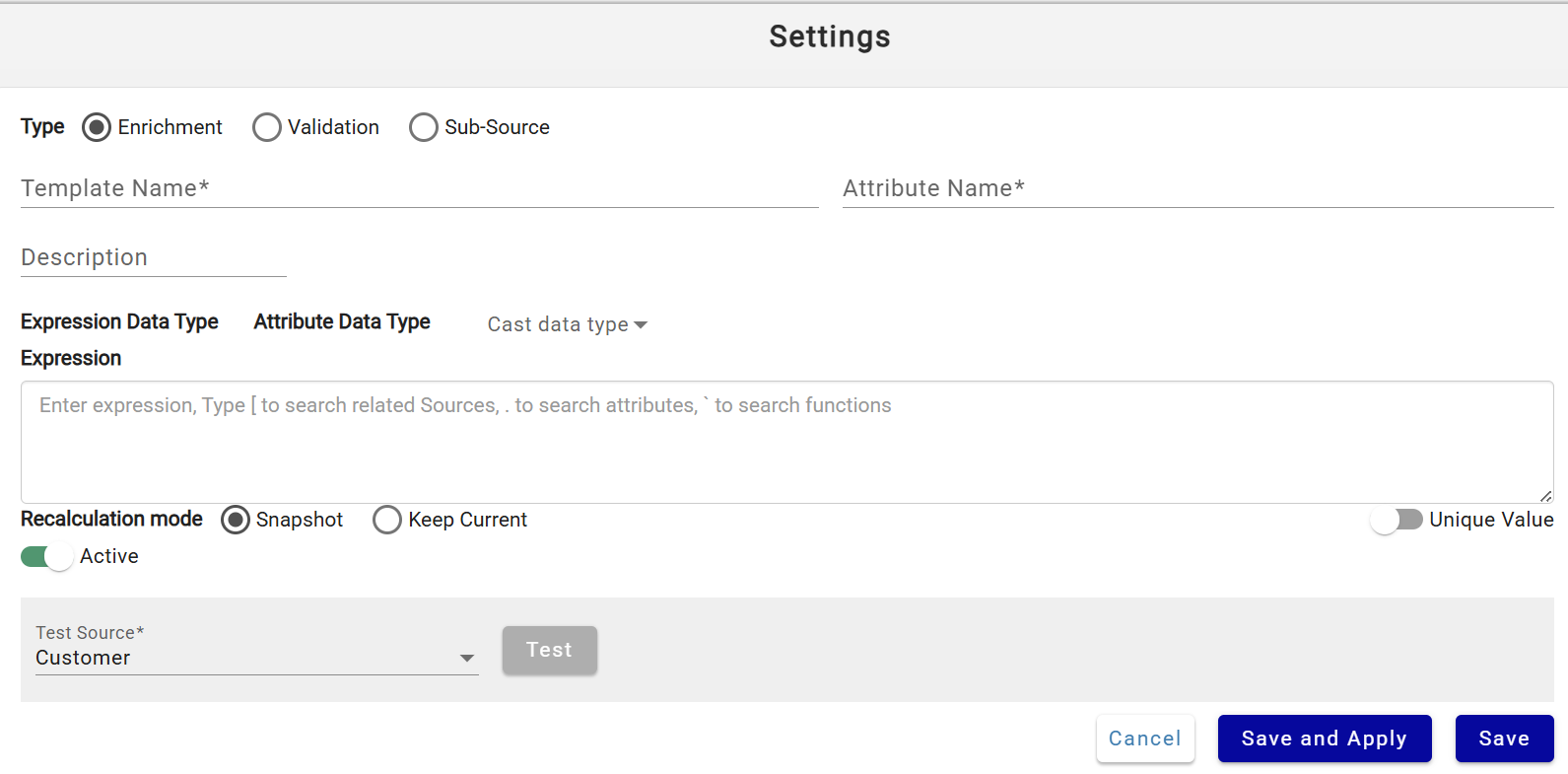
Rule templates are configured the same way as regular Rules — see Rules documentation. Click Test to validate the expression, then Save to proceed to linking sources.
Using Tokens in Rule Template Expressions
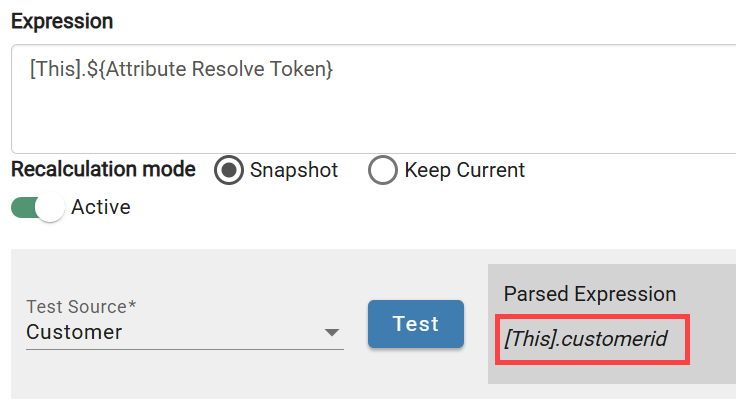
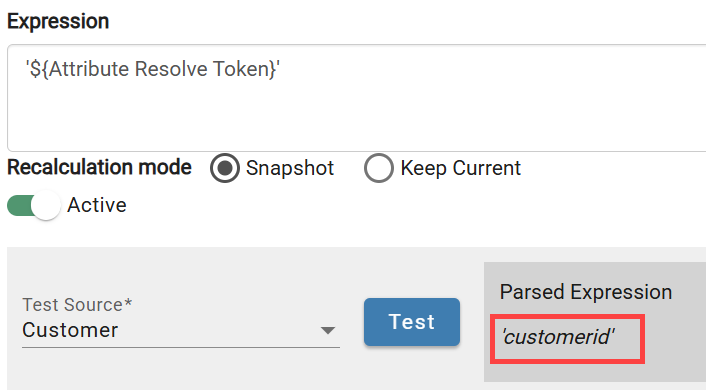
Tokens can be utilized in Rule Template expressions. The following attributes of the Rule Template can be tokenized using ${token_name} syntax:
- Attribute Name - formatted as [Source].${token_name}
 - Expression - must be quoted string like '${token_name}'
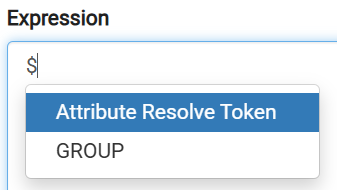
 Typing $ will display searchable list of configured tokens:
Using Token in Rule Template attributes
Examples of token use
| Example | Description | Result |
|---|---|---|
| '${token}' | Parameterize string rule | '22334' |
| '${token}_id' | Parameterize string rule with other strings | '22334_id' |
| [Source].attr_${token} | Parameterize attribute name | Result from rule or raw attribute 'attribute_22334' |
Linking the Template to Sources
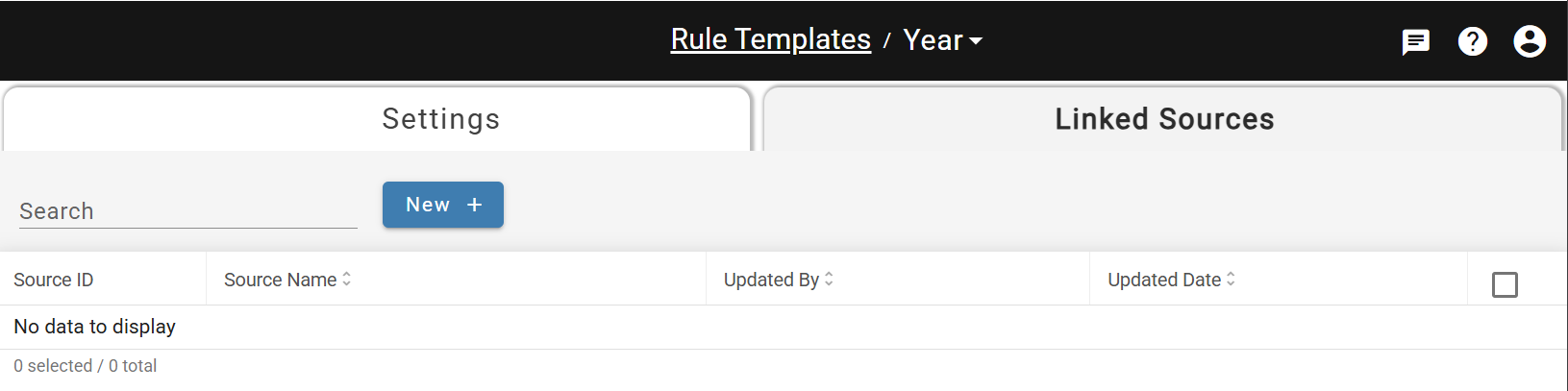
Open the Linked Sources tab, click NEW +, and select sources from the searchable list. Already-linked sources are excluded.
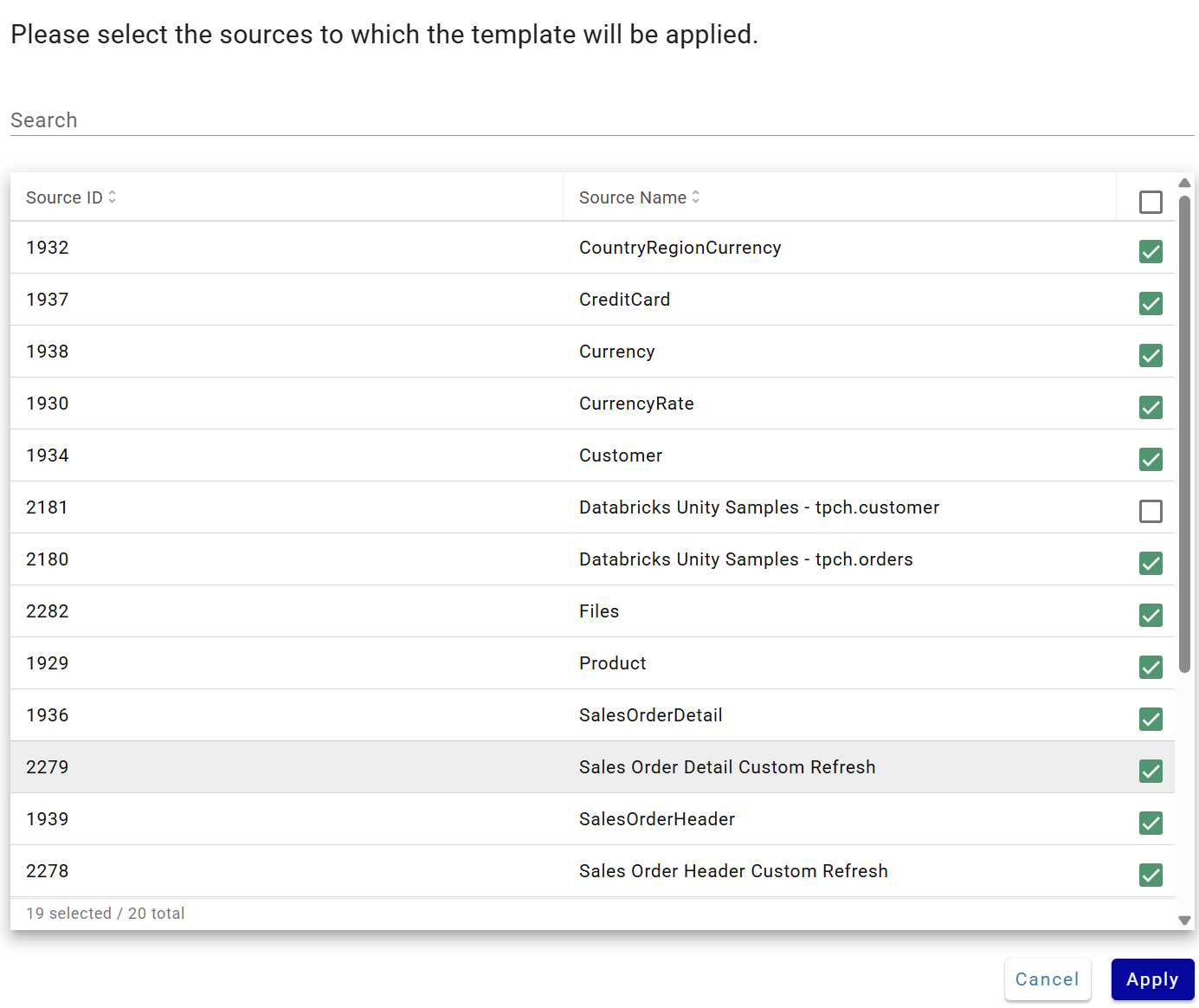
Click Apply. DataForge substitutes token values, generates rules, and shows a validation summary.
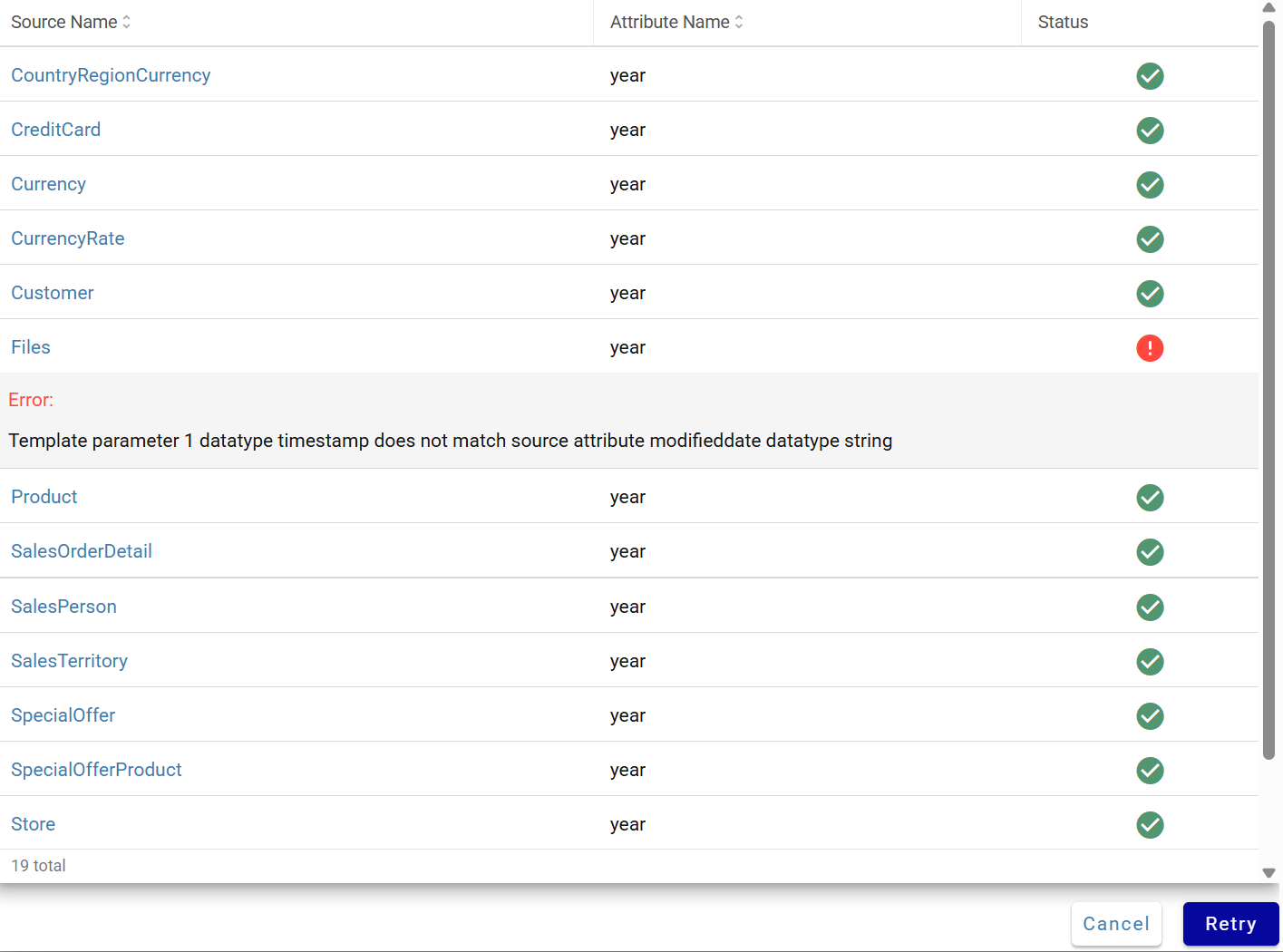
Green checkmark = passed; red exclamation = failed (click for error details). Click the source name to open its Rules tab in a new tab, fix issues, then click Retry or re-select only passing sources. All valid sources have rules applied immediately.
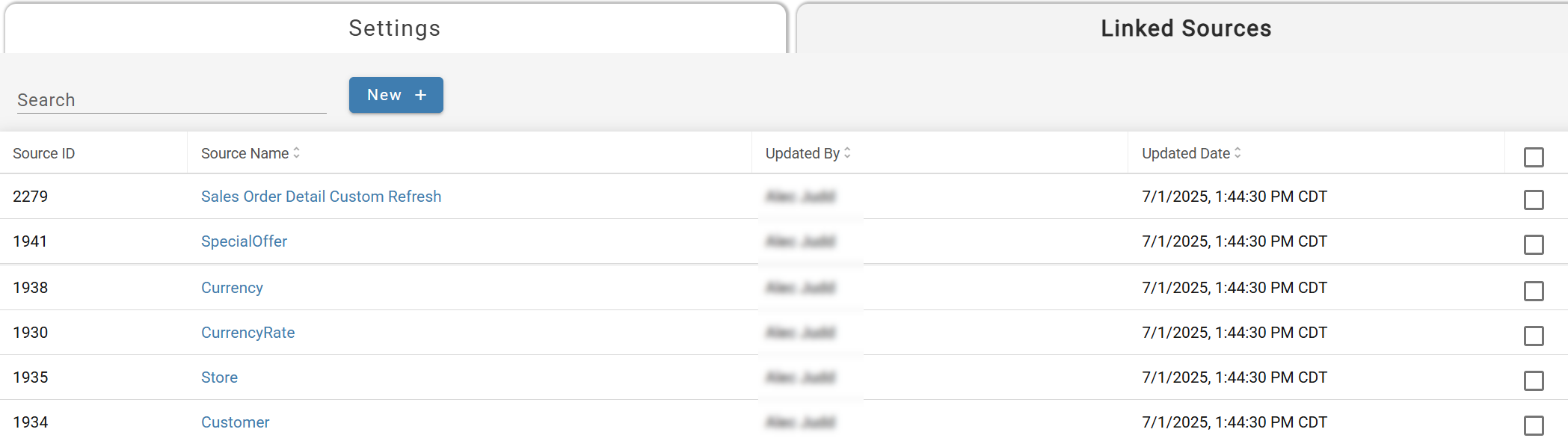
Clicking a source name on the Linked Sources tab opens the linked Rule dialog:
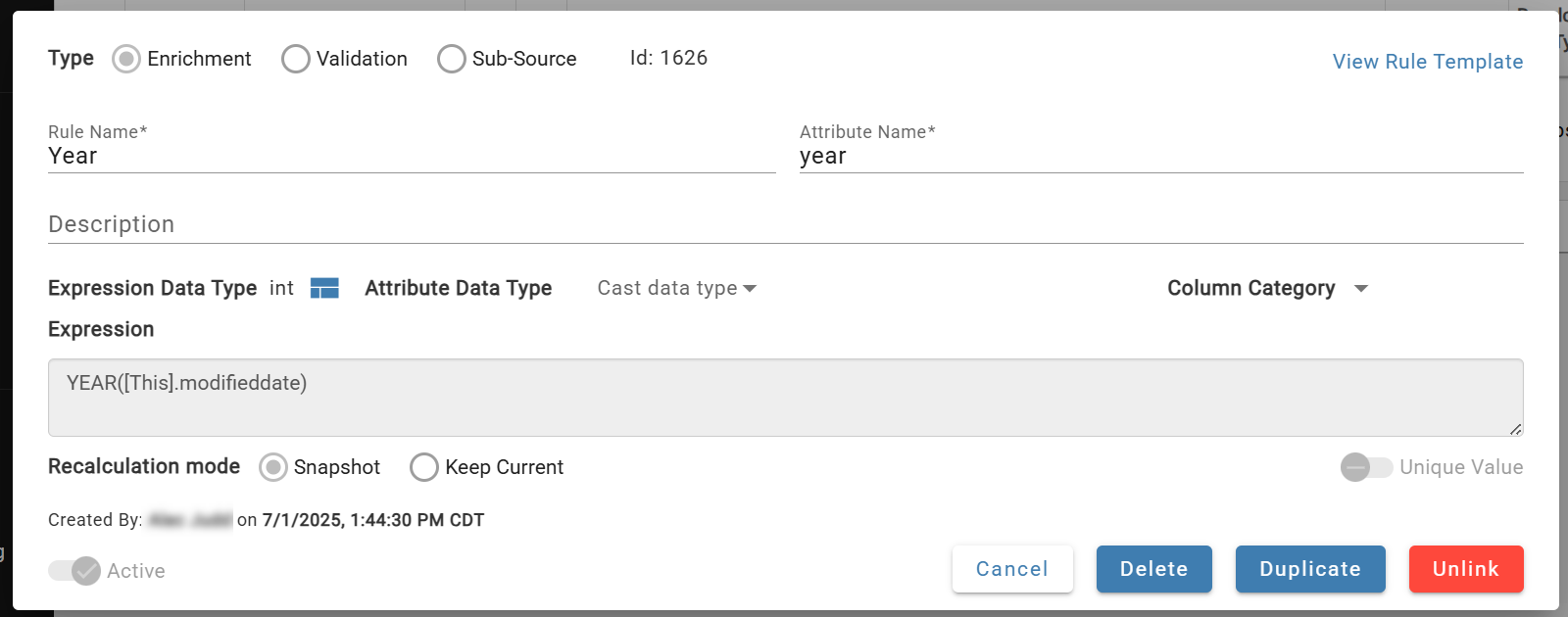
Template-linked Rule Dialog
Rules linked to Template cannot be edited directly. Actions available are:
| Action | Description |
|---|---|
| View Rule Template Link | Opens Rule Template setting page |
| Duplicate | Clones Rule and opens it up in new dialog |
| Unlink | Removes link between Rule and Template and converts Template-linked rule to regular Rule |
| Delete | Removes link between Rule and Template and physically deletes the rule. Equivalent to "Remove Linked Sources" action on Template page |