Rules
Rules allow DataForge to modify and transform data.
Rules Tab
The Rules tab allows users to select, edit, remove, or add a Source's Rules. By default, only Active Rules are listed. The Active Only toggle changes this setting.

Active rule toggle switch
To create a new Rule, click the New Rule button. This opens the create/edit Rule modal.
 New Rule Button
To edit an existing rule, click on any column of that rule's row in the table besides the expression column (circled in the picture below). If a rule references another rule in its expression, a link will appear in the expression column that, when clicked, will open the edit rule modal of the rule that is referenced by the link (boxed in the picture below).

All columns besides the expression column in the Rule Table can be clicked to open the edit Rule modal.
Enrichments vs Validations vs Sub Sources
In DataForge, there are three distinct types of Rules: Enrichments, Validations, and Sub Sources.
An Enrichment defines a SQL expression that produces a new column of any supported data type.
A Validation is a Boolean enrichment for data quality checks. Each row is evaluated against the validation expression; results are aggregated into the s_validation_status_code system attribute with Pass/Fail/Warn values.
A Sub-Source creates a child source tied to a rule that points to an array-of-structs attribute. It acts as its own source for relations and rules, with an implicit M:1 relation to the parent. All processing runs at the parent source level.
Rule Parameters
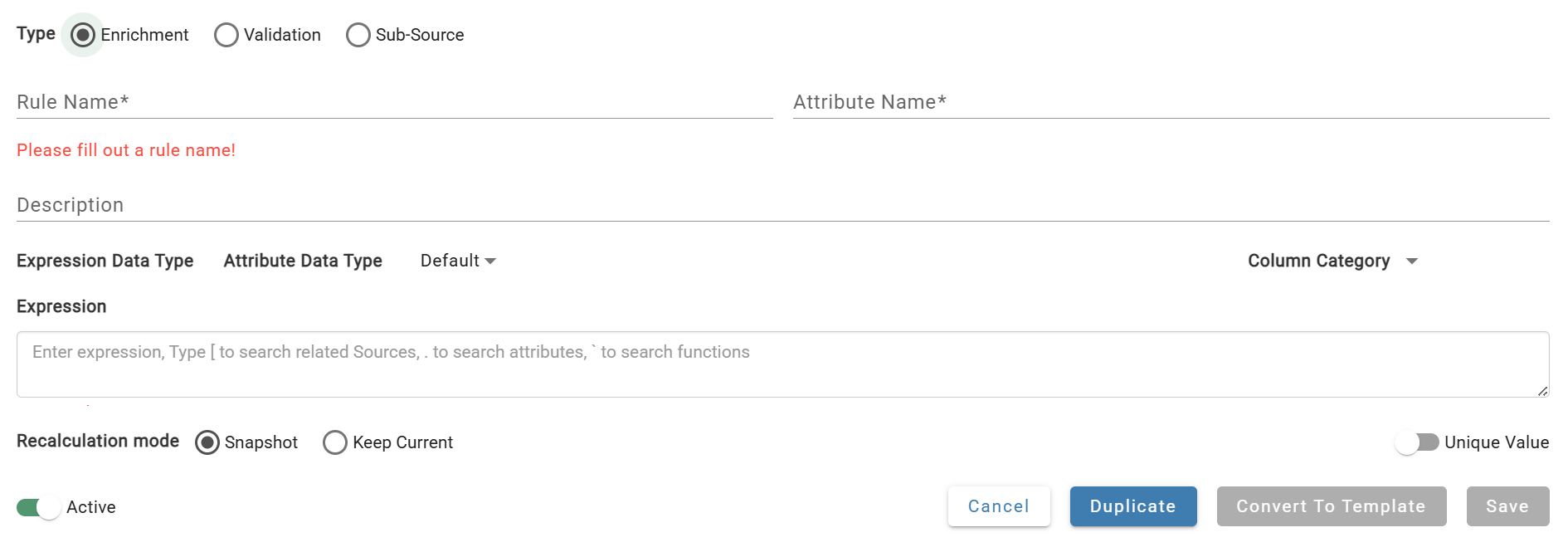
Create Rule Modal
Fields Available:
| Parameter | Default Value | Description |
|---|---|---|
| Type | Enrichment | The type of the Rule. Validations mark records as pass/fail based on a boolean expression in the expression field. Sub-source create new sources tied to the rule for array of struct types. |
| Rule Name* | No Default | The user-defined name of the Rule. |
| Attribute Name* | No Default | The name of the new column of the Rule. This is what will appear in attribute dropdowns of expressions and within expressions. When creating a new rule, this field will automatically be filled in with valid formatting based on what the user enters into the Rule Name field. |
| Description | No Default | The user-defined description of the Rule |
| Expression Data Type | Interpreted from expression | The data type of the result of the Expression, automatically inferred by DataForge. This field is not controlled by the user. |
| Metadata Icon (struct type only) | Interpreted from expression result | Struct data rules display a metadata icon next to the expression data type. Opening the metadata icon will show the struct schema fields. |
| Attribute Data Type | Expression Data Type | The data type of the Enriched Attribute. DataForge will attempt to convert the data type of the Expression Data Type to the Attribute Data Type. Leave as Default for no conversion. |
| Recalculation Mode | Snapshot | Snapshot means that the field will never be recalculated for data inputs, even after attributes the rule depends on get updated, unless a user resets enrichment or uses Recalculate options for prior inputs. Keep current means that if an attribute value a record depends on gets updated, the dependent attribute will also be updated during processing. |
| When expression is false, set to | Warn | These are the flags that will be set on records that fail to be converted to another data type. Warn, Fail, or Ignore are the possible options. For Validations only. |
| Expression | No Default | Use DataForge QL/SQL syntax to set the Rule transformation logic. |
| Active | TRUE | Allows the user to set this Rule as Active or not. If active, it will be applied on new inputs and source resets. |
Click Save to save the Rule. Clicking Save and Create Validation will create an extra Validation column to mark whether the values from the Expression Data Type succeeded the conversion to the specified Attribute Data Type.
Rule Expressions and Syntax
Rule expressions are made up of a mix of SQL, and DataForge QL. Specifically, DataForge QL is used to access source data attributes, which will be used within a SQL expression the way column names would be used in a normal SQL context.
For a full list of SQL functions available for use in rule expressions, see the following documentation: Databricks Snowflake
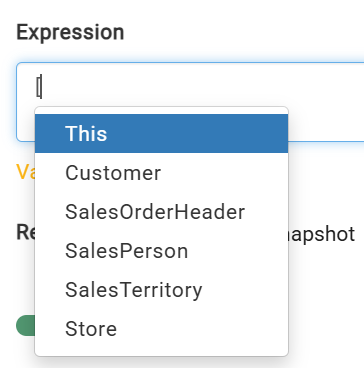
To begin entering a rule expression, either: 1) Enter an open bracket "[" to reveal a drop-down of sources with a relation chain to the current source and [This] Source. This allows you to select attributes and rules from the current source or related sources.
 OR
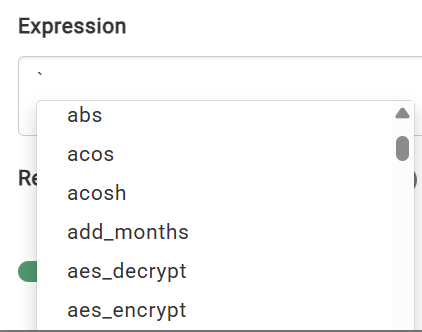
2) Enter a tick mark " ` " to reveal a drop-down of SQL functions. Then the user can continue filling out the expression however they would like, as long as the attributes are accessed using DataForge QL, and the expression as a whole follows SQL syntax.
OR
2) Enter a tick mark " ` " to reveal a drop-down of SQL functions. Then the user can continue filling out the expression however they would like, as long as the attributes are accessed using DataForge QL, and the expression as a whole follows SQL syntax.
See Example Expressions for visual examples of different types of rules to get started.
Complex Data Types
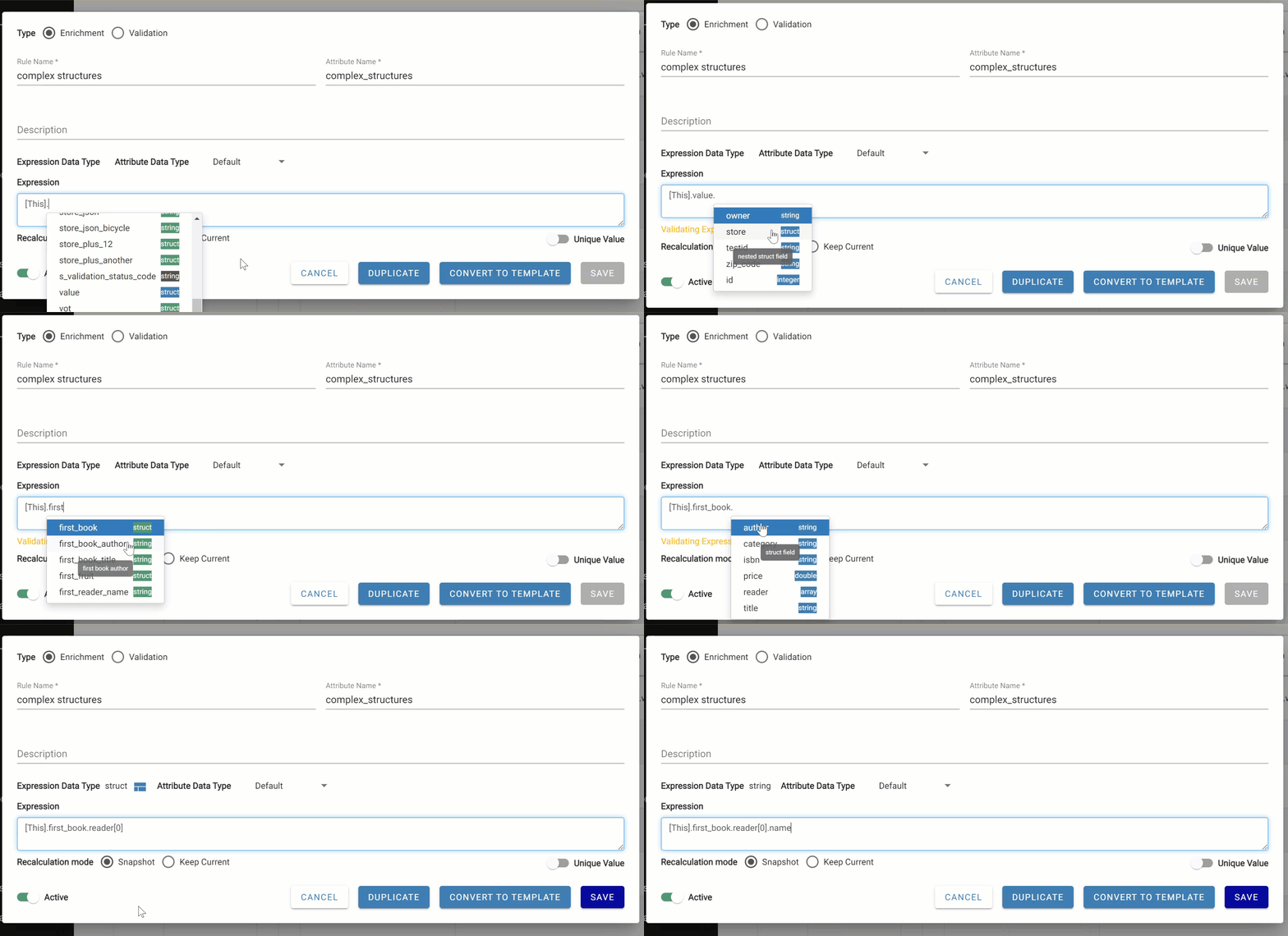
Struct and array data types can be used in rules and templates. Structs can be navigated within a rule using dot notation, such as struct.key. Arrays can be navigated by using the array index (zero based), such as array[0]. DataForge recommends using sub-source rules where columns contain an array of structs.
The expression editor intelli-sense will help navigate nested complex types by listing child keys for each nested level. For working with complex nested arrays, DataForge recommends using higher-order functions. See Snowflake or Databricks documentation for more information.
Using Relations in Rule Expressions
Relations can be traversed in a rule expression to reference attributes and rules from other sources. When a relation is used, the Expression Parameters panel populates with visibility into the relation chain and options to change direction.
Example: A rule on "Customer Data" references totaldue from "Sales Data" via a 1:M relation. DataForge detects the cardinality mismatch and requires an aggregate function — wrapping the expression in SUM() makes it valid.
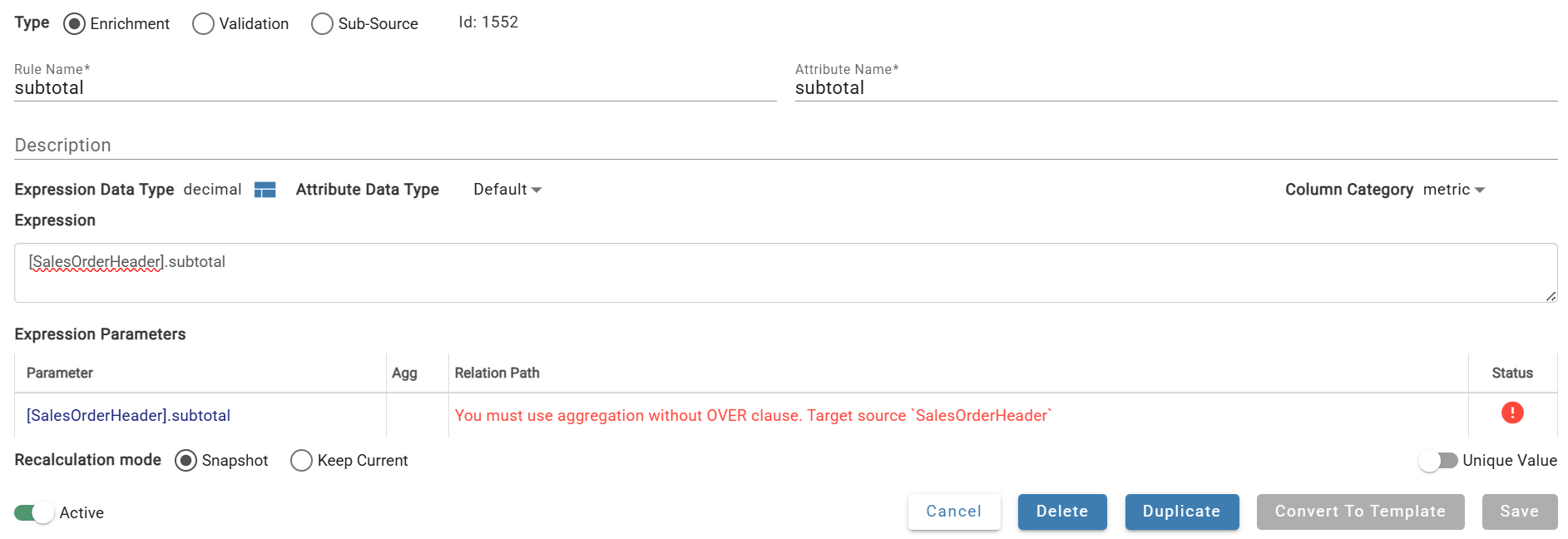
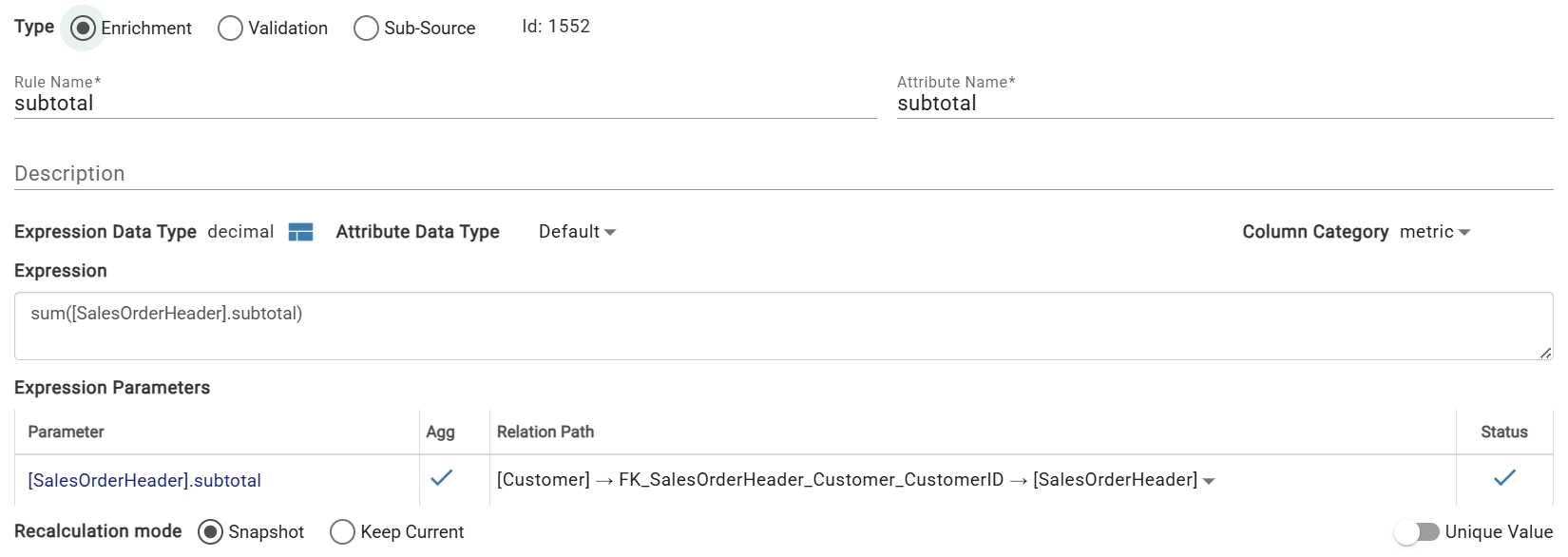
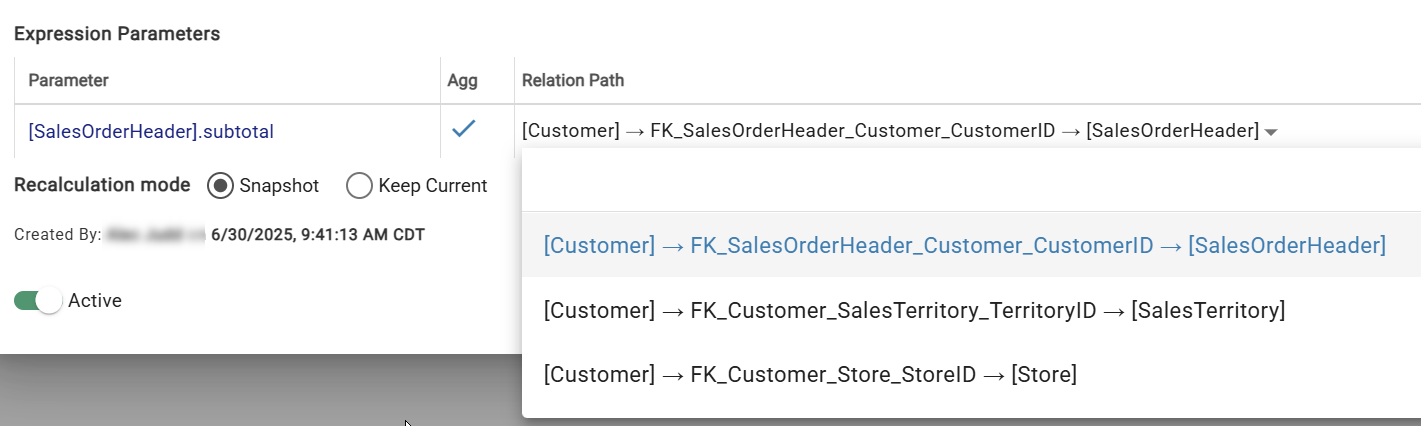
When multiple relation paths exist, Expression Parameters shows a search to select any source or relation. DataForge picks the best available path and displays it; any part can be changed via drop-downs. Additional hops can be added with Add Next. Paths are labeled [From Source]->relation name->[To Source].

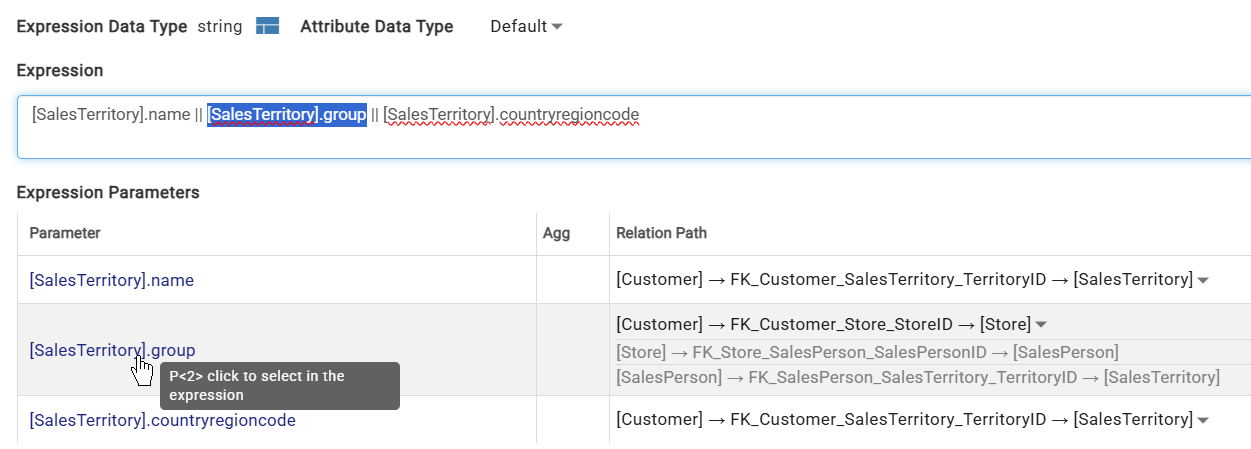
Hovering over a relation chain in Expression Parameters shows a tooltip with the relation expression. Clicking a parameter name highlights where it's used in the rule expression.

Example Expressions
Multiplying an attribute from a related source to an attribute of the current source through a primary relation
Aggregating a column from a primary related source with many cardinality
Aggregating a column from a non-primary related source with many cardinality
Rounding a column down to two decimal places
Window function aggregating one attribute of the current source while partitioning on another
Validation rule to determine if a numeric column of the source is above a specified threshold
Returning key from struct field using dot notation
Returning first index field from an array
When will my rule get processed?
Enrichment
- All traversal rules, regardless of keep current
- Rules that do not contain window functions and do not depend on a window function rule, regardless of keep current
Refresh
- All window function rules (window function rules must be keep current)
- All rules that depend on window functions (rules that depend on window functions must be keep current)
Attribute Recalculation
- All keep current traversal rules WHEN the related source gets new data
- All rules that depend on the above keep current traversal rules (rules dependent on keep current rules must be keep current)
Data Profiles
Clicking the Data Profile icon brings up the data profile of that raw attribute. Different datatypes provide different data profile data. Older data profiles for the source can be accessed by using Select profiling timestamp.
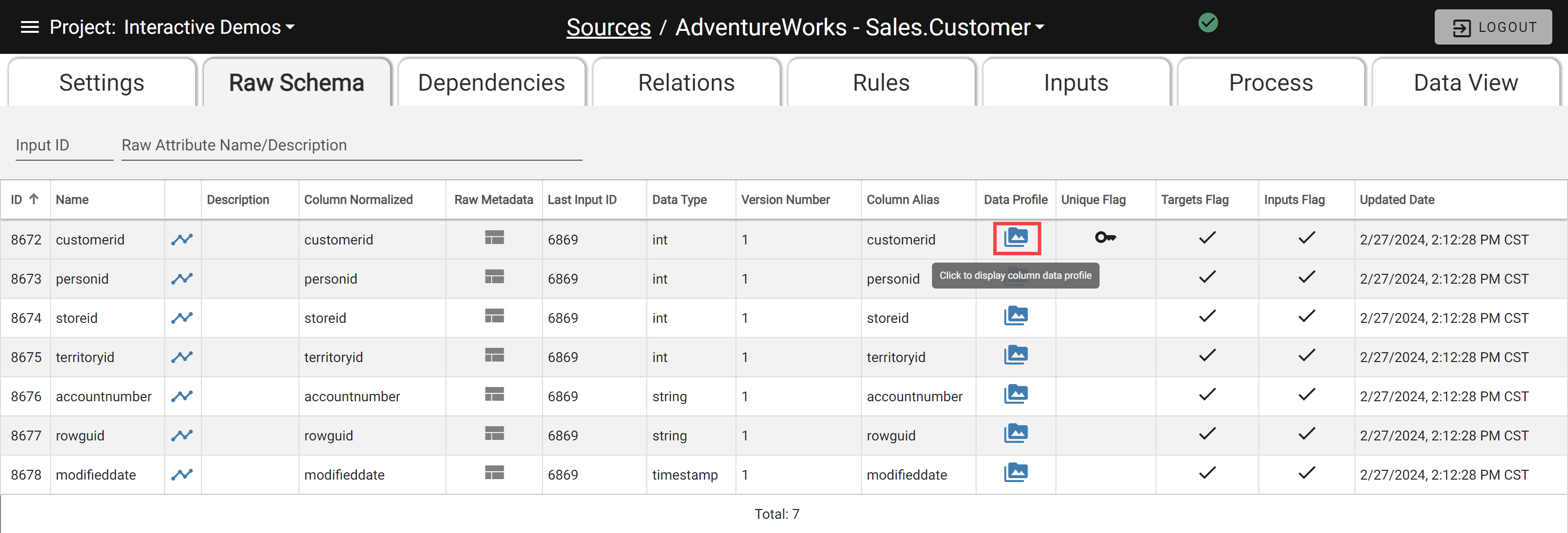
Data Profile options
A modal appears showing the data profile when the datatype label is clicked.
Sub-Source Rules
Rules can be added to a sub-source similar to a regular source with the following limitations:
- No validation rules allowed within the sub-source
- No unique flag available for sub-source rule(s)
For full documentation, visit Sub-Sources.