Creating Sources

Sources manage the full data flow — ingestion through output. In this step you'll create two sources from connection metadata, configure their refresh settings, and run a data pull.
Step 1: Create sources from connection metadata
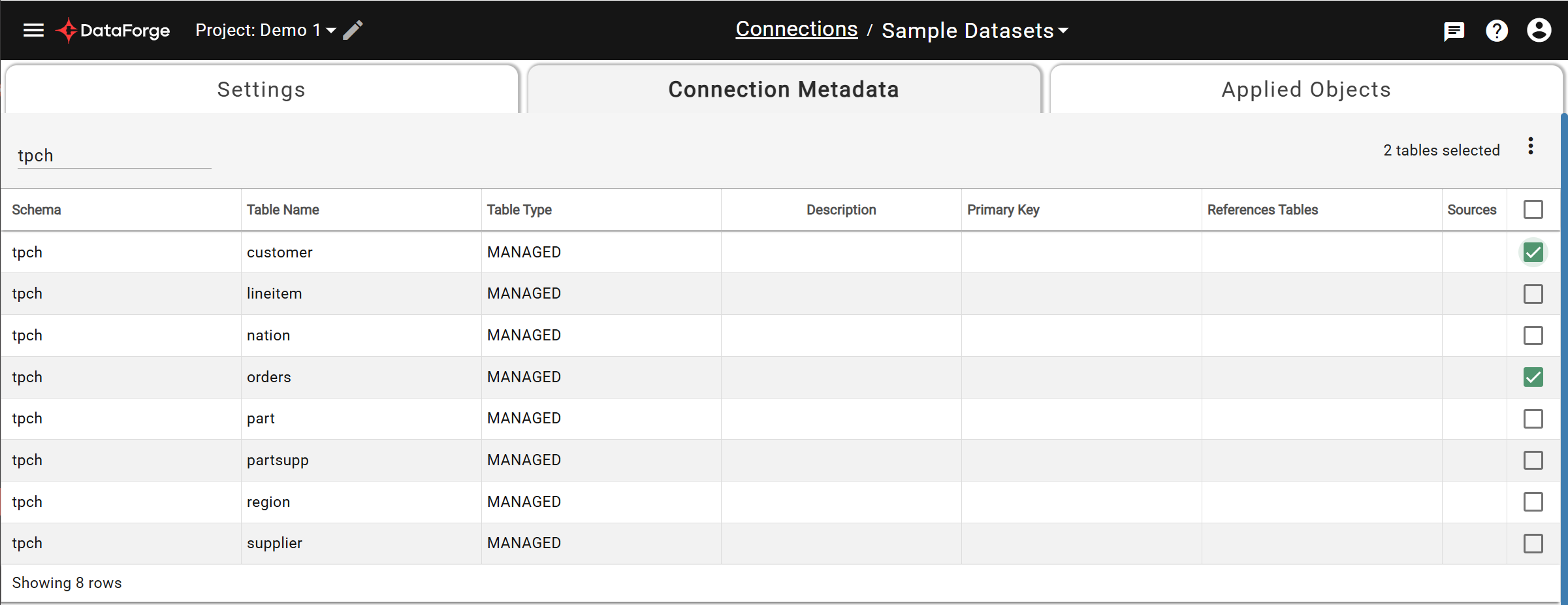
Navigate to Connections, open the Sample Datasets connection, and go to the Connection Metadata tab.

Search for TPCH (or TPCH_SF1 on Snowflake). Check the boxes for customer and orders.
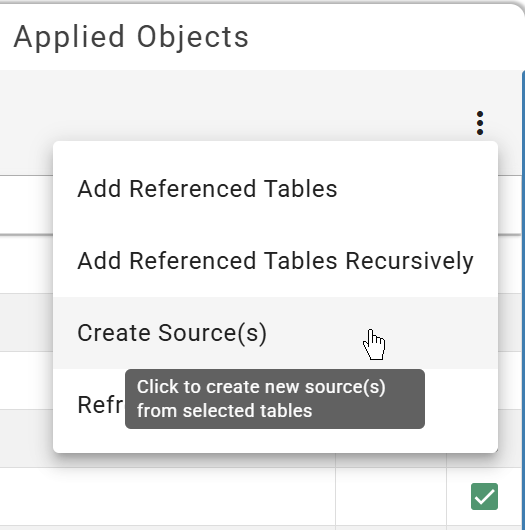
Open the triple-dot menu and select Create Source(s).
In the dialog:
- Change the naming pattern to
${table} - Toggle Initiate Data Pull on
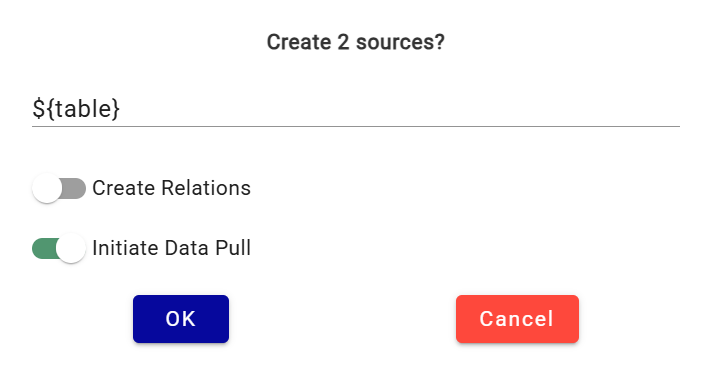
Click OK. Navigate to the Sources page — both sources will begin ingesting and processing.

Step 2: Configure the Customer source
Open the Customer source and go to the Settings tab. Most fields are pre-populated from connection metadata.
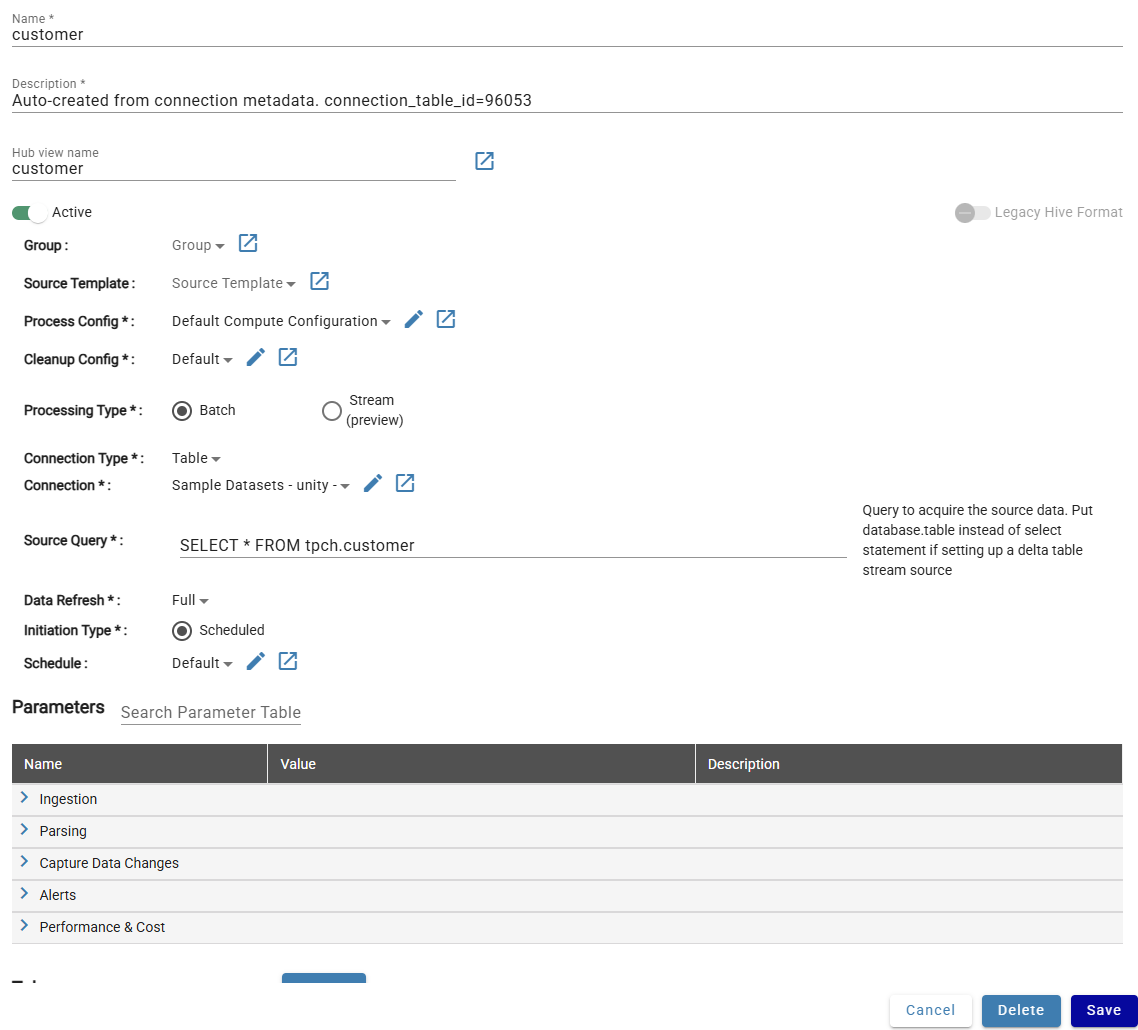
Key settings to know:
| Setting | Purpose |
|---|---|
| Process Config | Which compute configuration to use (details) |
| Connection Type | Type of data source (Table, File, API, etc.) |
| Source Query | Query to run against the source system |
| Data Refresh | How to handle incremental data (Full, Key, Timestamp, etc.) |
| Schedule | When to initiate new data pulls |
For full details, see Source Settings.
Change Data Refresh to Key and set the Key Column to c_custkey.
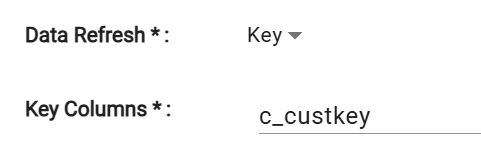
Click Save. A popup will prompt you to reset CDC — select Save Changes & Reset to reprocess with the new refresh type.
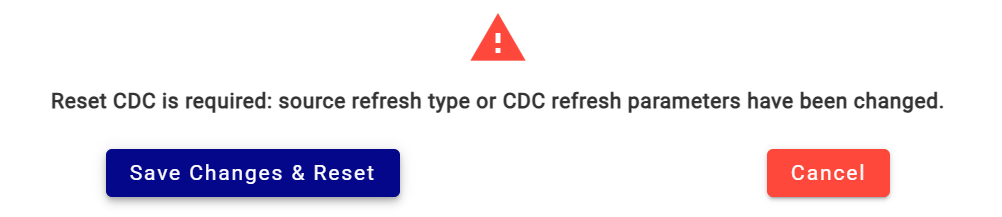
Step 3: Pull new data into Customer
On the Inputs tab, click Pull Now to ingest fresh data.

The input progresses through Ingestion → CDC → Enrichment → Refresh → Recalculation. A green checkmark appears when complete.

Step 4: Configure the Orders source
Open the Orders source and change Data Refresh to Key with Key Column o_orderkey.
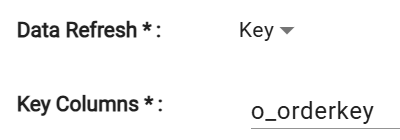
Save and select Save Changes & Reset CDC. Data already exists in this source, so no additional pull is needed.
Continue to Creating Relations and Rules.