Getting Familiar with the Data

The first step is to explore the TPC-H sample dataset you'll use throughout this tutorial. You'll work with two tables — Customer and Orders — and notice that both share a c_custkey / o_custkey column for joining.
Databricks
Step 1: Open the Databricks Catalog Explorer
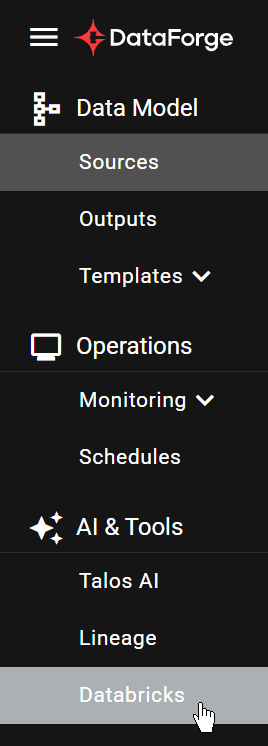
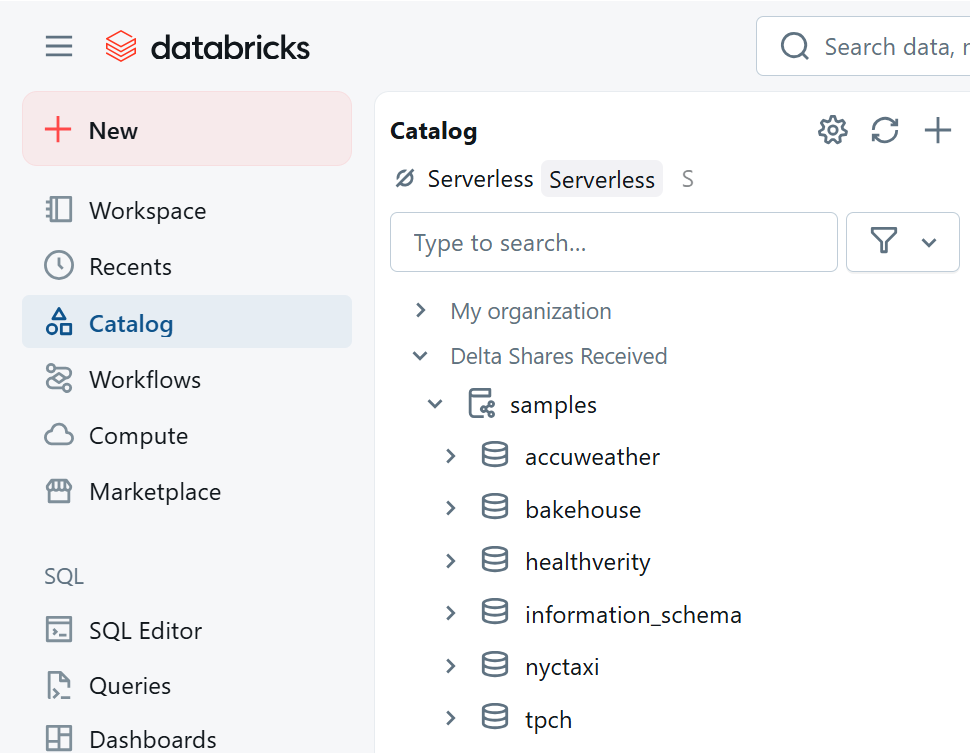
From the DataForge main menu, select Databricks to launch the attached workspace. Then select Catalog in the left-hand menu.
Step 2: Query the TPCH tables
Expand Samples > TPCH, click the Customer table, then select Create > Query to open a new SQL editor.
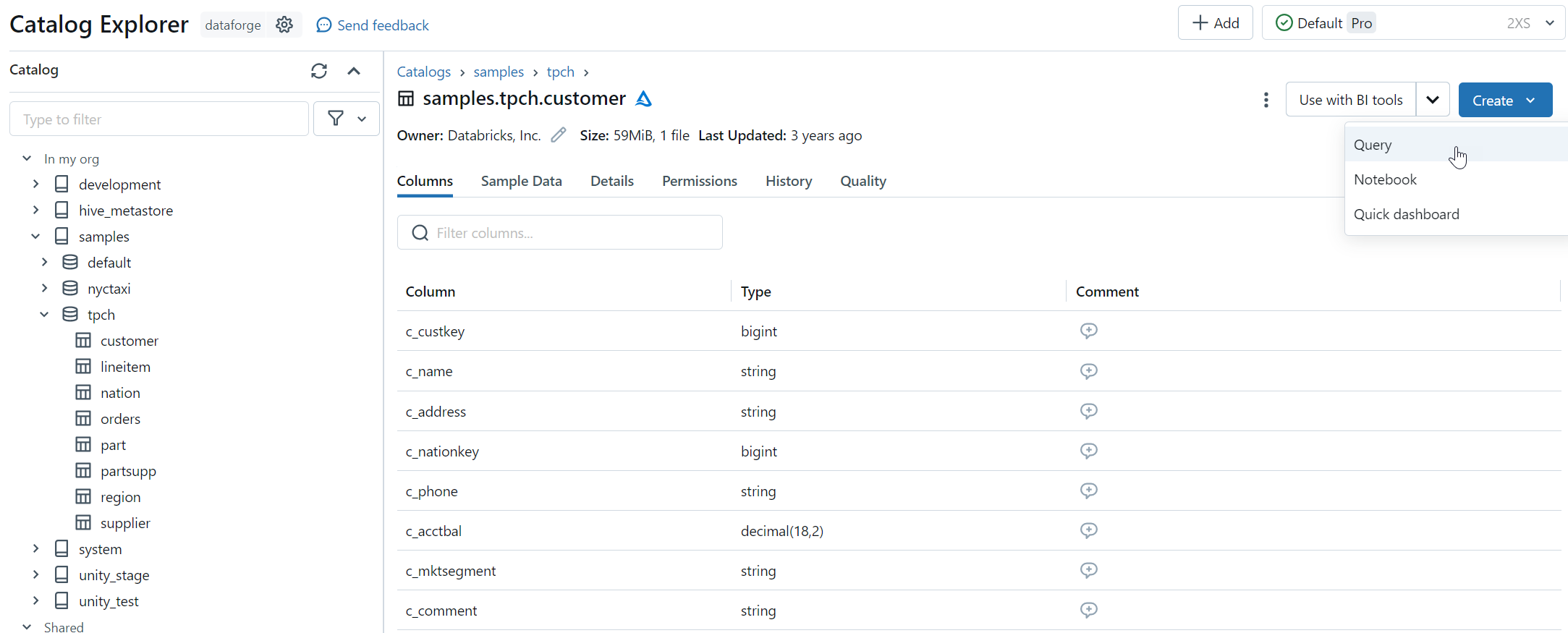
Attach a SQL Warehouse if prompted, then run the query to preview customer data.
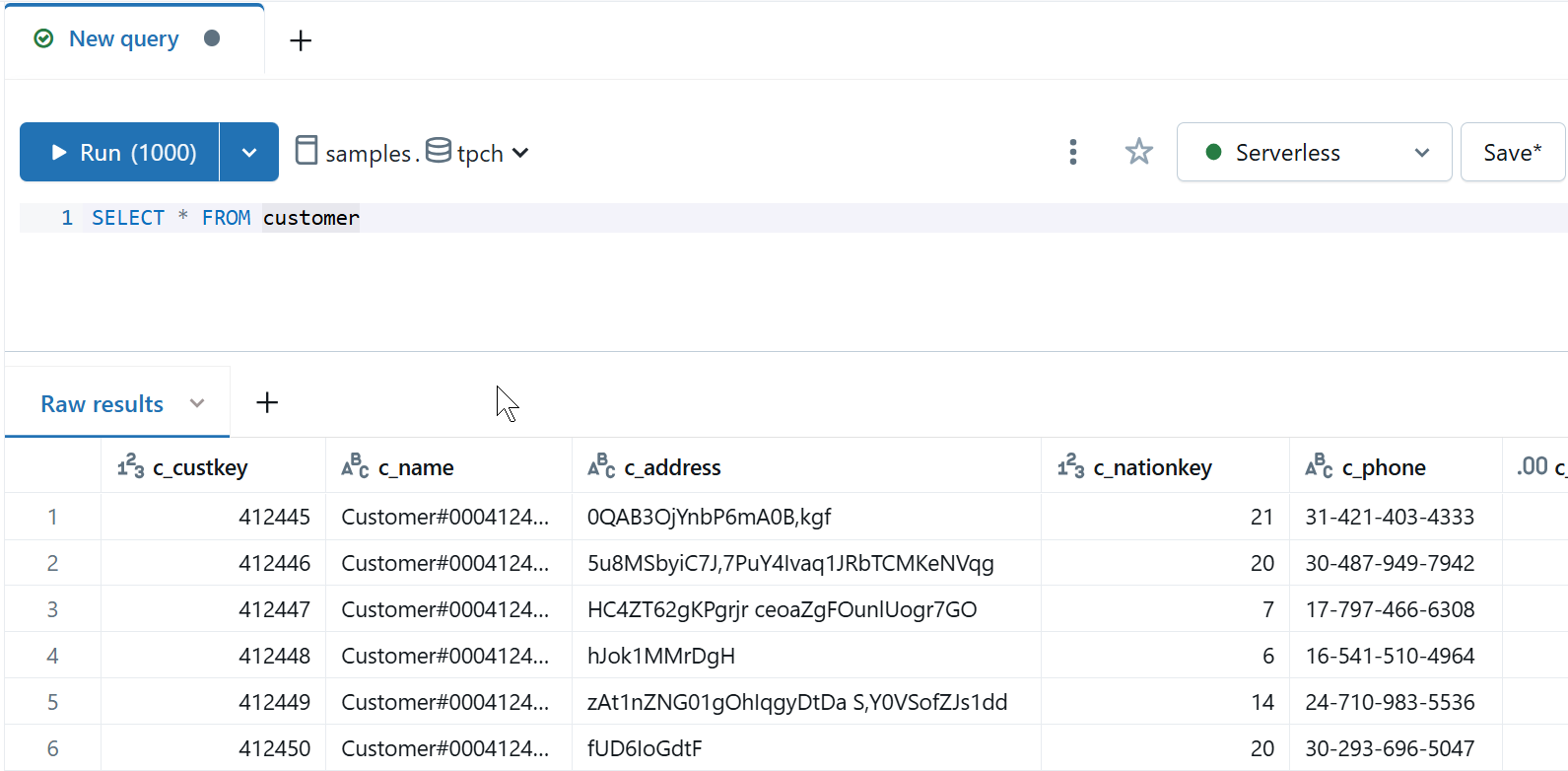
Add a second query tab and run:
Scan both tables to get familiar with the data and column names. When ready, proceed to Setting up Connections.
Snowflake
Step 1: Open the Snowflake workspace
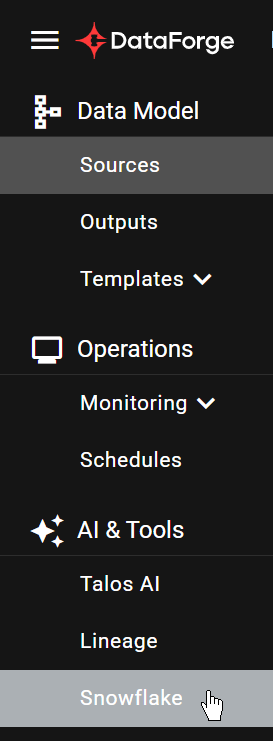
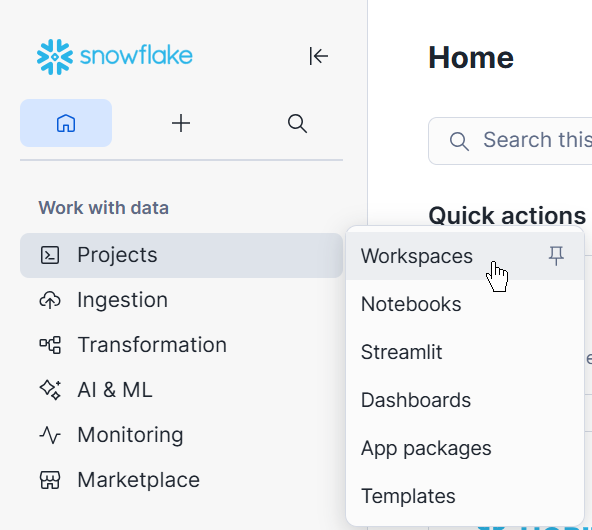
From the DataForge main menu, select Snowflake to open the Snowsight workspace, then navigate to Projects > Workspaces.
Step 2: Query the TPCH_SF1 tables
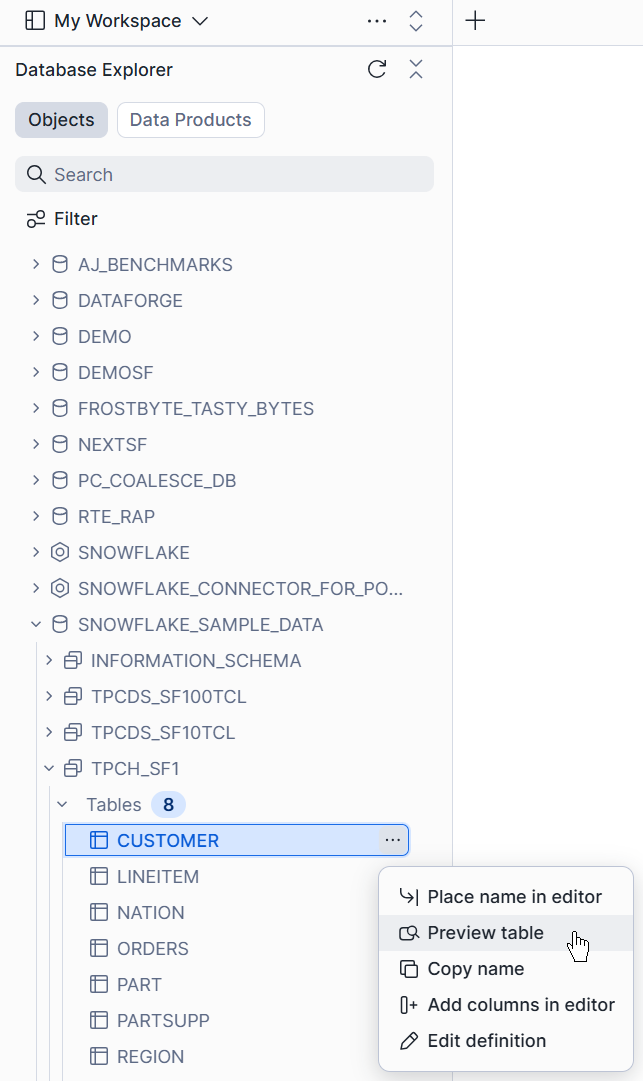
Expand SNOWFLAKE_SAMPLE_DATA > TPCH_SF1, right-click the Customer table and select Preview Table.
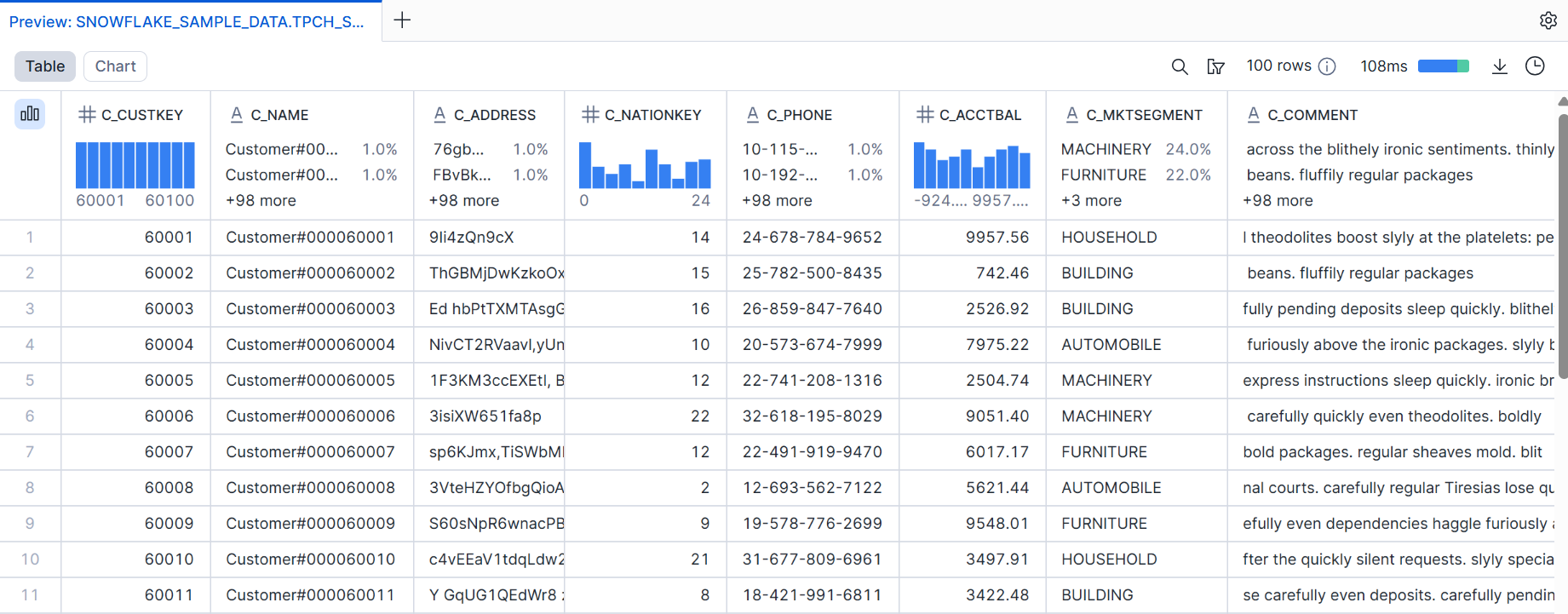
Add a new query tab and run:
Scan both tables to get familiar with the data and column names. When ready, proceed to Setting up Connections.