SQL Server Streaming
DataForge supports streaming ingestion for SQL Server tables using either SQL Server Change Data Capture (CDC) or SQL Server Change Tracking. Freshness depends on polling, source and warehouse performance, and downstream processing. Three areas require configuration before streaming sources are active: SQL Server itself, a Databricks Serverless SQL Warehouse for stream processing, and DataForge.
For an end-to-end project walkthrough, including permissions, acceptance checks, recovery, and handover, see the SQL Server to Databricks Implementation Guide.
SQL Server Configuration
Use all currently supported versions of SQL Server, subject to edition-specific CDC availability and configuration requirements. Choose the SQL Server tracking method before creating stream sources:
- Change Tracking (available since 10.3) is the default option for newly created SQL Server stream sources. It tracks changed rows by primary key and lets DataForge read the current row values from the source table.
- CDC uses SQL Server CDC change tables and log sequence numbers (LSNs). Use this option when the source database and tables are configured for CDC.
Change Tracking
Follow Microsoft instructions to enable Change Tracking: https://learn.microsoft.com/en-us/sql/relational-databases/track-changes/enable-and-disable-change-tracking-sql-server?view=sql-server-2017
For Change Tracking streams:
- Enable snapshot isolation on the source database.
- Enable Change Tracking on the source database.
- Enable Change Tracking on each source table.
- Confirm each table has a stable primary key.
- Set a Change Tracking retention period long enough for the expected maximum downtime of Outcrop, the DataForge agent that runs inside your network.
Example SQL Server setup:
ALTER DATABASE [DatabaseName] SET ALLOW_SNAPSHOT_ISOLATION ON;

ALTER DATABASE [DatabaseName]
SET CHANGE_TRACKING = ON
(CHANGE_RETENTION = 7 DAYS, AUTO_CLEANUP = ON);

ALTER TABLE [SchemaName].[TableName]
ENABLE CHANGE_TRACKING
WITH (TRACK_COLUMNS_UPDATED = OFF);
DataForge currently uses row-level Change Tracking. Column-level tracking is not required. If the Change Tracking retention window expires before Outcrop can process a saved version, DataForge automatically reinitializes the stream with a full reload.
CDC
For CDC streams, CDC must be enabled at both the database and table level before DataForge can stream from a table. Follow Microsoft instructions to enable CDC: https://learn.microsoft.com/en-us/sql/relational-databases/track-changes/enable-and-disable-change-data-capture-sql-server?view=sql-server-ver17
Databricks Configuration
Streaming ingestion requires a dedicated Databricks SQL Warehouse. We recommend starting with a serverless size 2XS instance. Set the Max Scale on the warehouse based on the number of tables you plan to stream and your target latency. A useful rule of thumb:
When you create the warehouse, add the custom tag dataforge_cluster_id=streaming. DataForge uses a non-empty dataforge_cluster_id tag to identify DataForge-managed Databricks costs in system.billing.usage; this dedicated warehouse is not associated with a DataForge Compute Configuration, so it uses the reserved value streaming.
Max serverless instance scale = MAX( {# of tables} / {target latency in seconds}, max stream threads / 8 )
If Max Scale is set too low, actual latency per replicated source can exceed your target. Monitor utilization and adjust as needed. The target is a desired polling latency, not a hard scheduling cap or a guarantee of end-to-end freshness. See Outcrop streaming strategies for how Cost, Balanced, and Latency allocate workers.
DataForge Configuration
Once your SQL Server and SQL Warehouse are ready, configure Outcrop and sources in DataForge:
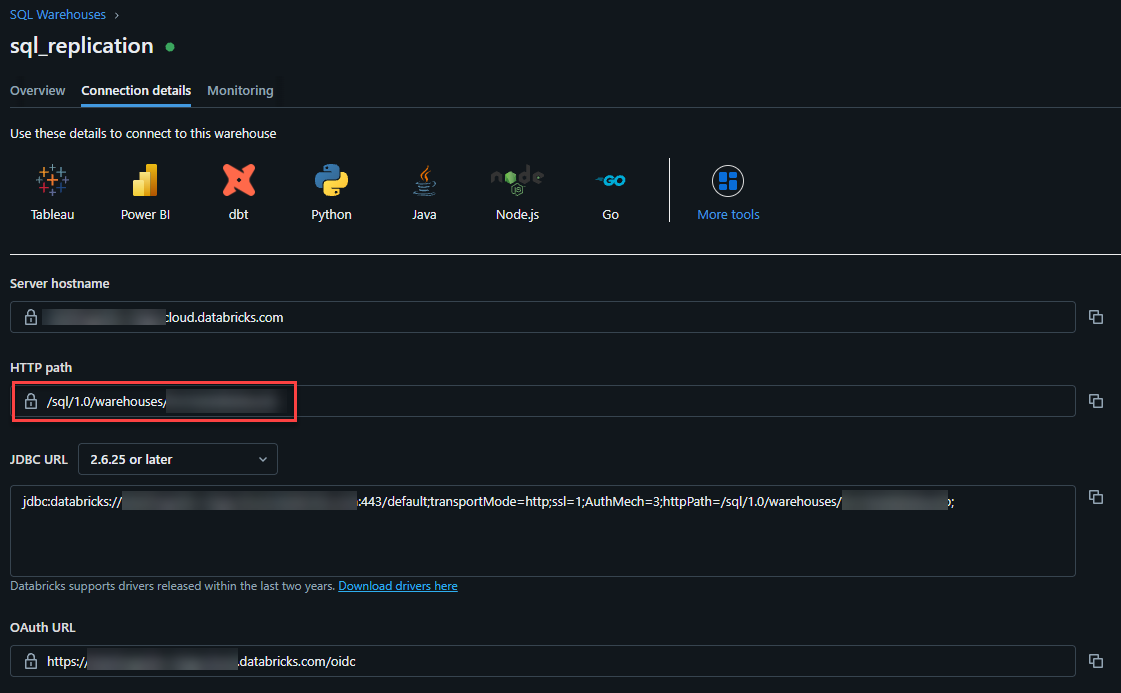
- Configure the Outcrop connection to the SQL Server database by populating the SQL Warehouse http path in the Outcrop parameters (shown as Agent parameters in the DataForge UI).
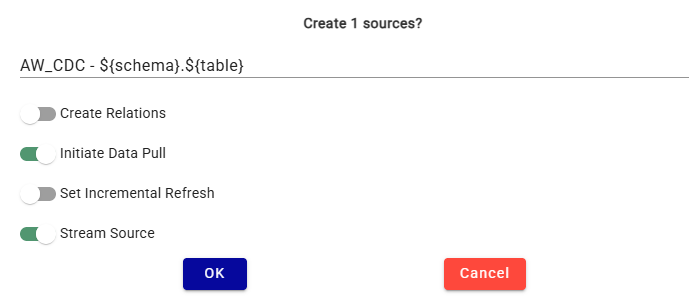
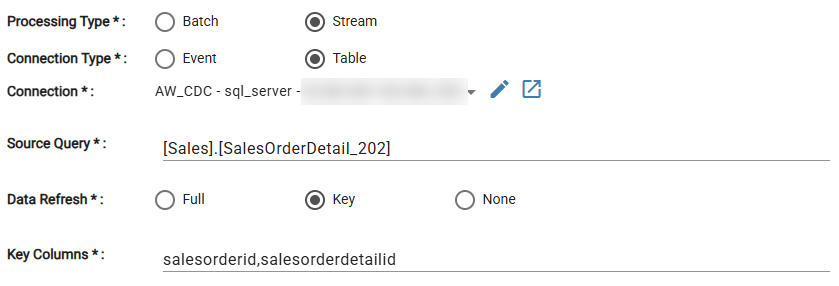
You can create stream sources two ways. The faster option is from the connection metadata tab: select your tables, click Create Sources, and choose Stream as the source type. Alternatively, create a new source manually and set Processing Type to Stream. DataForge will automatically update the refresh type and key columns based on the SQL Server table metadata. Enter the full table name in schema.table format in the source query field. Once the source is saved, click Start Stream to start streaming.
For SQL Server stream sources, set Tracking Method to one of:
change_trackingfor SQL Server Change Tracking.cdcfor SQL Server Change Data Capture.
When creating sources from the connection metadata tab, DataForge defaults SQL Server stream sources to Change Tracking. The source query must be a table name, not a SELECT statement. Use schema.table or [schema].[table] format.
Initial Load
Stream sources automatically perform a full initial load the first time the ingestion stream starts. For very large tables (10M+ rows), the initial load can take a long time. In those cases, we recommend performing the initial load in batch mode first and then switching to streaming:
- Create a batch source for the table.
- Enable the Save Stream Watermark ingestion parameter. This records the current CDC LSN or Change Tracking version so the source can switch to incremental streaming after the initial load completes.
- Run the first ingestion in batch mode.
- Change the source Processing Type to Stream.
- In the source query field, remove the SELECT ... portion, leaving only the schema and table name in [schema].[table] format.
- Save and click Start Stream.
- Check the process logs to confirm the stream started in incremental mode.
For Change Tracking, the saved watermark is captured before the batch load starts. Rows changed during the batch load may be seen again by the first incremental stream interval, but the keyed merge process handles those duplicate rows.
Schema Changes and Recovery
Source schema changes require a stream restart. After restart, DataForge automatically alters the destination schema and performs the required recovery or full reload. For CDC, a DBA must update the capture configuration to include newly added columns before restarting; existing capture instances do not automatically capture them. Review key changes and downstream dependencies, and reconcile data after recovery. See the schema and retention procedures.
Rules and Enrichments
SQL Server stream sources do not support rules, relations, or validations. Outcrop applies the initial load and ongoing changes directly to the source's hub table, so streamed data lands as replicated from the source, without enrichment.
To apply DataForge logic to streamed SQL Server data, use a loopback:
- Add a virtual output to the SQL Server stream source.
- Create a second source with a Loopback connection reading that virtual output.
- Configure rules, relations, and validations on the loopback source.
The loopback source runs as a batch source, so it supports the full set of enrichment features.
Monitoring
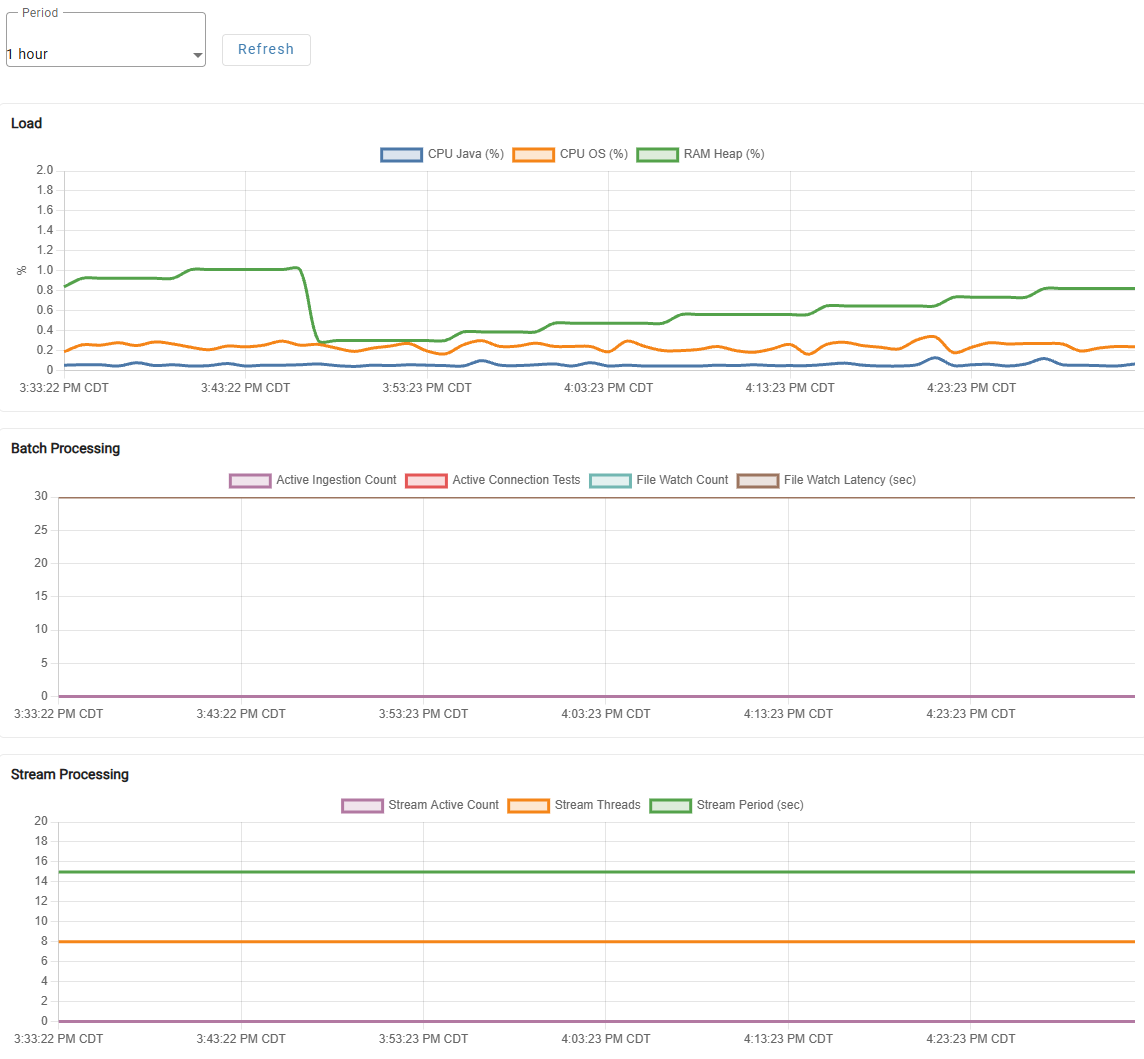
Open the Outcrop page (shown as Agent in the DataForge UI) and navigate to the Monitoring tab to observe CPU, RAM, and streaming metrics. The streaming chart separates stream and worker counts from seconds, shows the current saved target, and highlights above-target polling periods in red. That target line applies to the entire displayed range, even if the target was different when older metrics were recorded. See Monitoring Streaming for how to interpret the chart.
If polling periods remain above target, check Outcrop utilization, source query runtimes, configured streaming worker bounds, batch activity, and SQL Warehouse queuing and Max Scale. All strategies can exceed the target under insufficient capacity. Use destination data and source progress to assess end-to-end freshness; the scheduled period alone does not measure it. Any change to the Outcrop parameters requires you to restart Outcrop before the changes are in effect.