Performing a Basic Clone
Overview
The prior sections set up a Company 1 Group, a Source Name Template for SalesOrderDetail, and applied both to "Company 1 - SalesOrderDetail". This page clones that setup to create "Basic Clone - SalesOrderDetail" in a new "Basic Clone" Group.
The Setup
Below is the Company 1 - SalesOrderDetail Source. It is the only Source in its Group.
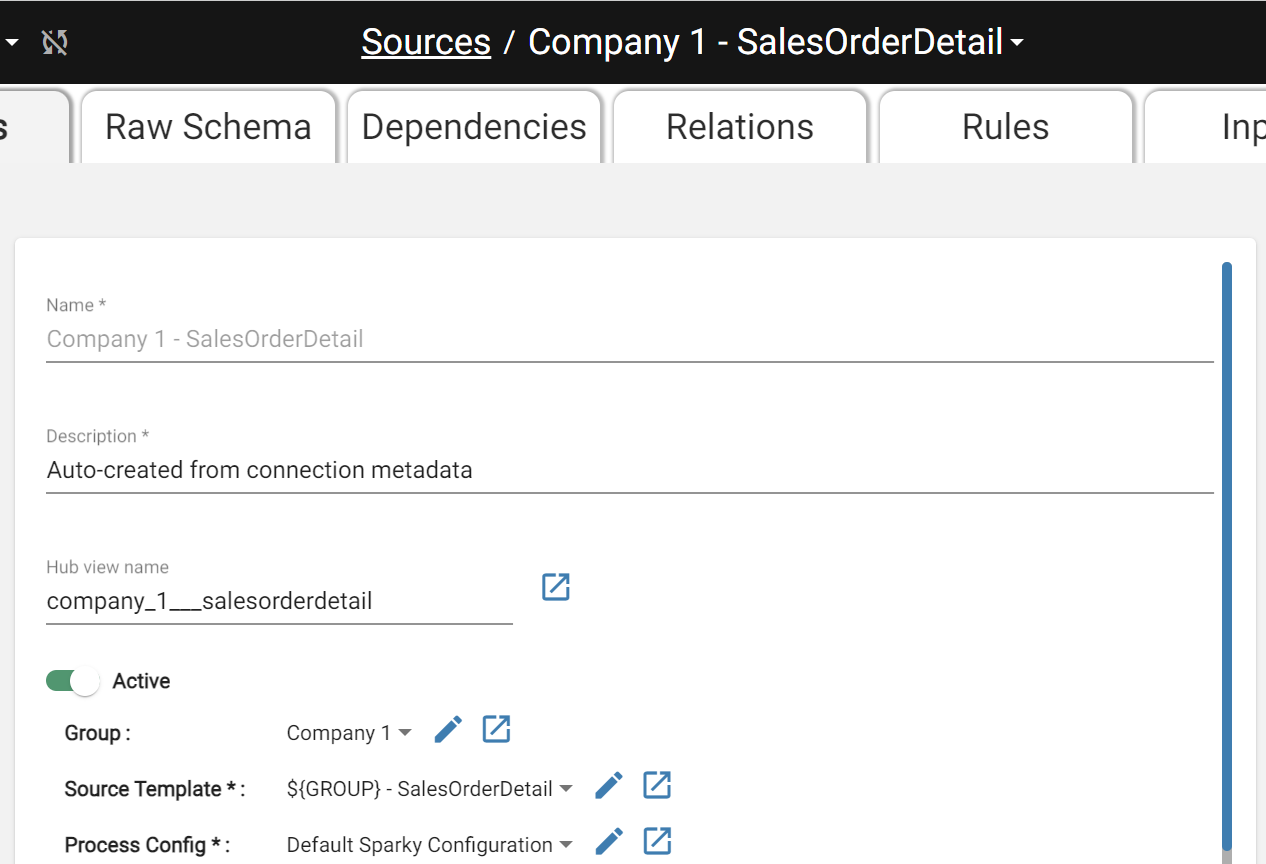 All alone
Navigating to the Applied Objects tab in the Groups page for Company 1, the user can see that there is only one assoicated object.
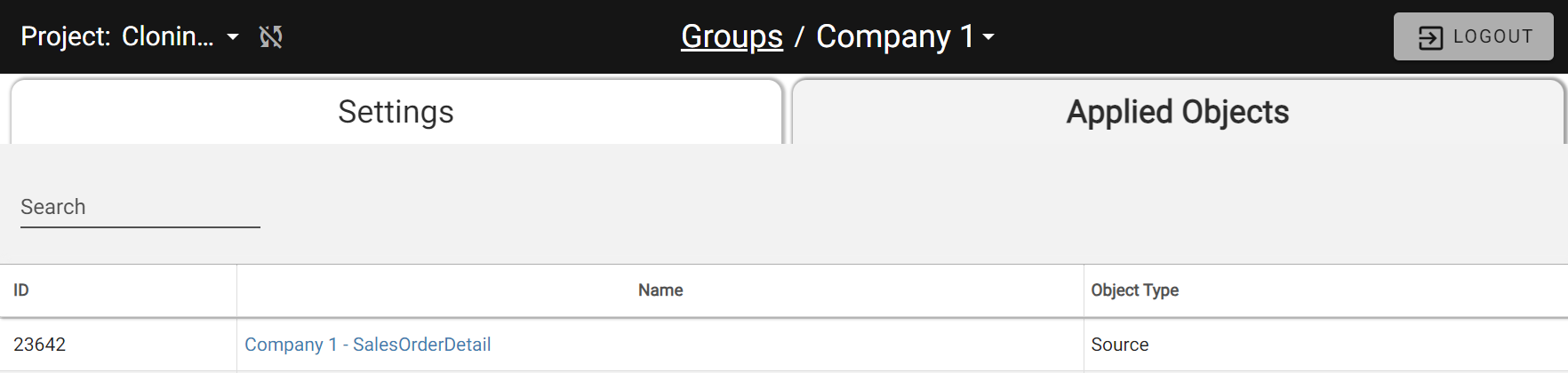 Only 1 Associated Source
Performing the Clone
Note: Cloning a group happens within a specific project. A group name can exist in multiple projects so be sure to check the right project is selected before cloning.
Navigate to the Groups page, locate "Company 1", and click the triple-dot menu → Clone.
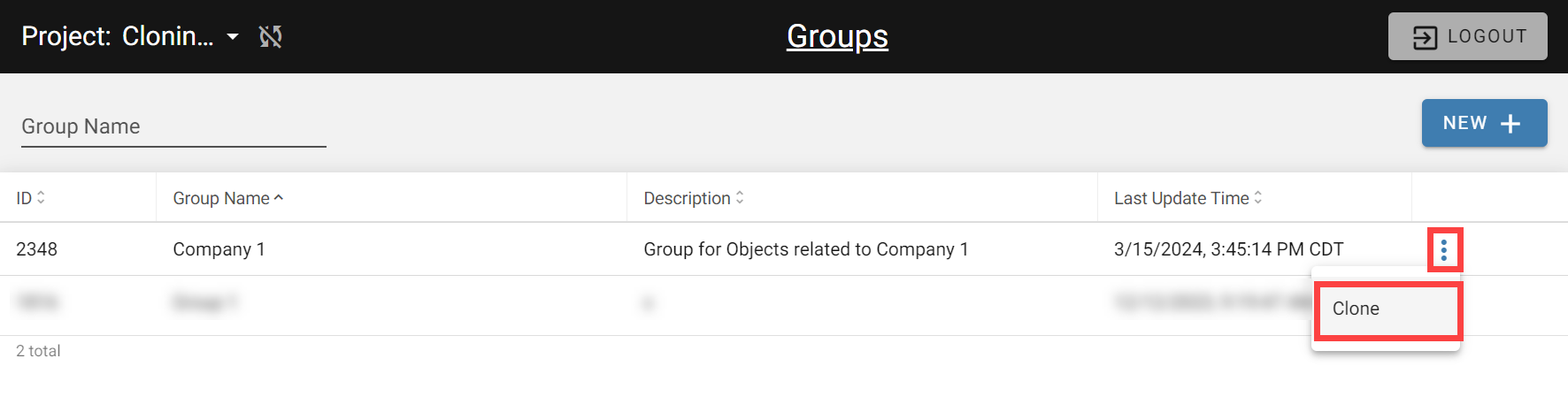
Fill in the following fields:
- Group Name: Name of the new group to be created during the clone process
- Description: Open text description of what the new group entails
- Tokens: Only required when tokens are used in the group being cloned.
Name the new group "Basic Clone".
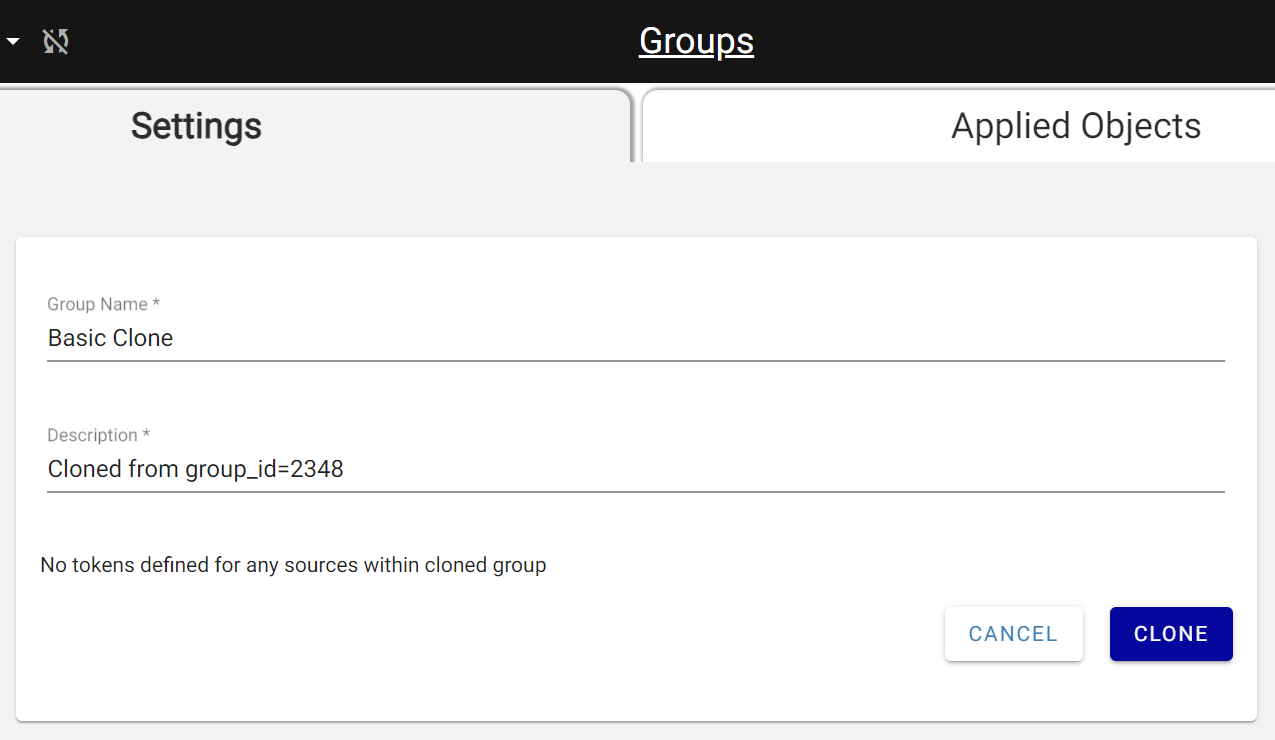
New Group Clone Page
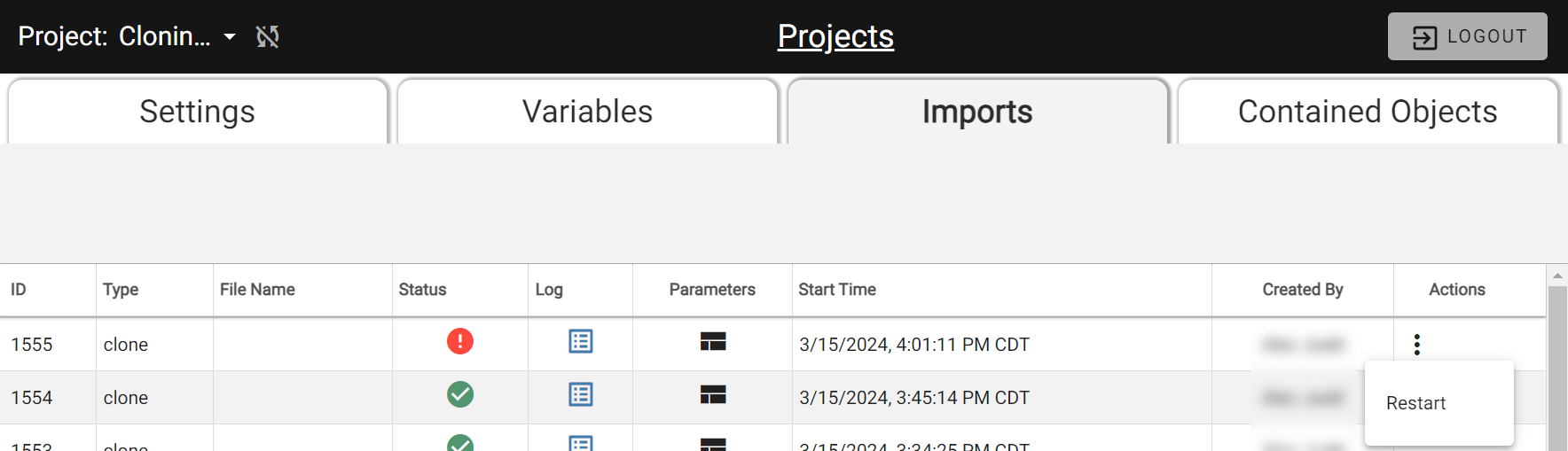
Clicking Clone duplicates all objects in the Group and attaches the new Group name. The process runs as a project import — the status icon shows in-progress, then succeeded (green check) or failed (red exclamation).
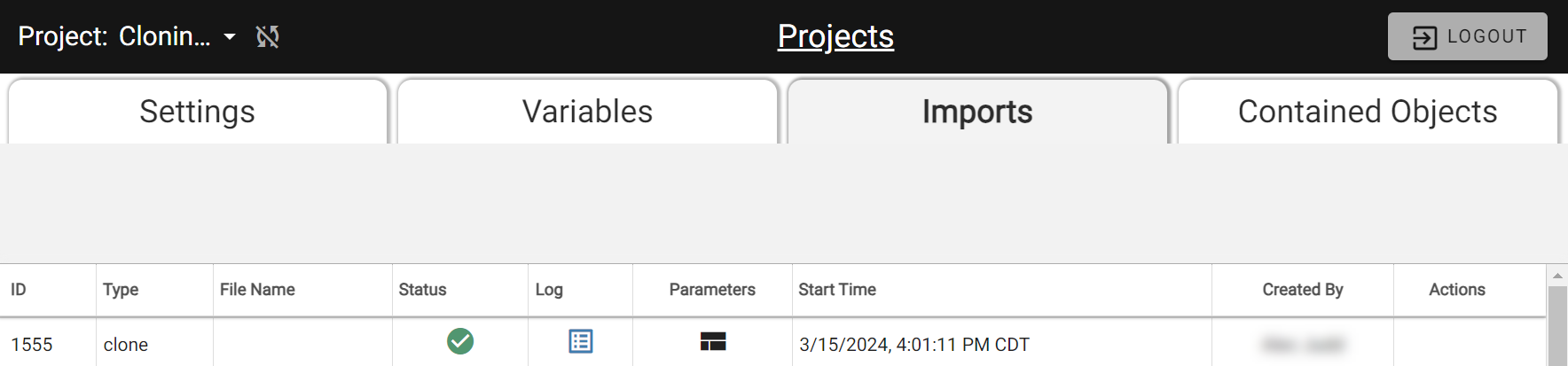
On failure, click the Logs icon to review the error. After fixing it, restart via the triple-dot menu on the import record → Restart.
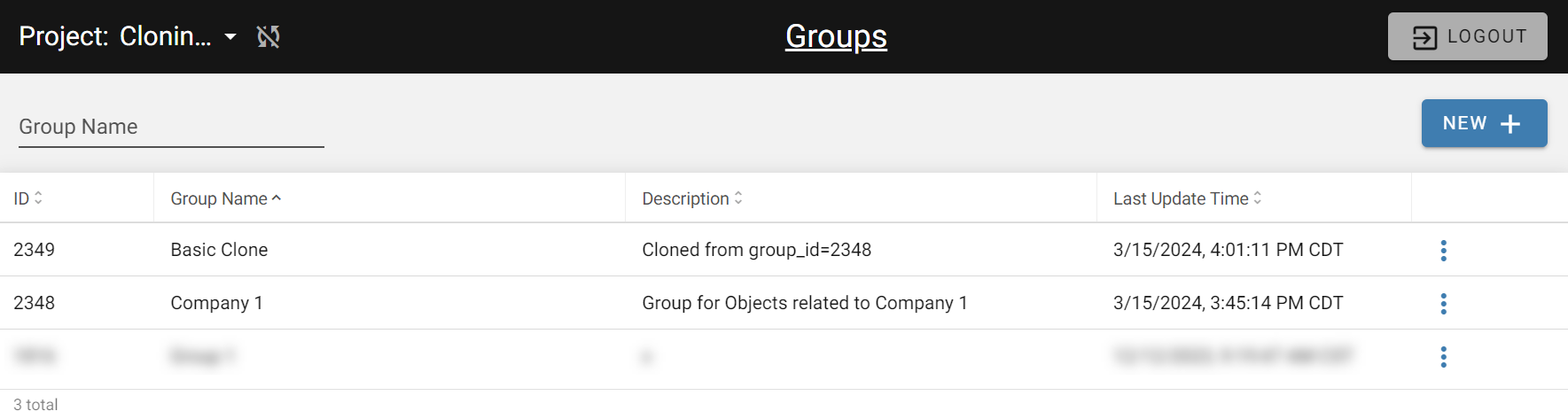
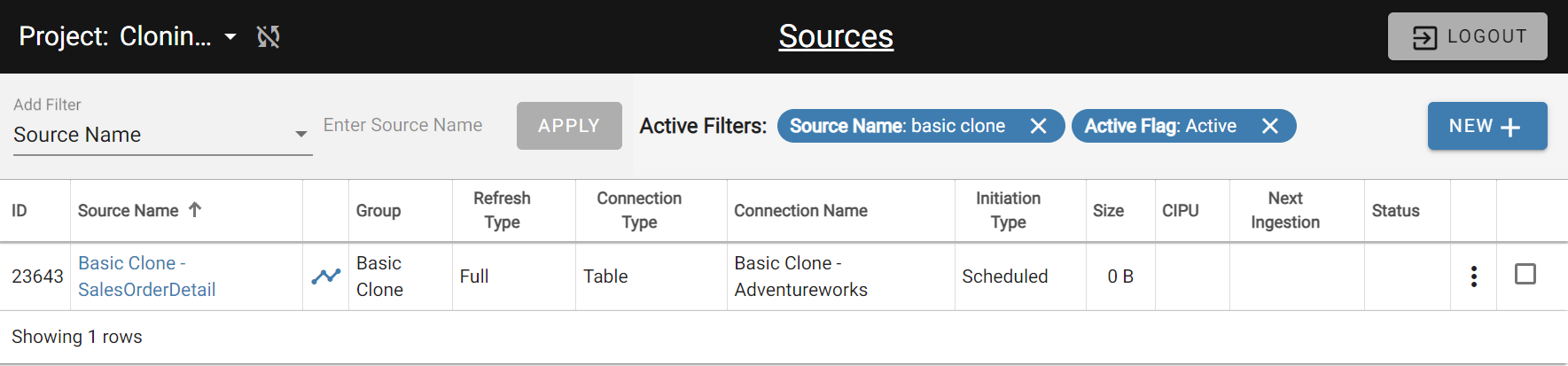
After a successful import, the new Group appears on the Groups page and the cloned Source appears in the Sources list with identical settings.
What's Next
The next sections cover how Relations and Rules work in cloning to create new Relations and Source-specific Rules.