Creating Outputs

Outputs publish refined data from source hub tables to external systems. In this step you'll create a table output, map the Customer source to it, and run the output process.
Step 1: Verify output connection
An output connection is required. If you didn't create one during Setting up Connections, do so now.
Step 2: Create the output
Navigate to Outputs and click New +.

Configure:
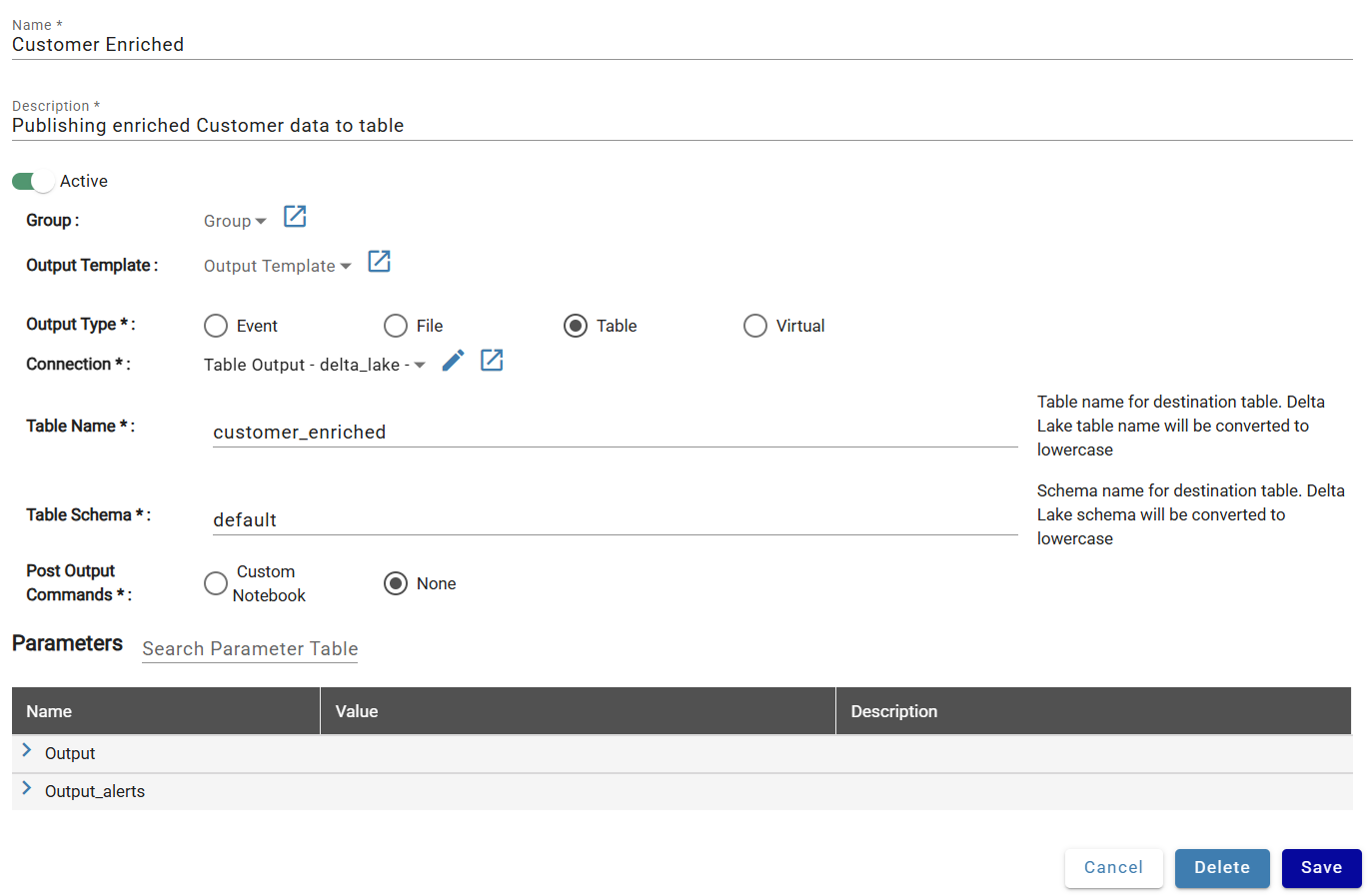
- Name: Customer Enriched
- Description: Publishing enriched Customer data to table
- Active: On
- Output Type: Table
| Output Type | Description |
|---|---|
| Event | Output to event-based destinations like Kafka Topics |
| File | Output to CSV, Parquet, Avro, JSON, or Text files |
| Table | Output to a managed database table |
| Virtual | Create a database view for external polling |
Platform-specific settings:
Databricks
- Connection: Table Output
- Table Name: customer_enriched
- Table Schema: default
Snowflake
- Connection: Table Output
- Table Name: CUSTOMER_ENRICHED
- Table Schema: PUBLIC
The schema must already exist in the catalog/database defined in the output connection.
Click Save.
Step 3: Add a source mapping
Click + Add Source Mapping.

Configure:
- Source: Customer
- Filter Expression:
[This].total_orders_price > 0 - Include Rows: Passed (excludes records that failed or warned on validation rules)
- Name: customer
- Description: only output Automobile market segment customers with total order price greater than 0
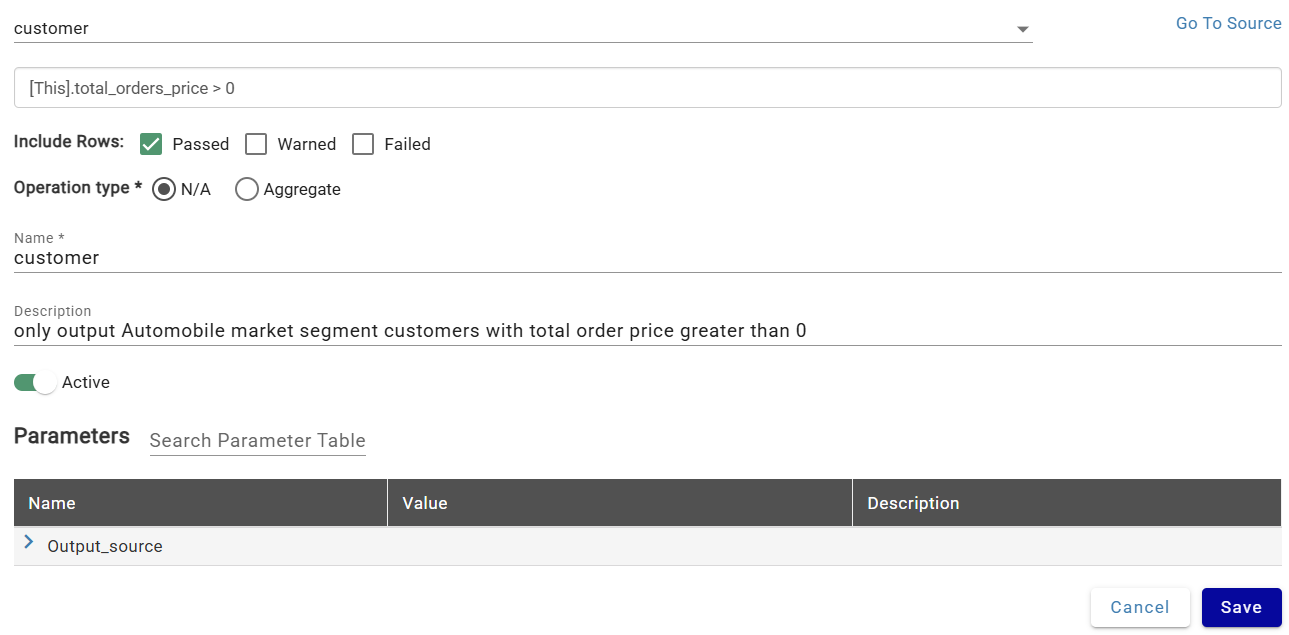
This combination outputs only customers in the Automobile market segment (passed validation) with a positive total order price (filter expression).
Click Save.
Step 4: Map columns
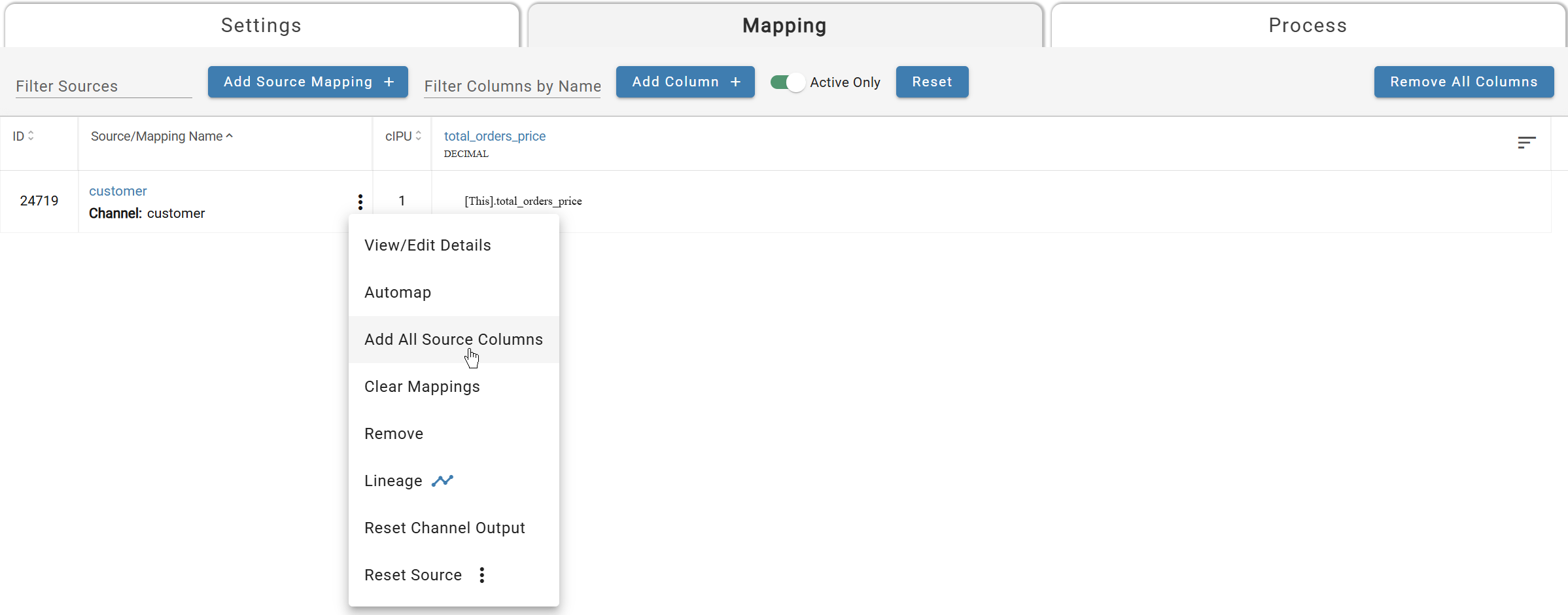
Add one column manually to see the process: click +Add Column, name it total_orders_price, save, then click the cell in the source mapping row to map [This].total_orders_price.
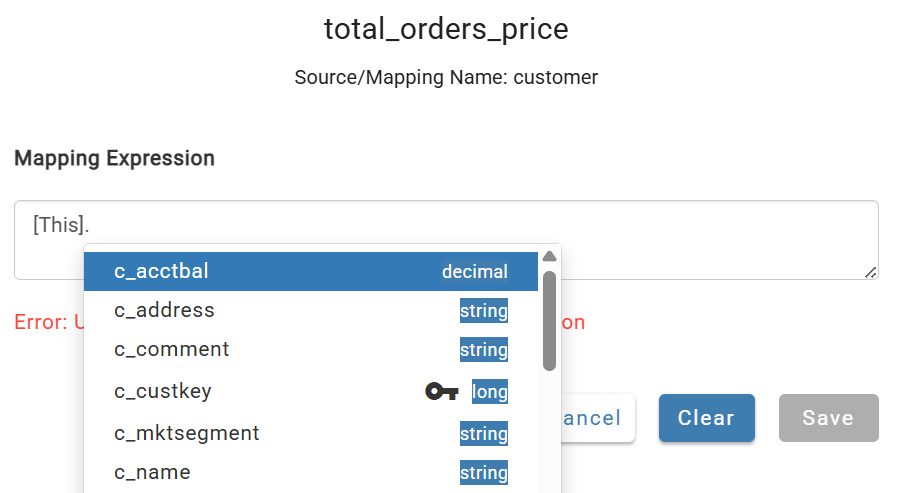
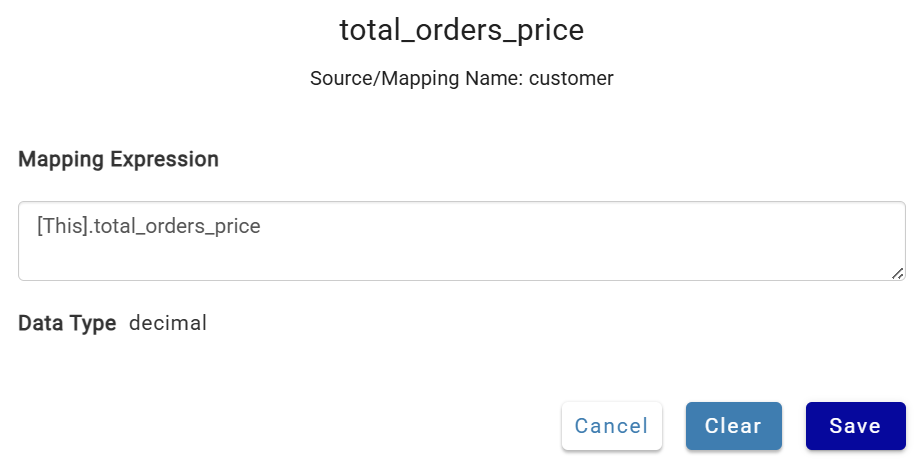
For the remaining columns, use the triple-dot menu on the channel and select Add All Source Columns to bulk-add and automap.

Step 5: Run the output
Navigate back to the Customer source Inputs tab. Open the triple-dot header menu and select Reset Output > All Channels.
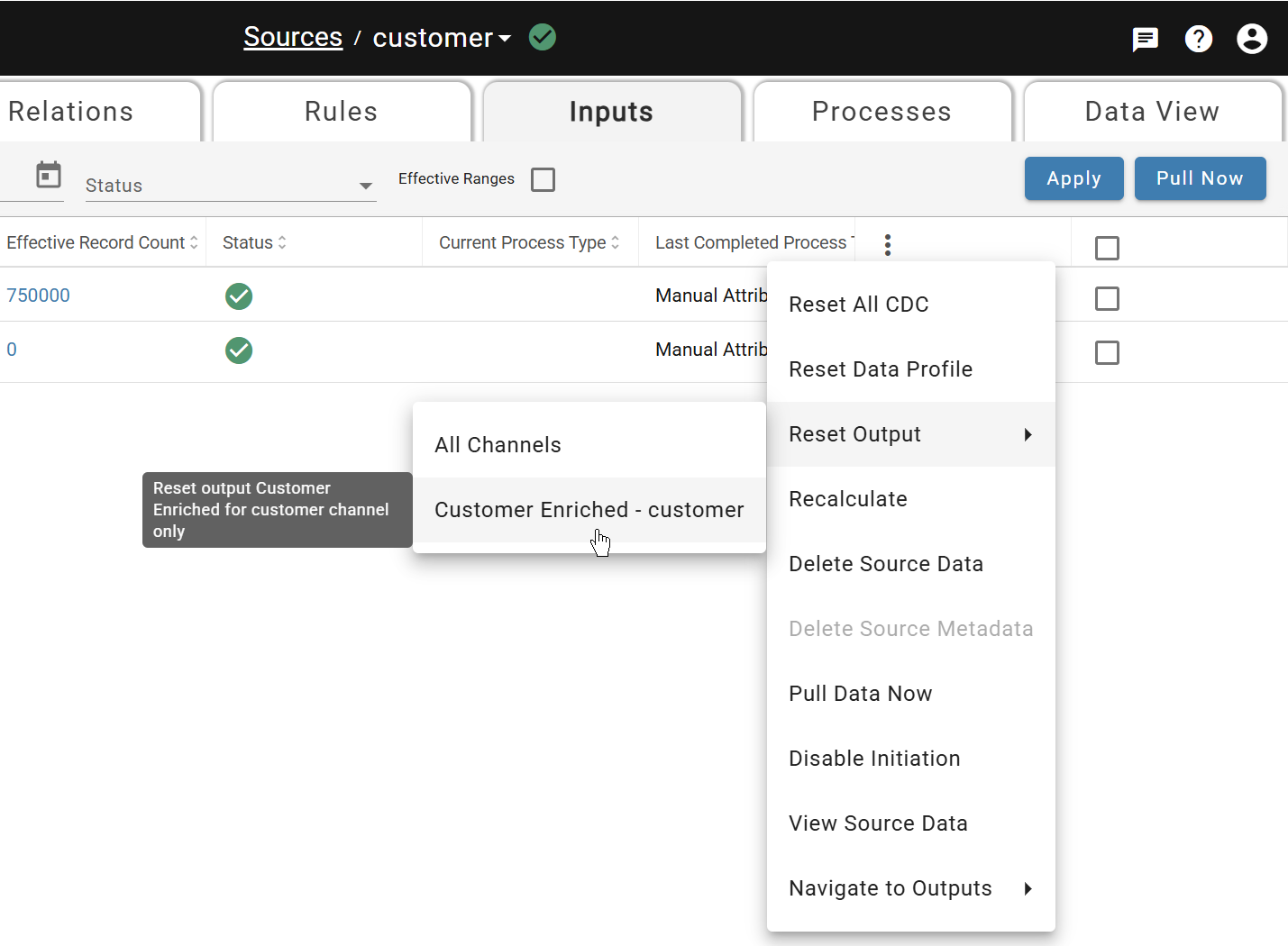
Wait for the green checkmark. For all future inputs, output runs automatically — reprocessing is only needed when rules or output configurations change.
Step 6: Verify the output data
Open your Databricks or Snowflake workspace and query the output table in the database and schema you defined. The table should contain only records where c_mktsegment = 'AUTOMOBILE' and total_orders_price > 0.
That completes the Data Integration Example. You've built an end-to-end pipeline — ingesting raw data, enriching it with relations and rules, and publishing the results to an output table. Every future input will flow through these configurations automatically.
When you're ready to go deeper, head to Build for the full feature reference.